Who is this article for?
Yes, you can collect your client's credit card information and enter it yourself, for example when the client gives you their card in person. The card is then saved in their client record, ready to be charged.
This article explains where to enter the card, what you see afterwards and how to manage the saved cards.
Before you start: the online payment system must be activated (see How do I activate the online payment system on Colib?), and you need the right to edit the financial information of clients (see What are the different levels of rights/options for the members of my practice?). Only enter a card that the client has given you for this purpose.
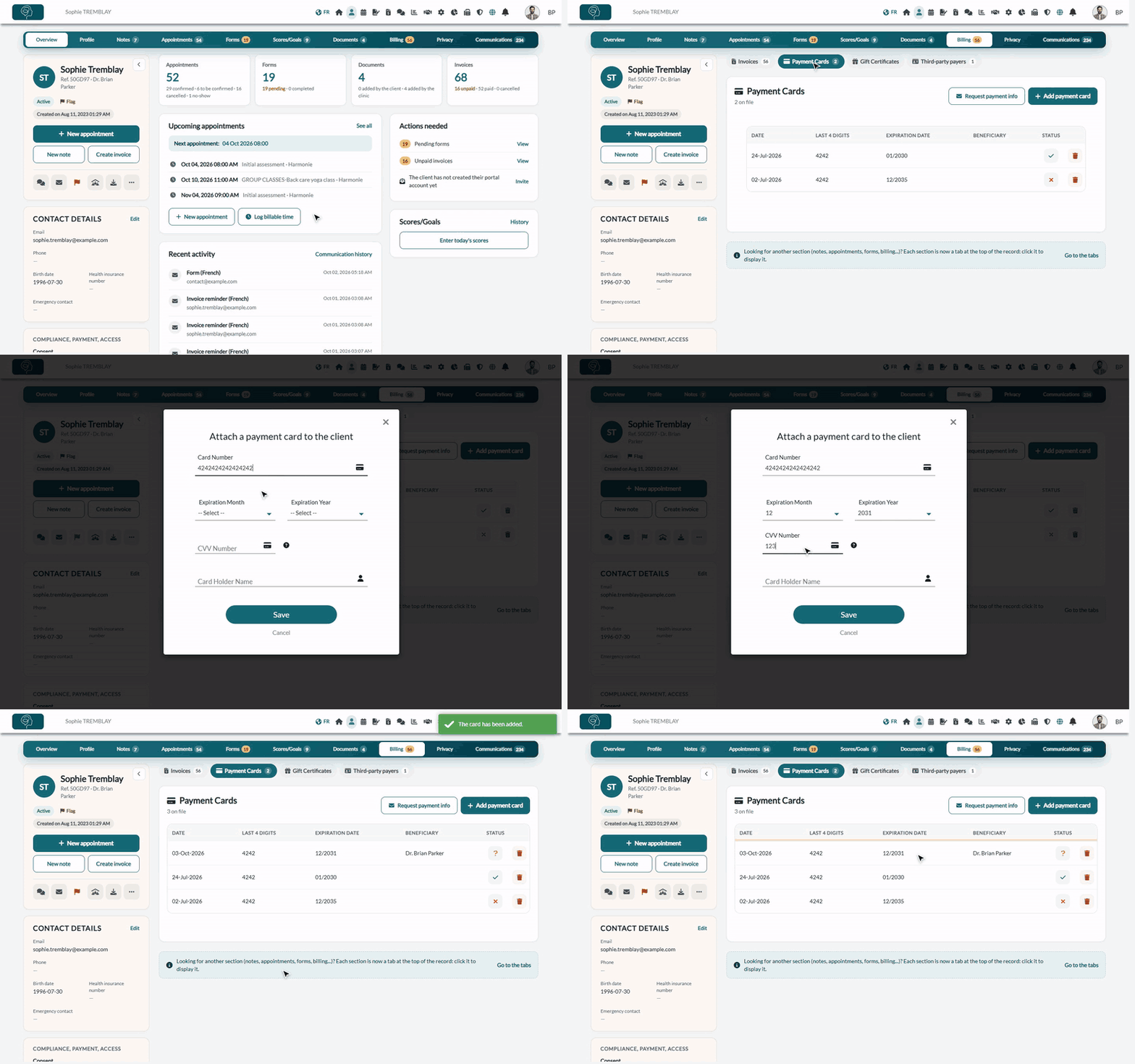
1Open the client's payment cards
- Open the client's record from your client list (www.colib.io/clients).
- Click the Billing tab at the top of the record.
- Click Payment Cards. The cards already saved are listed there.
- Click Add payment card.
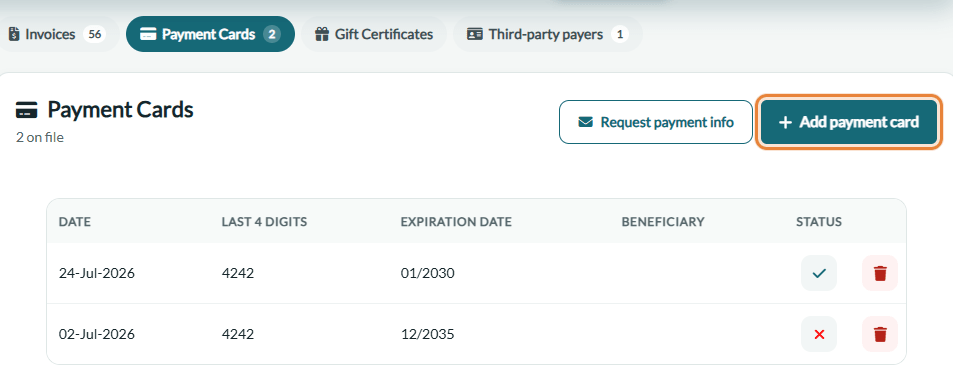
2Enter the card
The Attach a payment card to the client window opens.
- Enter the Card Number.
- Choose the Expiration Month and the Expiration Year.
- Enter the CVV Number: the 3 or 4 digits printed on the back of the card (the ? icon gives a reminder).
- Enter the Card Holder Name.
- Click Save.
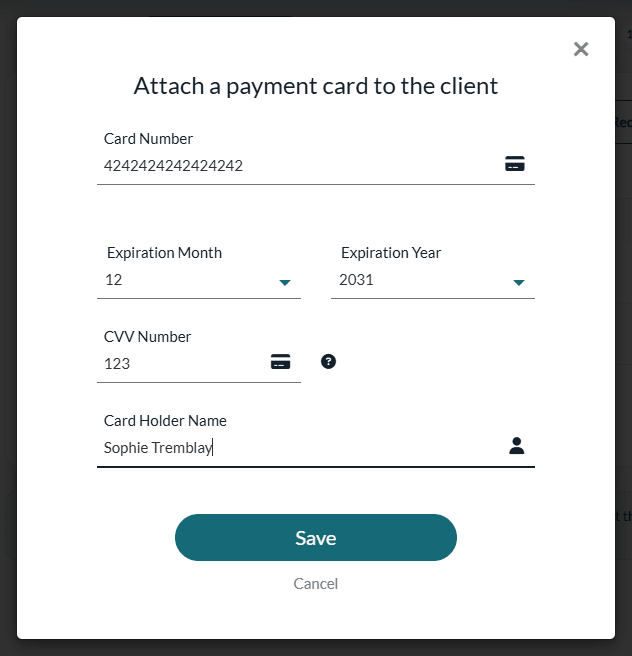
The card is checked by our payment provider when you save. If it is refused, the reason is displayed under the card number and nothing is saved: check the information and try again.
3Check the saved card
The message The card has been added. confirms the operation and the card appears in the list with:
- the Date it was added, its Last 4 digits and its Expiration Date;
- the Beneficiary: the practitioner assigned to the client when the card was added (for information only: the card can pay any invoice, and the money goes according to the practitioner on the invoice);
- its Status: a question mark (Never used), a check mark (Last payment with this card was successful) or a cross (Last payment with this card was not successful).
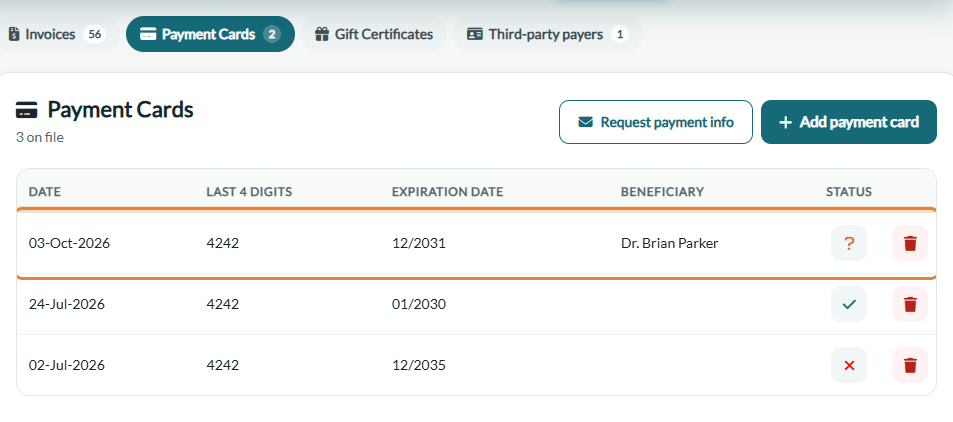
For security reasons, the full card number is never displayed in Colib: only the last 4 digits.
Good to know
- Delete a card — click the trash icon on its row and confirm. This cannot be undone.
- Charge the card — see How to charge a client's saved credit card and How to charge no-shows and late cancellation appointments.
- Let the client enter it — the Request payment info button sends the client an email with a secure link. See How to request a client to enter their payment information. You can also collect their card at booking: see How do I collect my client's credit card information during the booking process?
- No card on file — when a client has no active card, the client panel shows No card on file.
- You do not see the Payment Cards section? — online payments are not activated, you do not have access to the clients' financial information, or online payments are disabled for the client's clinic (practices with several clinics).
- All the ways to collect a card — please see the article titled "What are the ways to collect a client's credit card?".
Still have a question?
Write to us at support@colib.io, we will be happy to help.
Was this article helpful?
That’s Great!
Thank you for your feedback
Sorry! We couldn't be helpful
Thank you for your feedback
Feedback sent
We appreciate your effort and will try to fix the article