Who is this article for?
Colib uses the same text editor everywhere you write formatted text: client notes and note templates, the messages of your appointment types, the email footer and welcome email, the texts of your booking page, your public page, your invoices, your waitlist, your recalls and your forms. This article explains how to add a clickable link in any of these texts: a link to an exercise program, to your website, to a resource you recommend to your clients...
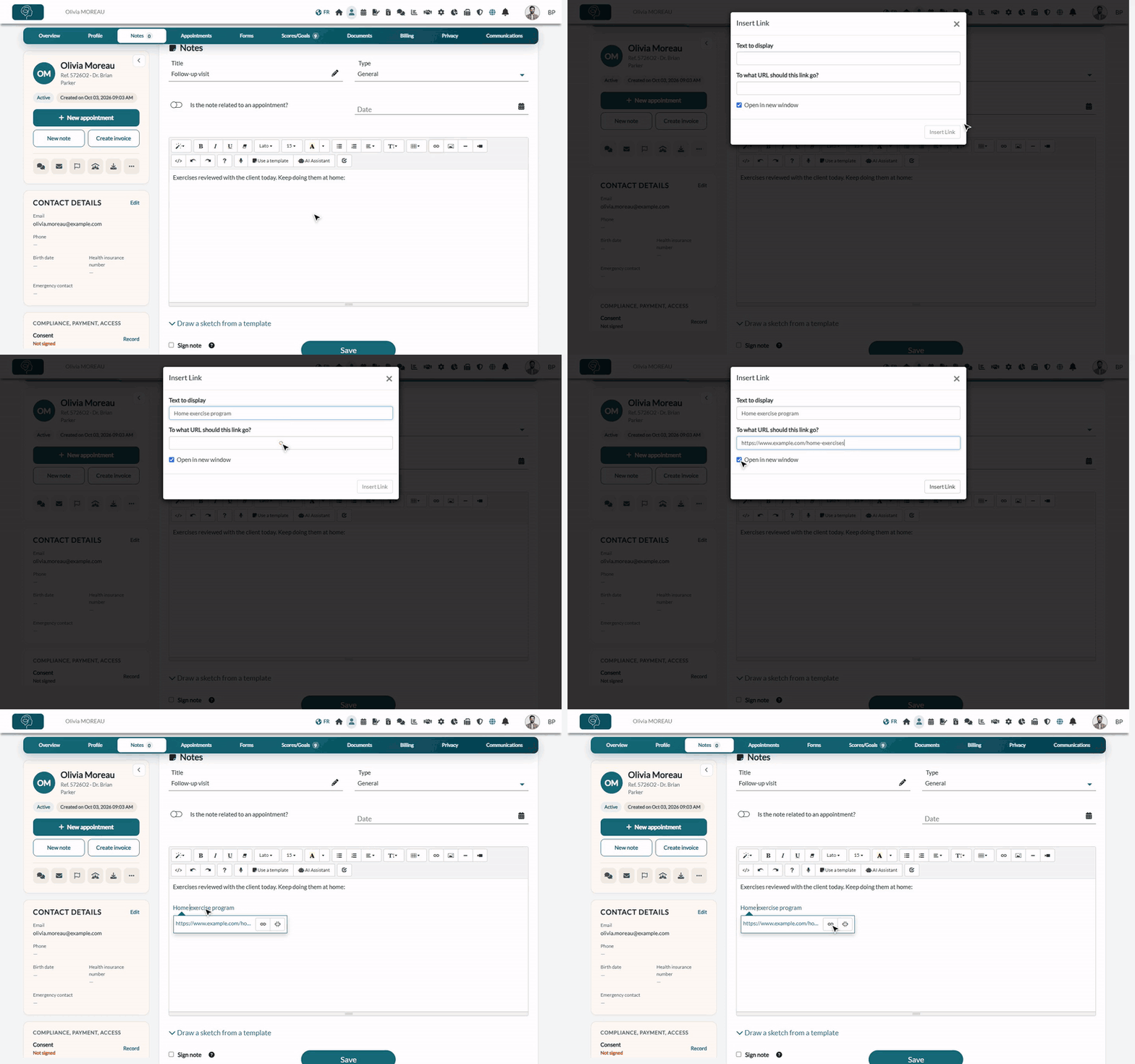
1Go to the text editor
- Open the text you want to edit. For example, for a note: open the client's record from your client list (www.colib.io/clients) and click the Notes tab.
- Click in the text where you want to add the link to place your cursor there. To turn words you have already typed into a link, select them instead.
2Click the link icon
In the toolbar of the editor, click the Link icon (a chain link), just before the picture icon. Keyboard shortcut: Ctrl + K.
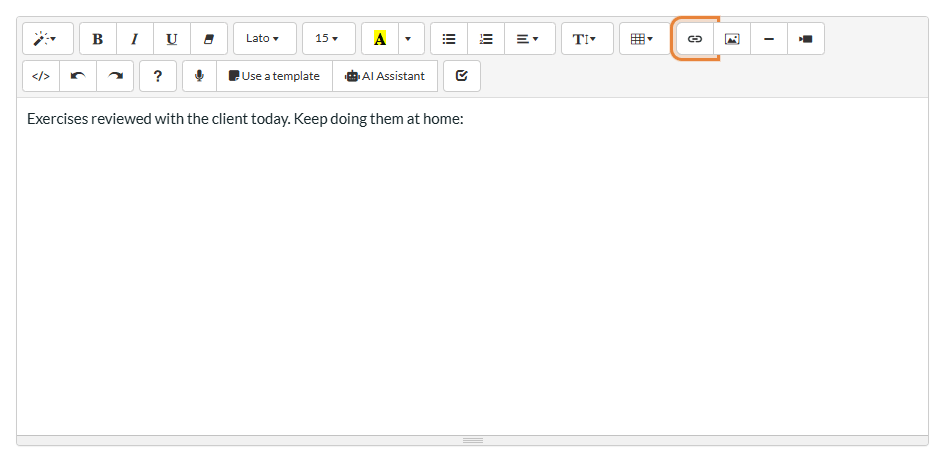
3Fill in the Insert Link window
The Insert Link window opens. Complete it, then click the Insert Link button.
- Text to display — the words your readers click on (for example, Home exercise program). If you selected words in step 1, they are already there.
- To what URL should this link go? — the full address of the page, starting with https:// (copy it from the address bar of your browser).
- Open in new window — checked by default: the page opens in a new tab, so your reader does not leave the email, the note or the page they were reading.
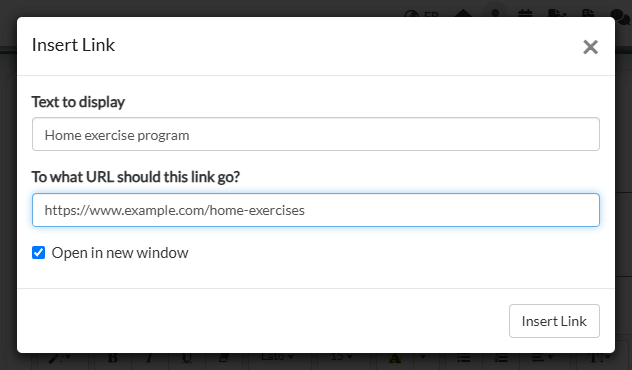
The link appears in the text in color. The Insert Link button stays greyed out until both the text to display and the address are filled in.
4Check, modify or remove the link (optional)
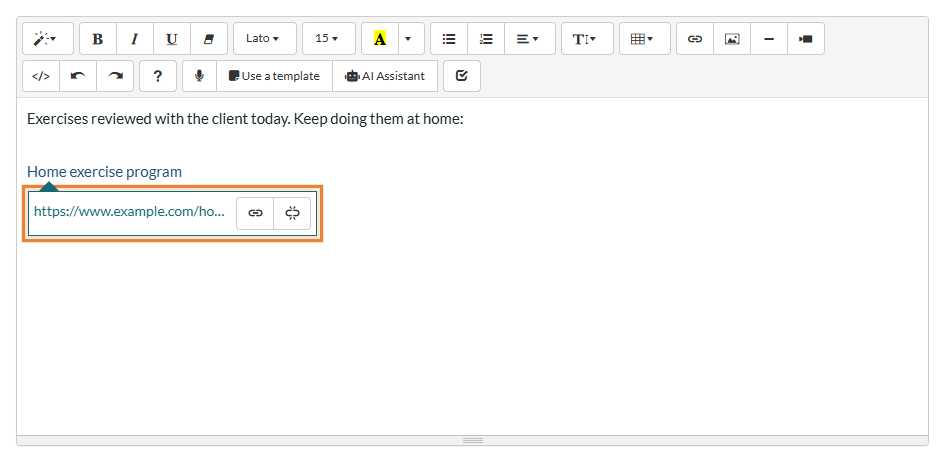
Click the link in the text: a small bubble shows its address. From there:
- click the address to open the page and check it;
- click Edit (chain icon) to change the text or the address;
- click Unlink (broken chain icon) to remove the link and keep the text.
5Save
The link is only kept once you save the text: click the Save button of the page or window you are in (for example, the Save button under the note).
Good to know
- Links in emails — links added to an email message (appointment messages, email footer, welcome email, recalls...) are clickable in the email your clients receive.
- Test your links — after saving, click the link once to make sure it opens the right page. A typo in the address leads your readers to an error page.
- Window in English — the Insert Link window and the tooltips of the editor are displayed in English, whatever the language of your account.
- Other insertions — see How to add an image in the Colib text editor and How to add a video in the Colib text editor
Still have a question?
Write to us at support@colib.io, we will be happy to help.
Was this article helpful?
That’s Great!
Thank you for your feedback
Sorry! We couldn't be helpful
Thank you for your feedback
Feedback sent
We appreciate your effort and will try to fix the article