Who is this article for?
Colib uses the same text editor everywhere you write formatted text: client notes and note templates, the messages of your appointment types, the email footer and welcome email, the texts of your booking page, your public page, your invoices, your waitlist, your recalls and your forms. This article explains how to add an online video in any of these texts, for example an exercise demonstration in a note or a presentation video on your public page.
Before you start: the video must already be online. Copy its address (for example, from the Share button of YouTube). The video itself is not stored in Colib: it is played from the website that hosts it.
1Go to the text editor
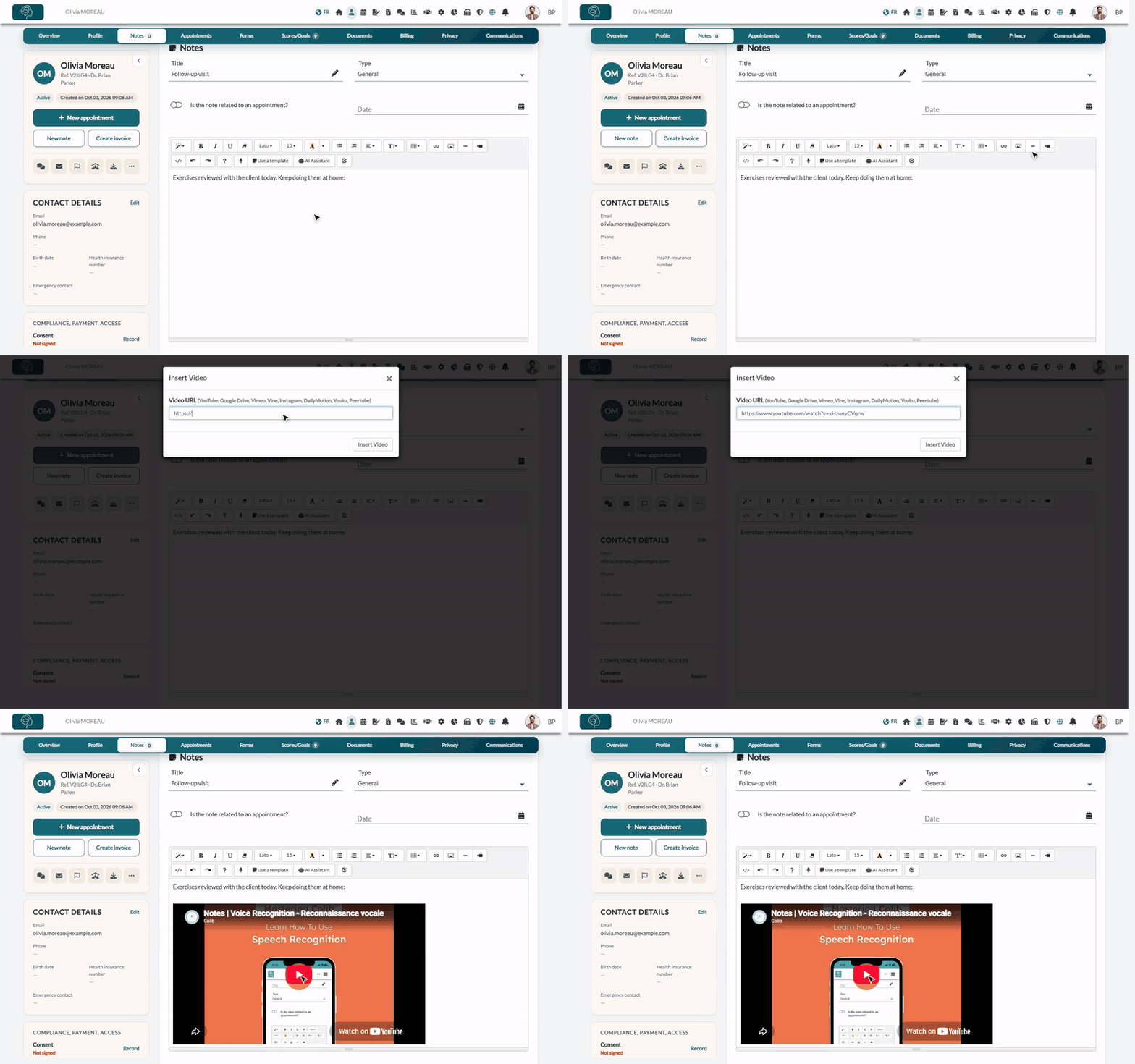
- Open the text you want to edit. For example, for a note: open the client's record from your client list (www.colib.io/clients) and click the Notes tab.
- Click in the text where you want to add the video to place your cursor there.
2Click the video icon
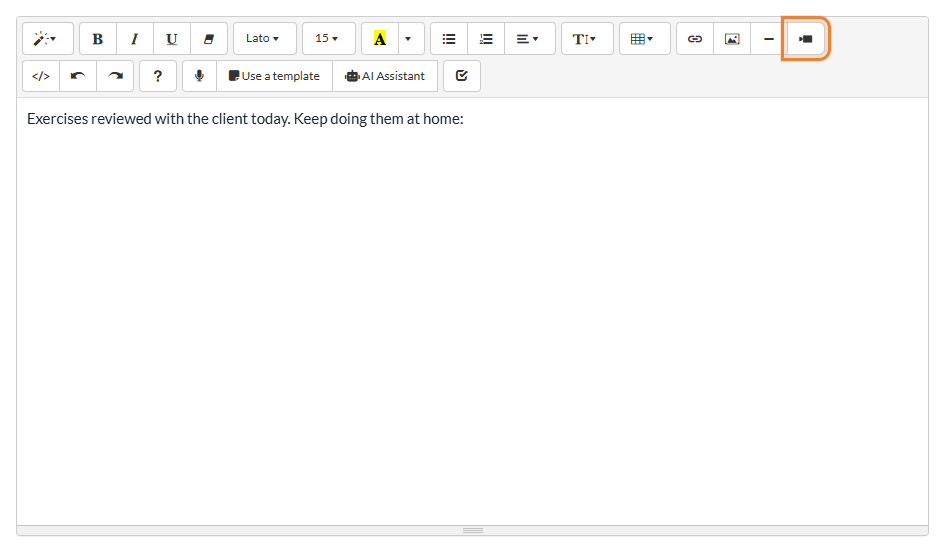
In the toolbar of the editor, click the Video icon (a small camera), at the end of the first row of icons.
3Paste the address of the video
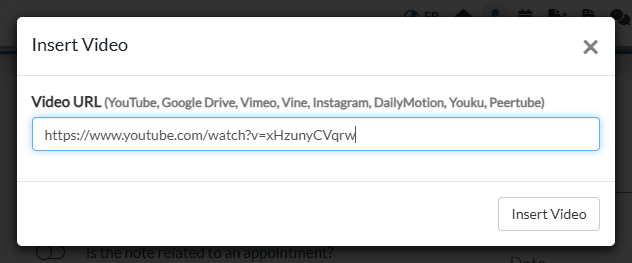
- In the Insert Video window, paste the address of the video in Video URL. A YouTube address can be the long one (https://www.youtube.com/watch?v=...) or the short one (https://youtu.be/...).
- Click Insert Video.
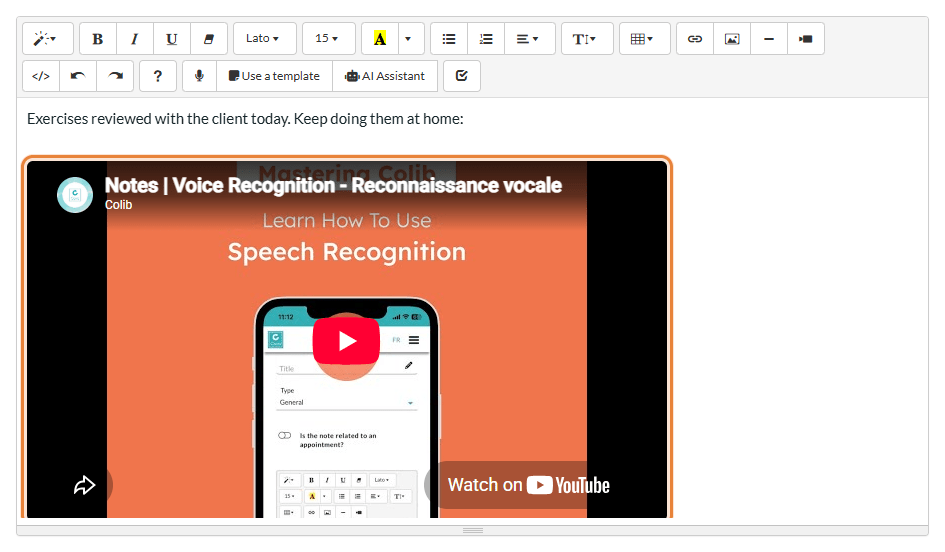
The video player appears in the text, where your cursor was.
4Save
The video is only kept once you save the text: click the Save button of the page or window you are in (for example, the Save button under the note).
Which videos can you add?
The Insert Video window lists several websites (YouTube, Google Drive, Vimeo, Vine, Instagram, DailyMotion, Youku, Peertube), but not all of them are kept by Colib:
- YouTube — recommended: YouTube videos are kept and displayed in Colib.
- Vimeo, Dailymotion, Instagram — kept when you save, but they may not be displayed on every Colib page. Check the result after saving; if the video does not show, use a YouTube link or a regular link instead.
- Google Drive, Vine, Youku, Peertube and other websites — removed when you save. To share such a video, add a link to it instead (see How to add a link in the Colib text editor).
Important: a video file from your computer (MP4, MOV...) cannot be inserted in the text. Put it online first (for example, on YouTube as an unlisted video), then paste its address. To give a video file to a client, you can also add it as a document in their record (see How to share a document with a client).
Good to know
- Videos in emails — email programs cannot play a video inside an email. When a text containing a video is sent by email (appointment messages, email footer, welcome email, recalls...), Colib replaces the video by a link that opens it.
- Videos in PDF documents — in a PDF generated by Colib (for example, the export of a client record), the video is replaced by its address.
- Who can watch it — your readers must be allowed to watch the video on the website that hosts it. On YouTube, choose a public or unlisted video: a private video does not play for them.
- Window in English — the Insert Video window and the tooltips of the editor are displayed in English, whatever the language of your account.
- Other insertions — see How to add an image in the Colib text editor and How to add a link in the Colib text editor
Still have a question?
Write to us at support@colib.io, we will be happy to help.
Was this article helpful?
That’s Great!
Thank you for your feedback
Sorry! We couldn't be helpful
Thank you for your feedback
Feedback sent
We appreciate your effort and will try to fix the article