Who is this article for?
Rather than typing, you can dictate your notes. The voice recognition tool of the note editor turns what you say into text, which is added to your note: you only have to review it and save.
This article explains how to dictate a note, what to check afterwards, and what to do if the microphone does not work.
Before you start: you need a computer, tablet or phone with a working microphone, and a quiet place. The first time, your browser asks for permission to use the microphone: click Allow.
1Open the note editor
- Open the client's record from your client list (www.colib.io/clients).
- Click New note, or the Notes tab: the note editor is at the top of the tab.
- Enter the Title and the Type of the note as usual, and click in the editor where the text should go.
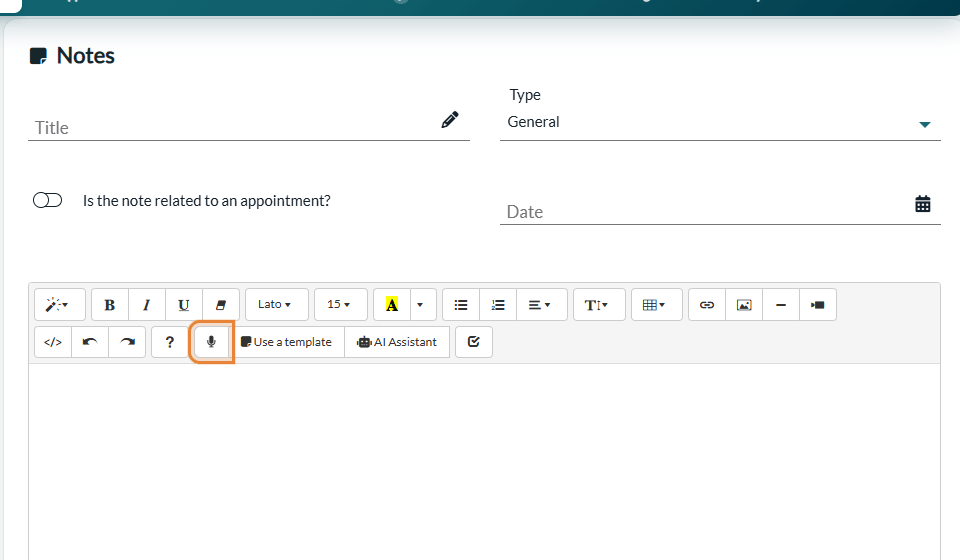
2Dictate
- Click the microphone icon in the toolbar of the note editor. The message Audio speech recognition has started... confirms that the recording is on.
- Speak clearly, for as long as you need.
- When you have finished, click the microphone icon again. The message The text is being generated. Please do not leave the page. appears: wait a few seconds without leaving the page.
3Review and save the note
- The text appears in the editor, where your cursor was, with the message The text has been successfully generated. Please verify the content.
- A reminder is shown under the editor: Automatic transcription can contain recognition errors. Review it before signing. Read the text and correct it if needed. You can dictate again to add more text.
- Finish the note by clicking Save (check Sign note first if the note is final).
Important: the language of the dictation is the language in which you use Colib: English if your Colib is in English, French if it is in French. To dictate in French, switch Colib to French first (globe icon in the top bar).
If dictation does not work
| Message | What to do |
|---|---|
| No microphone detected. Please use a different device or browser (Chrome or Firefox). or AUDIO ERROR : No microphone or audio input device detected | Plug in or turn on a microphone, check that your browser is allowed to use it (padlock icon next to the address), or use another device or browser. |
| No speech has been recognized. | Nothing could be understood. Check that the right microphone is selected, get closer to it and try again. |
| The audio file is too large. | The dictation was too long. Dictate in several shorter parts: click the microphone, speak, click again, and repeat. |
| This artificial intelligence feature is turned off in the clinic settings. | Voice dictation is turned off for your practice. Ask your administrator (see below). |
For administrators: turn dictation on or off
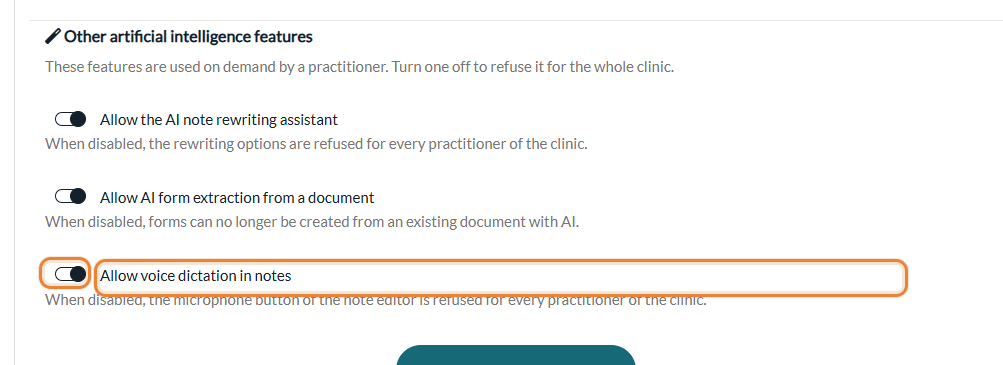
Voice dictation is available by default. To turn it off for every practitioner of the practice, go to Settings > AI (www.colib.io/settings?show=artificialintelligence), turn off Allow voice dictation in notes in the Other artificial intelligence features section, then click Save. For more details, please see the article titled "How to turn artificial intelligence features on or off for your clinic".
Good to know
- Where you can dictate — in every note editor of the client record: a new note, a note that is not signed yet (pencil icon), and the addendum of a signed note (please see the article titled "How to change a signed note with an addendum").
- Dictation is not an AI-written note — the tool only transcribes your words: the note is not marked as generated by artificial intelligence. To have a whole note drafted from a session, see How does the artificial intelligence note generation work?
- Privacy — the short audio recording of the dictation is transcribed in Canada and deleted as soon as the text is returned; it is never used to train AI models. See our artificial intelligence policy.
- Video demonstration — a short video (earlier version of the screens) is available on YouTube.
Still have a question?
Write to us at support@colib.io, we will be happy to help.
Was this article helpful?
That’s Great!
Thank you for your feedback
Sorry! We couldn't be helpful
Thank you for your feedback
Feedback sent
We appreciate your effort and will try to fix the article