Who is this article for?
Colib can draft your session notes with artificial intelligence (AI). The conversation between you and your client is transcribed, then the AI writes a draft note in the client's record, in the format you chose. You review it, correct it and sign it.
This article explains how to turn the feature on, how it works for online and in-person appointments, in which language the note is written, and how your data is protected.
Before you start: the AI settings are in Settings > AI (www.colib.io/settings?show=artificialintelligence) and require access to the practice settings. The note is saved as a draft and is never signed by the AI: we strongly encourage you to read and review every AI-generated note, as your professional judgment cannot be replaced by AI.
In-person appointment
For a session held in your office (or without Colib's video tool), you record the audio of the session from the appointment, on your computer, tablet or phone. Follow this article: How to generate AI-powered session notes without using Colib's telehealth system.
Online appointment via Colib's telehealth system
For video sessions held with Colib's videoconferencing tool, the note is created automatically after the session once the option is on. Follow the steps below.
1Turn on automatic notes
- Go to the Artificial Intelligence settings tab: www.colib.io/settings?show=artificialintelligence (Settings > AI).
- In the Automatic notes for Colib's online meetings section, turn on Generate a note automatically after each online meeting.
- Optionally, limit the feature: turn off Available for all types of appointments and choose the types in Applicable appointment types:, or turn off Available for any practitioner and choose them in Applicable practitioners:.
- Click Save.
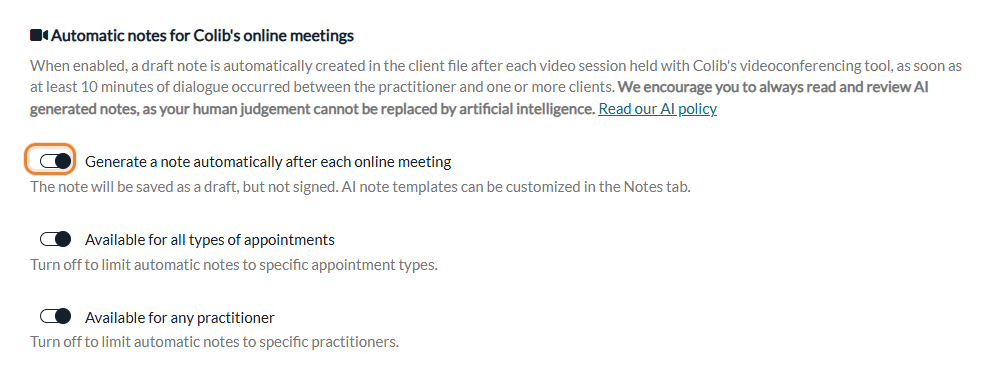
The limits by appointment type and by practitioner also apply to in-person recordings. For all the AI switches of your practice, please see the article titled "How to turn artificial intelligence features on or off for your clinic".
2Choose the content and style of your notes
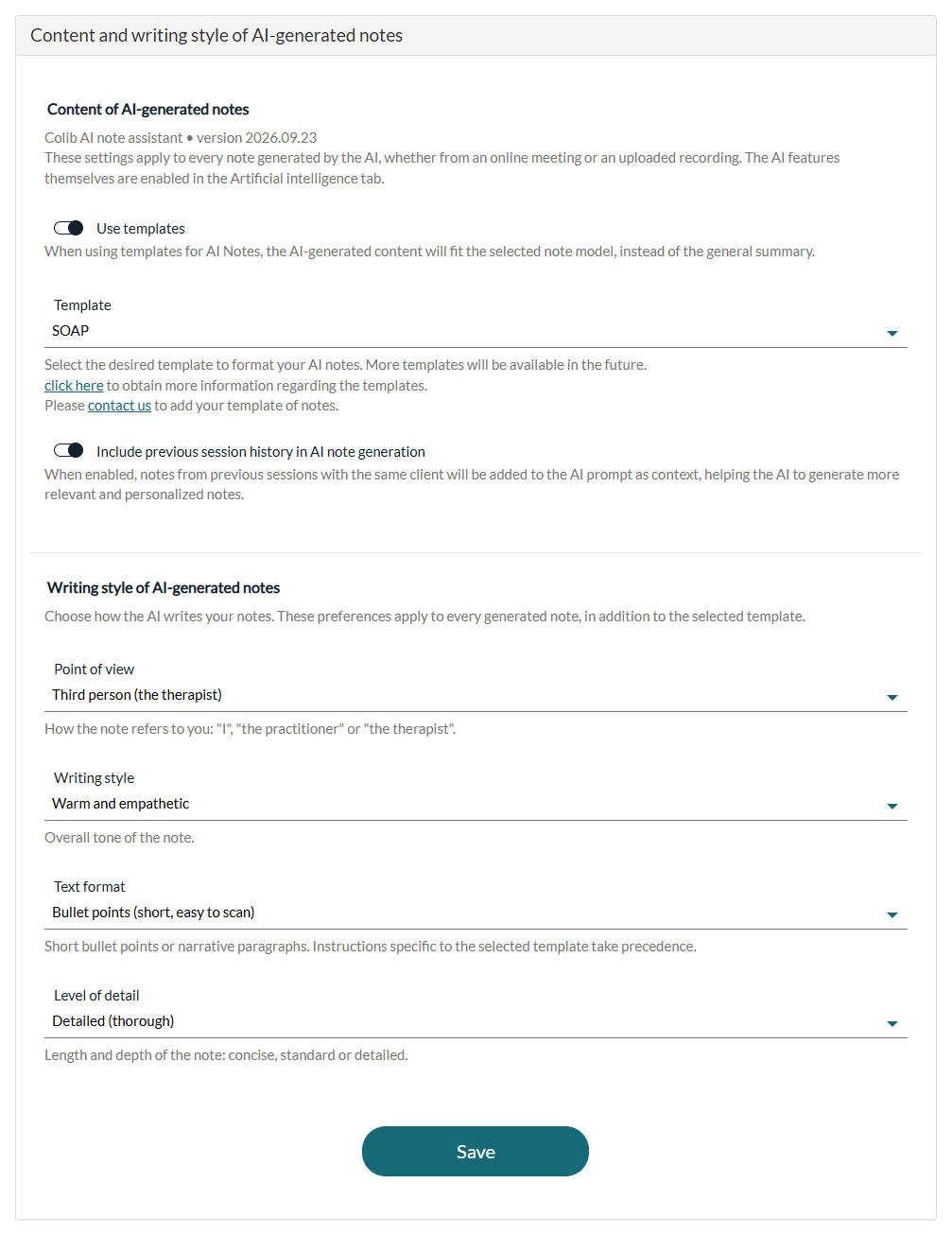
In Settings > Notes (www.colib.io/settings?show=notes), the Content and writing style of AI-generated notes section lets you choose:
- Use templates and the Template: the note follows a format (SOAP, GIRP, BIRP, DAP, RIFT, EMDR session note...) instead of a general summary;
- Include previous session history in AI note generation: earlier notes of the same client are given to the AI as context;
- the Point of view, the Writing style, the Text format (bullet points or paragraphs) and the Level of detail.
See How to personalize AI-generated notes in Colib, How can I select a different template for each type of appointment when using AI-powered note generation? and How to include previous session history in AI note generation.
3Hold your video session
Once enabled, a note is automatically created after each online session conducted via Colib's videoconferencing tool, when:
- a dialogue in French or English lasting at least 10 minutes occurs between the practitioner and one or more clients;
- no client of the appointment has refused the use of AI on their record;
- for practices located in Quebec, the client gave their consent on the page shown before joining the session.
You have nothing else to do during the session. For consent and refusals, please see the article titled "How client consent to AI note-taking is collected and what happens if it is withdrawn", as well as How to disable AI-generated notes for a specific client?
4Review and sign the note
- Once the note is generated, the practitioner of the appointment receives a notification: The note for your appointment on [date] has been successfully generated and is ready to be reviewed.
- The note is in the Notes tab of the client's record, linked to the appointment, with the title Session note followed by the date and the Generated by AI label. For a group appointment, the same note is added to the record of each client.
- Open it with the pencil icon (Edit note), read it and correct it. At the end of the text, a line states that the draft was generated by artificial intelligence and must be reviewed and validated by the practitioner.
- Check Sign note and click Save.
In the note window, Show the original AI draft compares the AI draft with your version, and Report an inadequate AI result lets you tell us about a poor result. For more details, please see the article titled "How to review the original AI draft and report an inadequate result".
Important: AI-generated content can contain errors or omissions. You remain responsible for the clinical record: always review the note before signing it.
In which language is the note written?
There is no setting for it: Colib uses the Language field of the client's record (Profile tab).
- If the client of the appointment (or all its clients) has a language set, the note is written in that language.
- If the clients have different languages, or none, the note is written in the language of the practitioner's Colib account for an online session, and in English for an in-person recording.
- The Topics-Interventions-Plan-Concerns and Presenting-Focus-Action-Outcome templates always produce a note in English.
To get a note in French, check that the Language of the client's record is set to French before the session.
No note after a session?
- The dialogue was too short: you receive a notification such as The audio retrieved from the session is too short to create a note or No audio captured during the video session.
- If the AI could not follow your template, you are notified (Our AI could not create a note using the correct template) and a new attempt is made a few hours later.
- The option was turned off, limited to other practitioners or appointment types, or the client refused the use of AI. A note cannot be generated afterwards: the option must be on during the session, and you cannot upload an audio file.
Privacy and security
- This feature is powered by tools that comply with PIPEDA, PHIPA and HIPAA requirements. All personal health information is stored on our servers in Canada.
- The session is transcribed in Canada. To write the draft, the AI model processes the information in memory only, for the few seconds a request lasts, through encrypted connections; this processing can run in Canada or in the United States, and nothing is stored or kept there.
- The audio recording of the session is permanently deleted once it has been transcribed, and the transcript once the note has been generated, unless your practice chose to keep them (see below). They are never used to train AI models.
- To keep the recording or the transcript in the record, see Record online appointments and Save transcript in Settings > Telehealth (www.colib.io/settings?show=video) and How to save and view session transcripts.
For full details, read our artificial intelligence policy and Are you compliant with Canadian privacy laws?
Good to know
- Cost — each AI-generated note is billed $1.00 CAD, with a monthly maximum per practitioner; prepaid packages, bought in Settings > Notes, are used first. Notes generated during your free trial are not billed. See How billing works for AI-powered notes.
- Your own note templates — the templates you create for your notes are not used by the AI. To add a format of your own to the AI templates, contact us.
- AI content forms — Colib provides forms with AI content in the forms library. See Does Colib provide forms templates?
Still have a question?
Write to us at support@colib.io, we will be happy to help.
Was this article helpful?
That’s Great!
Thank you for your feedback
Sorry! We couldn't be helpful
Thank you for your feedback
Feedback sent
We appreciate your effort and will try to fix the article