Who is this article for?
If you are having an in-person session with a client (or a session that does not use Colib's video tool), you can still generate a note powered by artificial intelligence (AI). Colib records the audio of the session from your computer, tablet or phone, then drafts the note in the client's record.
This article explains how to record the session, what happens next, and the limits to know.
Before you start: you need a device with a working microphone, placed close enough to you and your client. Choose your preferred note template and writing style in Settings > Notes (www.colib.io/settings?show=notes): see How to personalize AI-generated notes in Colib.
1Open the recording page from the appointment
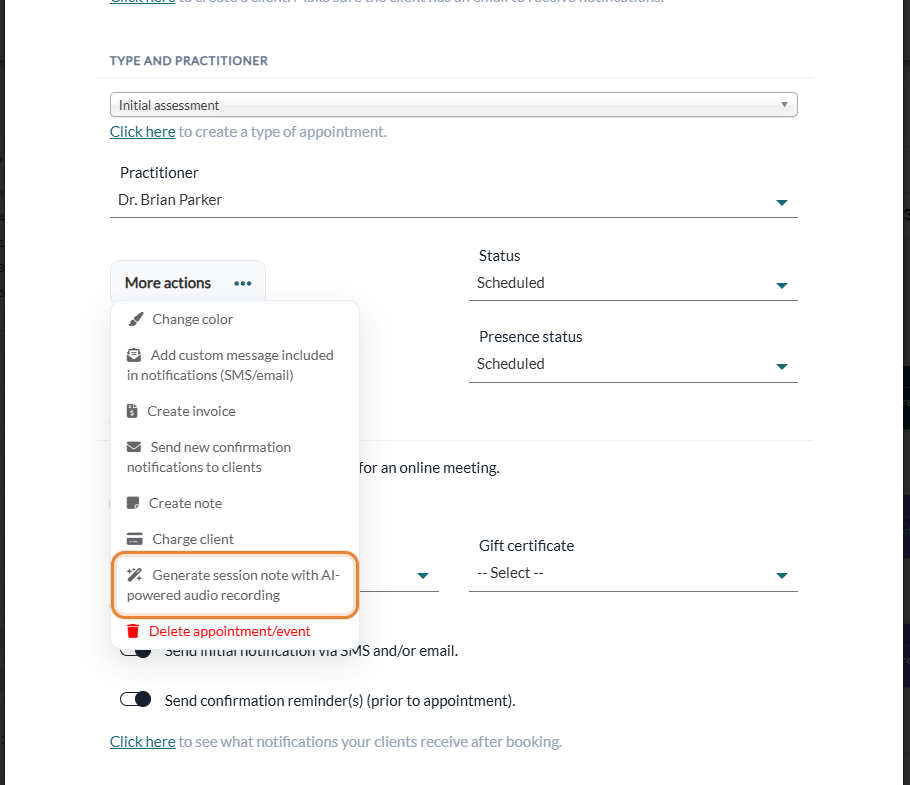
- Open the appointment in your scheduler (www.colib.io/scheduler).
- Click the More actions button.
- Select Generate session note with AI-powered audio recording. The AI Note Generation page opens in a new tab, with the client, the date and the practitioner of the appointment at the top.
2Confirm that your client agrees
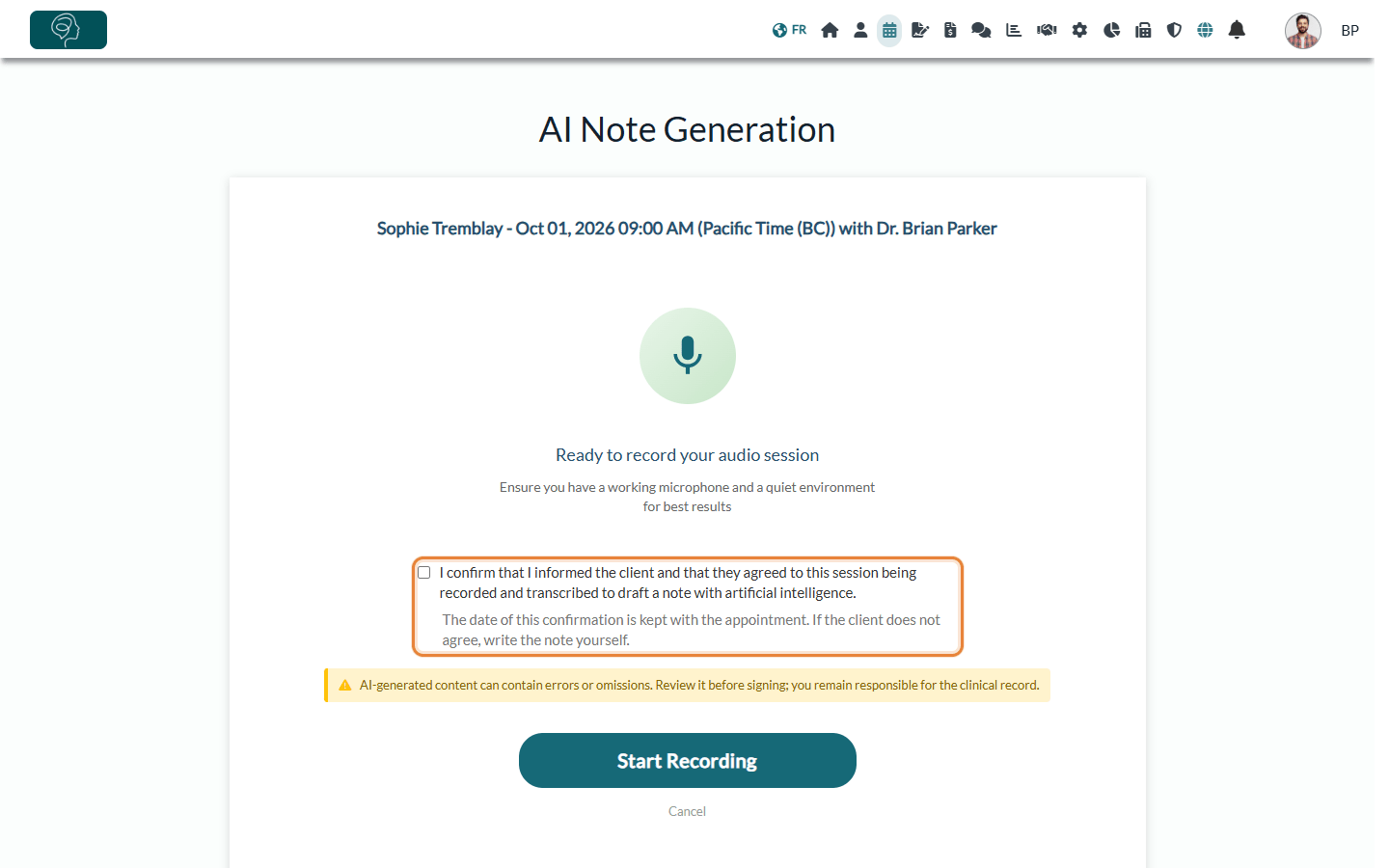
- Tell your client that the session will be recorded and transcribed to draft the note with AI, and ask for their agreement.
- If they agree, check I confirm that I informed the client and that they agreed to this session being recorded and transcribed to draft a note with artificial intelligence. The date of this confirmation is kept with the appointment.
- If they do not agree, do not record: write the note yourself.
For more about consent, please see the article titled "How client consent to AI note-taking is collected and what happens if it is withdrawn".
3Record the session
- When you are ready to start your session, click Start Recording. You may need to allow Colib to access your microphone.
- The page shows Recording in progress... with a timer. Simply talk with your client, staying close enough to the device that records the session.
- Keep the page open during the whole session.
Important: the recording must last at least 5 minutes. If you stop earlier, Colib displays You need to record at least 5 minutes of audio to generate a session note. and keeps recording. If you forget to stop it, the recording stops by itself 30 minutes after the planned length of the appointment.
4Stop the recording
- When your session is finished, simply click Stop Recording. Do not leave the page while the audio is being sent.
- The message Note generation has started. You'll be notified when your note is ready for review. appears. You can click Go back to appointment and carry on with your day.
Cancel, before or during the recording, takes you back to the appointment without generating any note.
5Review the note
- You will receive a notification in Colib when the note is ready to be reviewed (bell icon in the top bar).
- The note is in the Notes tab of the client's record, linked to the appointment, with the Generated by AI label. It is saved as a draft and is not signed.
- Open it with the pencil icon, read it carefully, correct it, then check Sign note and click Save. Your professional judgment cannot be replaced by AI.
To compare the AI draft with your corrected version or report a poor result, please see the article titled "How to review the original AI draft and report an inadequate result".
A few important notes
- Cost — each AI-generated note costs $1.00 CAD, with a monthly maximum per practitioner, and prepaid note packages are used first. Notes generated during your free trial are not billed. See How billing works for AI-powered notes.
- Note template — you can choose your preferred note template in your admin settings, Settings > Notes (www.colib.io/settings?show=notes), and even a different template for each type of appointment: see How can I select a different template for each type of appointment when using AI-powered note generation?
- Live recording only — you cannot upload an audio file recorded elsewhere, and a note cannot be generated afterwards for a session that was not recorded on this page.
- Language of the note — the note is written in the language set in the client's record (Language field). If several clients with different languages attend, it is written in English. See How does the artificial intelligence note generation work?
- Privacy — the audio is deleted once it has been transcribed, and it is never used to train AI models. See our artificial intelligence policy.
The recording page is not available?
Instead of the Start Recording button, the page then shows the reason, for example:
- This client has refused the use of artificial intelligence on their record. — the option Allow AI-generated notes for this client is turned off in the client's record (Profile tab). See How to disable AI-generated notes for a specific client?
- AI note generation is not enabled for this practitioner in the clinic settings. or ...for this appointment type... — your administrator limited AI notes to some practitioners or appointment types in Settings > AI (www.colib.io/settings?show=artificialintelligence). For more details, please see the article titled "How to turn artificial intelligence features on or off for your clinic".
- This artificial intelligence feature is temporarily unavailable. — try again later.
Once the setting is changed, come back to the page. Go back to appointment returns to your scheduler.
Still have a question?
Write to us at support@colib.io, we will be happy to help.
Was this article helpful?
That’s Great!
Thank you for your feedback
Sorry! We couldn't be helpful
Thank you for your feedback
Feedback sent
We appreciate your effort and will try to fix the article