Who is this article for?
When a note is drafted with artificial intelligence (AI), the session is recorded and transcribed. Your clients must know it and agree to it. Colib helps you collect and keep track of this consent, and lets each client refuse or withdraw it at any time.
This article explains how consent is collected for online sessions and in-person sessions, how to record a client's refusal, and what happens when a client withdraws their consent from the client portal.
Before you start: AI notes must be turned on for your practice. See How does the Artificial Intelligence note generation work? Colib gives you the tools; informing your clients according to the rules of your profession and of your province remains your responsibility.
1Online sessions with Colib's video tool
Practices located in Quebec — when an AI note is planned for the session, the client must give their consent before joining. On the page shown before the video session, Colib explains that the session is transcribed to draft the clinical note, that the recording and the transcript are deleted once the note is generated (unless the practitioner keeps them in the record as an encrypted private document) and that they are never used to train a model. The client must check I agree that this session is transcribed to help my practitioner write the clinical note.:
- The Join the session button stays disabled until the box is checked. A client who does not agree cannot join the session and is invited to contact the practice to arrange the session differently.
- The consent is saved with its date. In the appointment window of your scheduler, a badge shows AI transcription consent: given on followed by the date.
- Practitioners of the practice who join the session are not asked.
Practices located elsewhere in Canada — the session page does not ask for this consent. Inform your client before the session, and record any refusal in their record (step 3).
2In-person sessions: your attestation
To draft a note from the audio recording of an in-person session, you open the appointment in your scheduler, then More actions > Generate session note with AI-powered audio recording (see How to Generate AI-Powered Session Notes Without Using Colib's Telehealth System). Before recording:
- Tell your client that the session will be recorded and transcribed to draft the note with AI, and ask for their agreement.
- If they agree, check I confirm that I informed the client and that they agreed to this session being recorded and transcribed to draft a note with artificial intelligence. The Start Recording button only works once the box is checked.
- If they do not agree, do not record: write the note yourself.
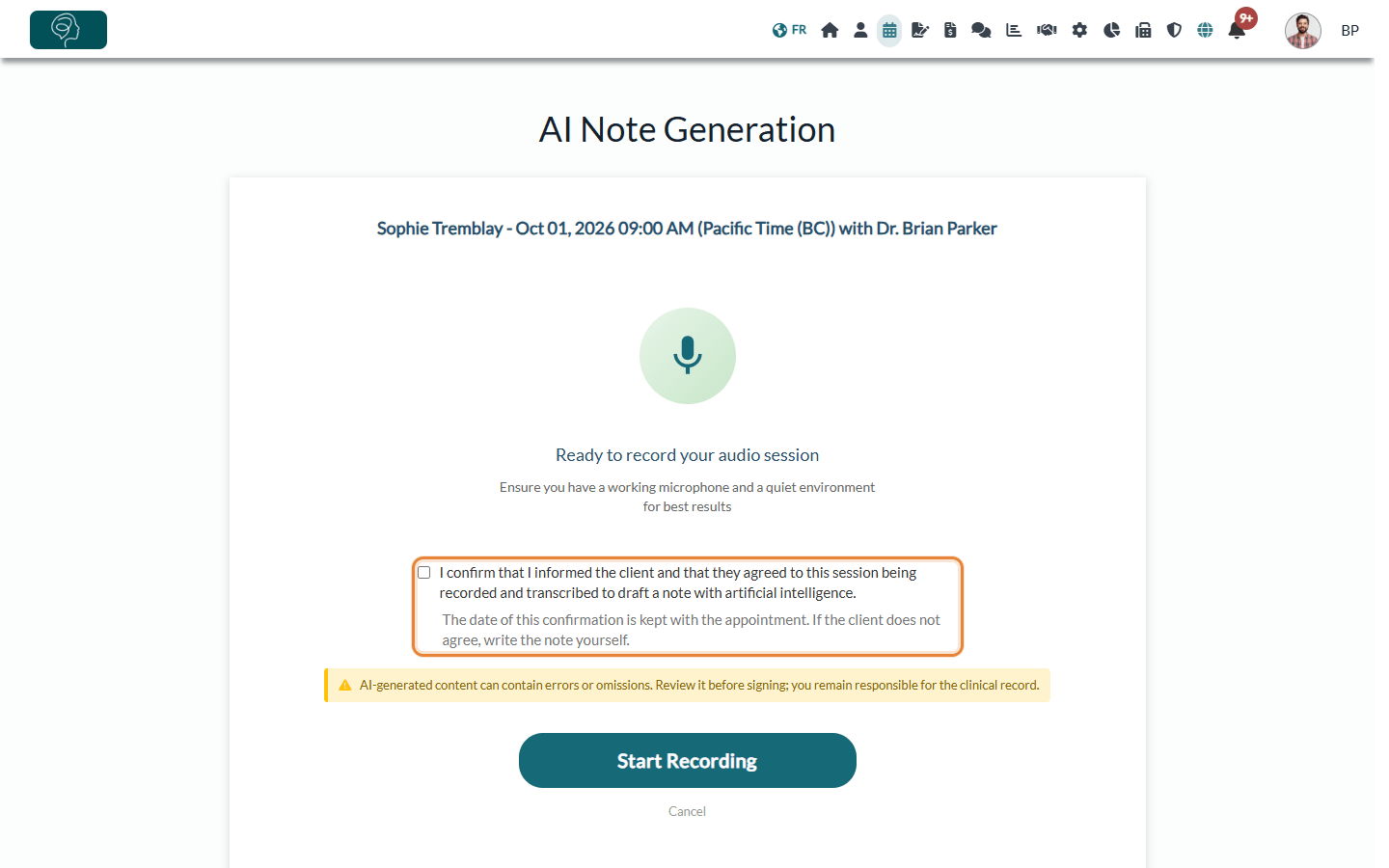
The date of your confirmation is kept with the appointment. If you come back to the page for the same appointment, the box is already checked.
3Record a client's refusal
If a client refuses the use of AI, record it once in their record:
- Open the client's record (www.colib.io/clients) and click the Profile tab.
- Open the Settings section and turn off Allow AI-generated notes for this client.
- Click Save at the bottom of the page.
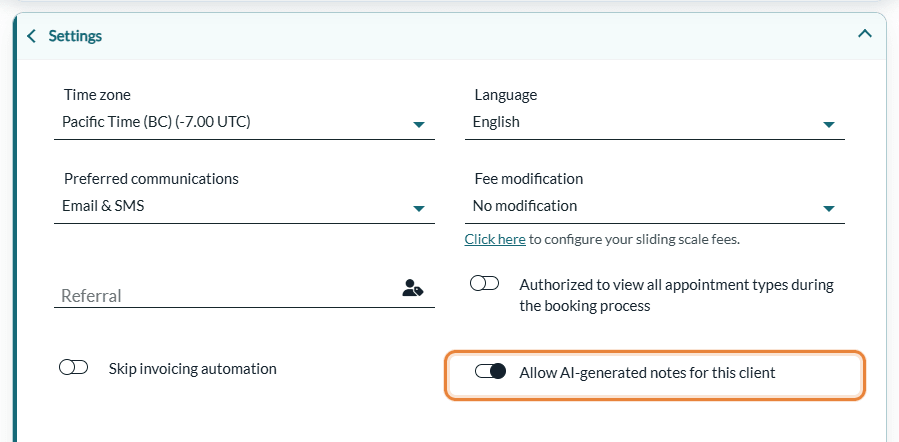
From then on, for this client:
- no note is generated automatically after their online sessions, and no transcription consent is asked of them;
- recording an in-person session for an AI note is refused with the message This client has refused the use of artificial intelligence on their record.;
- the AI rewriting assistant is refused on their notes.
You can also collect the client's choice automatically with a question of your intake form linked to this field. See How to disable AI-generated notes for a specific client?
4When a client withdraws their consent
Your clients can withdraw their consent themselves, at any time, from their client portal (portal.colib.io/Profile?show=ai): Profile > Artificial intelligence > Withdraw my consent to AI note-taking, then they confirm.
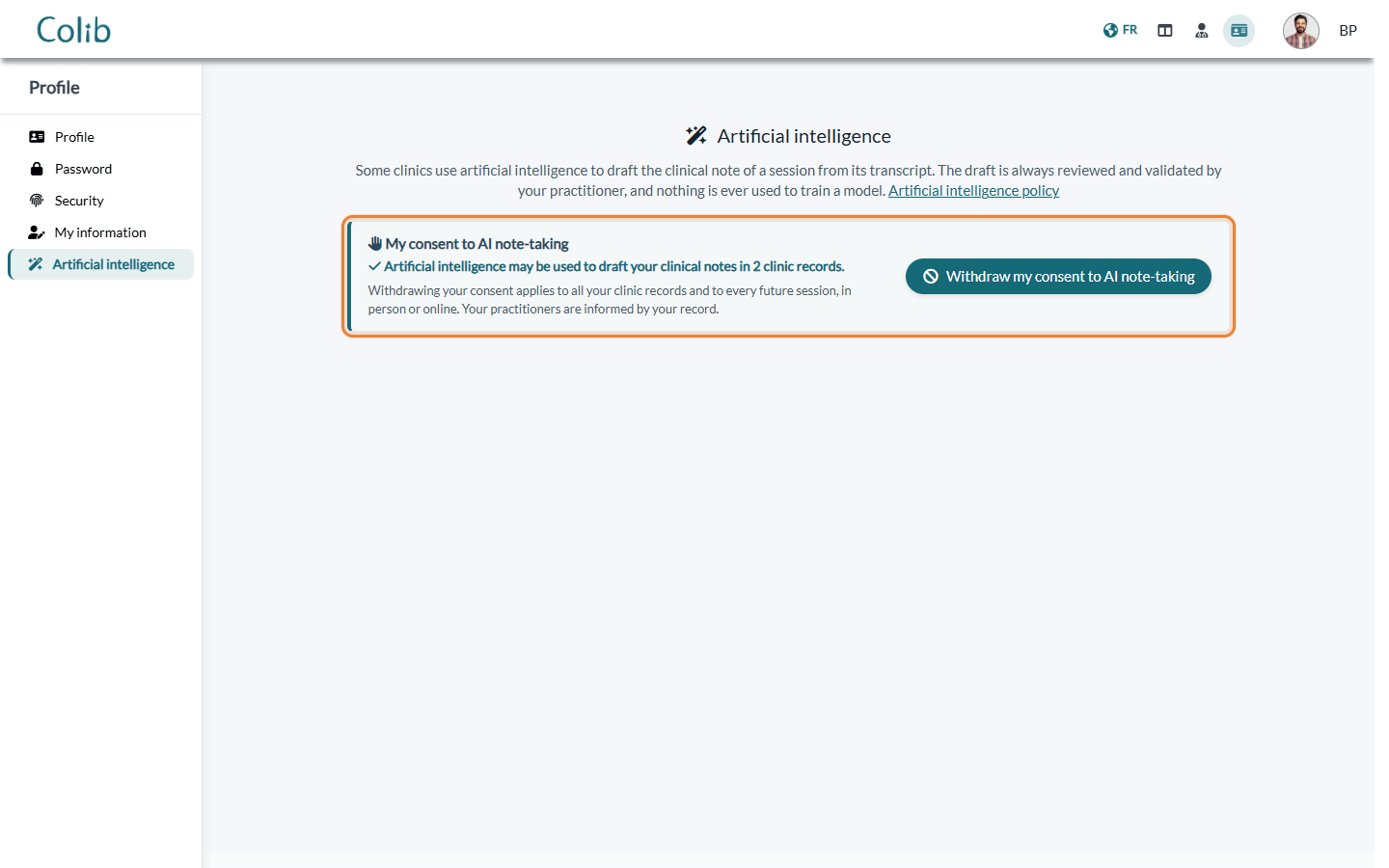
What happens then:
- All their records — the withdrawal applies to every clinic record linked to their portal account, and to every future session, online or in person. Allow AI-generated notes for this client is turned off in their record, with the effects described in step 3.
- You are notified — the client's practitioners (main practitioner and additional practitioners of the record) receive the notification Client withdrew consent to AI note-taking in their notification center, with a View client link. If the record has no practitioner, the account that created the practice is notified.
- Existing notes stay — the notes already in the record are not changed or deleted.
- Allowing AI again — the client cannot do it from the portal: the portal tells them to contact their clinic. If the client asks you to, turn Allow AI-generated notes for this client back on in their record.
Good to know
- Turn AI off for the whole practice — see the AI settings in Settings > AI (www.colib.io/settings?show=artificialintelligence).
- What your clients can read — our artificial intelligence policy explains to everyone how AI is used in Colib. It is linked from the session page and from the client portal.
- Transcripts — to keep the transcript of a video session in the record, see How to Save and View Session Transcripts?
- Privacy — see Are you compliant with Canadian privacy laws?
Still have a question?
Write to us at support@colib.io, we will be happy to help.
Was this article helpful?
That’s Great!
Thank you for your feedback
Sorry! We couldn't be helpful
Thank you for your feedback
Feedback sent
We appreciate your effort and will try to fix the article