Who is this article for?
Some of your clients may prefer not to have their notes drafted by artificial intelligence (AI). By default, when AI-generated notes are turned on for your practice, they are allowed for every client: a note can be drafted after each of their online sessions, or from the recording of an in-person session.
This article explains how to disable AI-generated notes for a specific client, what changes for this client, and how to collect the client's choice automatically with your intake form.
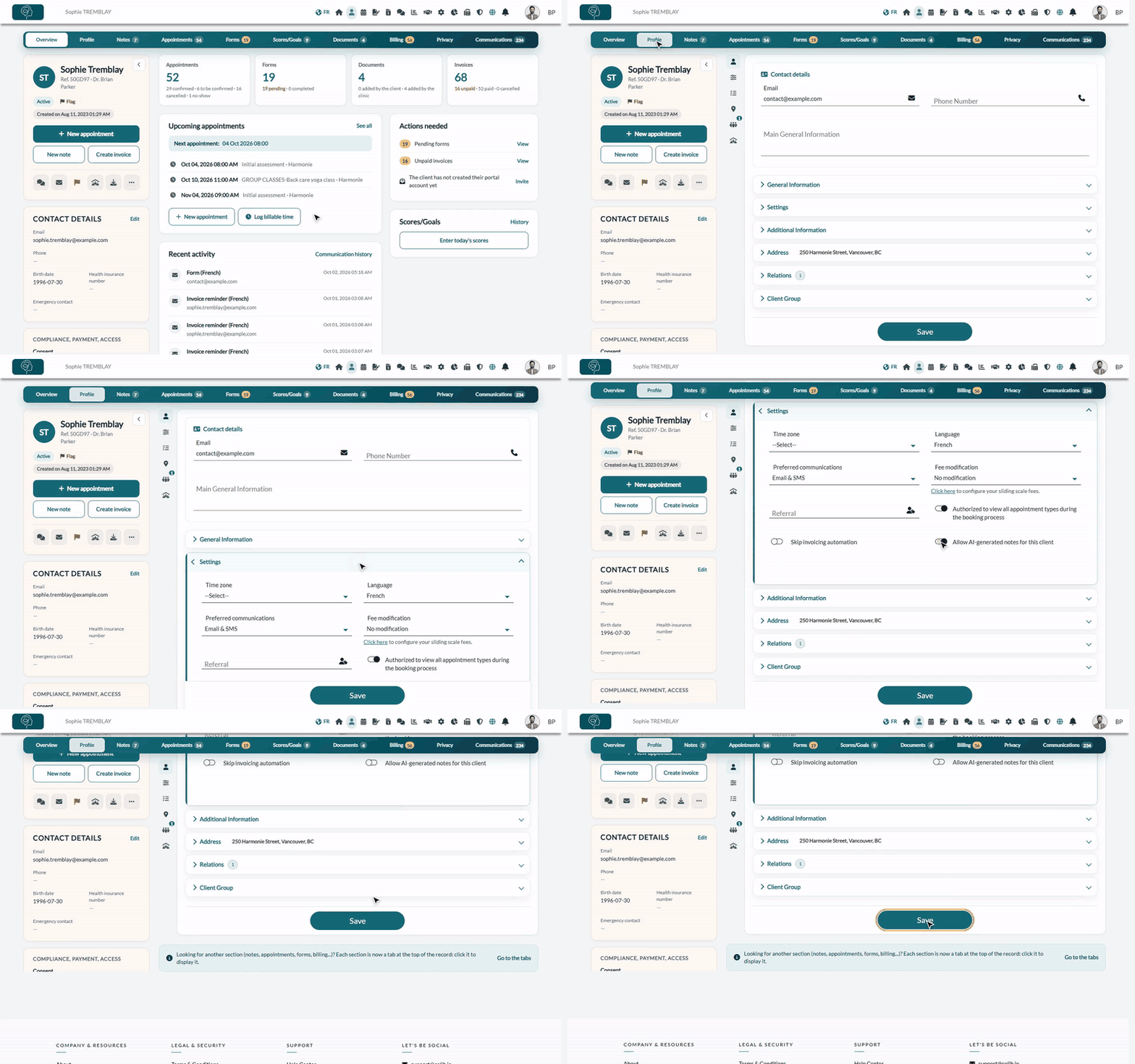
1Disable AI notes in the client record
- Open the client's record from your client list (www.colib.io/clients).
- Click the Profile tab.
- Open the Settings section.
- Turn off Allow AI-generated notes for this client.
- Click Save at the bottom of the page.
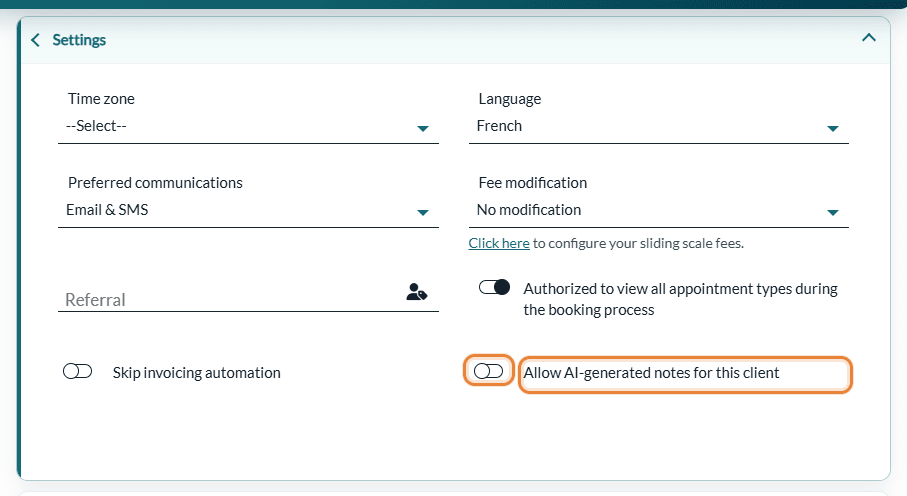
To allow AI notes again for this client, turn the switch back on and click Save.
2What changes for this client
- Online sessions — no note is generated automatically after their video sessions.
- In-person sessions — recording a session to generate an AI note is refused, with the message This client has refused the use of artificial intelligence on their record.
- AI rewriting assistant — the AI Assistant button of the note editor is refused on this client's notes, with the same message.
- Group sessions — if one of the participants refused AI, no AI note is generated for the session.
- Existing notes — the notes already in the record are not changed or deleted. You keep writing your notes by hand as usual.
- Billing — since no AI note is generated, nothing is billed for this client (see How billing works for AI-powered notes?).
3Collect the client's choice with your intake form (optional)
This client field can be linked to a question of your intake form: the answer of the client fills in the setting of their record automatically, so you collect their consent without typing it.
- Make sure Link every completed form to a client record is turned on in Settings > Clients (www.colib.io/settings?show=clients). Without this option, answers cannot be linked to client fields.
- Open your form from www.colib.io/forms and go to the Sections & Questions tab.
- Click Add Question in the section of your choice and write the question, for example Do you agree that your practitioner uses artificial intelligence to draft your session notes?
- Choose the Yes/No type.
- In Client Mapping, choose Allow AI-generated notes.
- Save the question.
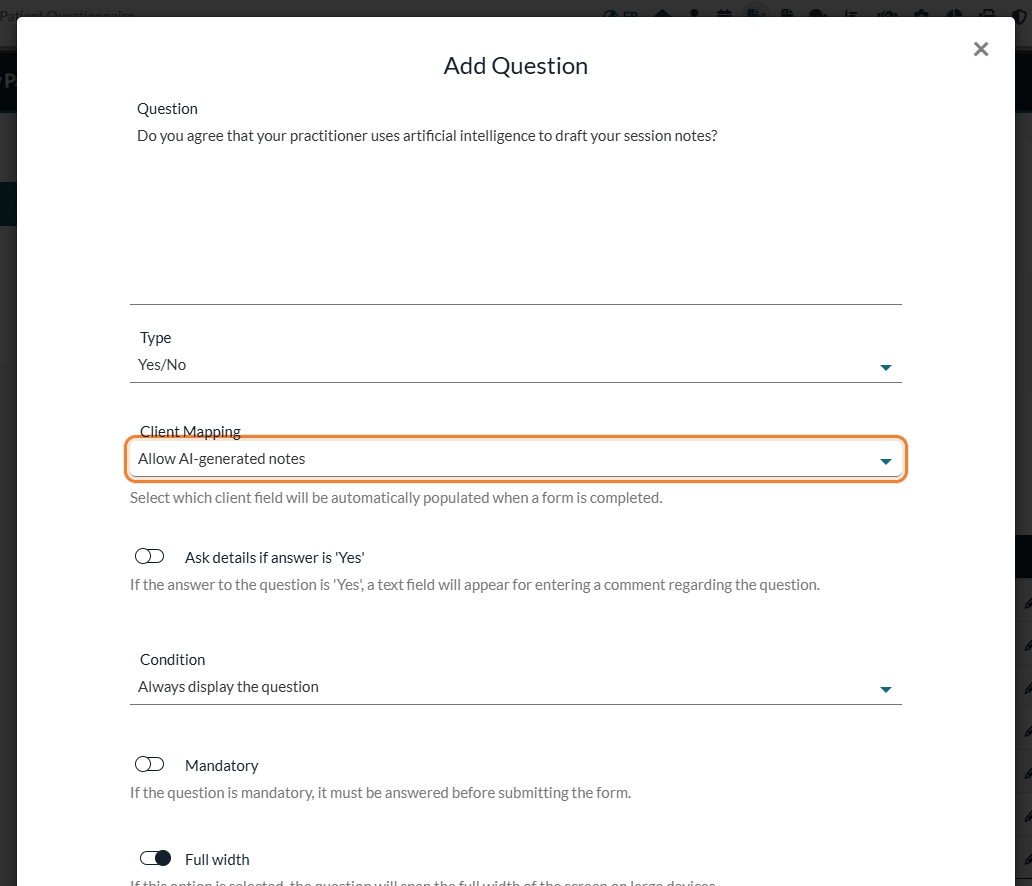
When the client completes the form, Yes allows AI-generated notes and No disables them in their record. For more on linked fields, see How can I connect my client fields to my form inputs?
Good to know
- Clients can withdraw their consent themselves — from their client portal. The switch is then turned off in their record and you are notified. To learn how consent is collected and what happens when it is withdrawn, please see the article titled "How client consent to AI note-taking is collected and what happens if it is withdrawn".
- Merged records — if you merge two records of the same client and one of them refused AI, the merged record keeps the refusal.
- For the whole practice — to turn AI notes off for every client, or to limit them to some practitioners or appointment types, please see the article titled "How to turn artificial intelligence features on or off for your clinic".
- How AI notes work — see How does the Artificial Intelligence note generation work?
Still have a question?
Write to us at support@colib.io, we will be happy to help.
Was this article helpful?
That’s Great!
Thank you for your feedback
Sorry! We couldn't be helpful
Thank you for your feedback
Feedback sent
We appreciate your effort and will try to fix the article