Who is this article for?
A note generated by artificial intelligence is a draft: you read it, correct it and sign it, and you remain responsible for its content. To keep this transparent, Colib keeps the original AI draft unchanged next to the note. You can compare it with your current version at any time, see what the assistant used to write it, and report a result that is wrong or inappropriate.
This article is for practitioners who use AI-generated notes (How does the artificial intelligence note generation work?).
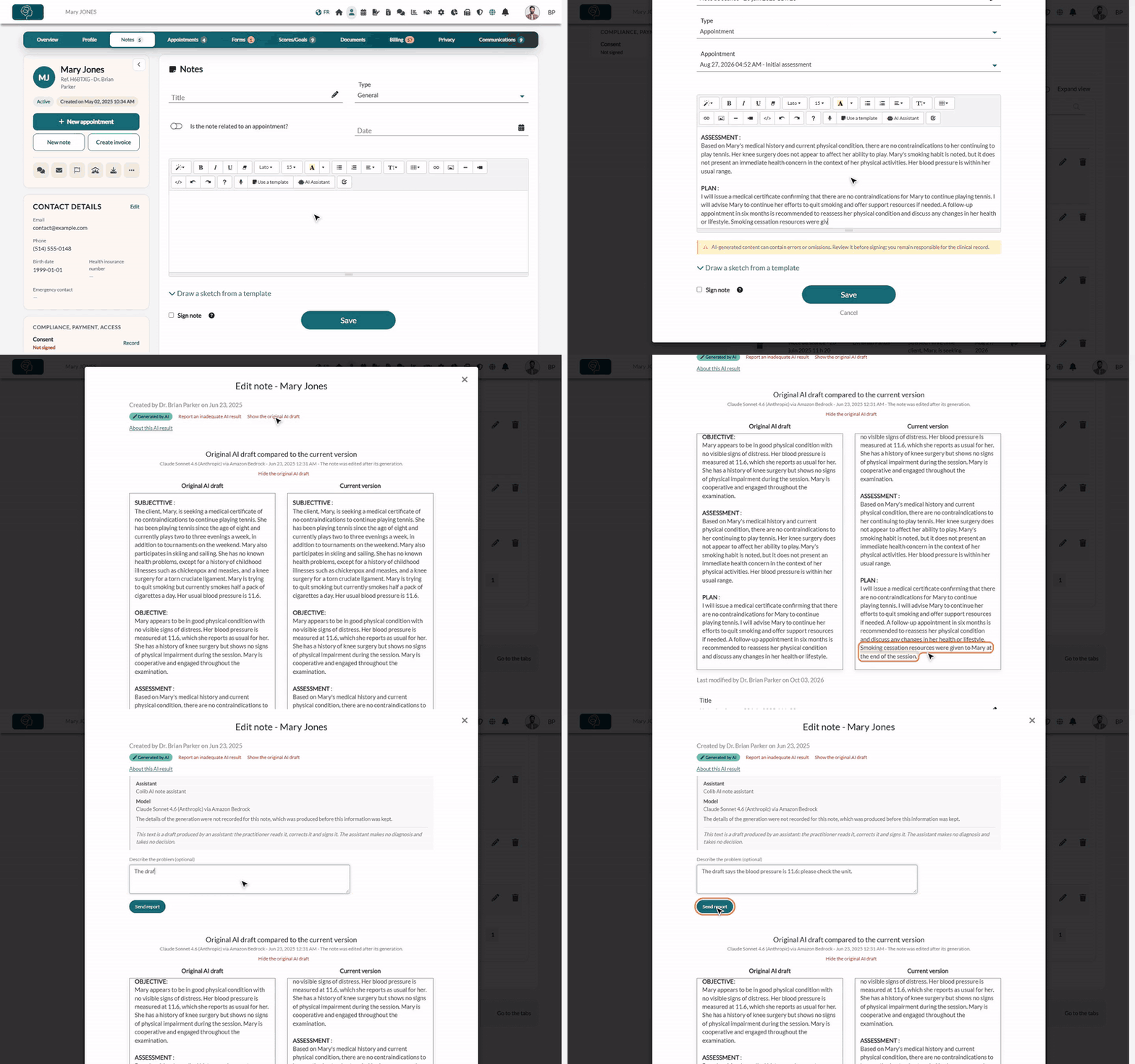
1Open the AI-generated note
- Open the client's record from your client list (www.colib.io/clients) and click the Notes tab.
- In the note history, AI-generated notes carry the Generated by AI badge. Click the pencil icon of a draft, or the eye icon of a signed note.
- At the top of the note, under the badge, you find the links Report an inadequate AI result, Show the original AI draft and About this AI result.

While the note is a draft, a yellow message under the text reminds you that AI-generated content can contain errors or omissions and must be reviewed before signing.
2Compare the original AI draft with your version
- Click Show the original AI draft.
- The Original AI draft compared to the current version section opens: the text produced by the assistant on the left, the current text of the note on the right.
- The line under the title gives the AI model, the date of the generation and tells you whether The note was edited after its generation or The note is identical to the original AI draft.
- Click Hide the original AI draft to close the comparison.
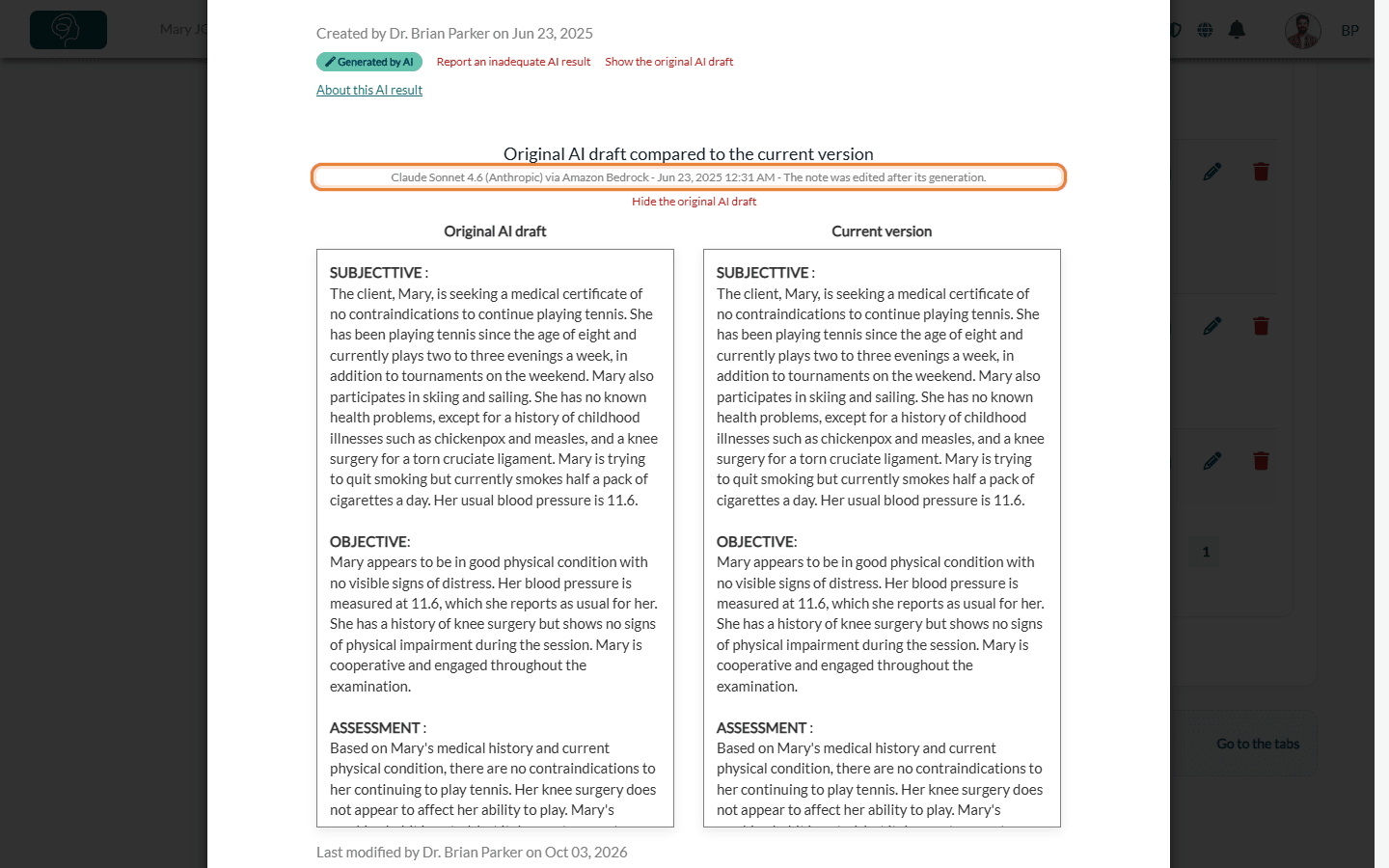
The original draft is read only: it never changes, whatever you edit in the note. Each time someone opens it, the consultation is recorded in your practice's audit log, like the consultation of a note.
3See how the draft was produced
Click About this AI result. The section shows:
- Assistant and Model — the assistant and the AI model that wrote the draft, and Generated on, the date of the generation;
- Information sent to the model — for example the transcript of the session, notes from previous sessions (with their number) and the first names of the client and of the practitioner. No other information from the client record is sent;
- Writing settings used — the format, level of detail, writing style, point of view, language and note template applied at the time of the generation;
- View the session transcript — when the transcript of the session is still available.
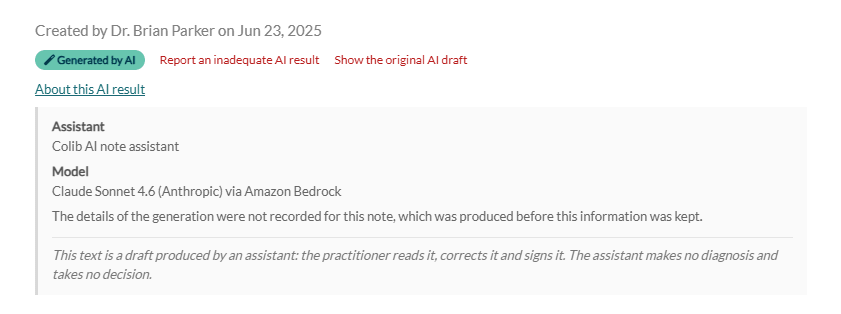
For older notes, generated before these details were kept, only the assistant and the model are shown, as in the image above.
4Report an inadequate AI result
Report a draft that contains an error, invents a fact, omits something important or is inappropriate, so that the Colib team can look into it.
- Click Report an inadequate AI result.
- Optionally, explain the problem in Describe the problem (optional).
- Click Send report. A message confirms that your report has been sent to Colib.
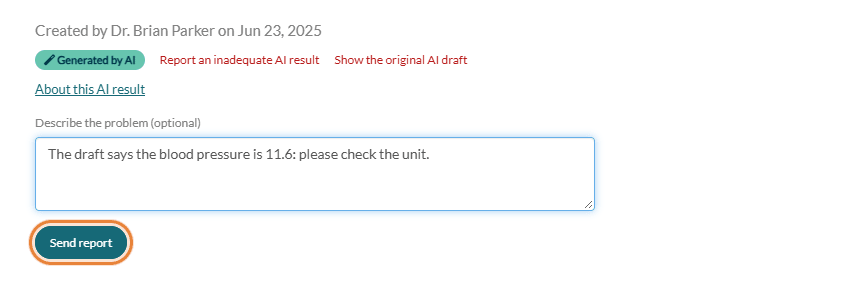
The Colib team is notified that a result was reported, with a reference to the note but without its content. Your description stays in your practice's audit log: users who have access to it find all the reports on the Audit page (www.colib.io/establishmentadmin/audit) with the AI reports only filter.
Important: a report does not change the note. Correct the text yourself before signing: once a note is signed, it can only be completed with an addendum.
Good to know
- AI-assisted notes — a note you wrote yourself and reworked with the AI assistant carries the AI-assisted badge. You can report its result, but it has no original AI draft to compare.
- Older notes — the Show the original AI draft link only appears when the original draft was kept for the note.
- Decisions of the whole practice — in Settings > AI (www.colib.io/settings?show=artificialintelligence), the AI-generated notes: practitioner decisions export lists every AI note of a period with what the practitioner did with the draft (accepted without changes, modified, signed or still a draft). Turn on Include the text of the original AI draft and of the current version only if you need the content, and keep the file in a secure place.
- Better drafts — adjust the writing style of the assistant: How to personalize AI-generated notes in Colib? To stop AI notes for one client: How to disable AI-generated notes for a specific client?
Still have a question?
Write to us at support@colib.io, we will be happy to help.
Was this article helpful?
That’s Great!
Thank you for your feedback
Sorry! We couldn't be helpful
Thank you for your feedback
Feedback sent
We appreciate your effort and will try to fix the article