Who is this article for?
Note templates standardize and speed up note taking: you prepare the structure of a note once (headings, questions, tables, images), then you insert it in a client's note in one click. Templates can even fill in the client's name and other information automatically.
This article explains how to create a template, how to import a ready-made one from the Colib library, and how to use it when you write a note.
Before you start: templates are managed in Settings > Notes (www.colib.io/settings?show=notes). You need access to the practice settings to create, edit or delete them. Every practitioner who writes notes can then use them.
1Open your templates
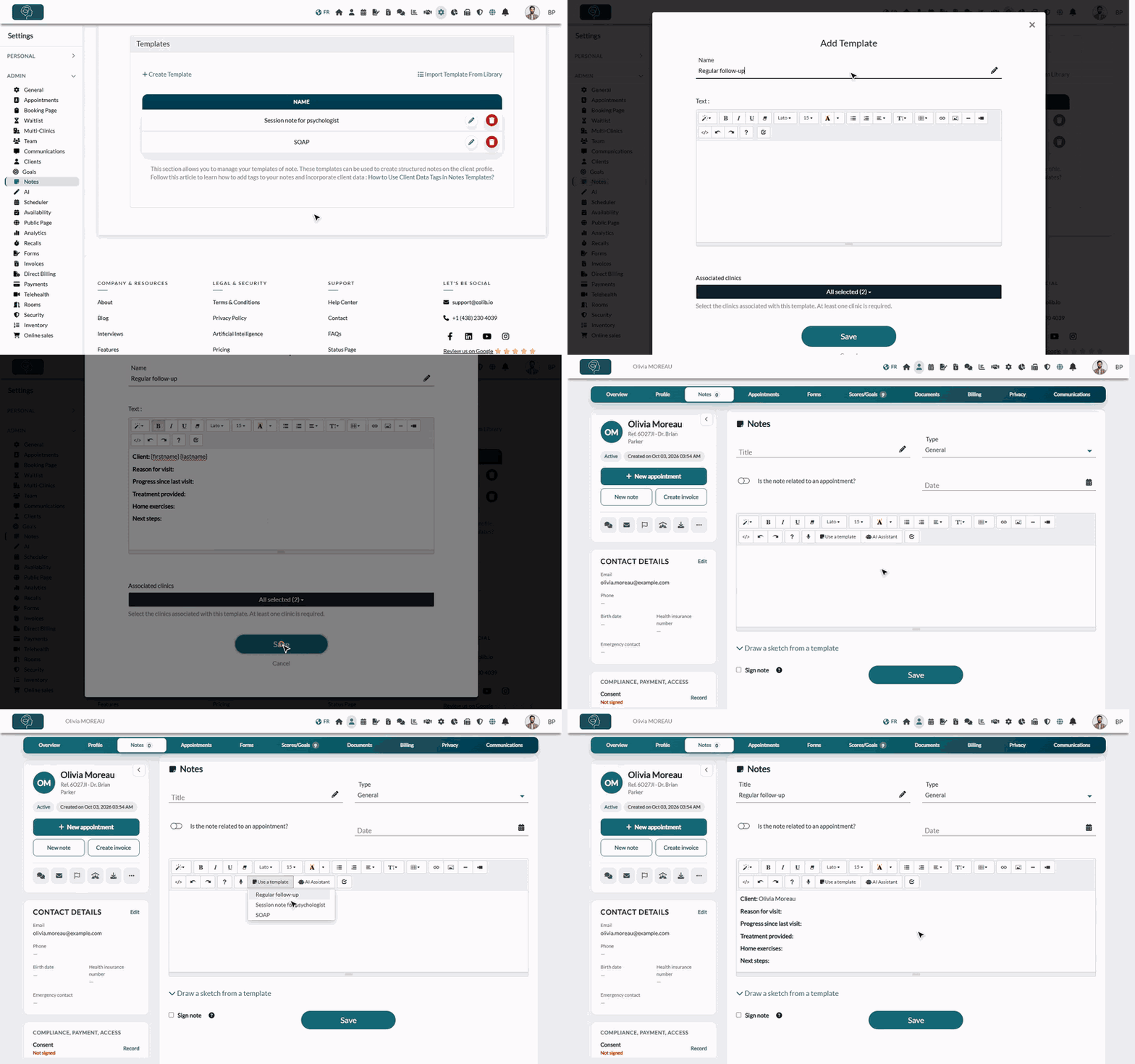
- Go to www.colib.io/settings?show=notes. You can also click the Settings icon (gear) in the top bar, then Notes in the Admin menu on the left.
- Scroll down to the Templates section. It lists the templates of your practice, with an edit (pencil) and a delete (trash) icon on each row.
2Create a template
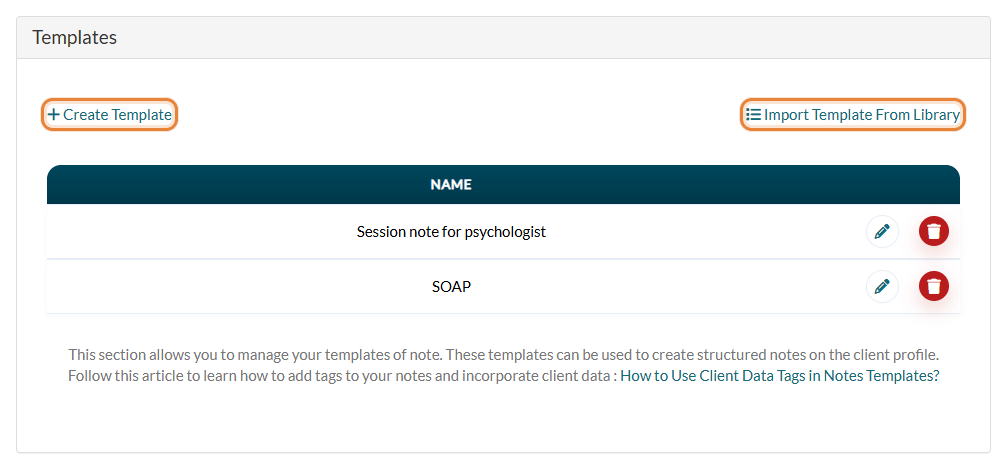
- Click Create Template. The Add Template window opens.
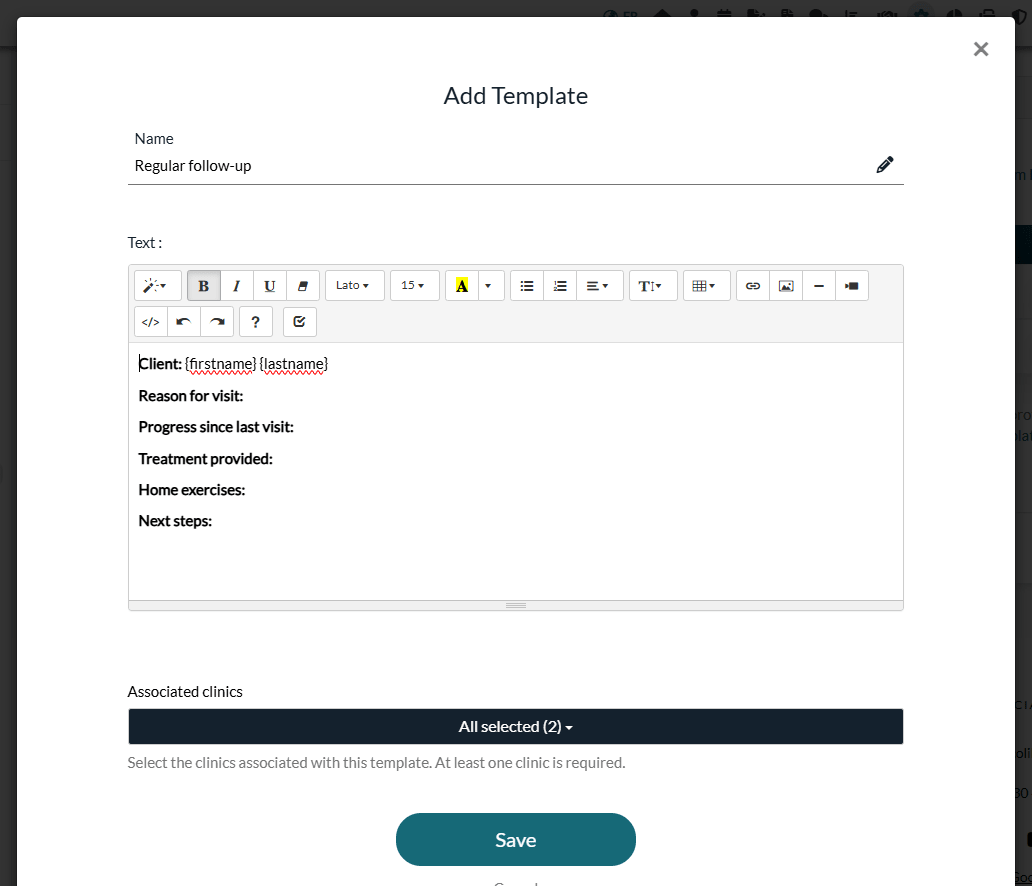
- Enter a Name (required). It is the name you will pick from the list in the note editor, and it becomes the title of the note.
- Write the Text of the template: headings, questions, lists, tables, checkboxes... You can also add images to the body of the template with the picture button of the editor.
- To fill in client information automatically, type a tag such as {firstname} or {lastname}: it is replaced by the client's data when the template is inserted in a note. See How to use client data tags in notes templates for the full list.
- If your practice has several clinics, choose the Associated clinics (at least one). The template is offered to the practitioners of these clinics.
- Click Save. The template appears in the list.
Tip: two templates cannot have the same name. If Colib tells you that A template with the same name already exists., choose another name.
3Or import a template from the library (optional)
Colib offers ready-made templates (SOAP, psychologist or nutritionist session notes...), in English and in French.
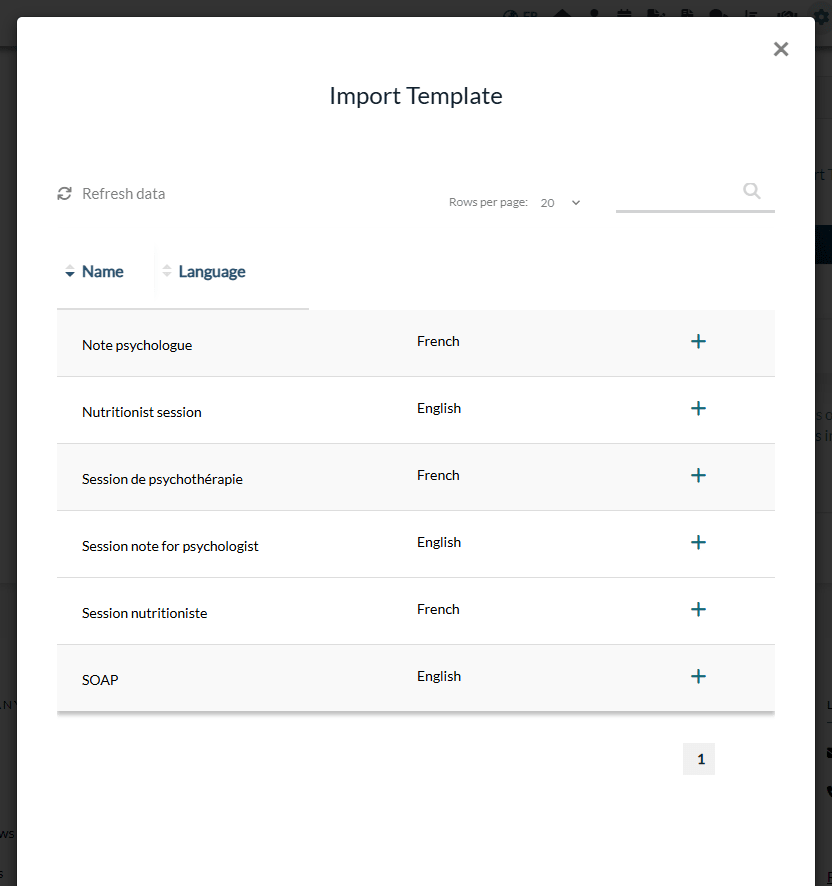
- In the Templates section, click Import Template From Library.
- The Import Template window lists the templates with their Language. Use the search box to find one.
- Click the + icon of a template. The message This template has been added to your list. confirms it.
- The template is now one of yours: click its pencil icon to adapt it to your practice.
4Use the template in a note
- Open the client's record from your client list (www.colib.io/clients) and click New note or the Notes tab.
- In the toolbar of the note editor, click Use a template, then choose your template in the list.
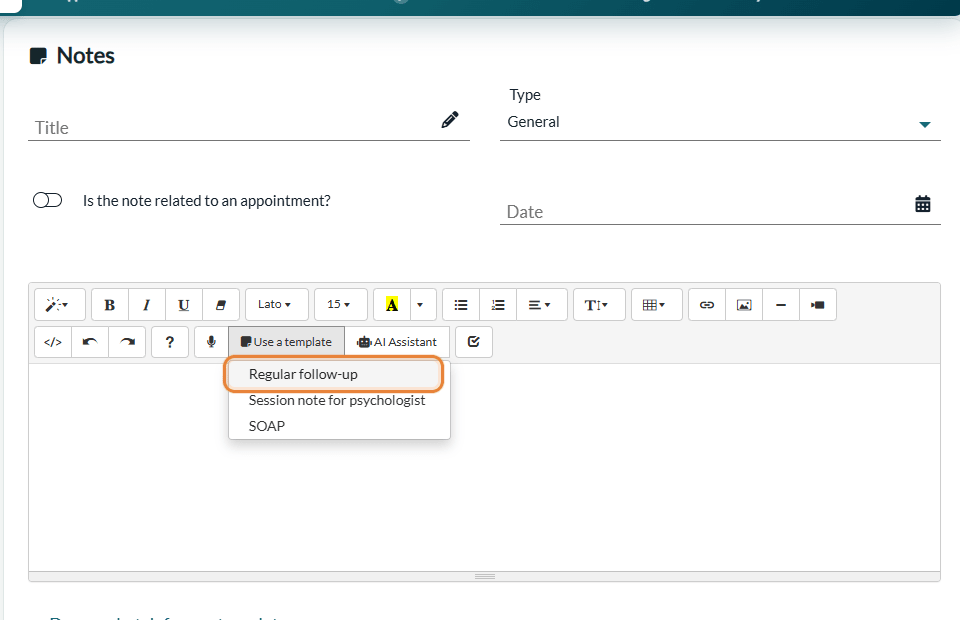
- The text of the template is added to the editor, with the client's data in place of the tags, and the name of the template becomes the Title of the note (you can change it).
- Complete the note, then click Save (check Sign note if it is final).
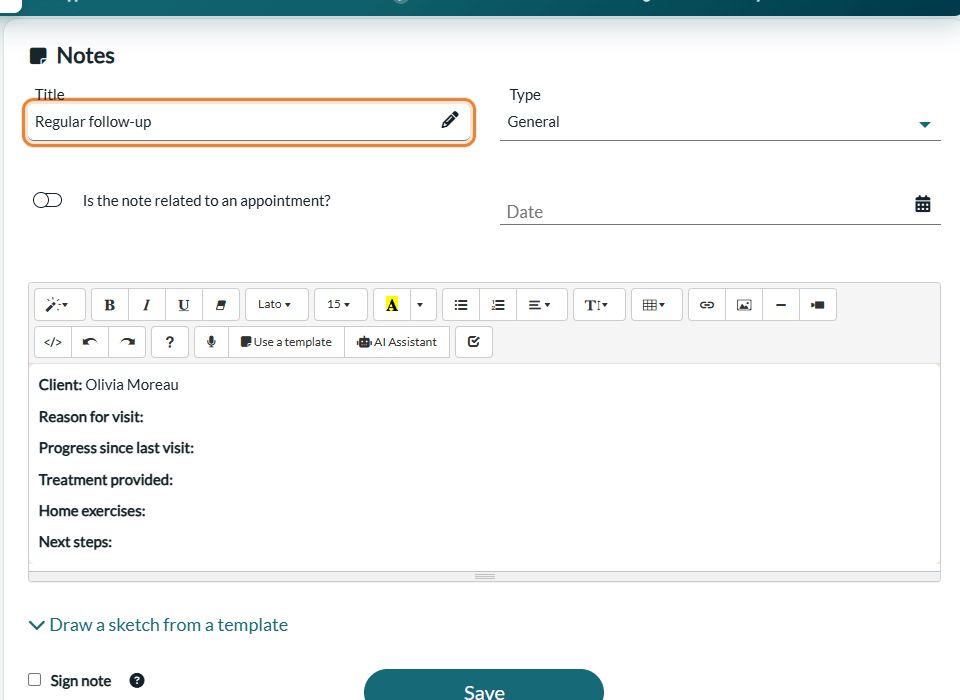
Important: choosing a template replaces the whole content of the editor. Choose the template first, then write your note.
Use a template is also available when you edit a note that is not signed yet (pencil icon in the note history). For everything else about notes (types, signature, history), please see the article titled "How to add a note to a client".
Good to know
- Edit or delete a template — in Settings > Notes, click the pencil or the trash icon of its row. Notes already written with a template are not changed: the text was copied into each note.
- No template in the list? — the Use a template button only appears once at least one template is available to you.
- Several clinics — each practitioner only sees the templates associated with their clinics. For more details, please see the article titled "Form and note templates in multi-clinic mode".
- AI-generated notes — the notes drafted by artificial intelligence use their own set of note formats (SOAP, DAP, BIRP...), chosen in the Content and writing style of AI-generated notes section of the same page, not the templates of this list. See How to personalize AI-generated notes in Colib.
- Drawings — to draw on a body chart or write by hand in a note, please see the article titled "How to draw a sketch or handwrite in a note".
Still have a question?
Write to us at support@colib.io, we will be happy to help.
Was this article helpful?
That’s Great!
Thank you for your feedback
Sorry! We couldn't be helpful
Thank you for your feedback
Feedback sent
We appreciate your effort and will try to fix the article