Who is this article for?
In some cases, you need to include client data in your notes, for example the client's name, date of birth, contact information or the answer to one of your additional fields. Instead of typing them each time, you add tags to your note templates: Colib replaces each tag with the client's information.
This article lists the available tags, including those of your additional fields, shows how to add them to a template and explains where they are replaced.
Available tags
| Tag | Replaced with |
|---|---|
| {firstname} | The client's first name |
| {lastname} | The client's last name |
| {email} | The client's email address |
| {phone} (or {phonenumber}) | The client's phone number |
| {birthdate} | The client's date of birth |
| {healthinsurancenumber} | The client's health insurance number |
Important: type each tag exactly as above, in lowercase, with its curly braces and without spaces. A tag written differently (for example {FirstName} or { firstname }) is not replaced.
Tags of your additional fields
Each additional field of your client records also has its own tag, for example {allergies} for a field named Allergies. You use it like the tags above, and it is replaced with the client's answer to that field. To find it, look at the Note template tag column of the Additional fields panel in Settings > Clients (www.colib.io/settings?show=clients).
| Type of field | Replaced with |
|---|---|
| Text, Date, List of values | The answer in the client record. |
| Multi selection list | The selected choices, separated by commas. |
| Yes/No | Yes or No. |
| Field with no answer | Nothing: the tag disappears from the text. A Yes/No field with no answer gives No when you insert a template from the client record, because its switch is off. |
- Changing a tag — you can edit the tag of a field in Settings > Clients. The templates and notes that contain the old tag are not updated: correct them, otherwise the old tag is no longer replaced.
- Deleting a field — its tag is no longer replaced in your templates and notes.
Important: if you share a note with a client, they can read the answers inserted in it. Only use a tag in a shared note if the client may see that information.
To create a field and choose its tag, see How to add custom fields to your client records.
1Add tags to a note template
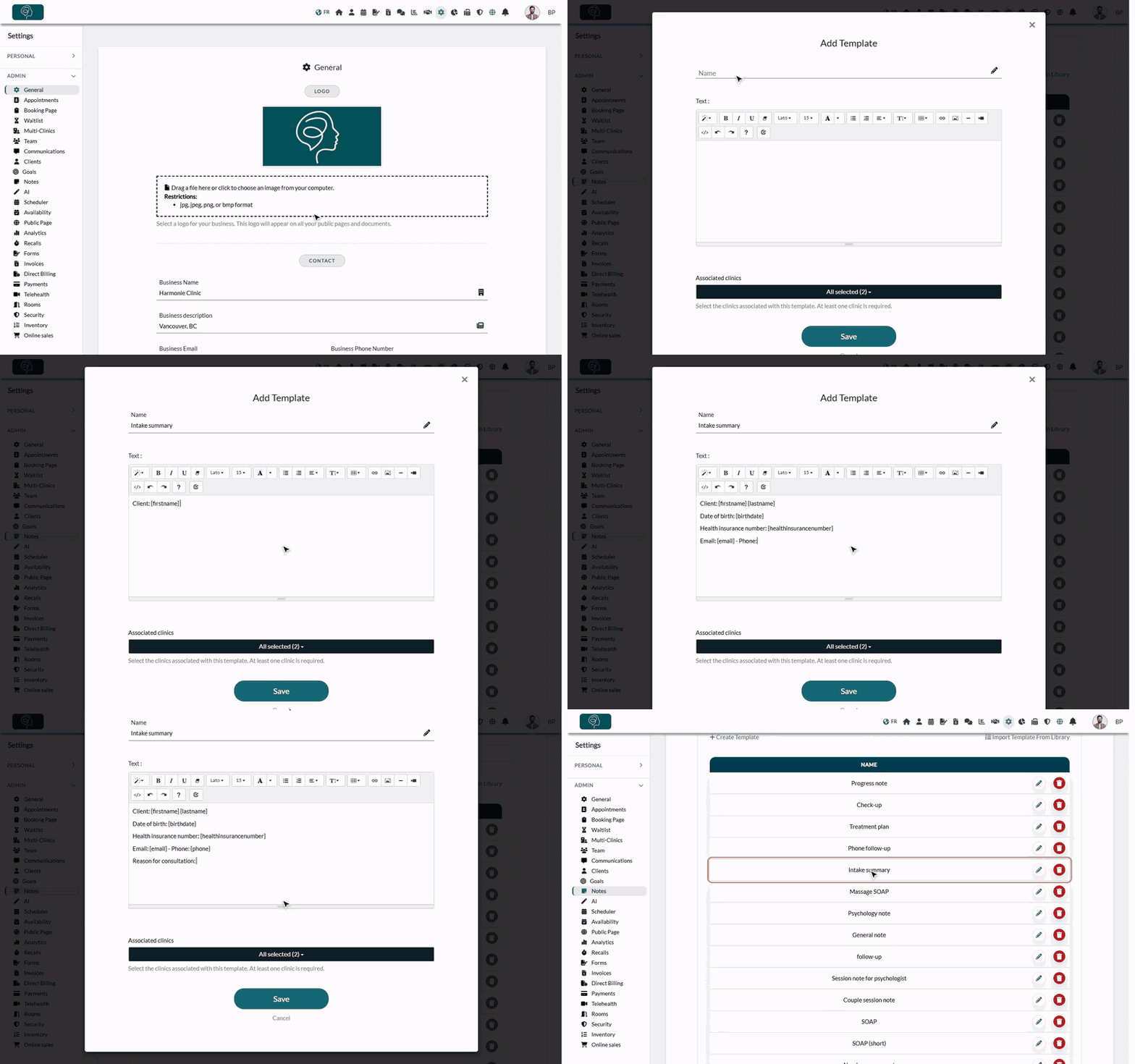
- Go to Settings > Notes (www.colib.io/settings?show=notes) and scroll down to the Templates section.
- Click Create Template, or the pencil icon of an existing template.
- Enter the Name of the template.
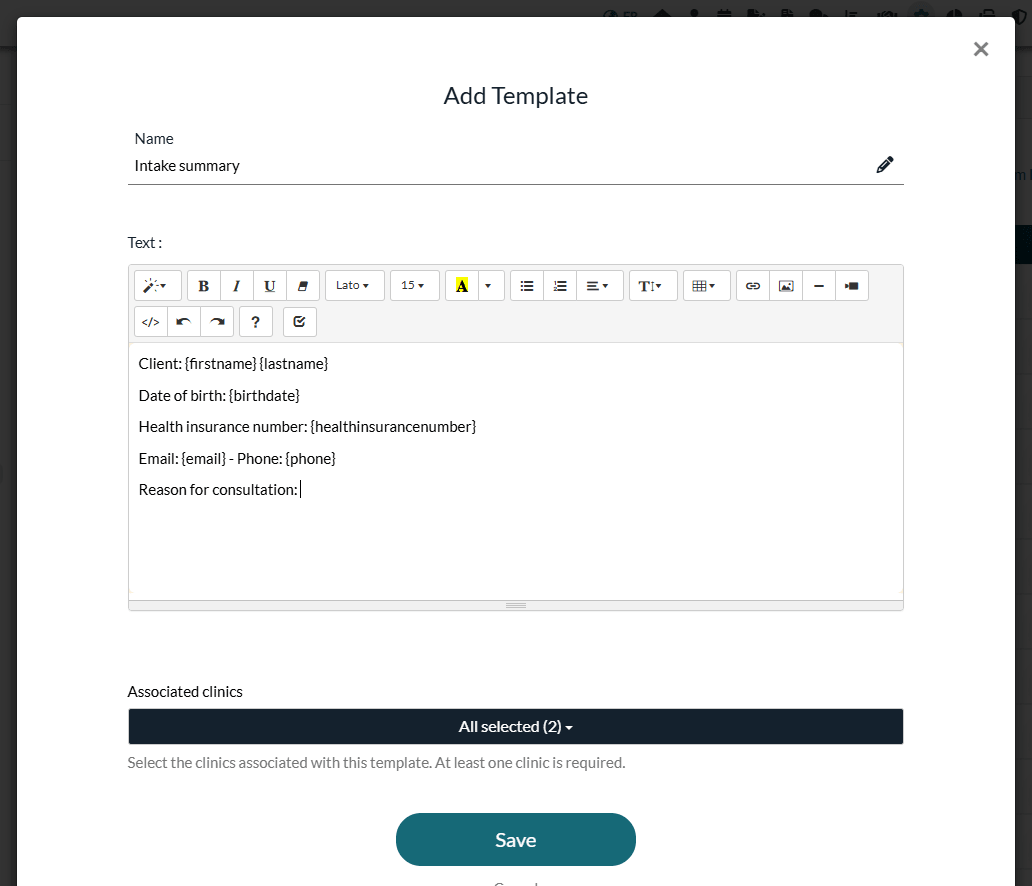
- In Text, write your template and type the tags where the client's information must appear, for example Client: {firstname} {lastname}.
- If your practice has several clinics, choose the Associated clinics of the template.
- Click Save.
2Use the template in a note
- Open the client's record from your client list (www.colib.io/clients) and click New note.
- In the editor toolbar, click Use a template and choose your template. Its text is inserted and the tags are replaced right away with the information of the client record.
- Complete the note and save it.
You can also type a tag directly in any note, without a template. For the details of note writing, please see the article titled "How to add a note to a client", as well as How can I use template of notes to create new notes?
3Where the tags are replaced
When you insert a template with Use a template in the client record, the tags are replaced right away in the note editor with the information of the client record. A tag that is still in the text of a note (for example a tag you typed directly in the note) stays as you typed it in the note editor and in the note history of Colib. It is replaced with the client's information:
- in the PDF of the note, when you download it from the note history of the client record;
- on the client portal, when you share the note with the client: they read it with their own information, on screen and in the PDF (see How can I securely share notes with my clients?).
For example, with the template above, a note written for Sophie Tremblay shows:
| In the template | In the note |
|---|---|
| Client: {firstname} {lastname} | Client: Sophie Tremblay |
| Date of birth: {birthdate} | Date of birth: Jul 30, 1996 |
| Email: {email} - Phone: {phone} | Email: sophie.tremblay@example.com - Phone: 514 555-0148 |
Good to know
- Inserted once or always up to date — information inserted with a template is copied into the note at that moment and does not change afterwards. A tag left in the text of a note is replaced with the information of the client record at the time the PDF is created or the note is read on the portal. If you correct the client's phone number, the next PDF shows the new number.
- Empty field — if the information is missing from the client record, the tag is replaced with nothing.
- Note shared by several clients — for the tags left in the text of the note, each client sees their own information.
- Need another tag? — create an additional field in the client record: it automatically gets its own tag. See How to add custom fields to your client records.
Still have a question?
Write to us at support@colib.io, we will be happy to help.
Was this article helpful?
That’s Great!
Thank you for your feedback
Sorry! We couldn't be helpful
Thank you for your feedback
Feedback sent
We appreciate your effort and will try to fix the article