Who is this article for?
This article is for practitioners who keep their clinical notes in Colib. It explains how to write a note in a client record, use a template, sign the note, and what you can do with it afterwards (addendum, PDF, sharing).
Before you start: you need access to notes in your user rights. If you do not see the Notes tab in the client record, ask the administrator of your practice. To create your own templates first, see How can I use note templates to create new notes?.
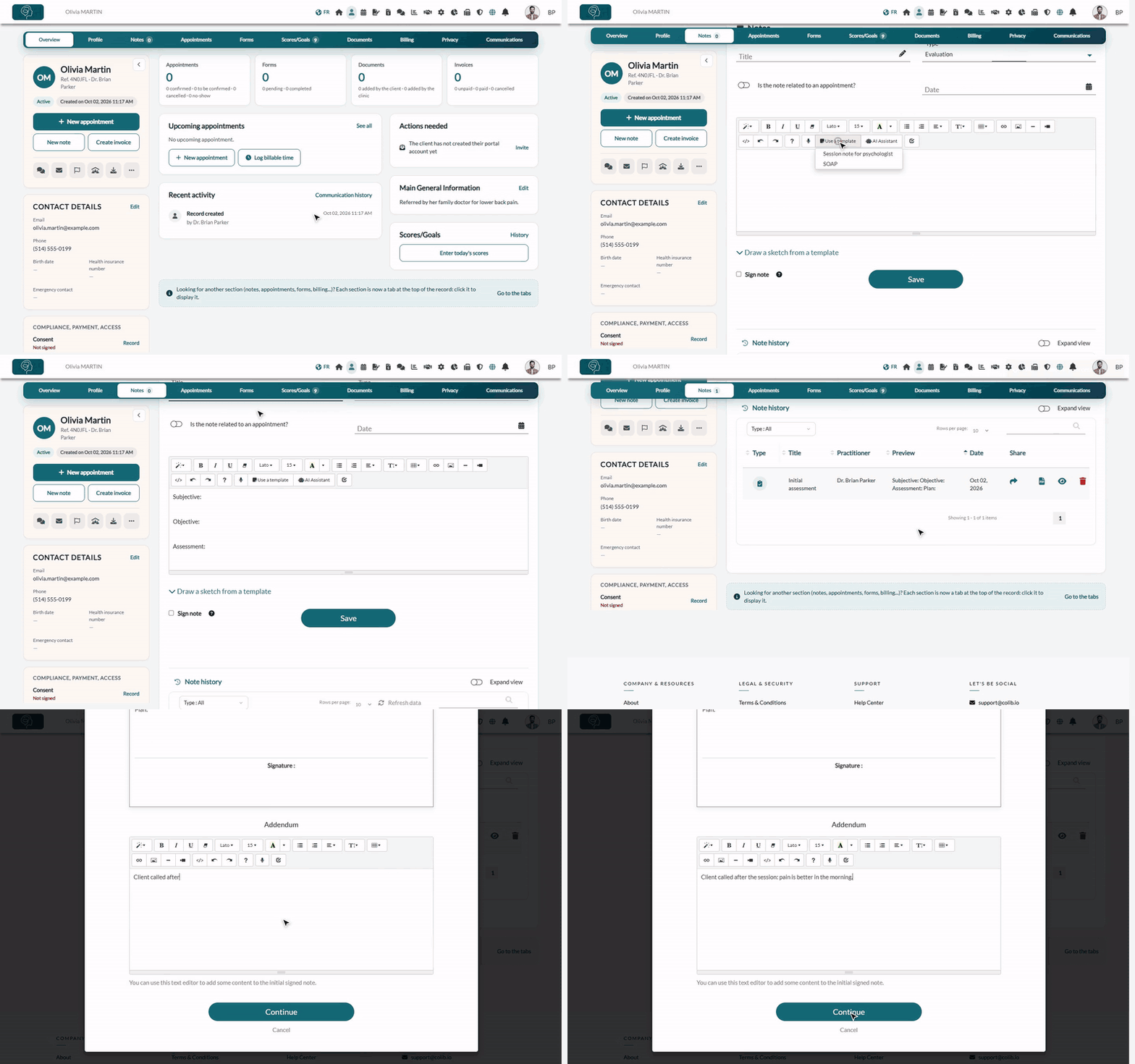
1Open the note editor
- Open the client record from your client list (www.colib.io/clients).
- Click New note under the client's name. You can also click the Notes tab at the top of the record: the editor is at the top of the tab.
From an appointment: in the appointment window of the scheduler, click More actions > Create note. The client's Notes tab opens with the note already linked to that appointment and its title filled in.
2Write the note
- Enter a Title (required).
- Choose the Type of note among the 16 types of the list (see the table below), for example General, Appointment, Evaluation, Treatment plan, Phone Conversation, Professional correspondence or End of care. The type is shown as an icon in the note history and lets you filter it.
- Turn on Is the note related to an appointment? to link the note to one of the client's appointments, then choose it in Appointment. Otherwise, you can set a Date.
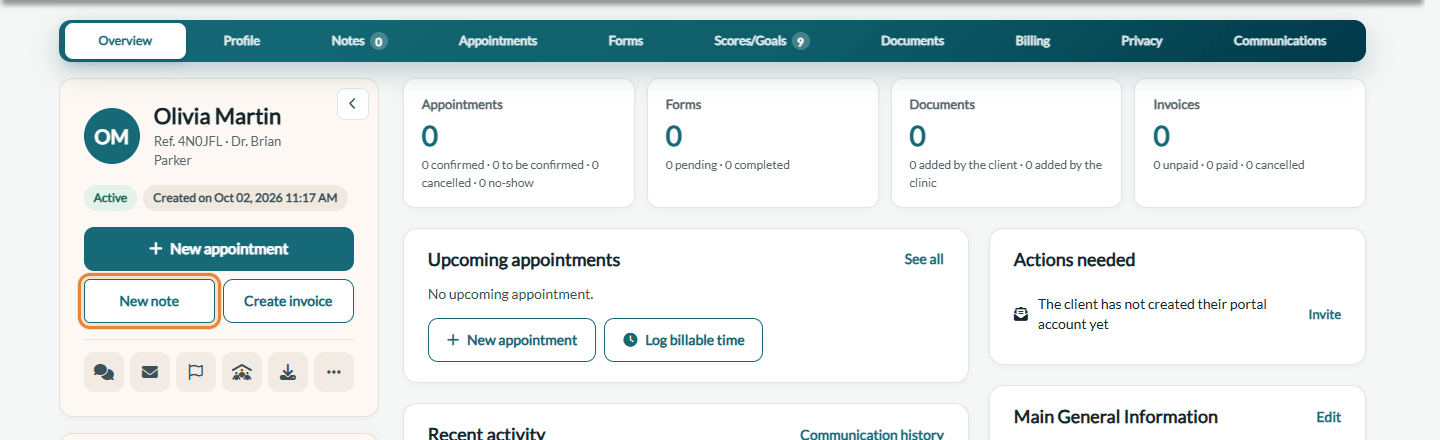
- Write your note in the editor. To start from a template, click Use a template in the editor toolbar and choose one of your templates: its text is inserted and its name is used as the title (you can change it).
Note types — the type of each note keeps the history of the record easy to read. Here are the 16 types of the Type list:
| Type | Use it for |
|---|---|
| General | Any note that does not fit another type. This is the type selected by default. |
| Appointment | The note of a session with the client. |
| Evaluation | An initial assessment or a re-evaluation. |
| Treatment plan | The objectives and the planned interventions. |
| Program | The follow-up of a program or a series of sessions. |
| Measurements follow-up | Measurements, scores or results followed over time. |
| End of care | The closing summary when the follow-up ends. |
| An exchange with the client by email. | |
| Phone Conversation | A phone call with the client or about the client. |
| Text Message | An exchange by text message. |
| Professional correspondence | A letter or a report exchanged with another professional, for example a physician. |
| Multidisciplinary meeting | A meeting with other professionals about the client. |
| Consent | A consent given, refused or withdrawn by the client. |
| Cancellation or no-show | A cancelled appointment or an appointment the client did not attend. |
| Incident or risk | An incident or a risk situation, and what was done. |
| Supervision | A supervision or clinical consultation about the client. |
The type is a category, not a format. The format of the note itself (SOAP, DAP, BIRP, GIRP, initial assessment and others) comes from the template you start from: your own note templates (How can I use note templates to create new notes?) or, for notes drafted with artificial intelligence, the AI template chosen for the appointment type (How can I select a different template for each type of appointment when using AI-powered note generation?).
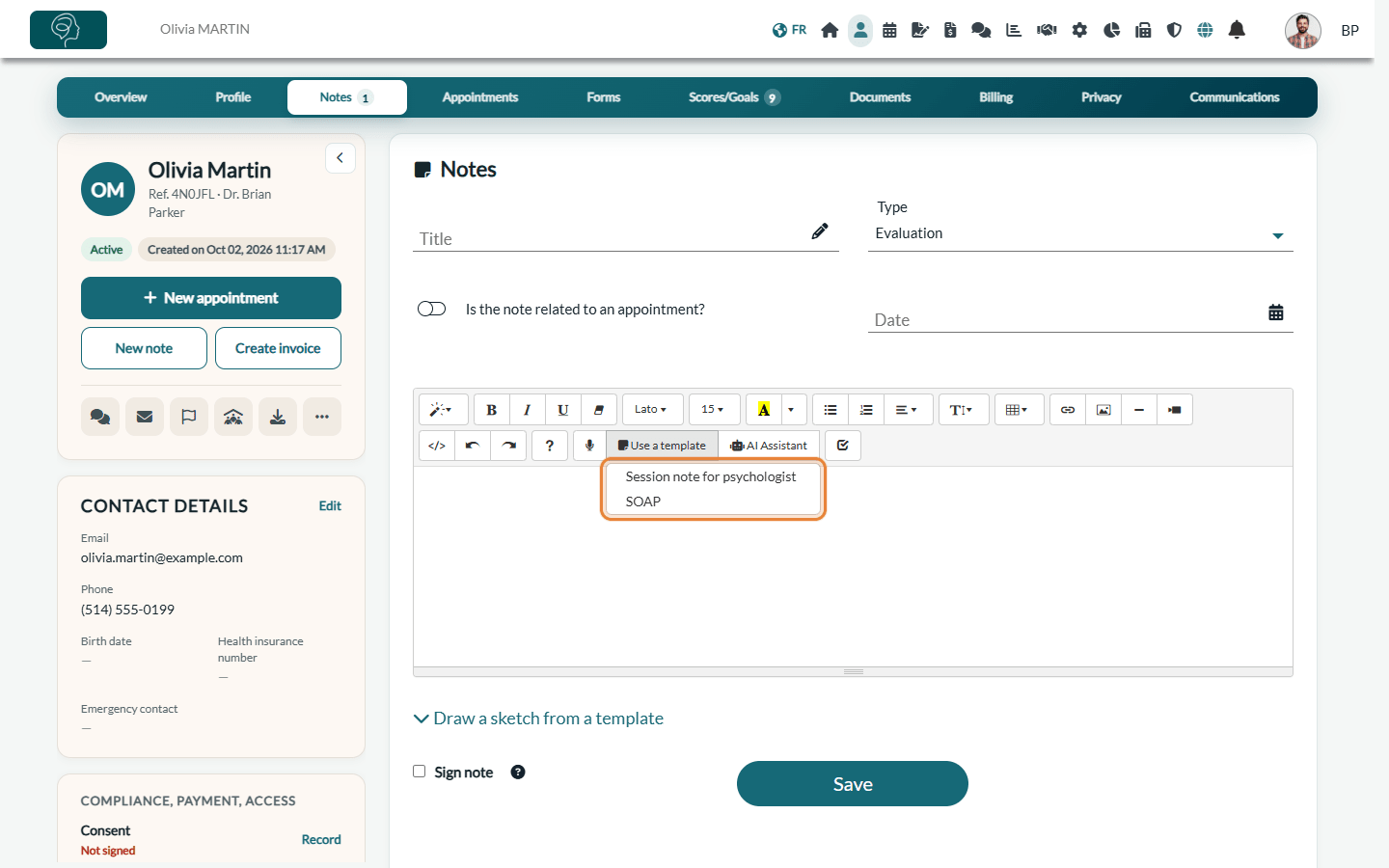
The editor toolbar also gives you:
- the microphone to dictate your note: see How can I use the voice recognition tool to create a note?;
- AI Assistant to fix grammar and typos, rewrite the note in a SOAP format or make it sound more polished (always review the result);
- buttons to insert images or attach documents: see How to attach documents and images to client notes;
- Draw a sketch from a template, under the editor, to draw on an image template and add the drawing to the note.
Nothing is lost: while you type, Colib keeps a draft of the note in progress. If you leave the record before saving, you find your text when you come back to the Notes tab. The draft is only visible to you.
3Sign and save
- Check Sign note if the note is final.
- Click Save. The note appears at the top of the Note history.
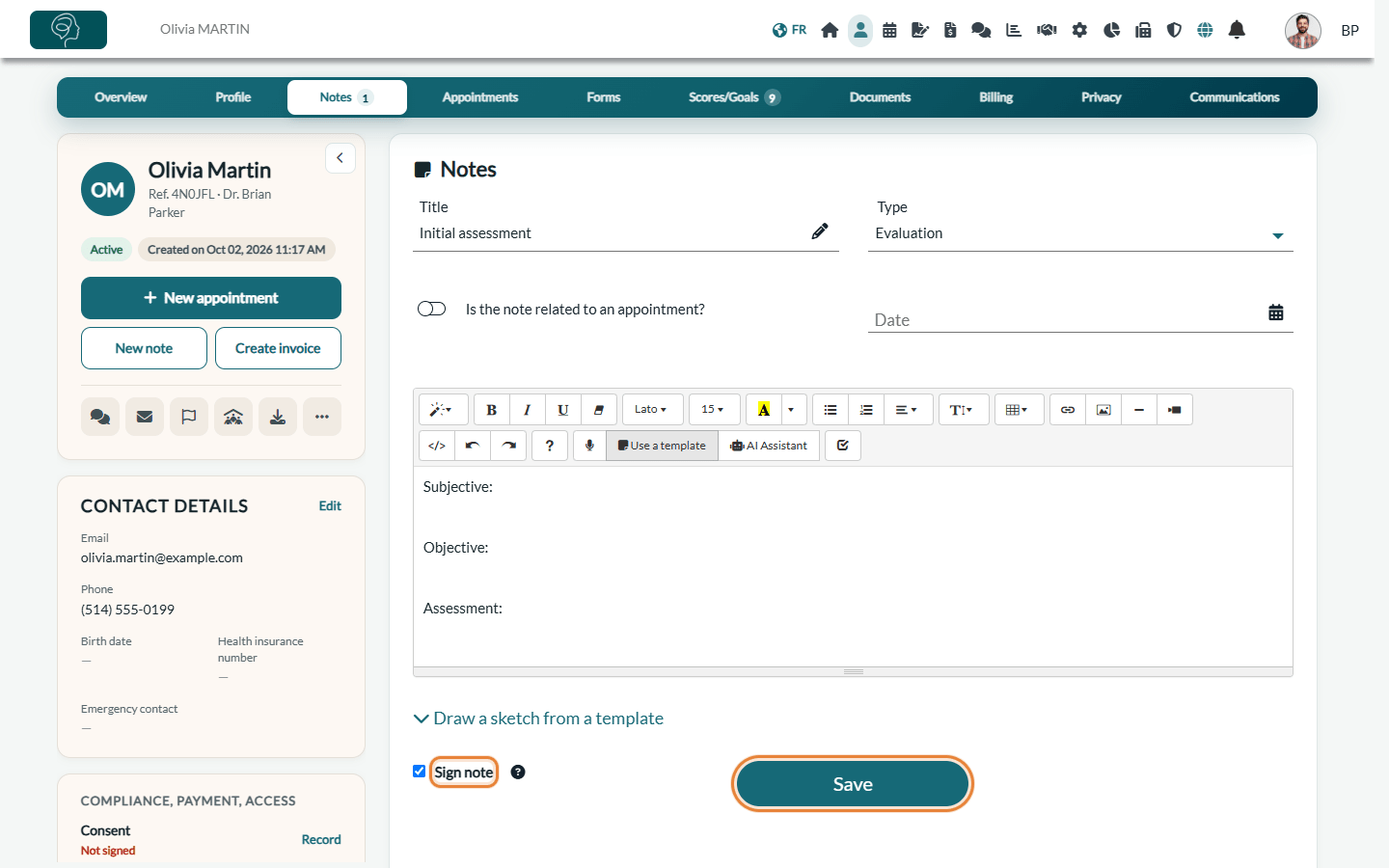
Important: signing locks the note: a signed note can no longer be edited. Leave Sign note unchecked if you want to come back to it later: you can then edit it (pencil icon in the history) and sign it when it is complete.
If you set up a handwritten signature, it is added automatically under your signed notes. See How to automatically add your handwritten signature to notes.
4Find and manage your notes
The Note history under the editor lists all the client's notes, newest first, with their type, title, practitioner, preview and date. Use Type to filter them, the search box to find a word, and Expand view to read the full notes one after the other.
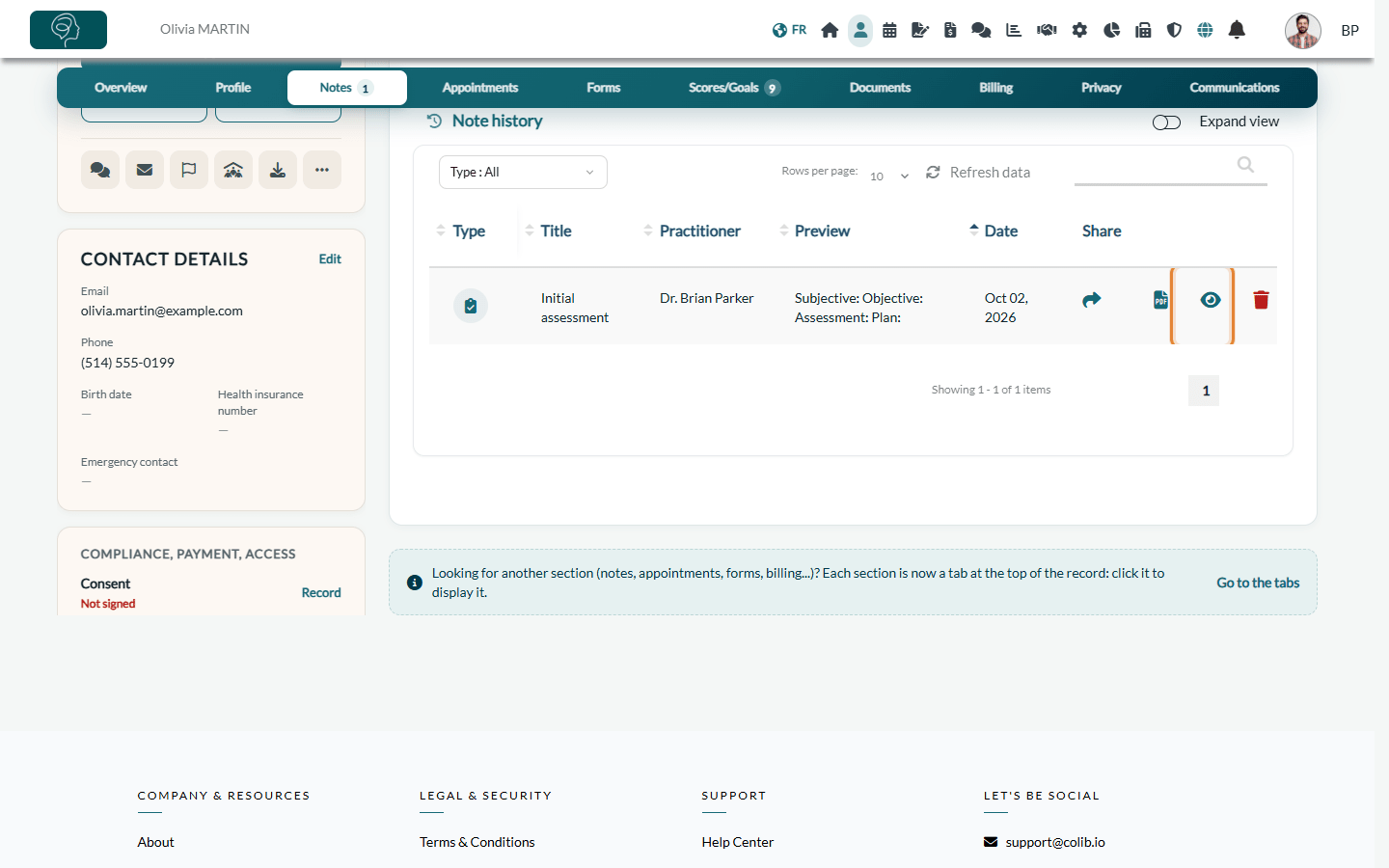
| Icon | What it does |
|---|---|
| Share (arrow) | Shares the note with the client: they receive an email and can read it on the client portal. Click again to stop sharing. See How can I securely share notes with my clients?. |
| Downloads the note as a PDF file. | |
| Eye / pencil | Opens the note: View note for a signed note, Edit note for an unsigned one. |
| Trash | Deletes the note, after confirmation. A signed note can only be deleted by an administrator of the practice; other users see a lock instead. |
5Add an addendum to a signed note
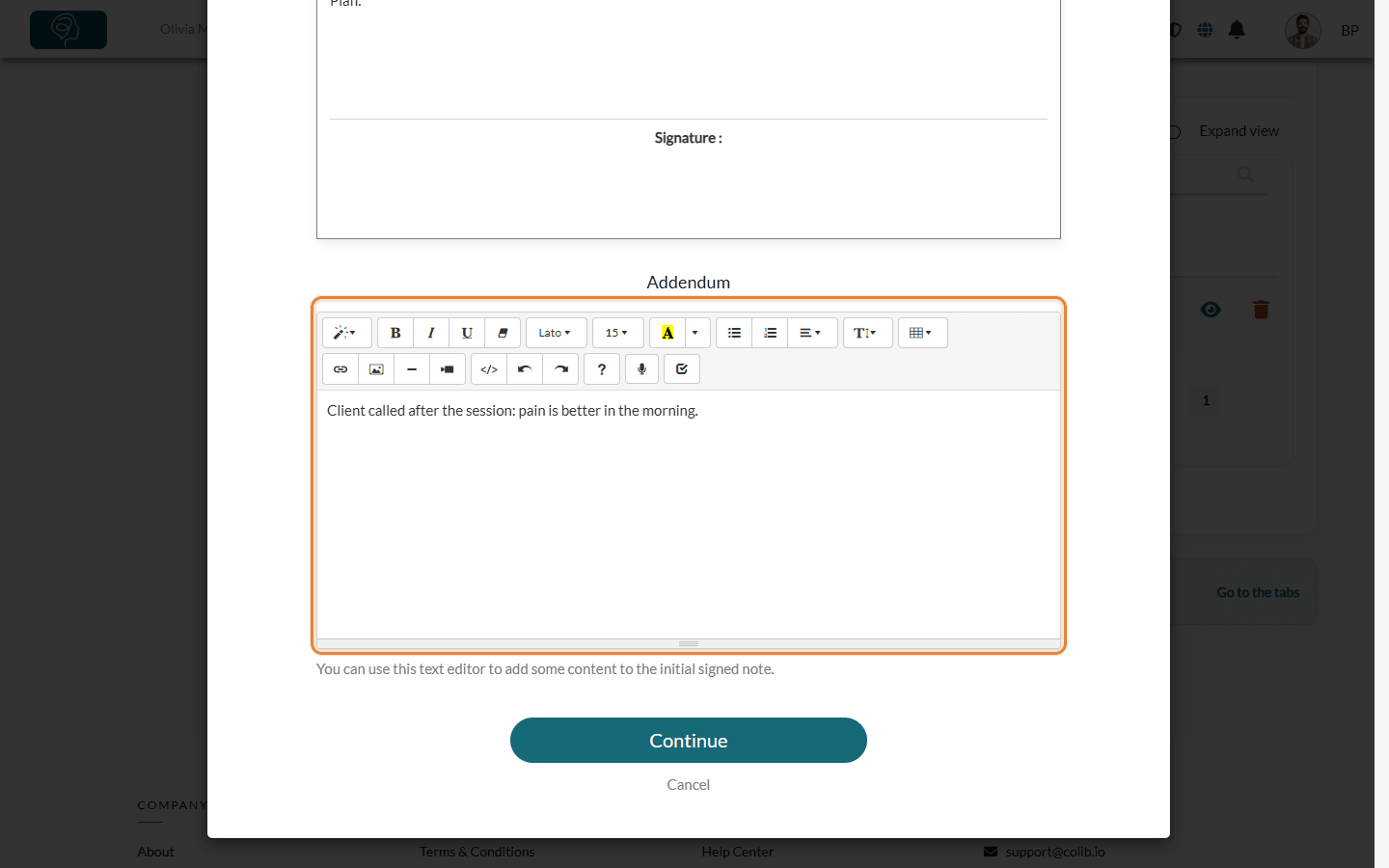
Forgot something in a signed note? You do not change the original text: you add an addendum.
- In the Note history, click the eye icon of the note (View note).
- Scroll down to Addendum and write the additional information.
- Click Continue. The addendum is added at the end of the note, with your name and the date and time.
One note for the whole group
When several clients attend the same appointment (a couple, a parent and a child, a family), you do not need to write the note in each record.
- The note is added to every client of the appointment — if you link the note to an appointment that has several clients (Is the note related to an appointment? turned on, then the appointment chosen in Appointment), the note is added to the record of each client of this appointment when you save it. This also happens when you later link to an appointment a note that was not linked to one yet.
- One single note — it is the same note in every record: a change made later, the signature or a deletion apply to all the records.
- Sharing stays client by client — sharing the note on the client portal (Share icon) is done from each client's record: sharing it with one client does not share it with the others.
Important: this does not apply to group or class appointments, that is appointments whose type has Group Appointment turned on (Settings > Appointments, section Group/class appointment). For these appointments, a note you write yourself stays only in the record where you wrote it: write a note in the record of each participant who needs one. Notes drafted with artificial intelligence after an online session are added to the record of every client of the appointment, group appointments included (How does the artificial intelligence note generation work?).
Automatic saving, locking and change tracking
| Question | Answer |
|---|---|
| Are notes saved automatically? | While you write a new note, Colib keeps a draft of it as you type. If you leave the record before clicking Save, you find your text when you come back to the Notes tab of the client. The draft is only visible to you. A draft that is not touched for 35 days is deleted: save your note to keep it. |
| Can a note be locked against accidental changes? | Yes: check Sign note when you save it. A signed note can no longer be edited, and only an administrator of the practice can delete it. To add information later, you write an addendum, added at the end of the note with your name, the date and the time (step 5). Please see the article titled "How to change a signed note with an addendum". |
| Is there a history of the changes? | Colib does not keep the successive versions of the text of a note. Each creation, modification, viewing, PDF download and deletion of a note is recorded in the activity log of your practice, with the user, the date and the time. See How to access the activity log (audit log). A signed note also shows who created it and who signed it, with the dates. |
| And for AI-generated notes? | The original draft written by the AI is kept: you can compare it with the current text of the note. Please see the article titled "How to review the original AI draft and report an inadequate result". |
| Are templates included? | The template library offers ready-made templates (for example SOAP or session notes) that you add and adapt, and you create your own templates for your assessments, treatment plans, progress notes or discharge summaries. See How to create and use note templates. Notes drafted by artificial intelligence use their own formats (SOAP, DAP, BIRP, GIRP, initial assessment and others). |
Good to know
- AI-generated notes -- after an online session, Colib can draft the note for you. See How does the artificial intelligence note generation work?.
- Client data in templates -- templates can fill in the client's name and other information automatically. See How to use client data tags in notes templates.
- Signed by -- a signed note shows who created it and who signed it, with the dates.
- Notes counter -- the number on the Notes tab is the number of notes in the record.
- Client Files & Notes feature page -- for an overview of client records and notes in Colib, see www.colib.io/electronic-client-records.
Still have a question?
Write to us at support@colib.io, we will be happy to help.
Was this article helpful?
That’s Great!
Thank you for your feedback
Sorry! We couldn't be helpful
Thank you for your feedback
Feedback sent
We appreciate your effort and will try to fix the article