Who is this article for?
Colib's AI can write a session note for you from the audio of an online meeting or from a recording of an in-person session. Every clinic decides when these notes are generated, what they contain and how they are written. The settings apply to every note the AI generates for your clinic.
This article is for practice administrators. It explains where to turn automatic notes on, how to choose the template and the session history, and how to set the point of view, the tone, the format and the level of detail of AI-generated notes.
Before you start: these settings are in two tabs of the Settings: AI (www.colib.io/settings?show=artificialintelligence) for when notes are generated, and Notes (www.colib.io/settings?show=notes) for what they contain and how they are written. You need access to the practice settings to change them.
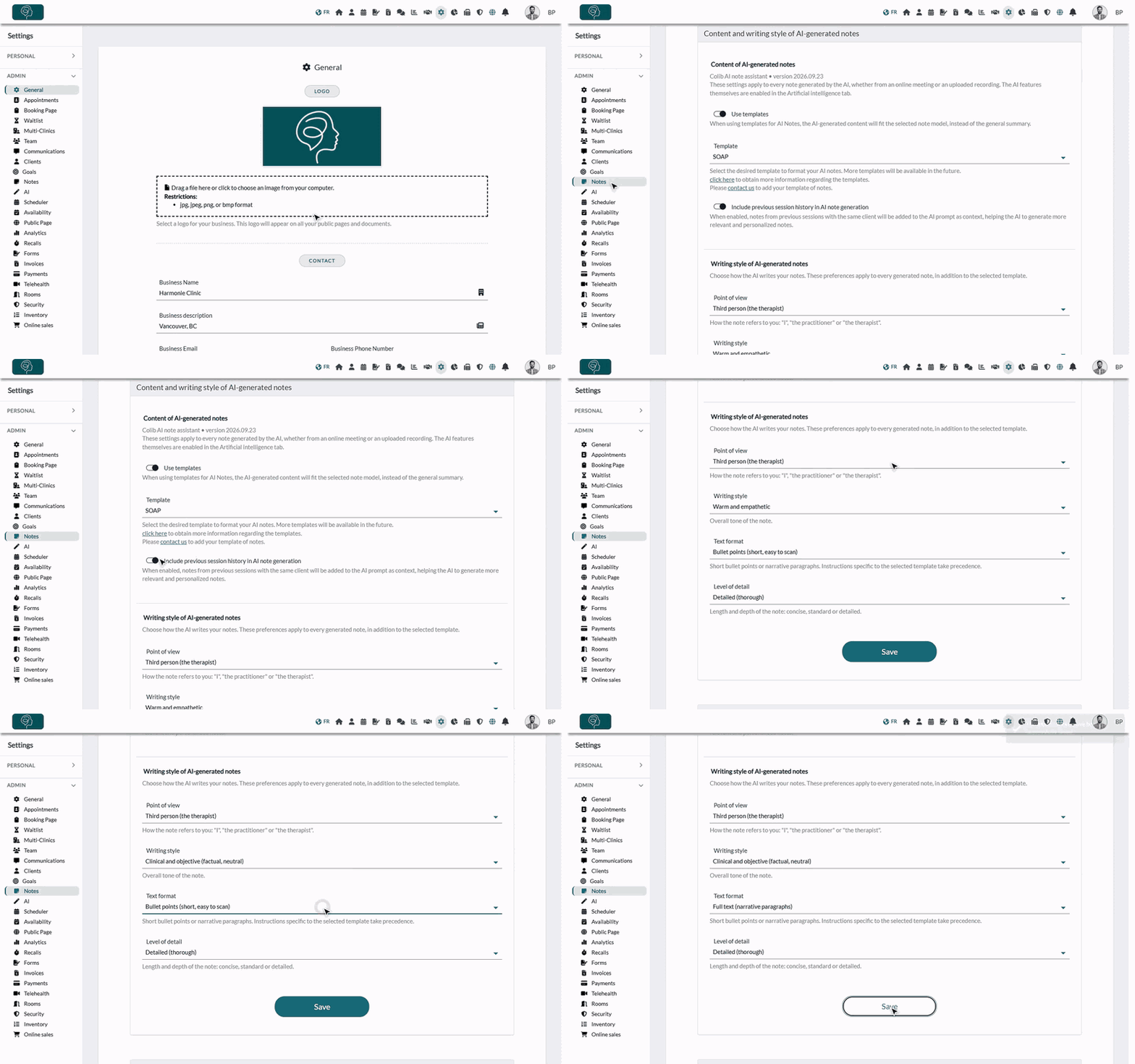
1Turn on automatic notes for Colib's online meetings
- Go to www.colib.io/settings?show=artificialintelligence. You can also click the Settings icon (gear) in the top bar, then AI in the Admin menu on the left.
- In the Automatic notes for Colib's online meetings section, turn on Generate a note automatically after each online meeting.
- If needed, limit the automatic notes with the two switches that appear (see below).
- Click Save at the bottom of the section.
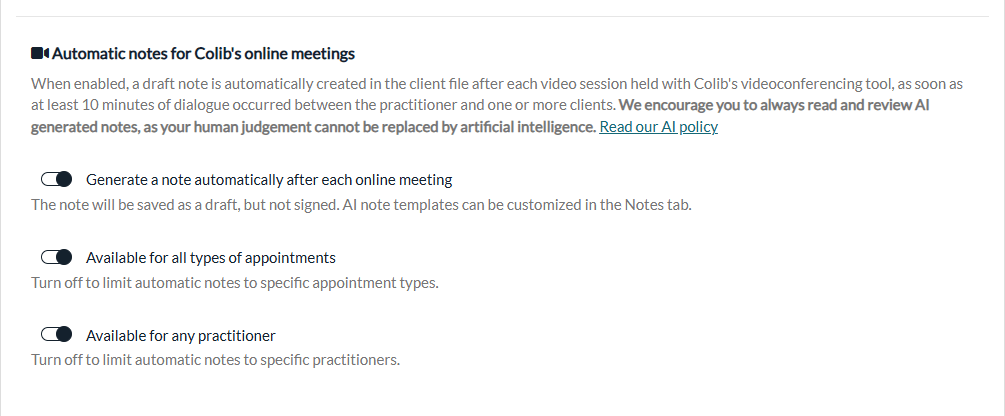
A draft note is then created in the client's record after every video session held with Colib's videoconferencing tool, as soon as at least 10 minutes of dialogue took place between the practitioner and one or more clients.
- Available for all types of appointments — turn it off, then pick the appointment types for which a note should be generated in Applicable appointment types:.
- Available for any practitioner — turn it off, then pick the practitioners for whom a note should be generated in Applicable practitioners:.
Important: the generated note is always saved as a draft. It is never signed for you: read it, edit it if needed, then sign it as you would any other note. AI can make errors or omissions, and the practitioner remains responsible for the clinical record.
AI-powered note generation is an add-on billed per note or by package; see How billing works for AI-powered notes. It remains free during your trial period. The other AI features of this tab (rewriting assistant, form extraction, voice dictation) are described in another article: please see the article titled "How to turn artificial intelligence features on or off for your clinic".
2Choose the content of AI-generated notes
- Go to www.colib.io/settings?show=notes (or Settings > Notes in the Admin menu).
- In the Content and writing style of AI-generated notes panel, find the Content of AI-generated notes part.
- Set the two options described below.
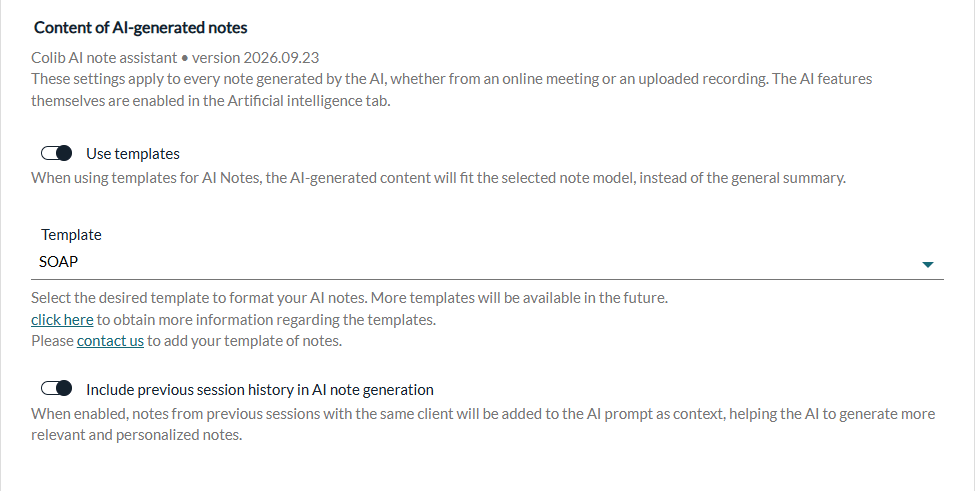
These options apply whether the note comes from an online meeting or from an uploaded recording.
- Use templates — when it is on, the AI structures the note according to the Template you select (SOAP, DAP, BIRP, GIRP and more) instead of writing a general summary. If an appointment type has its own template, that template takes precedence for appointments of that type: see How can I select a different template for each type of appointment when using AI-powered note generation? To add your own template, contact us.
- Include previous session history in AI note generation — when it is on, the notes of previous sessions with the same client are given to the AI as context. The new note still describes today's session only, but it can highlight progress, recurring themes or notable changes since the last sessions. See How to include previous session history in AI note generation?
3Choose the writing style, then save
- In the same panel, go to the Writing style of AI-generated notes part.
- Choose the Point of view, the Writing style, the Text format and the Level of detail (see the table below).
- Click Save. A message confirms that your changes have been saved.
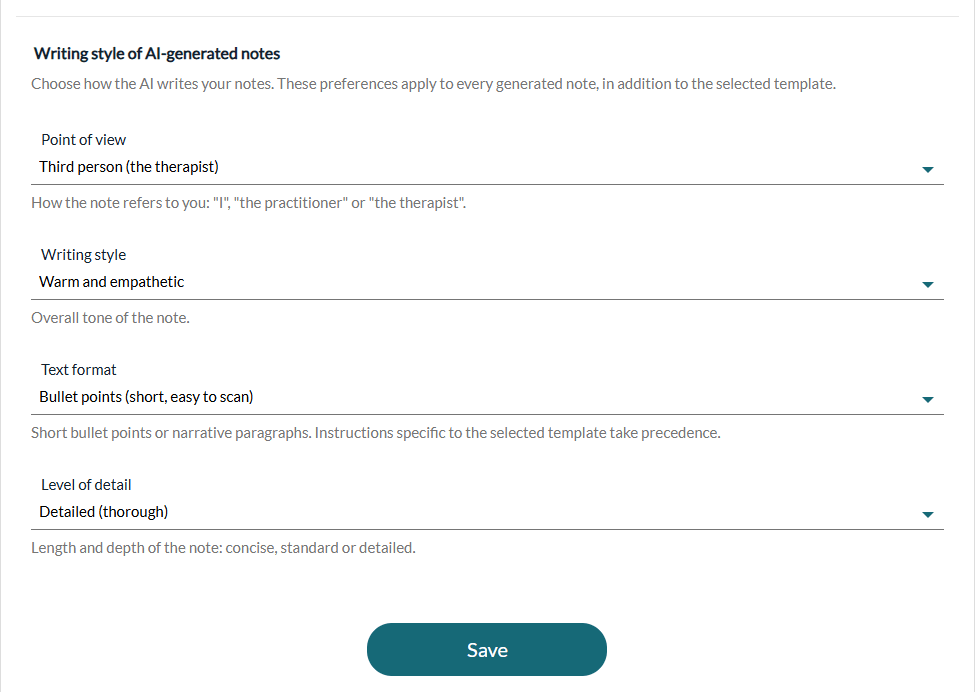
These four settings apply to every note the AI generates, in addition to the selected template.
| Setting | Choices |
|---|---|
| Point of view | How the note refers to you: First person (I), Third person (the practitioner) or Third person (the therapist). In the third person, the note never uses your first name. |
| Writing style | The overall tone: Professional and inspiring (the default tone); Clinical and objective (factual, neutral), with observable statements and no value judgement; Warm and empathetic, which acknowledges the client's experience with kindness while staying professional. |
| Text format | Bullet points (short, easy to scan); Full text (narrative paragraphs); Mixed (short summary + bullet points): one to three sentences that sum up each section, then the details as bullet points; Concise sentences (clinical charting style): short factual sentences, without bullet points; Adapted to each section (paragraphs or bullet points): paragraphs for narrative sections (subjective, assessment...) and bullet points for list-type sections (plan, interventions, next steps...). If a template explicitly requires bullet points for a given section, that instruction takes precedence for that section. |
| Level of detail | Concise (key points only), Standard (a balanced note) or Detailed (thorough), which reports every clinically relevant element that was discussed. This setting also adjusts the maximum length of the note. |
Default values
If you never change these settings, a new practice gets: first person, a professional and inspiring tone, the Mixed (short summary + bullet points) format, a standard level of detail, the SOAP template, and previous session history included. Practices created earlier keep the format they already had. Automatic generation after online meetings stays off until you turn it on.
Refining a note you wrote yourself
The writing style settings apply to notes generated by the AI. For a note you typed or dictated yourself, open it in the client's record and use the AI Assistant of the note editor to fix the grammar, polish the wording or restructure the text in SOAP format, without changing its content. For more details, please see the article titled "How to use the AI rewriting assistant in a note".
Good to know
- Only what was said — the AI only uses what was actually said during the session. It is instructed not to invent, infer or add recommendations.
- Names spelled correctly — client and practitioner first names are provided to the AI so they are spelled correctly in the note.
- Clients who refuse AI — a client can be excluded from AI note generation from their client record. No note is generated for their sessions, even when automatic generation is on. See How to disable AI-generated notes for a specific client?
- In-person sessions — the same content and writing style settings apply to notes generated from the recording of an in-person session. See How to generate AI-powered session notes without using Colib's telehealth system.
- Not retroactive — changes apply to notes generated after you save them. Existing notes are not modified.
- Privacy — this feature relies on tools that comply with PIPEDA, PHIPA and HIPAA requirements, and personal health information is stored on our servers in Canada. To write the draft, the AI model processes the information in memory only; this processing can run in Canada or in the United States, and nothing is stored or kept there. See How does the artificial intelligence note generation work?
Still have a question?
Write to us at support@colib.io, we will be happy to help.
Was this article helpful?
That’s Great!
Thank you for your feedback
Sorry! We couldn't be helpful
Thank you for your feedback
Feedback sent
We appreciate your effort and will try to fix the article