Who is this article for?
This article is for practitioners who want their handwritten signature to appear on their clinical notes. You draw your signature once in your personal settings; Colib then adds it automatically at the bottom of every note and addendum you sign.
Personal setting: each user sets their own signature. It does not change the settings of the other members of the practice.
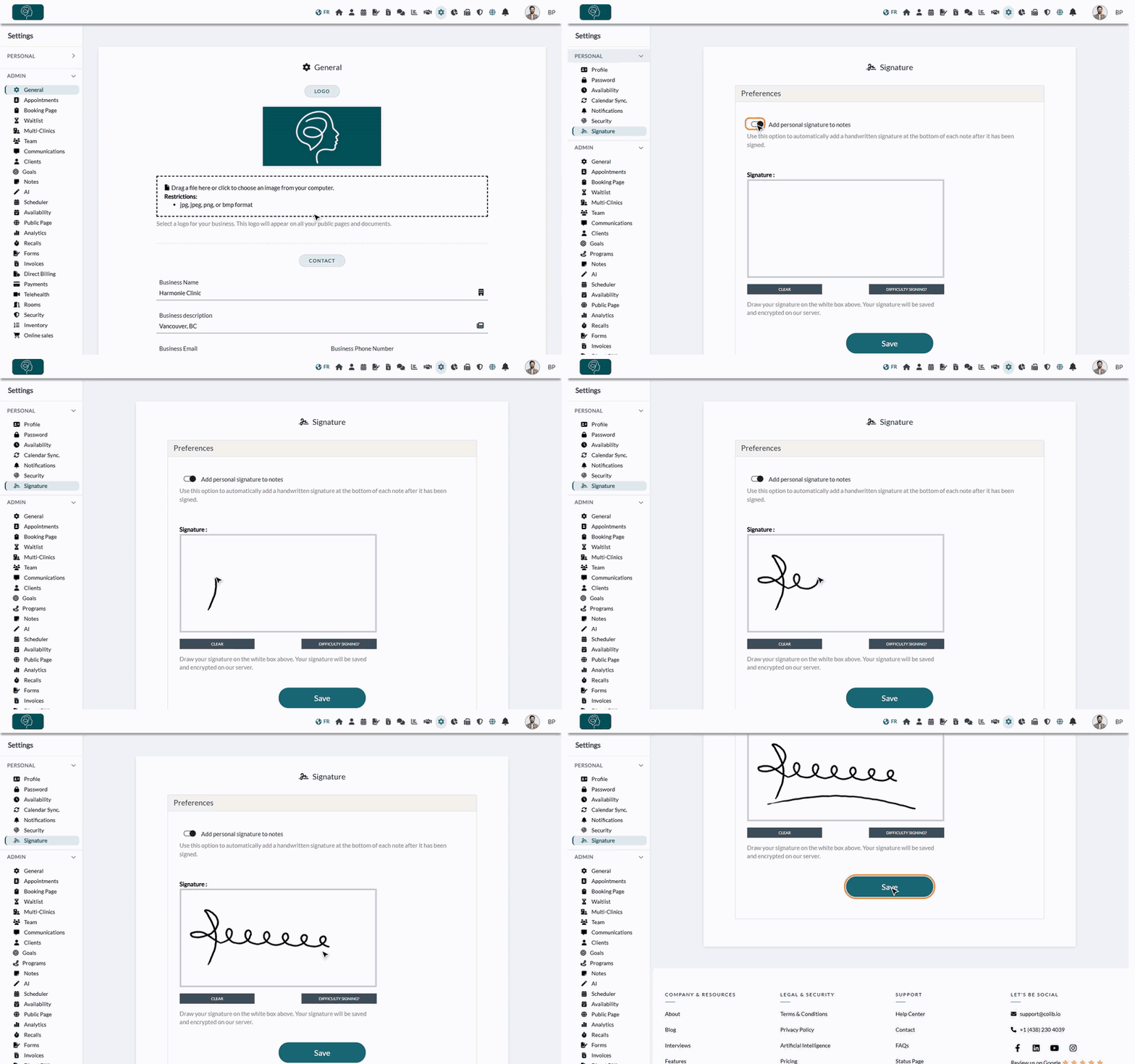
1Open your signature settings
- Go to www.colib.io/settings?show=personalsignature. You can also click the Settings icon (gear) in the top bar, open the Personal menu on the left, then click Signature.
- Turn on Add personal signature to notes. The signature box appears.
2Draw your signature and save
- Draw your signature in the white box, with your mouse, your finger or a stylus. Click Clear to start over.
- Click Save. A confirmation message tells you that the modifications have been saved.
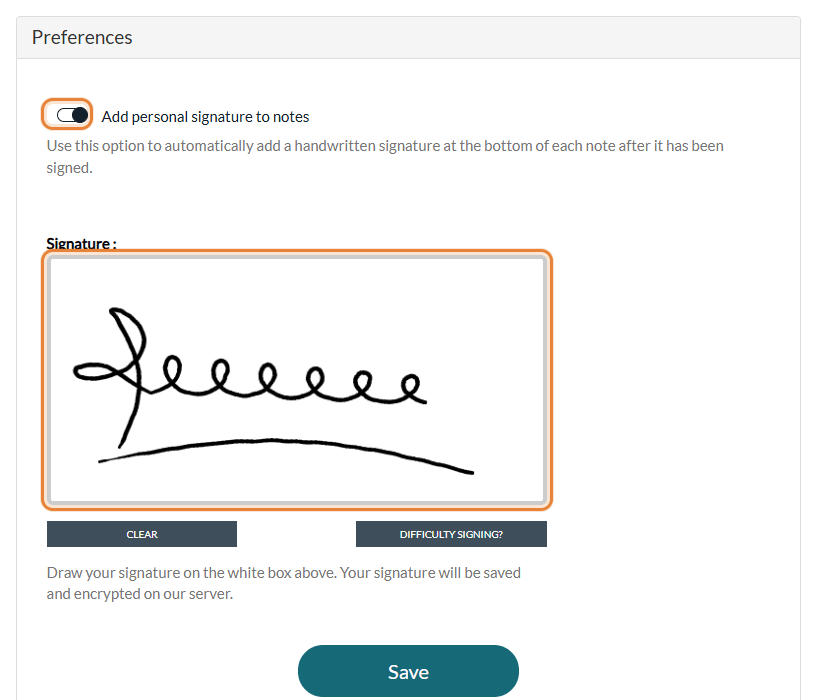
- Difficulty signing? — click Difficulty Signing? then confirm: Colib generates a signature with your name in a handwritten style. Click Save to keep it.
- Signature too small — if your drawing is too short, the message The signature you provided is too small. Please modify it. appears: draw a larger signature.
- Saved and encrypted — your signature is saved encrypted. When you come back to this page, the current signature is shown above the box.
3Sign your notes
From now on, the signature is added when you sign a note: in the note editor of the client record, check Sign note, then click Save.
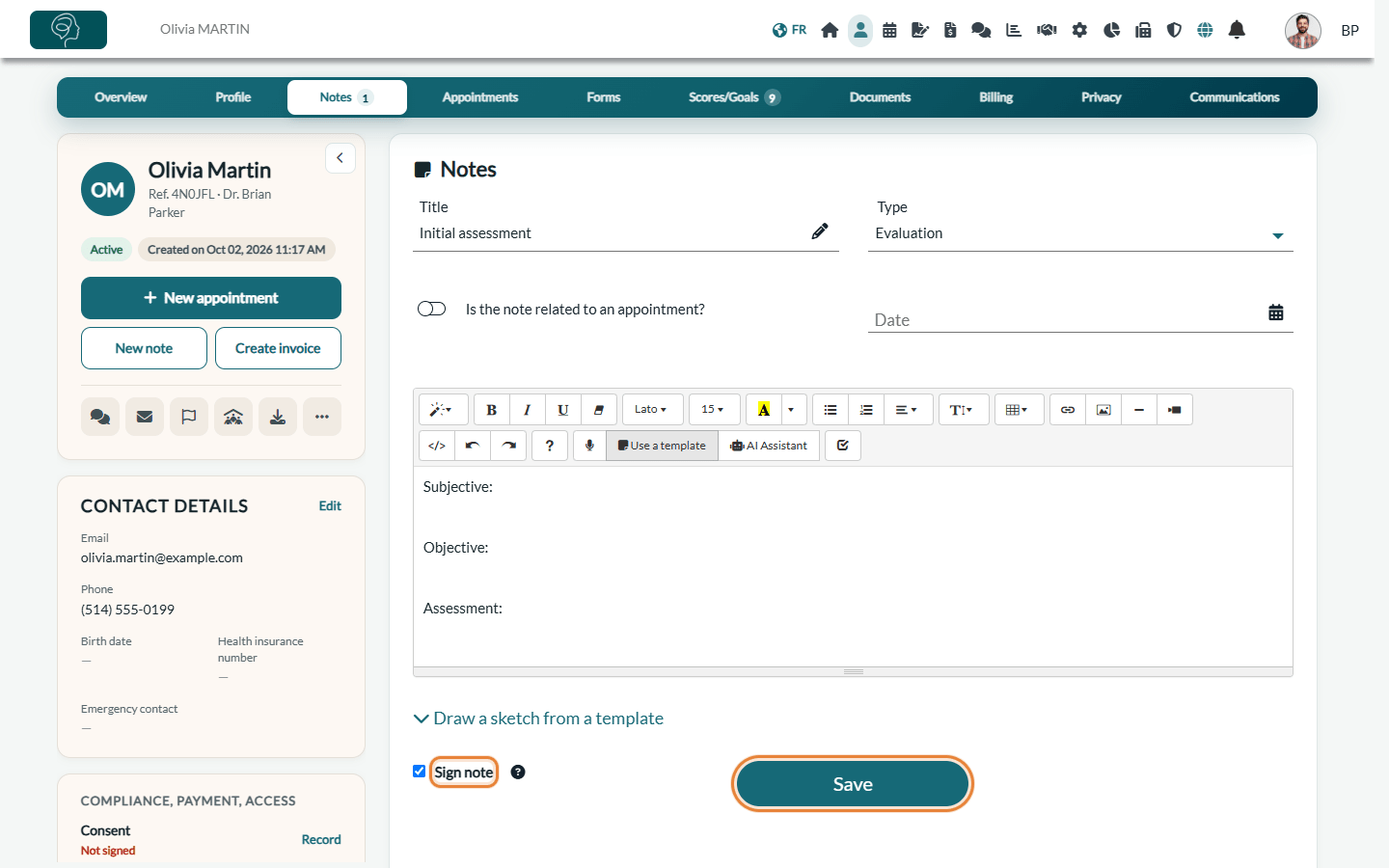
Your signature is placed below the text of the note, under the heading Signature :. It appears everywhere the note is read: in the client record, in the PDF of the note and on the client portal if you share the note.
It is also added under each addendum you add to a signed note. For more details, please see the article titled "How to add a note to a client" and the article titled "How to change a signed note with an addendum".
Good to know
- The signature of the person who signs — the signature added is the one of the user who signs the note or writes the addendum.
- Notes already signed — the signature becomes part of the note when it is signed. Notes signed before you turned on the option stay without a signature, and changing your signature later does not change the notes already signed.
- Unsigned notes and drafts — no signature is added while a note is not signed, including AI-generated drafts. The signature is added when you sign them.
- Stop adding your signature — turn off Add personal signature to notes and click Save.
- Signing forms — this signature is used for notes. To sign forms completed by your clients, see How to countersign a form?
Still have a question?
Write to us at support@colib.io, we will be happy to help.
Was this article helpful?
That’s Great!
Thank you for your feedback
Sorry! We couldn't be helpful
Thank you for your feedback
Feedback sent
We appreciate your effort and will try to fix the article