Who is this article for?
Once a note is signed, it can no longer be edited: this protects the integrity of the clinical record. If you forgot something, need to correct a detail or want to add information received later, you add an addendum. The original text stays as it was signed, and your addendum is added at the end of the note with your name, the date and the time.
This article explains how to add an addendum and what it looks like in the note.
Before you start: you need the right to edit notes. If the note is not signed yet, you do not need an addendum: open it with the pencil icon and change it directly.
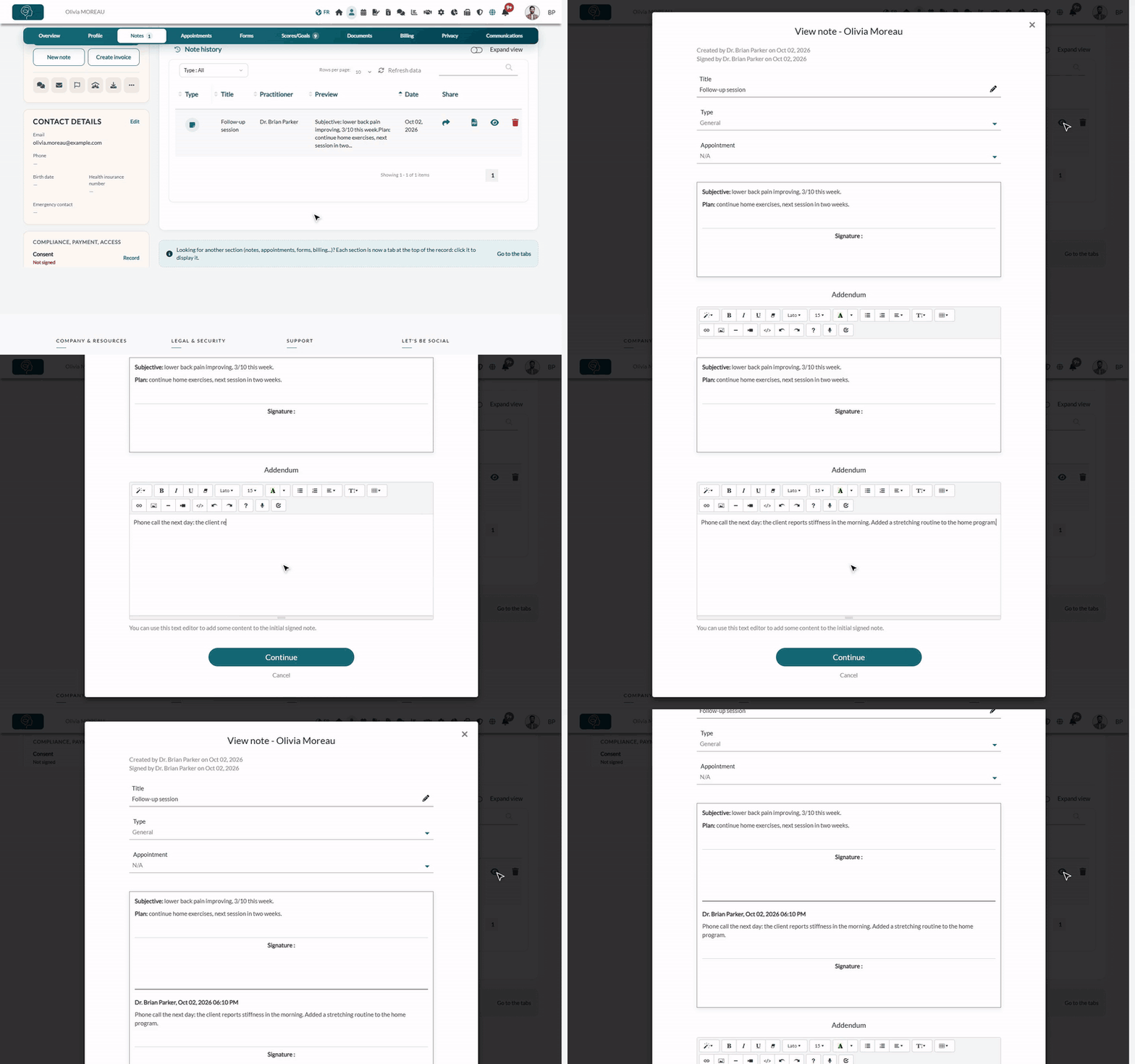
1Open the signed note
- Open the client's record from your client list (www.colib.io/clients), then click the Notes tab.
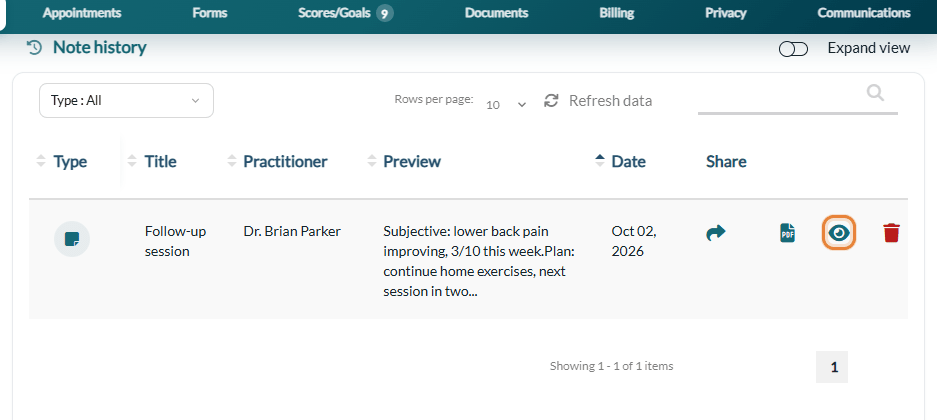
- In the Note history, find the note. Use the Type filter or the search box if the client has many notes.
- Click the eye icon of the note (View note). A signed note shows the eye; a note that is not signed shows a pencil instead.
The View note window opens. At the top, it shows who created the note and who signed it, with the dates. The title, the type, the linked appointment and the text of the note are read-only.
2Write the addendum
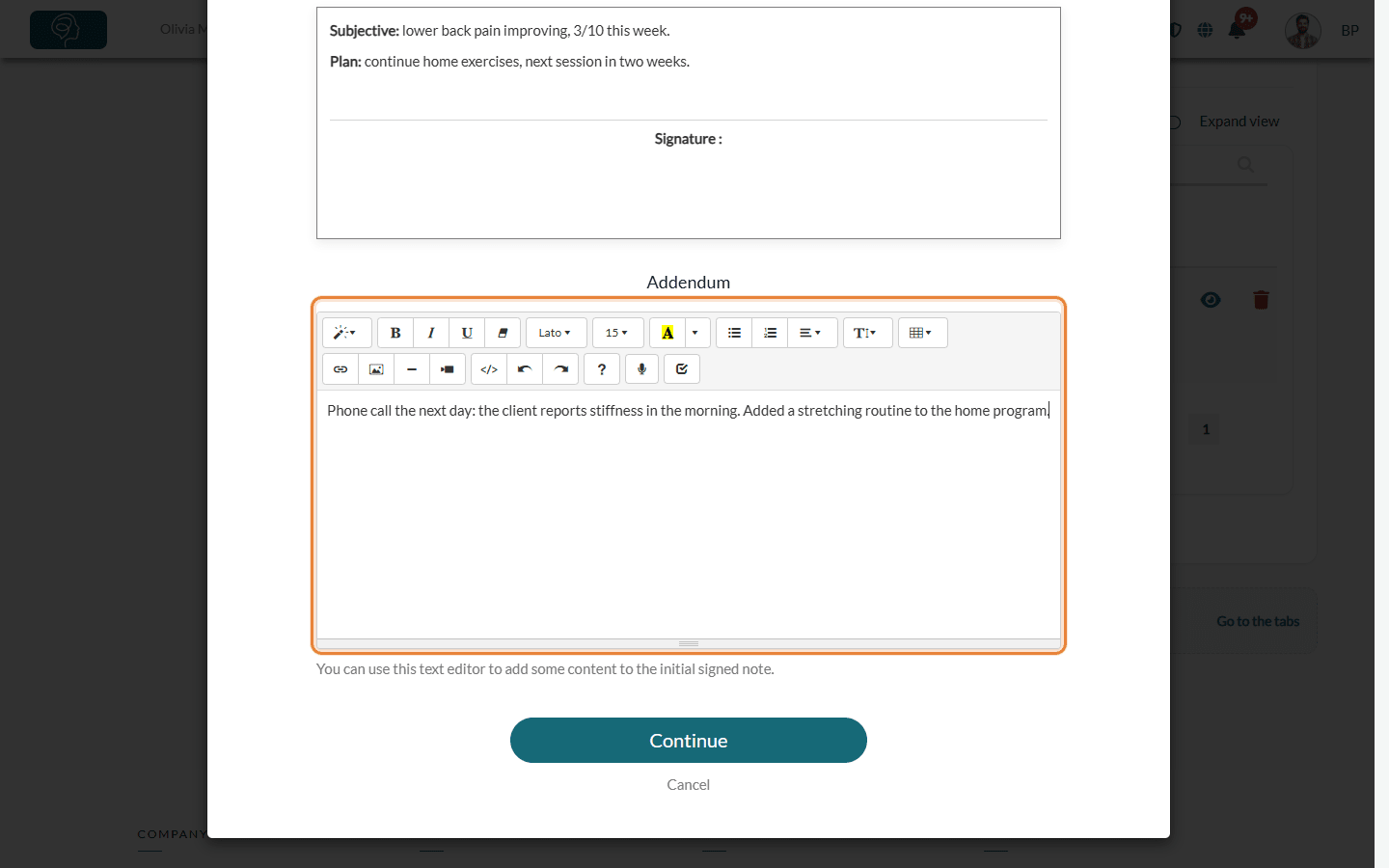
- Scroll down to the Addendum section, under the text of the note.
- Write the additional information. The editor works like the note editor: formatting, lists, tables, links, images. Depending on your practice's settings, you can also dictate with the microphone or use the AI assistant (magic wand) to improve your text.
- Click Continue. The addendum is saved and the window closes.
Clicked Continue with an empty addendum? Nothing is added to the note.
3Check the result
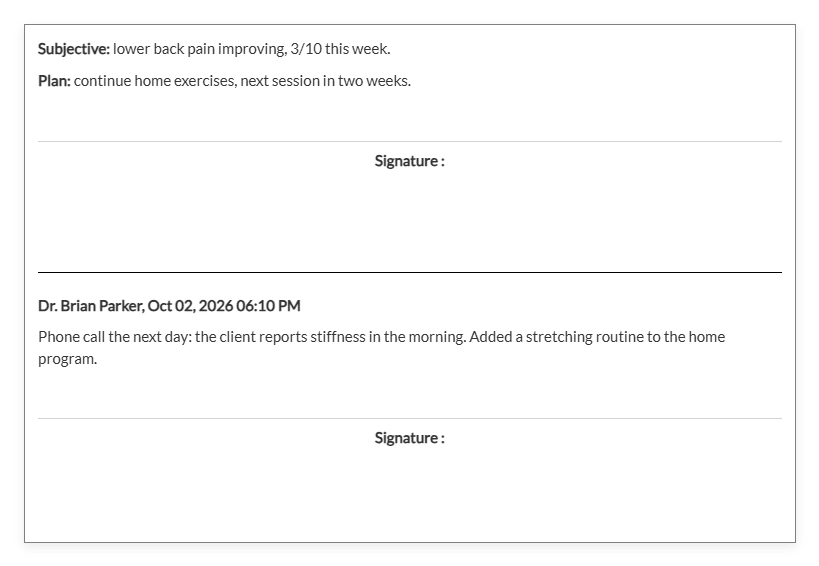
Open the note again with the eye icon. The addendum appears at the end of the note, after a separator line:
- your name, the date and the time of the addendum, in bold;
- the text of the addendum;
- your handwritten signature, if you set one up (see How to Automatically Add Your Handwritten Signature to Notes on Colib?).
Important: an addendum becomes part of the signed note. Once you click Continue, it can no longer be changed or removed. Read it carefully before saving; if needed, add a new addendum to correct it.
Good to know
- Several addenda — you can add as many addenda as you need. Each one is added after the previous one, with its own name, date and time.
- PDF and sharing — the addendum is part of the note: it is included when you download the note as a PDF, and a client with whom the note is shared sees it too. See How can I securely share notes with my clients?
- Deleting a signed note — only an administrator of the practice can delete a signed note (trash icon in the Note history). Other users see a lock instead.
- Sign only when the note is final — leave Sign note unchecked while you are still working on a note: you can then edit it freely and sign it later.
Still have a question?
Write to us at support@colib.io, we will be happy to help.
Was this article helpful?
That’s Great!
Thank you for your feedback
Sorry! We couldn't be helpful
Thank you for your feedback
Feedback sent
We appreciate your effort and will try to fix the article