Who is this article for?
You can securely share a note with a client if you wish: a session summary, recommendations, an exercise program... The note itself is never sent by email. Your client receives an email notification and reads the note in their client portal, after signing in.
This article explains how to share a note, what your client receives and sees, and how to stop sharing.
Before you start: the client record must have an email address. Otherwise Colib displays Please add an email to the client to share the note with your client. You also need the right to edit the note.
1Share the note
- Open the client's record from your client list (www.colib.io/clients) and click the Notes tab.
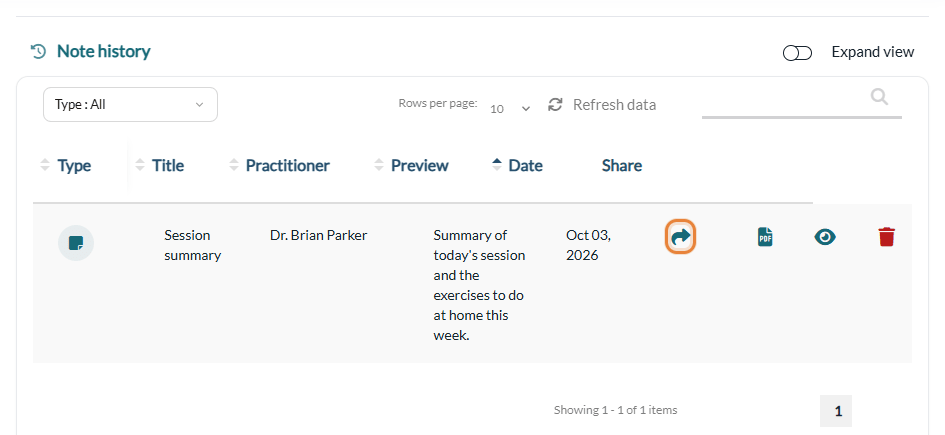
- In the Note history, find the note and click its share icon (arrow), in the Share column.
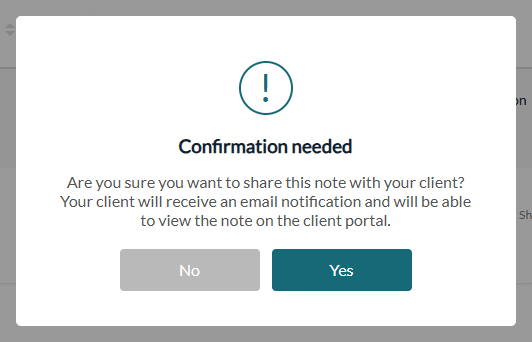
- Colib asks for confirmation: Are you sure you want to share this note with your client? Your client will receive an email notification and will be able to view the note on the client portal. Click Yes.
- The message The note has been shared with the client. The client has received an email. confirms it. The share icon of the note turns orange; hover over it to see since when the note is shared.
2What your client receives
- An email sent in the client's language, with the name of your practice as sender. Its subject is Notes from your appointment on followed by the date when the note is linked to an appointment, otherwise Notes from followed by the name of your practice.
- The email does not contain the note: it only contains a View my notes button, which opens the Notes section of the client portal. A client who does not have a portal account yet creates it from this link.
- A copy goes to the additional email addresses saved in the client record. For a member of a client group set up to notify the person responsible, that person is notified too.
- If your client replies to the email, the reply goes to the email address of your clinic.
3What your client sees in the client portal
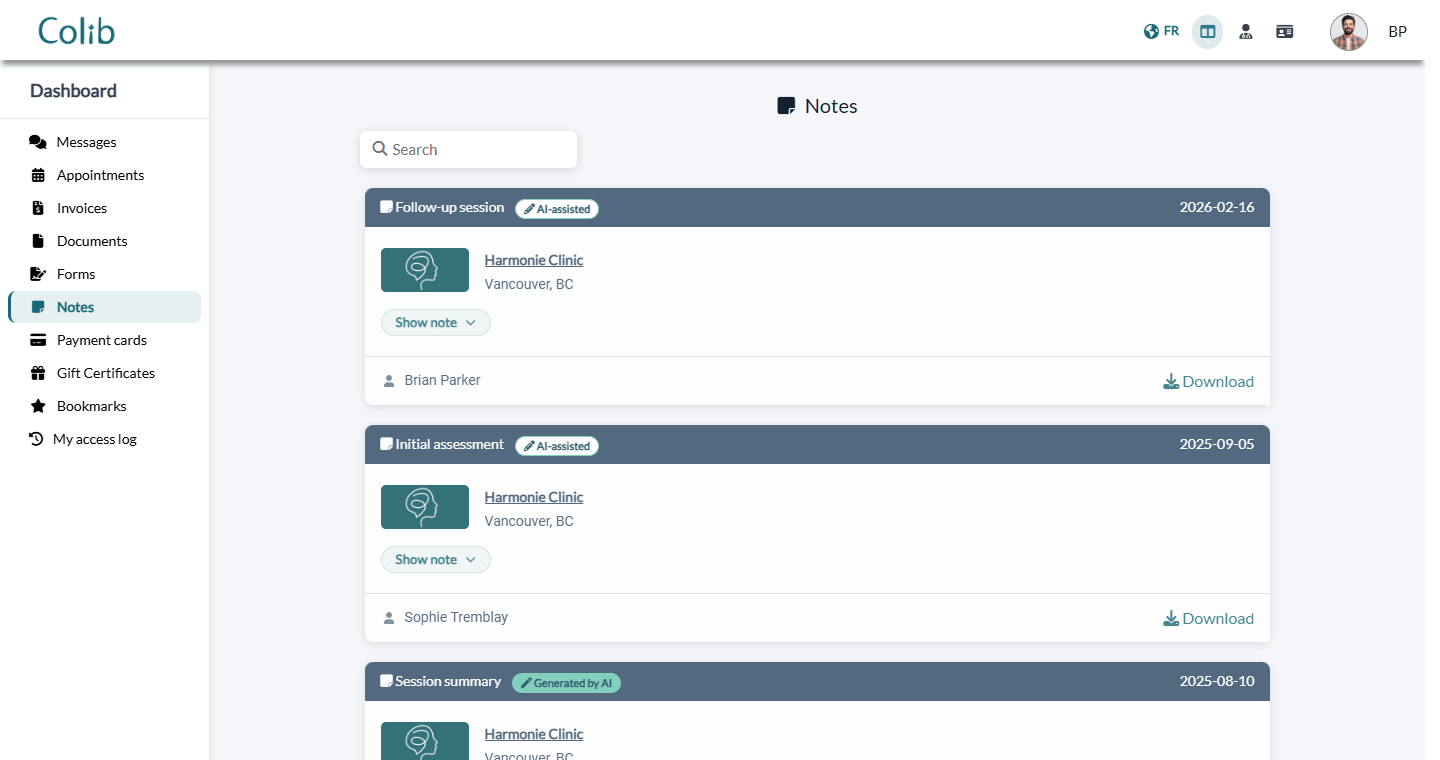
Once signed in to the client portal (portal.colib.io), your client clicks Notes in the menu of their dashboard. Each shared note shows:
- its title, its date and your practice;
- a Show note button to read the text, with the practitioner and, if any, the related appointment;
- the documents attached to the note, which the client can download;
- a Download link to save the note as a PDF file;
- a Generated by AI or AI-assisted label when artificial intelligence was used to write the note.
To see their notes, the client must have confirmed their email address in the client portal.
4Stop sharing a note
- In the Note history, click the orange icon of the shared note (Stop note sharing with client).
- Confirm with Yes. The note disappears from the client portal. No email is sent to the client.
Good to know
- Attached documents — sharing a note also shares the documents attached to it, and stopping the sharing stops sharing them. See How to attach documents and images to client notes.
- Share final notes — a note that is not signed yet can be shared too, but we recommend signing the note before sharing it. A signed note can no longer be edited; to complete it, add an addendum. For more details, please see the article titled "How to change a signed note with an addendum".
- Notes not shared — your notes are never visible to your clients until you share them, one by one.
- Other ways to give a note — the PDF icon of the Note history downloads the note as a PDF file. To share a file rather than a note, see How to share a document with a client.
Still have a question?
Write to us at support@colib.io, we will be happy to help.
Was this article helpful?
That’s Great!
Thank you for your feedback
Sorry! We couldn't be helpful
Thank you for your feedback
Feedback sent
We appreciate your effort and will try to fix the article