Who is this article for?
You will likely need to attach documents to your notes at some point, especially if you plan to share them with your clients: an exercise program, a report, a photo or a referral letter can be essential to understand a note.
There are two ways to do it: insert an image directly in the text of the note, or attach any type of document (PDF, image, Word file...) stored in the client's record.
Before you start: to attach a document, the note must already be saved. To learn how to write a note, please see the article titled "How to add a note to a client".
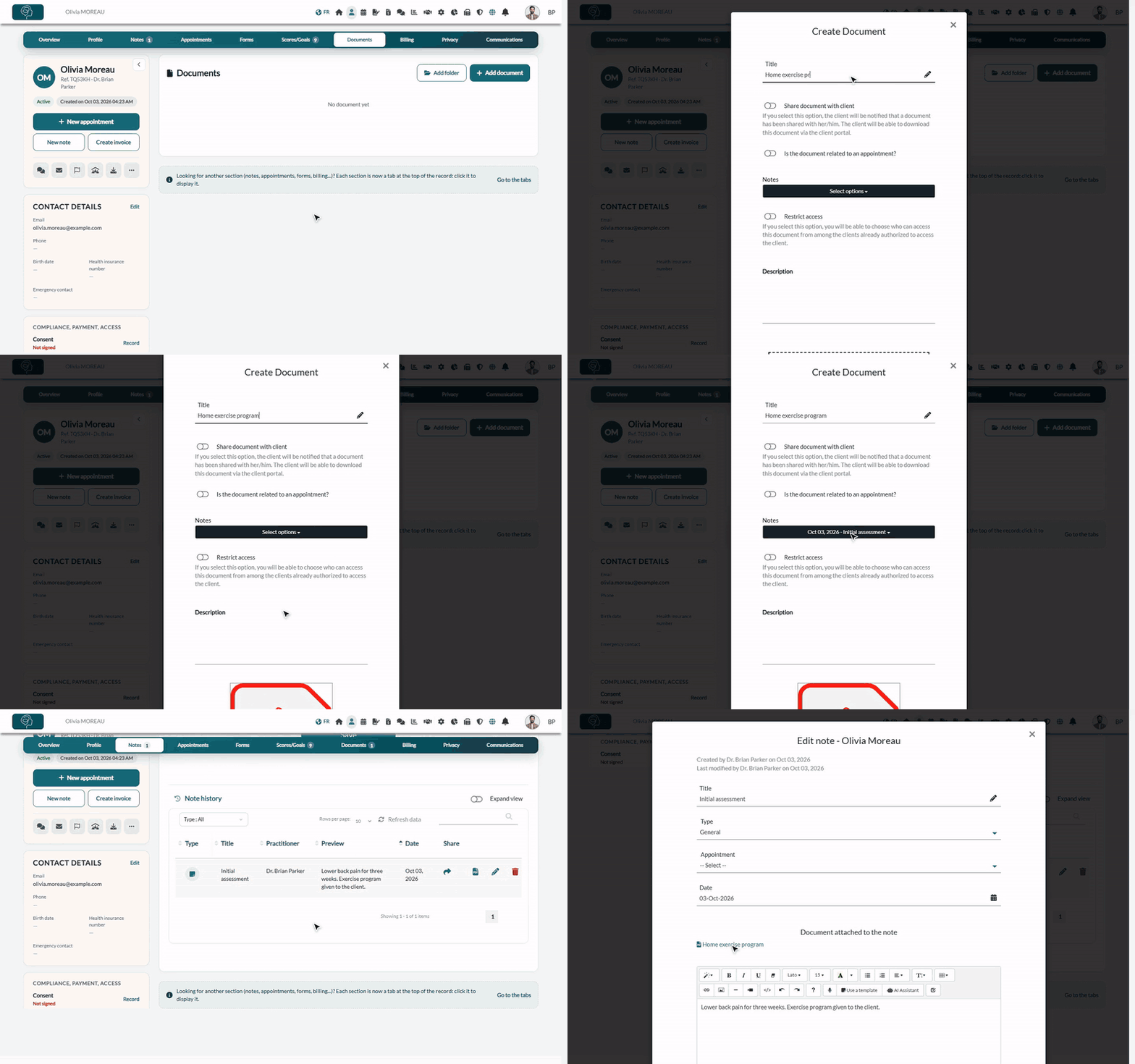
1Insert an image in the text of a note
An image inserted in the text is part of the note itself: it is displayed exactly where you place it, between your paragraphs.
- In the note editor, click where the image should go.
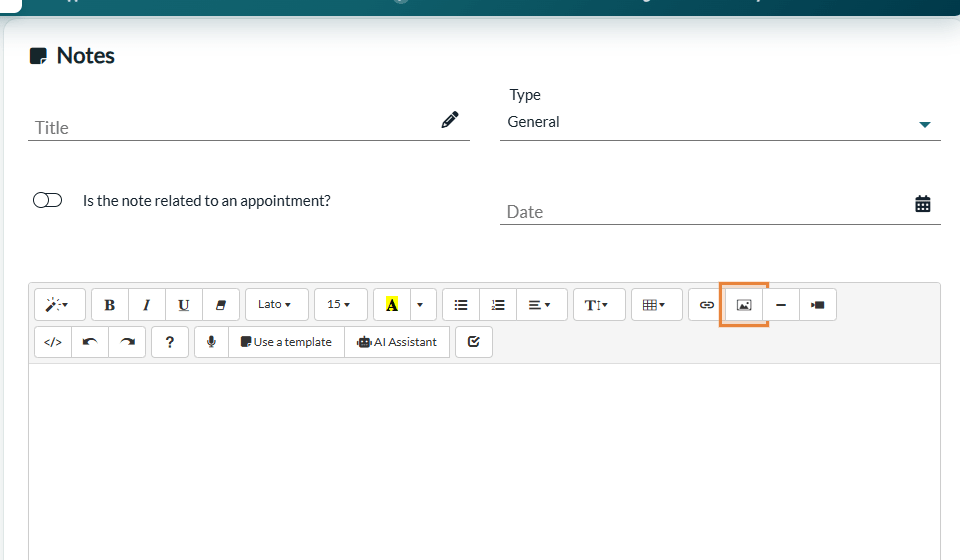
- Click the picture button of the toolbar.
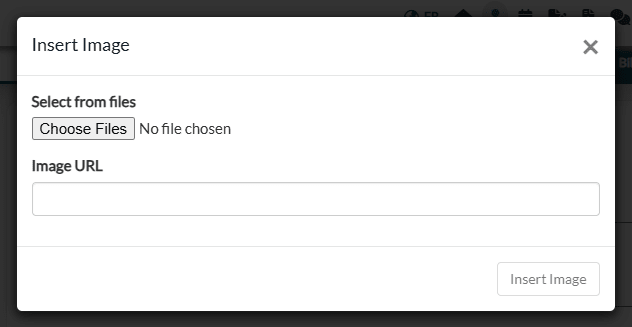
- In the Insert Image window, under Select from files, click Choose Files to pick an image on your computer (or paste the address of an online image in Image URL, then click Insert Image).
- Save the note as usual.
For more details, see How to add an image in the text editor. To draw on a body chart or write by hand instead, please see the article titled "How to draw a sketch or handwrite in a note".
2Attach a document (any type, images included)
Documents are stored in the Documents tab of the client record. You link them to one or more notes from there.
- Open the client's record from your client list (www.colib.io/clients) and click the Documents tab.
- Click Add document to create a new document. To attach a document that is already in the record, click its edit icon instead.
- In the Create Document window, enter a Title (required).
- Drag your file into the dotted area at the bottom of the window, or click it to choose a file on your computer (up to 250 MB).
- Under Notes, click Select options and check the note(s) the document belongs to. The notes of the client are listed with their creation date and title.
- Click Save.
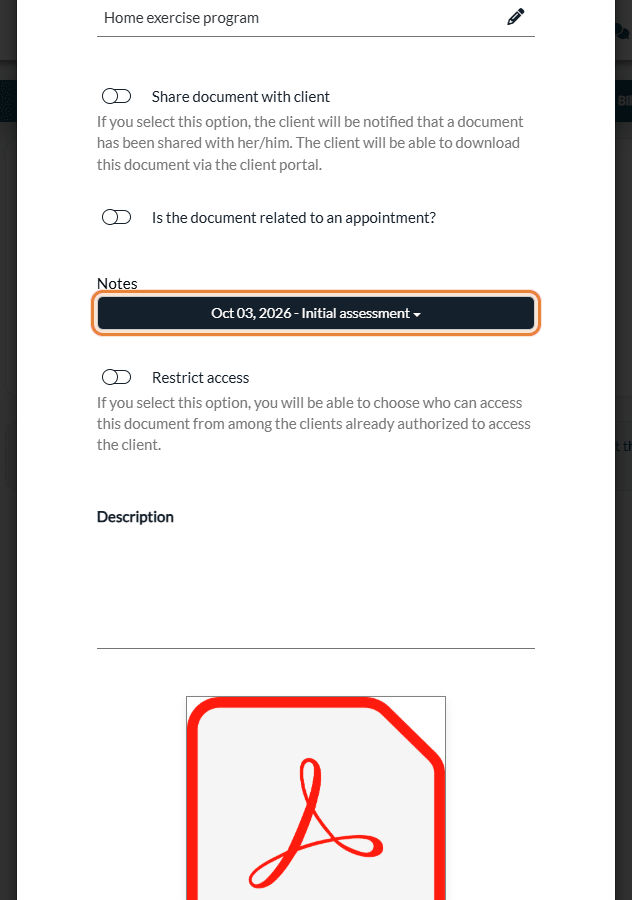
The same window offers other options: Share document with client (the client is notified and can download it from the client portal), Is the document related to an appointment?, a Folder if you organize your documents in folders, Restrict access and a Description. See How to share a document with a client.
3Find the document in the note
- Click the Notes tab of the record.
- In the Note history, open the note: pencil icon (Edit note) for a note that is not signed, eye icon (View note) for a signed note.
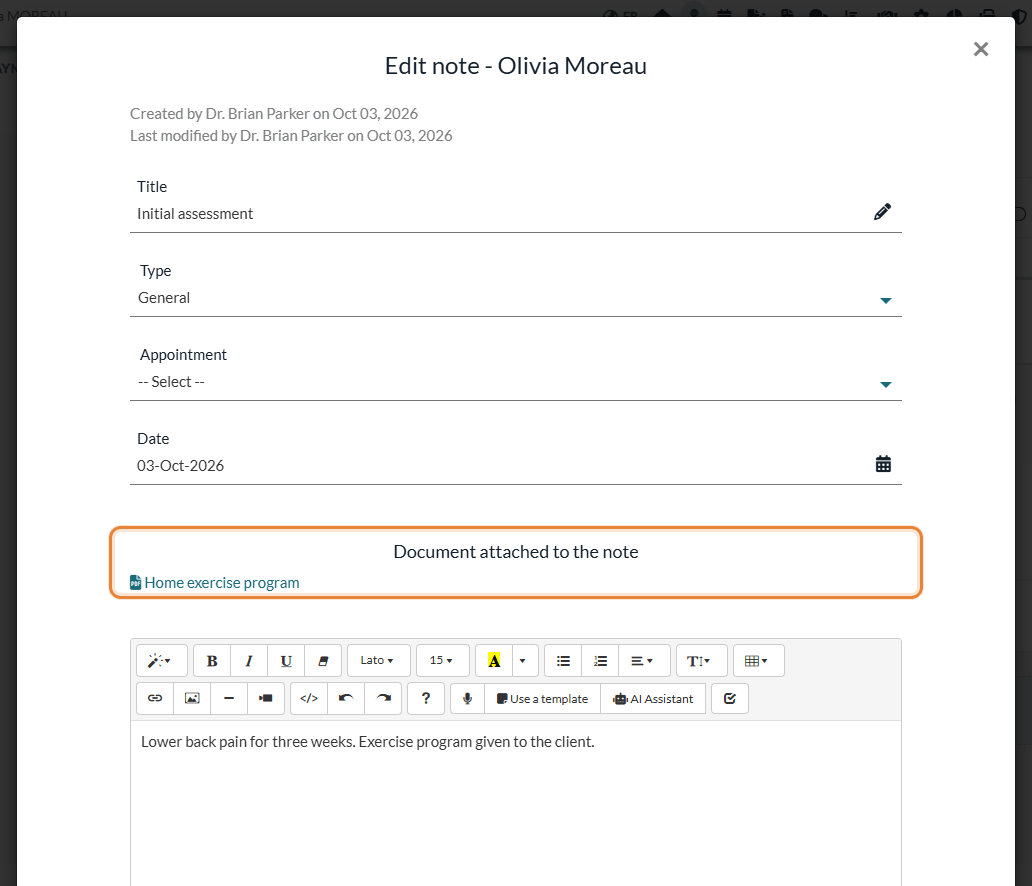
- The Document attached to the note section (or Documents attached to the note) lists the documents. Click a title to download it.
Good to know
- Several notes, several documents — a document can be attached to several notes, and a note can have several documents.
- Sharing with the client — when you share a note with your client, the documents attached to it are shared too: the client sees them and can download them under the note, in the Notes section of the client portal. If you stop sharing the note, its documents are no longer shared. See How can I securely share notes with my clients?
- Detach a document — open the document again from the Documents tab (edit icon), uncheck the note under Notes and save. The document stays in the record.
Still have a question?
Write to us at support@colib.io, we will be happy to help.
Was this article helpful?
That’s Great!
Thank you for your feedback
Sorry! We couldn't be helpful
Thank you for your feedback
Feedback sent
We appreciate your effort and will try to fix the article