Who is this article for?
Your practice works with a supervisor: a clinical supervisor, a team lead or a senior practitioner who reviews the work of other practitioners (for example interns or new graduates) and counter-signs their notes. This article explains how to make a team member a supervisor, choose the practitioners they supervise, and how the supervisor finds and counter-signs the notes awaiting their counter-signature.
Once supervision is set up:
- the supervisor can open the files and the notes of the clients assigned to the practitioners they supervise (read-only by default);
- every note signed by a supervised practitioner is marked Awaiting counter-signature until a supervisor counter-signs it;
- the supervisor is notified in Colib for each new note, sees these notes on their home page and receives an email reminder at the frequency of their choice.
Before you start: supervision is set in Settings > Team (www.colib.io/settings?show=team). You need the Administrator role with the option Ability to edit team members’ details and permissions. The supervisor can be a practitioner or not, an Administrator or a Staff member. Only practitioners can be supervised.
1Make a team member a supervisor
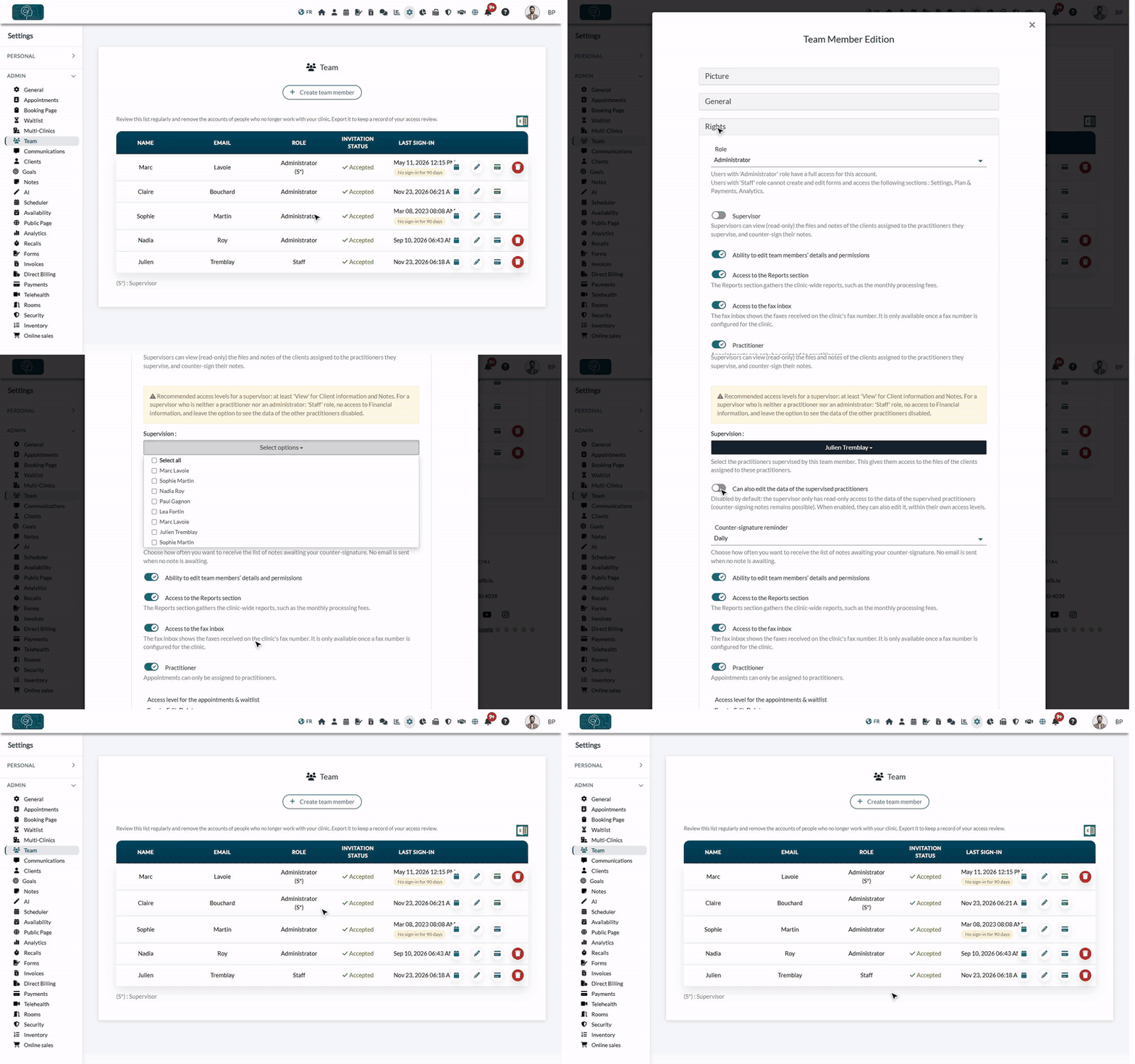
- Go to www.colib.io/settings?show=team and click the pencil icon on the row of the future supervisor.
- Open the Rights section and turn on Supervisor, under the Role field.
- In Supervision, select the practitioners this person supervises. The list shows the practitioners of your practice (the person you are editing is not in it). One supervisor can supervise several practitioners, and one practitioner can have several supervisors.
- Leave Can also edit the data of the supervised practitioners turned off to give read-only access (recommended). Turn it on only if the supervisor must also edit the files of the supervised practitioners’ clients.
- In Counter-signature reminder, choose how often the supervisor receives the list of the notes awaiting their counter-signature (see step 5).
- Click Save.
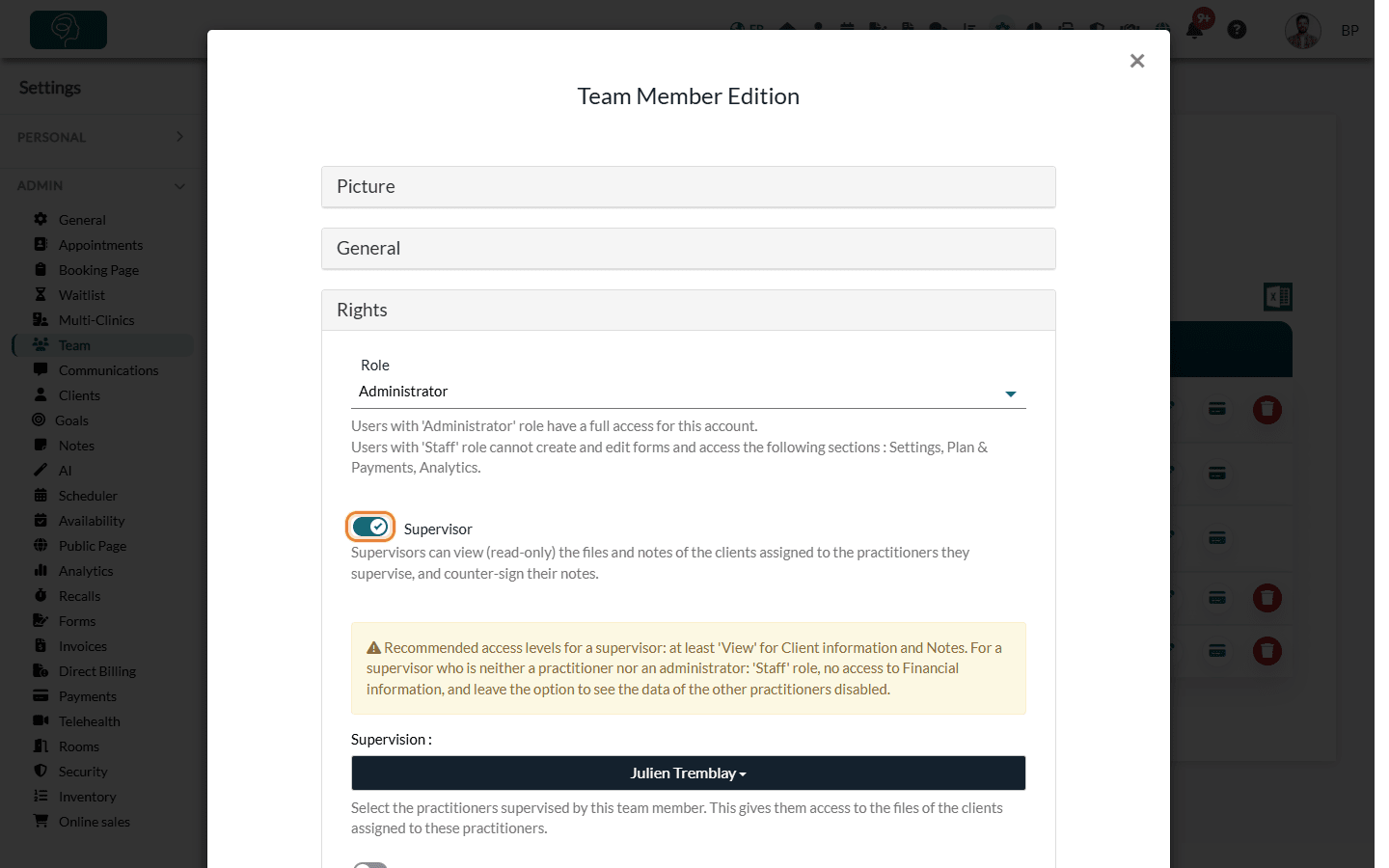
In the team list, (S*) appears under the role of each supervisor.
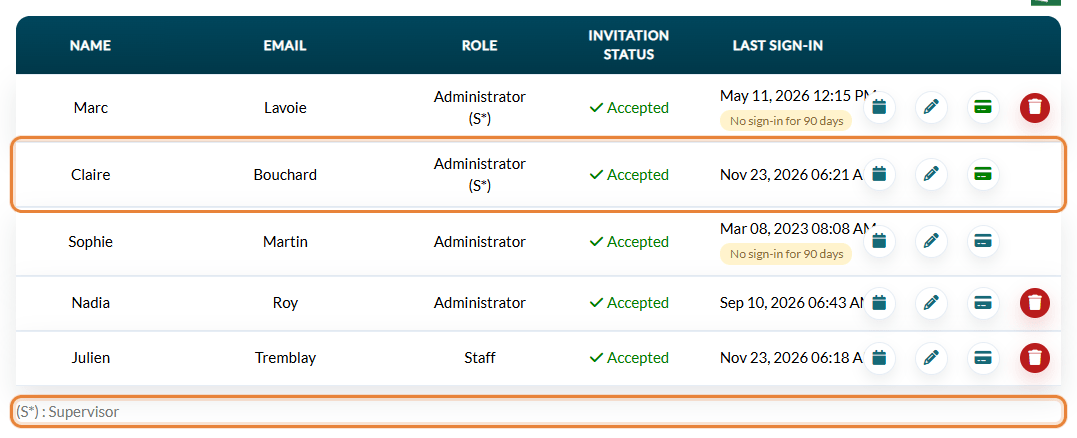
Important — check the access levels of the supervisor. Supervision does not change the supervisor’s access levels: they still decide what the supervisor sees. When you turn on Supervisor, a reminder is shown: give at least View only for the client information and the notes. For a supervisor who is neither a practitioner nor an administrator, choose the Staff role, no access to the financial information, and leave Ability to see other practitioners information turned off. Each access level is described in What are the different levels of rights options for the members of my practice?
2Complete the identity shown in the counter-signature
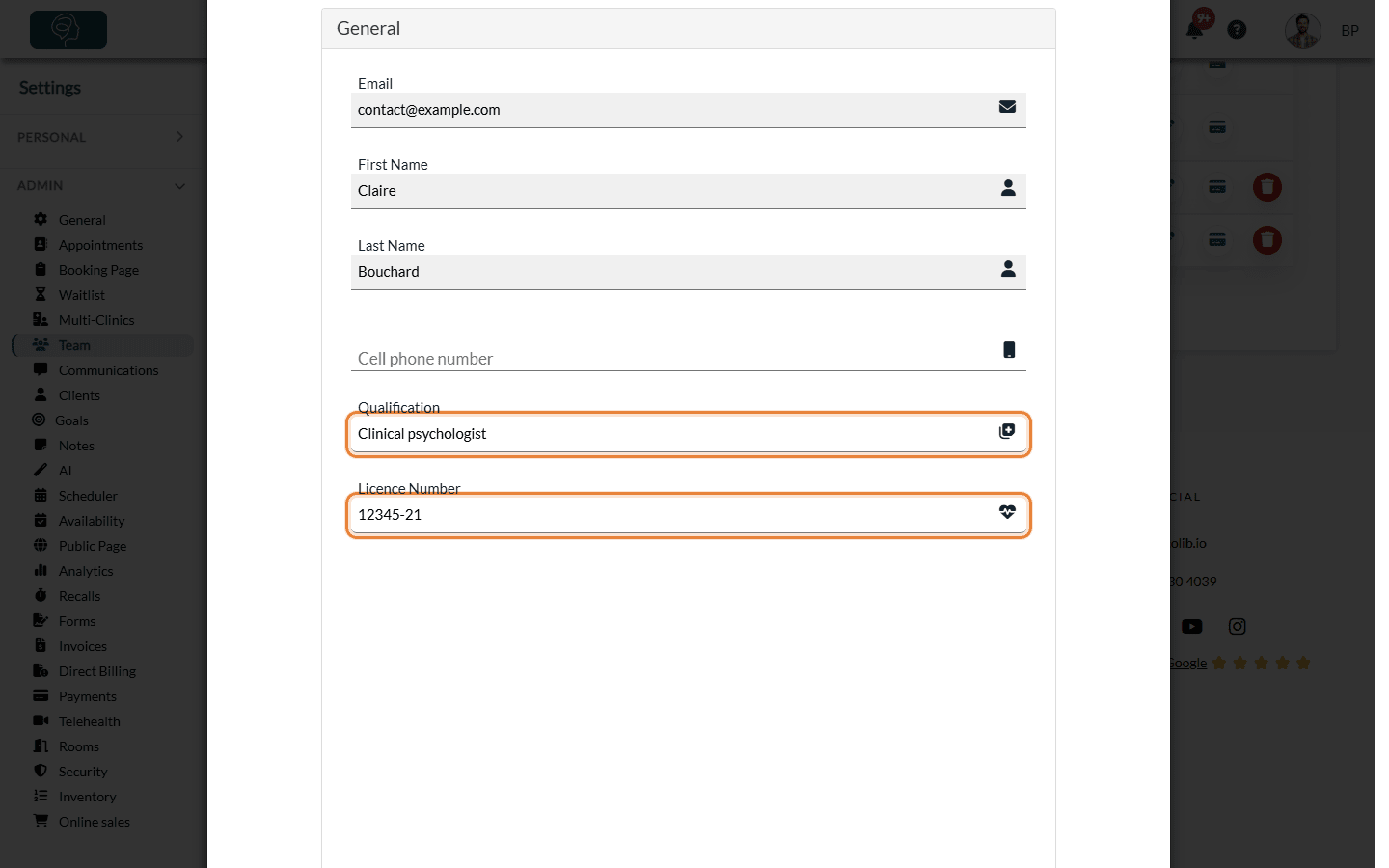
The counter-signature added to a note shows the supervisor’s name, their qualification and their licence number. Fill them in before the first counter-signature.
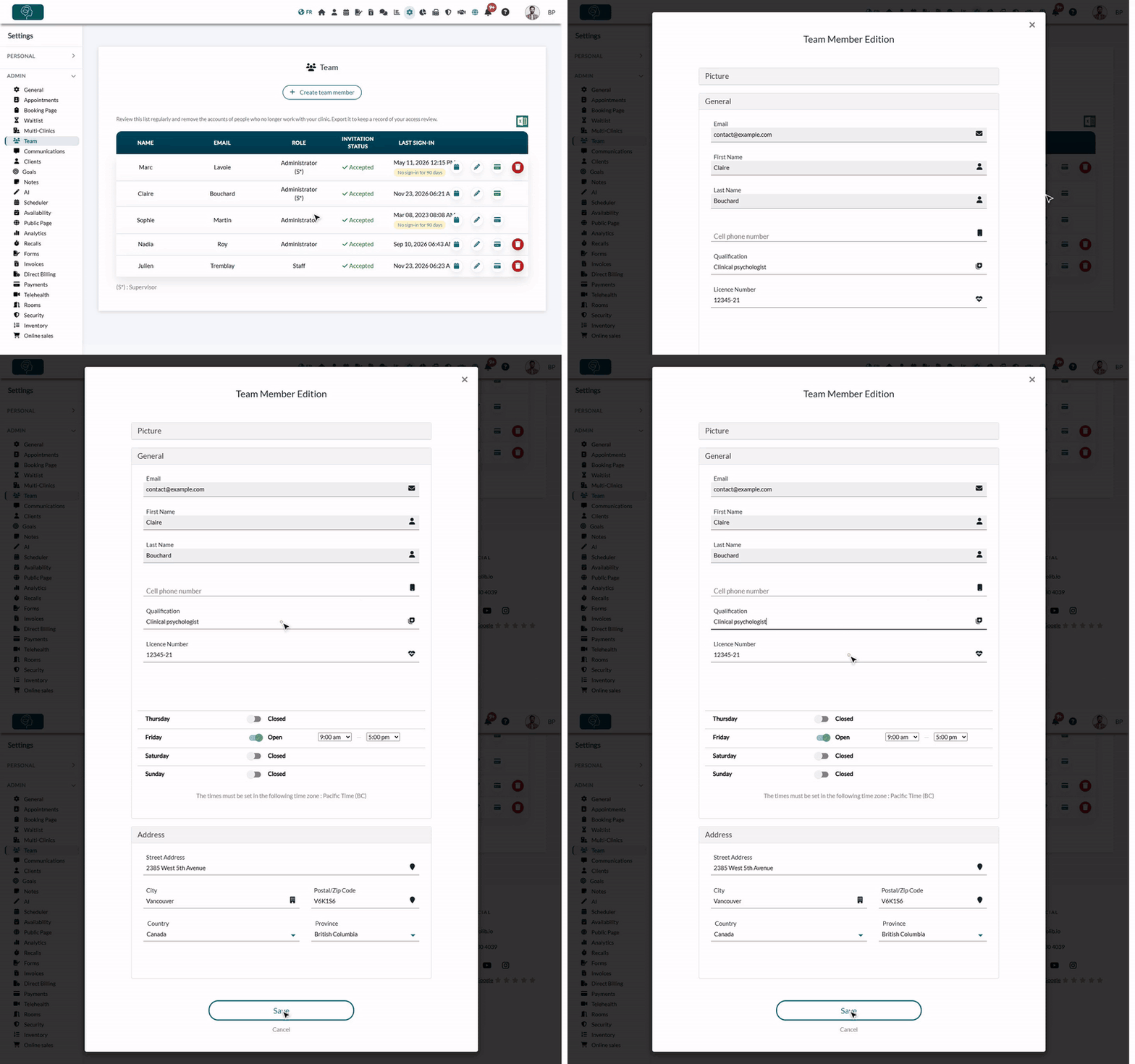
- In the same window (pencil icon on the supervisor’s row in www.colib.io/settings?show=team), open the General section.
- Fill in Qualification (for example, Clinical psychologist) and Licence Number.
- Click Save. The supervisor can also fill in these fields themselves in Settings > Profile (www.colib.io/settings?show=personalgeneral).
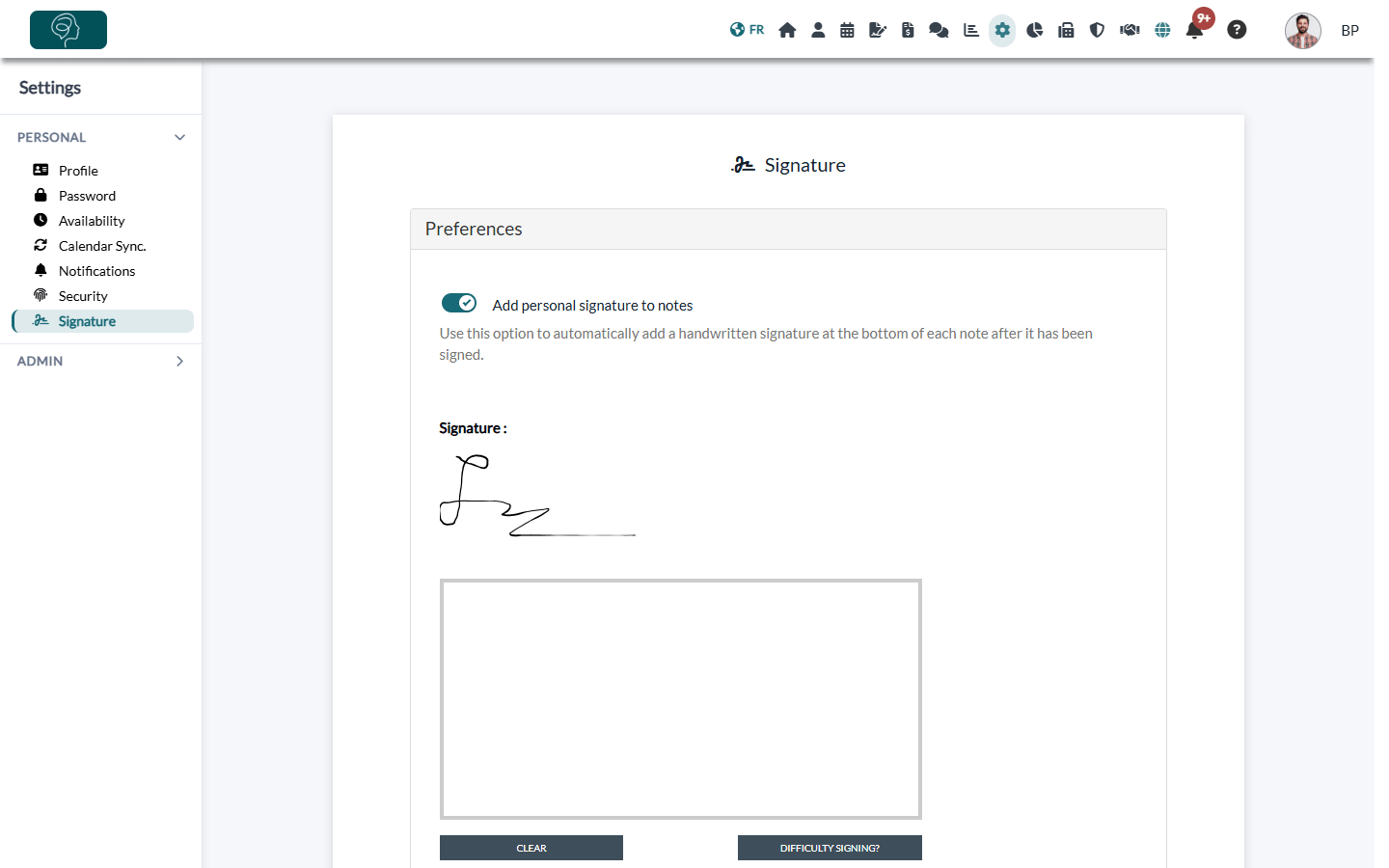
Handwritten signature (optional). If the supervisor has drawn their signature in Settings > Signature (www.colib.io/settings?show=personalsignature) and turned on Add personal signature to notes, this signature is also added to each counter-signature. See How to automatically add your handwritten signature to notes on Colib?
3Find the notes awaiting counter-signature
As soon as a supervised practitioner signs a note, the note is marked Awaiting counter-signature. The notes that the practitioner had already signed before being supervised are also marked Awaiting counter-signature.
The supervisor finds these notes in four places:
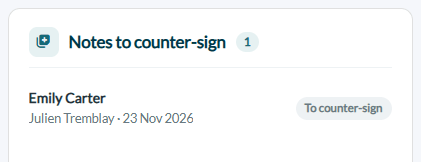
- The home page (www.colib.io/establishmentadmin/home): the Notes to counter-sign block lists the notes awaiting their counter-signature, with the client, the practitioner who wrote the note and the date. Click a note to open it. This block is shown to supervisors who have access to the notes.
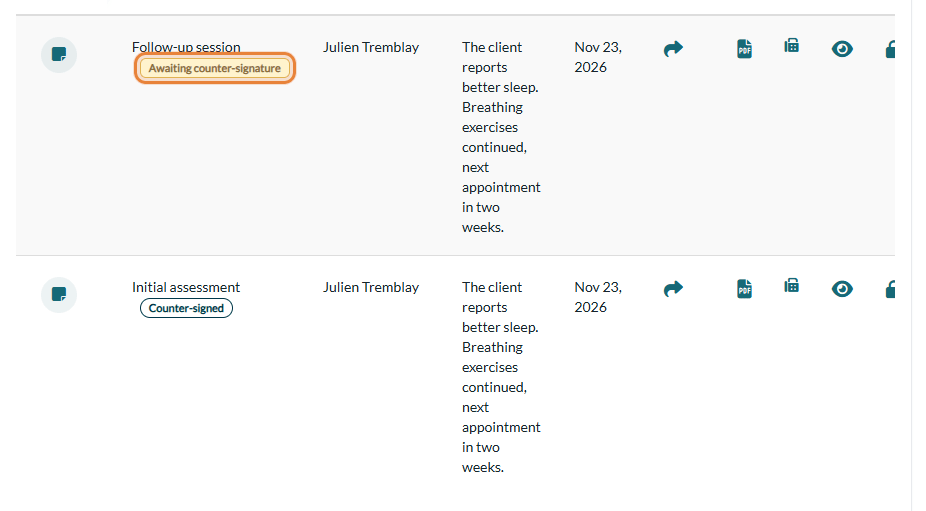
- The client’s notes: in the notes list of the client file, the badge Awaiting counter-signature appears under the title of the note, then Counter-signed once it is done.
- A notification: as soon as a supervised practitioner signs a note, each of their supervisors receives a notification (bell icon at the top of the page, www.colib.io/notifications) with the name of the practitioner and of the client. Click View note to open the note.
- The reminder email (see step 5).


The notes that become awaiting counter-signature when a supervision starts (notes signed before) do not create a notification: the supervisor finds them on the home page and in the reminder email.
4Counter-sign a note
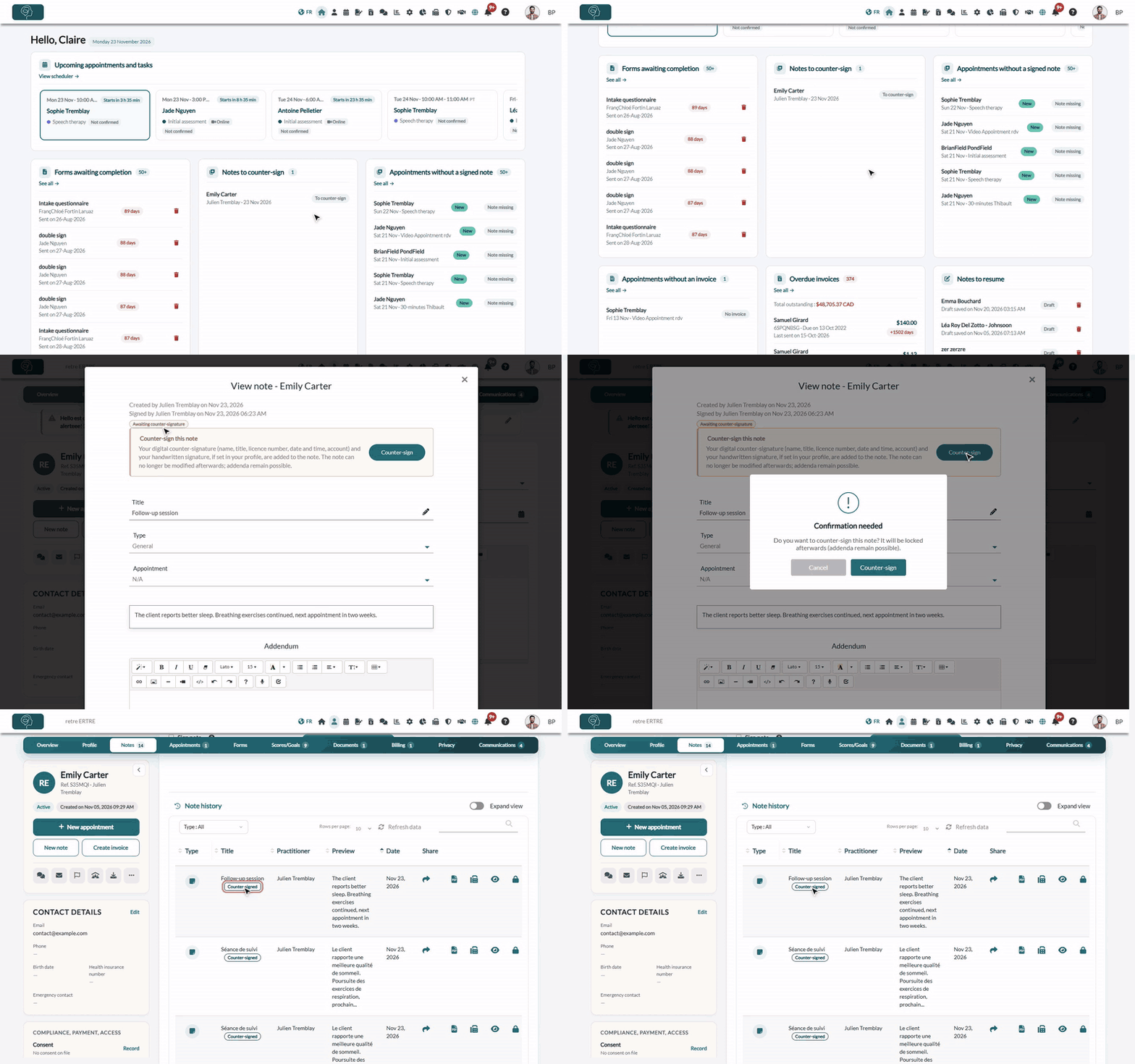
- Open the note, for example from the Notes to counter-sign block of the home page.
- Read the note. Under Signed by, the box Counter-sign this note explains what will be added.
- Click Counter-sign, then confirm with Counter-sign.
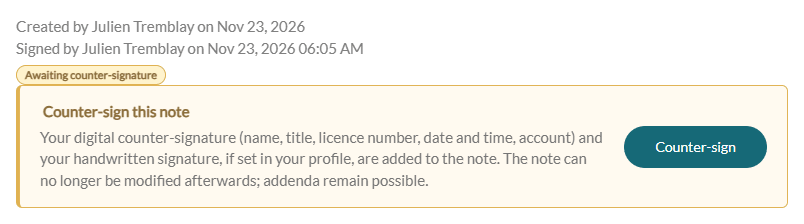
The note window closes and the note is marked Counter-signed. A counter-signature block is added at the bottom of the note: name, qualification, licence number, date and time, account and, if set up, the supervisor’s handwritten signature.
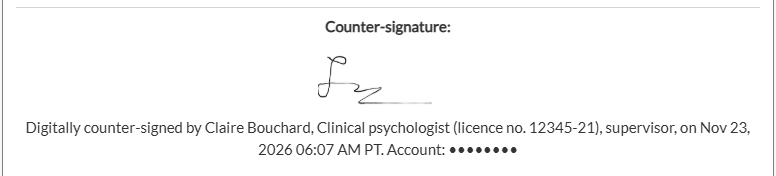
- A counter-signed note can no longer be modified. Addenda remain possible.
- If the practitioner has several supervisors, any one of them can counter-sign. The first counter-signature counts: the note then disappears from the list of the other supervisors. If two supervisors click at the same time, only one counter-signature is kept and the other one sees the message This note has already been counter-signed.
- To counter-sign, the supervisor needs at least View only in Access level for the notes. Without access to the notes, the Counter-sign button is not shown.
5Choose how often the reminder email is sent
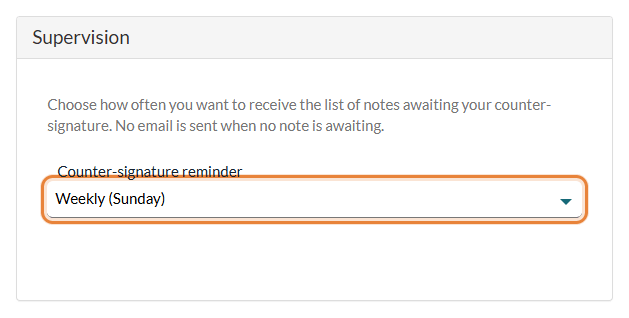
The supervisor receives an email listing the notes awaiting their counter-signature. No email is sent when no note is awaiting. The supervisor can change the frequency themselves:
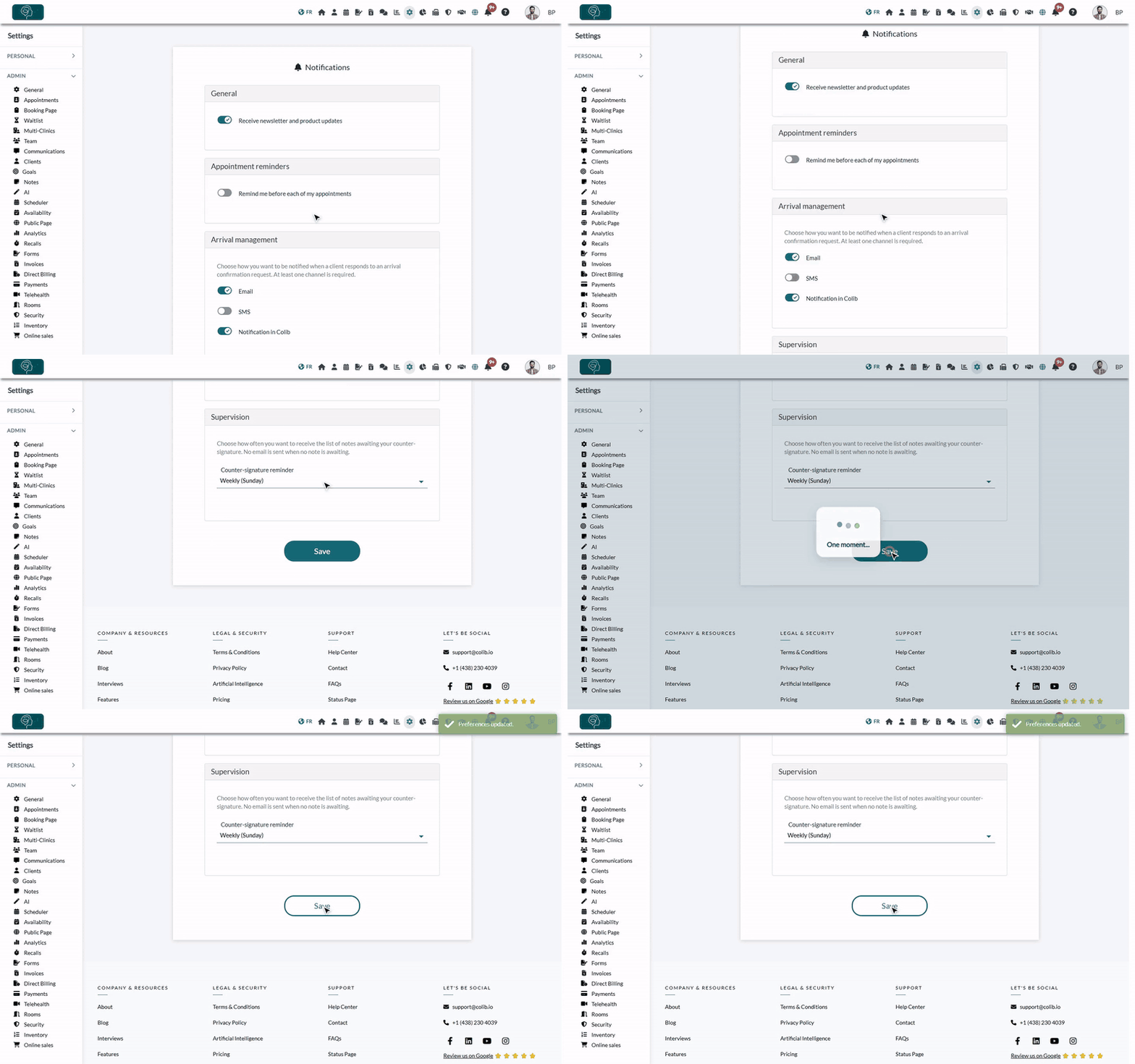
- Go to Settings > Notifications (www.colib.io/settings?show=personalnotifications). The Supervision section is shown to supervisors only.
- In Counter-signature reminder, choose Daily, Every 48 hours, Every 72 hours or Weekly (Sunday).
- Click Save.
What the email contains: it is sent in the morning. For each note, it shows the practitioner who wrote it, the client’s file reference and initials, the date of the note and an Open button. It contains no health information: the content of the note is only visible in Colib, after signing in. When there are many notes, the email ends with a reminder that more notes are awaiting on the Colib home page.
What the supervisor can see and do
| Data of the supervised practitioners | What the supervisor can do |
|---|---|
| Client files (clients for whom a supervised practitioner is the assigned practitioner or an additional practitioner) | Open them in read-only mode, within their own access levels (client information, documents, forms, financial information). With Can also edit the data of the supervised practitioners, they can also edit them. |
| Notes | Read the notes of these clients, including the notes written by the supervised practitioners, and counter-sign them. |
| Schedule | See the schedule of the supervised practitioners if the supervisor has access to the appointments. Changing their appointments requires Can also edit the data of the supervised practitioners and Create-Edit-Delete for the appointments. |
| Invoices and reports | Included only if the supervisor has access to the financial information. |
A supervisor who already has Ability to see other practitioners information turned on already sees the data of all the practitioners: supervision then only adds the counter-signature of the notes and the reminder email.
Good to know
- A note awaiting counter-signature counts as signed — for the supervised practitioner, it is signed like any other note (it can no longer be modified, addenda remain possible).
- Stopping a supervision — in the supervisor’s window, remove the practitioner from Supervision, or turn off Supervisor, then save. The supervisor immediately loses access to the data of this practitioner. The notes that were awaiting counter-signature keep this status.
- Several clinics — an administrator who is limited to some clinics only sees, in Supervision, the practitioners of their clinics (and those already supervised).
- Several supervisors — each supervisor of a practitioner receives the notification and sees the notes awaiting counter-signature, on their home page and in their email, until one of them counter-signs.
- Client visibility — to choose which clients each practitioner sees, see Assigning practitioners and configuring client visibility.
Still have a question?
Write to us at support@colib.io, we will be happy to help.
Was this article helpful?
That’s Great!
Thank you for your feedback
Sorry! We couldn't be helpful
Thank you for your feedback
Feedback sent
We appreciate your effort and will try to fix the article