Who is this article for?
Your practice has a receptionist, an assistant or a coordinator who books, moves and cancels appointments for the practitioners. This article explains how to give this person their own Colib access with the right permissions, so they can manage the schedule of every practitioner without being a practitioner themselves.
Before you start: team members are managed in Settings > Team (www.colib.io/settings?show=team). You need the Administrator role with the option Ability to edit team members’ details and permissions. Each person needs their own email address: two team members cannot share the same address.
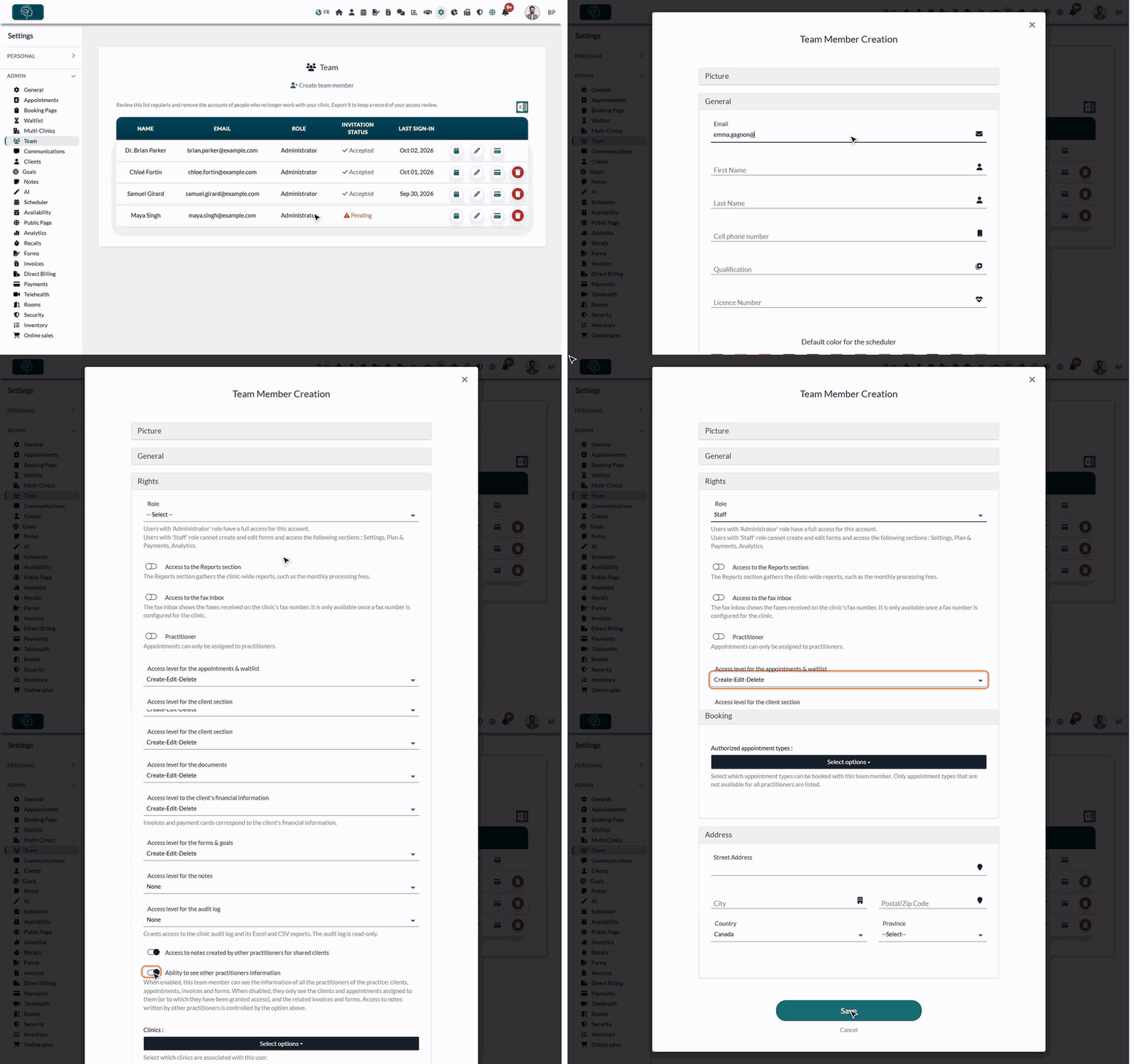
1Create the receptionist's account
- Go to www.colib.io/settings?show=team and click Create team member. If the person already has an account, click the pencil icon on their row instead.
- In General, enter their Email, First Name and Last Name.
- Open the Rights section and follow the next steps.
2Choose the role and leave Practitioner off
- In Role, choose:
- Staff — the usual choice for a receptionist. A Staff member cannot create or edit forms and has no access to the practice settings, to Plan & Payments or to Analytics.
- Administrator — full access to the account, settings included. Choose it only if the person also manages the configuration of the practice.
- Leave Practitioner turned off. Appointments can only be assigned to practitioners: the receptionist books appointments for the practitioners, not for themselves.
- Set Access level for the appointments & waitlist to Create-Edit-Delete. This is the level that lets the person book, move and cancel appointments and manage the waitlist.
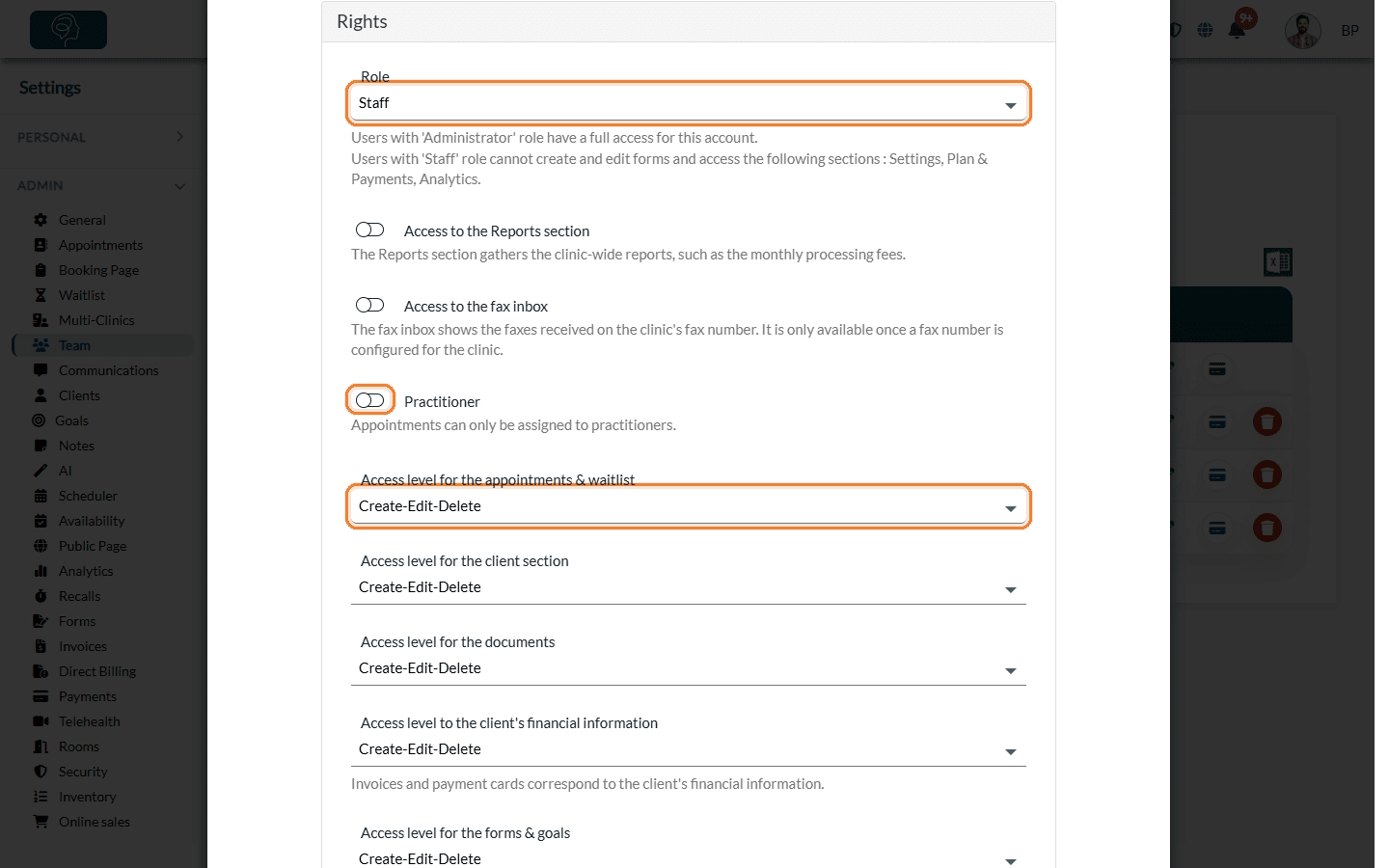
3Adjust the other access levels
Each access level can be set to None, View only or Create-Edit-Delete. Give the receptionist only what their work requires:
| Access level | Typical choice for a receptionist |
|---|---|
| Access level for the client section | Create-Edit-Delete to create new clients when booking and update their contact details. |
| Access level to the client's financial information | Create-Edit-Delete if the person creates invoices and takes payments; otherwise View only or None. |
| Access level for the documents and for the forms & goals | According to their tasks (for example, sending intake forms to new clients). |
| Access level for the notes | None if the person does not need to read the clinical notes. |
The switches Access to the Reports section and Access to the fax inbox are optional. Each right is described in What are the different levels of rights options for the members of my practice?
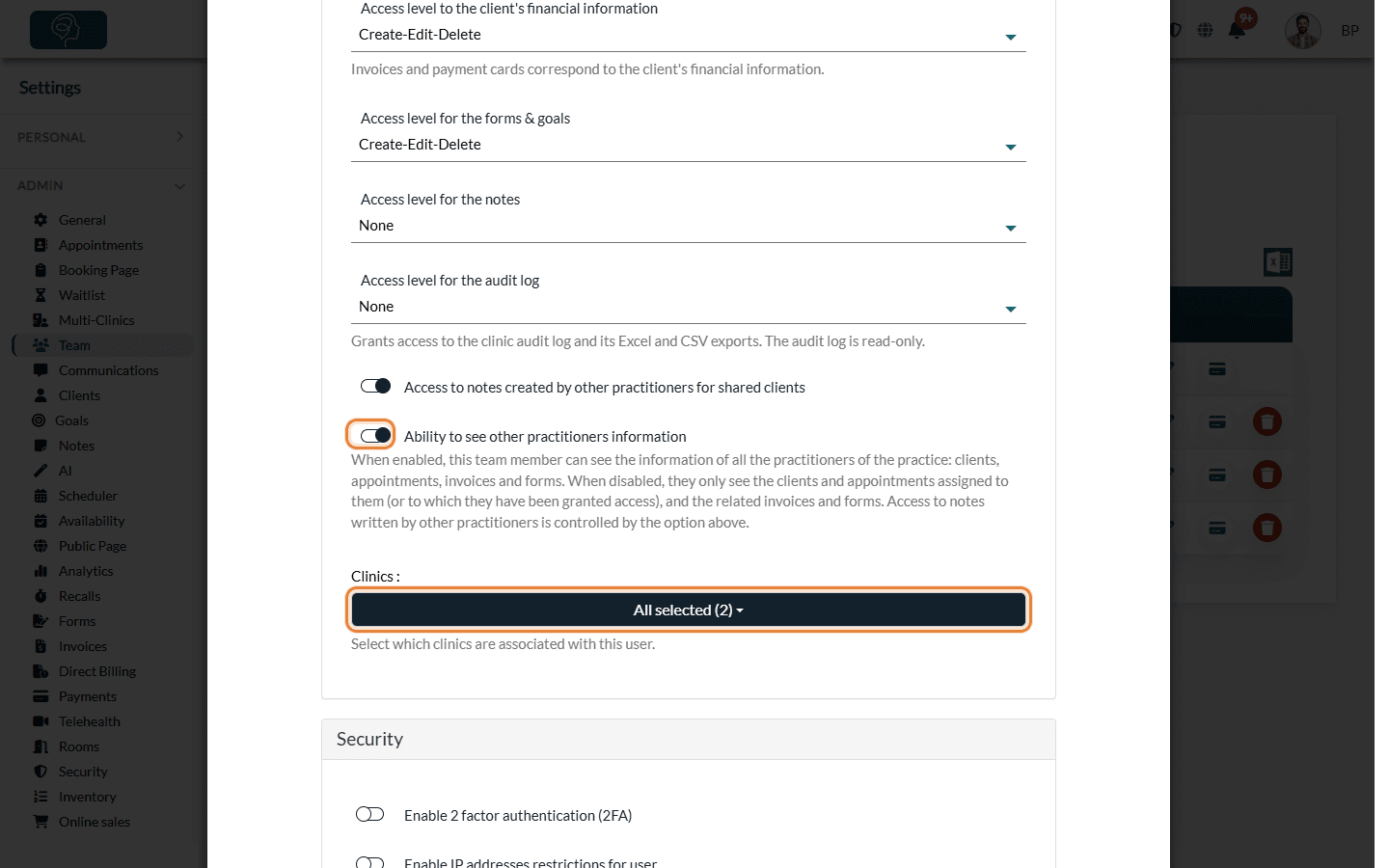
4Let the person see all the practitioners
- Check that Ability to see other practitioners information is turned on. For a team member who is not a practitioner, Colib always saves this option as turned on: the receptionist sees the clients, appointments, invoices and forms of all the practitioners.
- If your practice has several clinics, the Clinics field is shown: select every clinic where the receptionist works. The person only sees and manages the clients and appointments of these clinics.
- Click Save. The person receives an invitation email to choose their password and access Colib.
5Book an appointment for a practitioner
Once signed in, the receptionist opens the scheduler (www.colib.io/scheduler). All the practitioners are selected by default and can be filtered.
- Click a free time slot in the column of the practitioner, or create a new appointment.
- Choose the type of appointment first: the list of practitioners depends on it.
- Check the Practitioner field, choose the client and save.
A practitioner who also manages colleagues' appointments
The Practitioner switch and the role are two separate settings. A practitioner (who receives their own appointments) can also manage the schedule of colleagues: in their rights, set Access level for the appointments & waitlist to Create-Edit-Delete and turn on Ability to see other practitioners information. Without this option, a practitioner only sees the clients and appointments assigned to them.
Practitioner or not, who counts in your bill? The Practitioner switch is what matters for billing, not the role. A team member who is not a practitioner and has no appointment of their own is not billed as a practitioner. On the Starter plan, a practitioner cannot be added to the team. See How does payment for Colib plans work?
Good to know
- View only — with View only for the appointments, the person sees the schedule but cannot create or change appointments.
- Several clinics — a receptionist can only change the appointments of the clinics they are assigned to. If the receptionist sees an empty schedule, check the Clinics field.
- Changing the rights later — click the pencil icon on the person's row in www.colib.io/settings?show=team, change the rights and save.
- Client visibility — to choose which clients each practitioner sees, see Assigning practitioners and configuring client visibility.
Still have a question?
Write to us at support@colib.io, we will be happy to help.
Was this article helpful?
That’s Great!
Thank you for your feedback
Sorry! We couldn't be helpful
Thank you for your feedback
Feedback sent
We appreciate your effort and will try to fix the article