Who is this article for?
This article is for administrators of a practice with several clinics. In multi-clinic mode, what a team member sees depends on the clinics they are attached to, in addition to their access rights.
You will learn how to attach a member to one or more clinics, what a member attached to some clinics sees, what a member with no clinic sees, and how to handle common cases (clinic manager, member who changes location, empty screen).
Before you start: this article only applies once your practice has at least one clinic in Settings > Multi-Clinics (www.colib.io/settings?show=clinics). For an overview of multi-clinic mode, read the article titled "Multi-clinic mode: what changes across Colib (overview)".
1Attach a member to clinics from their profile
- Go to Settings > Team (www.colib.io/settings?show=team).
- Click the pencil icon (Edit team member) on the member's row. For a new member, click Create team member.
- Open the Rights section and scroll down to the Clinics field.
- Click Select options and check the clinics where this person works (Select all checks every clinic).
- Click Save.
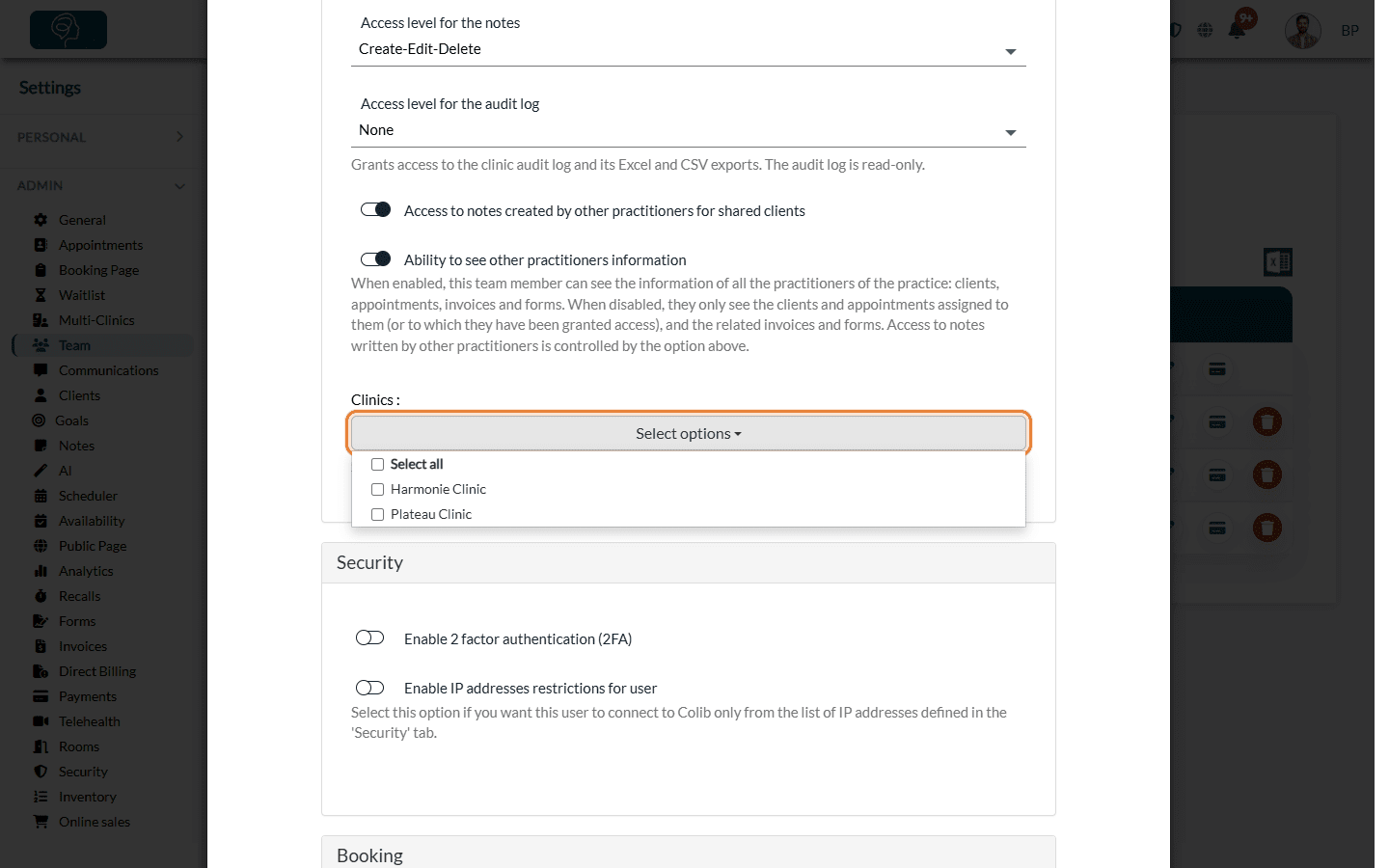
- Which clinics you can choose — if you are attached to no clinic, or to all of them, you can choose any clinic. If you are attached to some clinics only, the list shows your clinics plus the clinics the member already has.
- The field is not mandatory — nothing is checked for a new member. If you save without a clinic, the member has no clinic and sees empty lists (see below).
2Or choose the members of a clinic from the clinic
- Go to Settings > Multi-Clinics (www.colib.io/settings?show=clinics).
- Click the pencil icon (Edit clinic) on the clinic's row.
- In the Practitioners: field, check the people who work in this clinic. Despite its name, the list contains all your team members, practitioners or not.
- Click Save.
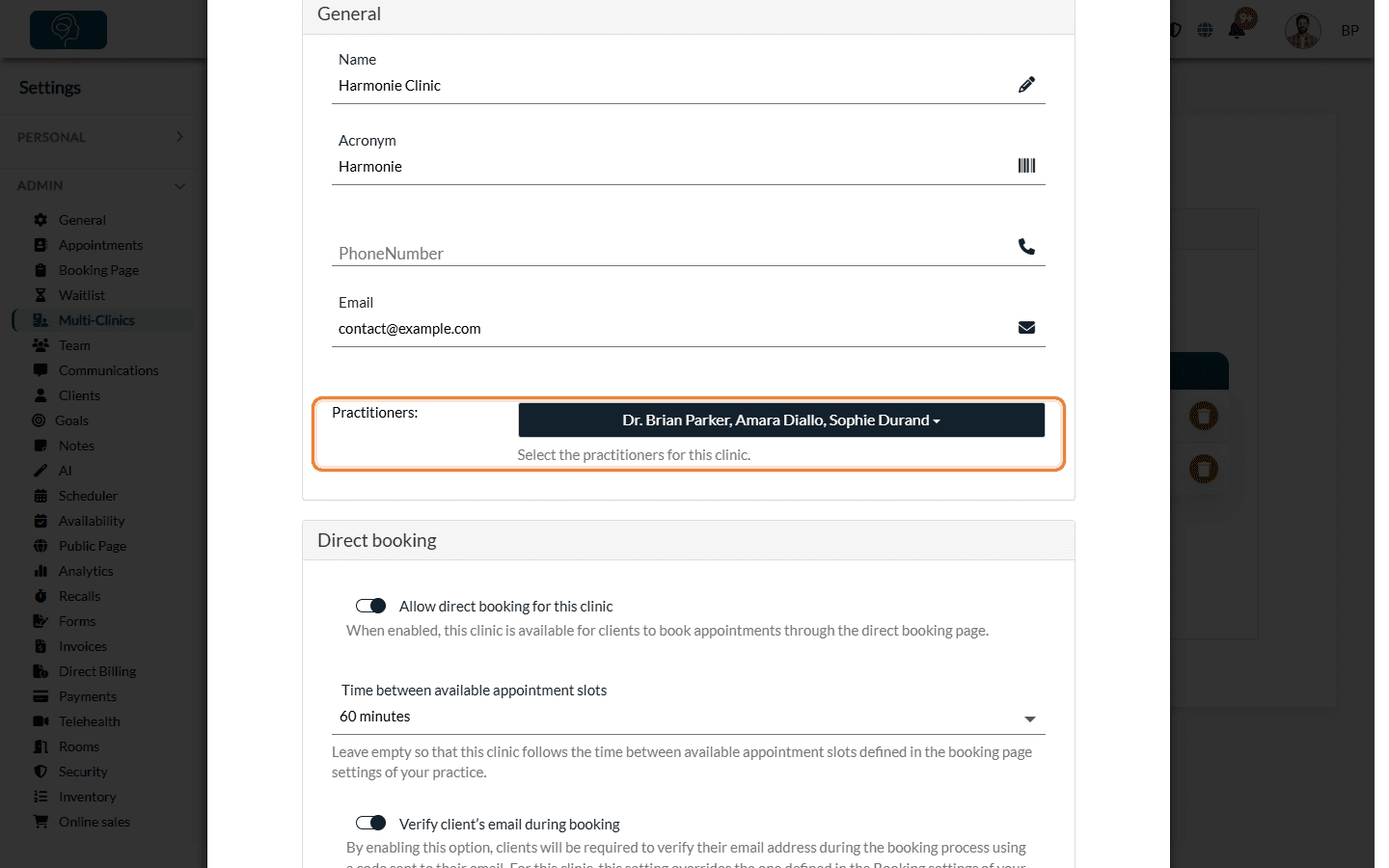
A clinic must keep at least one person: otherwise Colib shows You need to assign at least one practitioner to the clinic. The list you save replaces the members of this clinic: a person you uncheck is removed from this clinic only, and keeps their other clinics.
What a member attached to some clinics sees
A member attached to one or more clinics only sees what belongs to their clinics. Their access rights (see What are the different levels of rights/options for the members of my practice?) then apply on top of this filter.
| Area | What the member sees |
|---|---|
| Clients | The clients who share at least one clinic with them. Among those, a practitioner without Ability to see other practitioners information only sees their own clients. |
| Scheduler | Their clinics and the practitioners of those clinics. An appointment is shown if it belongs to one of their clinics, or if they are its practitioner. See the article titled "How does the scheduler work in multi-clinic mode?" |
| Appointment types and categories | The types authorized in one of their clinics (and types with no clinic), and the categories that contain such a type or are empty. See the article titled "How to link appointment types and categories to clinics". |
| Forms | The forms associated with one of their clinics, and the forms with no clinic. |
| Note templates | The templates associated with one of their clinics. |
| Rooms | The rooms of their clinics, and the rooms available for all clinics. See the article titled "How to manage rooms across several clinics". |
| Clinics (administrators) | Only their clinics in Settings > Multi-Clinics; they can only edit or delete those. |
| Analytics | The figures of their clinics. A member attached to all clinics sees all clinics, like a member with no clinic. |
What a member with no clinic sees
A member who is attached to no clinic does not get an error message: depending on the area, they see everything, nothing, or only part of the data.
| Access | Areas |
|---|---|
| Everything | The list of clinics (administrators can edit all of them), appointment types and categories, form settings (a form they create has no clinic, so it is offered to every clinic), the home page and Analytics (all clinics, with the charts by clinic). |
| Nothing | Clients (the list is empty, and when they try to create a client, Colib brings them back to the home page instead of opening the new record), form results, the waitlist and the scheduler. The scheduler stays empty with the message Use the clinics & practitioners filter to select the practitioners you want to display., but the filter is not shown to them, and saving an appointment fails with A clinic is mandatory. |
| Part of it | Invoices: their own invoices and the invoices with no clinic. Rooms: only the rooms available for all clinics; they cannot create or edit a room. Note templates: all of them in Settings > Notes, but none is offered when they write a note. |
Important: in multi-clinic mode, attach every team member who works with clients to at least one clinic. A member without a clinic cannot see clients nor book appointments.
Administrators and the "see other practitioners" option
- The administrator role does not bypass clinics — it gives access to the settings, the plan and Analytics, but an administrator attached to clinic A does not see the clients and appointments of clinic B.
- Ability to see other practitioners information — this option only works inside the member's clinics: it shows the data of the other practitioners of the same clinics, never those of a clinic the member is not attached to. For a team member who is not a practitioner, it is always turned on.
Common cases
- A manager for each clinic — give the person the administrator role and attach them to their clinic only. They manage the clients, appointments, types, forms, rooms and settings of their clinic. As an administrator, they can still change the settings shared by all clinics (opening hours, availability, taxes, branding...).
- A receptionist for several clinics — attach them to every clinic they handle, then set their access rights. See the article titled "How to set up a receptionist who manages other practitioners' appointments".
- A member who moves to another location — in their profile, check the new clinic and uncheck the old one. They keep seeing the appointments where they are the practitioner, but they only see the clients who share a clinic with them: add the new clinic to the record of the clients who follow them.
- An administrator who creates a clinic — if you are attached to some clinics only, you are pre-selected in the Practitioners: field of the new clinic. If you uncheck yourself, the new clinic disappears from your list once saved.
Good to know
- First clinic — when you create your first clinic, every team member is attached to it automatically. Members you invite afterwards have no clinic until you select one.
- Empty account or error page — empty lists usually mean that the member has no clinic; an error page means that one of their access levels is set to None. See the article titled "A team member sees an empty account or an error page: what should I do?"
- Client visibility — see also Assigning practitioners and configuring client visibility and How does creating multiple clinics affect practitioners' rights?
Still have a question?
Write to us at support@colib.io, we will be happy to help.
Was this article helpful?
That’s Great!
Thank you for your feedback
Sorry! We couldn't be helpful
Thank you for your feedback
Feedback sent
We appreciate your effort and will try to fix the article