Who is this article for?
This article is for administrators of a practice with several clinics. It explains what each team member sees and can do once your account is in multi-clinic mode, depending on the clinics they are assigned to.
When you create your first clinic, your account switches to multi-clinic mode. Your existing data (clients, team members, appointment types, active forms, note templates, completed forms, invoices, waitlist requests, rooms and appointments) is automatically attached to that first clinic, so nothing disappears. See How to configure a multi-clinic (multi-location) practice?
From that moment on, the clinic acts as a second layer of filtering, on top of the permissions you already had.
The golden rule
In multi-clinic mode, the clinic filter is applied first, and it applies to everyone, administrators included.
- A team member assigned to one or more clinics sees the data of those clinics only.
- A team member assigned to no clinic keeps access to the shared settings and to the analytics, but sees no client, no completed form, no waitlist request and no appointment of the clinics (see the table below), even if they are an administrator or have the permission to see other practitioners’ information. They do not get an error page: the lists are simply empty.
- A client who is not attached to any clinic is invisible to everyone.
Existing permissions (administrator role, access to other practitioners’ information, billing rights, etc.) continue to apply, but within the clinics you have access to. Clinics and permissions combine: one never overrides the other.
Important: before anything else, make sure every team member is assigned to at least one clinic. Otherwise they will log in to an account with no clients and an empty scheduler.
1Assign each team member to their clinics
You can do it in two places:
- From the clinic — in Settings > Multi-Clinics (www.colib.io/settings?show=clinics), edit the clinic (pencil icon) and select its team members in Practitioners. A clinic needs at least one.
- From the team member — in Settings > Team (www.colib.io/settings?show=team), edit the member and check their clinics in Clinics. If you are yourself assigned to some clinics, you can only choose among your clinics (plus the clinics the member already has). This field is not mandatory: a member can be saved without a clinic.
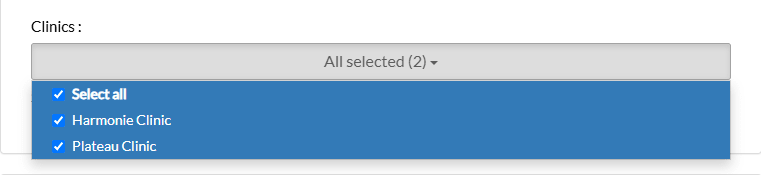
The change is immediate. If a practitioner moves to another location, update their clinics the same way.
2What changes for an administrator
Being an administrator is not a way around the clinic filter. An administrator must be assigned to clinics just like everyone else.
- An administrator assigned to one or more clinics sees all the data of those clinics, for every practitioner working there (with the permission to see other practitioners’ information), but nothing from the clinics they are not assigned to. In practice, this is how you create a clinic manager: give them the administrator role and assign them only to their own clinic.
- An administrator assigned to no clinic still has full access to the settings, the list of clinics and the analytics of all the clinics, but sees no client and no appointment.
- The items that are not yet linked to a client (a public form filled in by a new person, a request from the booking page, a waitlist request) are visible to the team members who have the permission Ability to see other practitioners information, within their own clinics. It does not depend on the administrator role.
- Only administrators can open Settings > Multi-Clinics to create clinics and assign team members to them. An administrator assigned to some clinics only sees, edits and deletes those clinics. When they create a clinic, they are selected in its Practitioners by default: if they remove themselves, they will no longer see the clinic they have just created.
3Which settings are shared and which are separated by clinic
Some settings are separated by clinic: a team member assigned to clinics only sees and manages those of their clinics.
- Appointment types — through their Authorized clinics. The member sees the message You only see the appointment types of your clinic(s). and cannot manage the categories.
- Forms — through their Associated clinics (see How do Colib forms work for multiple locations?).
- Note templates — through their clinics in Settings > Notes; when writing a note, only the templates of your clinics are offered.
- Rooms — the member only sees and manages the rooms of their clinics (and the rooms Available for all clinics), and can only create a room in one of their clinics.
- The list of clinics.
The appointment types and forms that have no clinic stay visible to everyone. The other settings (communications, invoicing options, taxes, opening hours and availability, logo and colours, etc.) remain account-wide: an administrator of one clinic still edits them for the whole account.
4What a team member without a clinic sees
| Full access | Partial access | Nothing |
|---|---|---|
| List of clinics, appointment types and categories, forms (the list, to send or edit them), note templates in Settings, analytics of all the clinics. | Invoices: their own and those without a clinic. Rooms: only those Available for all clinics, without being able to create or edit one. Scheduler: Busy and Other entries only. | Clients (and they cannot create one), form results, waitlist, appointments of the scheduler (they cannot create one: A clinic is mandatory.), note templates when writing a note. |
5Scheduler and appointments
What you see
- The scheduler displays a Select clinics & practitioners selector. It only offers your clinics and the practitioners assigned to the selected clinic(s).
- Your selection of practitioners is remembered from one session to the next. The clinics are all checked again each time you open the scheduler.
- A team member without a clinic has no selector and sees an empty scheduler.
Opening and editing an appointment
A team member can open and edit an entry of the scheduler if:
- it is their own entry, or an appointment of one of their clinics, or a Busy / Other type of entry (these are never restricted by clinic);
- and, if the entry belongs to another practitioner, their permissions allow them to see that practitioner’s information.
Inside the appointment window
The Clinic field is mandatory for an appointment. Once a clinic is selected, the lists are filtered automatically:
- Clients: only clients attached to that clinic. All the clients of the appointment must belong to it.
- Appointment types: only those linked to that clinic (Settings > Appointments). A type linked to no clinic is not offered.
- Practitioners: only those assigned to that clinic (a practitioner with no clinic stays in the list).
- Rooms: only rooms of that clinic, plus any room marked Available for all clinics.
The clinic already set on an existing appointment always stays in the list, so you never lose information on an appointment created before the change.
Online booking page: your clients choose the clinic when booking (see How to have a different booking page for each clinic?).
6Clients
- The client list only shows clients who share at least one clinic with you.
- A Clinics column and a Clinic filter are added to the list (the filter only offers your own clinics). The filter also applies to the Excel export.
- Each client must be attached to at least one clinic, and no more than three (Please select between 1 and 3 clinics for this client.). The clinics offered are those of the client and your own.
- When you create a client, they are automatically pre-assigned to your own clinics (up to three).
- When you assign a practitioner to a client, only practitioners working in the client’s clinics or yours are offered.
- A client created from a form is attached to the clinic selected on that form.
Good to know: a team member with no clinic cannot create a client: the new client record cannot be opened and they are brought back to the home page. This is another reason to assign every team member to a clinic first.
7Invoices
Invoices follow a more flexible rule than the rest of the platform. A team member sees:
- the invoices of their own clinics,
- plus their own invoices, whichever clinic they belong to,
- plus invoices that have no clinic (typically invoices created before the switch to multi-clinic).
Seeing the invoices of other practitioners still requires the corresponding permission. Other changes:
- A Clinic filter appears in the invoice list, and the clinic is included in the Excel export.
- The clinic of a new invoice is taken from the client’s clinic, and is replaced by the clinic of the most recent appointment being billed if the invoice covers appointments.
- You can change the clinic on the invoice itself. The clinics offered are those of the client (the field only appears when there is a choice).
- The header of the invoice PDF shows the name, address, email and phone number of the invoice’s clinic. The logo remains that of your account.
What does not change: invoice numbering. The numbering sequence stays at the account level (or per practitioner if you use that option): there is no separate numbering per clinic.
8Forms
Once you are in multi-clinic mode, a mandatory Clinic question is added at the top of your forms, so that the clinic is recorded when the form is filled out. It is pre-filled with the client’s clinic when the client is already known. When a form is associated with a single clinic, the question is not asked and the clinic is filled in automatically.
Form results are then partitioned by clinic:
- You only see the results whose client belongs to one of your clinics and whose form was filled in for one of your clinics.
- A completed form with no clinic recorded is not shown in multi-clinic mode.
- A team member with no clinic sees all the forms of the account, but no results at all.
Details in How do Colib forms work for multiple locations?
9Waitlist
- Every waitlist request is attached to a clinic, and the clinic is displayed in the list of requests.
- You only see the requests of your own clinics and, when the request is linked to an existing client, that client must also share a clinic with you. Requests not yet linked to a client follow the permission to see other practitioners’ information.
- When a spot frees up and the automatic alerts of the waitlist are enabled, a waiting client is only alerted about openings of the practitioners of the clinic of their request.
- Manually reordering priorities is disabled in multi-clinic mode, because the order would not be meaningful across several clinics.
Good to know
- A practitioner moves to another location — update their clinics in Settings > Multi-Clinics or in their team member record: the change is immediate.
- Deleting clinics — if you delete your last clinic, the account returns to single-clinic mode. Before deleting a clinic, read the warning in How to configure a multi-clinic (multi-location) practice?: the clinics of its clients are removed.
- Permissions of each member — see What are the different levels of rights/options for the members of my practice?
- Filters by clinic — see How do filters change in Colib after creating several clinics?
Still have a question?
Write to us at support@colib.io, we will be happy to help.
Was this article helpful?
That’s Great!
Thank you for your feedback
Sorry! We couldn't be helpful
Thank you for your feedback
Feedback sent
We appreciate your effort and will try to fix the article