If your practice operates in several physical locations, you can manage them all from a single Colib account by creating one clinic per location.
Creating a clinic
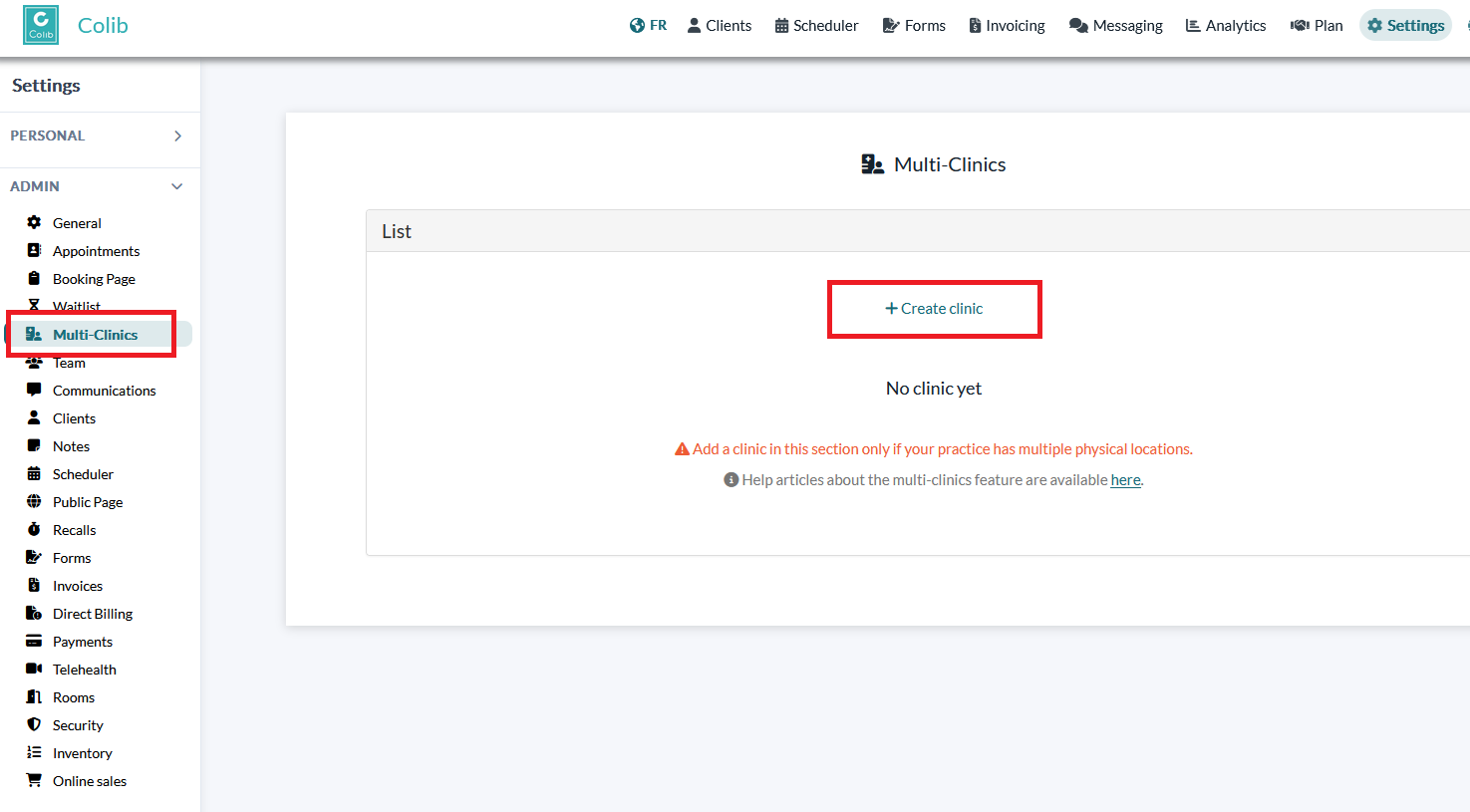
1. Go to Settings > Multi-clinics.
2. Open the List section and click Create clinic.
3. Fill in the clinic information:
- Name — the full name of the location.
- Acronym (up to 4 characters) — a short code displayed in lists and schedules to identify the clinic at a glance.
- Phone number and email of the location.
- Clinic address — start typing the street address and let the suggestions complete the city, postal code, country and province.
- Practitioners — select the practitioners who work at this location.
4. Click Save.
Once the clinic is created, you can reopen it (pencil icon) to configure its online booking page: its unique URL and whether clients can book this location directly (see the article "How to have a different booking page for each clinic?").
What happens when you create your first clinic
Your account switches to multi-clinic mode as soon as the first clinic is created — you don't need a second one. To ensure a smooth transition, Colib automatically attaches your existing data to this first clinic: all your clients, all your practitioners and all your appointment types. Your first clinic should therefore represent your current (main) location; you can then create your other locations and adjust the assignments.
From then on, appointments, rooms, appointment types and clients can be associated with a clinic, and clinic filters appear throughout Colib (schedule, client list, invoices). See the related articles for details.
Good to know
- Only create clinics if your practice really has several physical locations. If you have a single address, you don't
need this section.
- We strongly recommend booking an onboarding session with our team before creating your first clinic, so your account is structured correctly from the start.
- You can edit or delete a clinic at any time from the same list.
- If you delete your last clinic, your account automatically returns to single-location mode.
Was this article helpful?
That’s Great!
Thank you for your feedback
Sorry! We couldn't be helpful
Thank you for your feedback
Feedback sent
We appreciate your effort and will try to fix the article