Who is this article for?
This article is for practice owners and administrators whose practice has several physical locations (or can be split into several entities) and who want to manage them in a single Colib account.
It is the starting point of the Multi-clinic category: it explains what happens when you create your first clinic, what becomes specific to each clinic, what stays shared by the whole practice, and which article to read for each part of Colib.
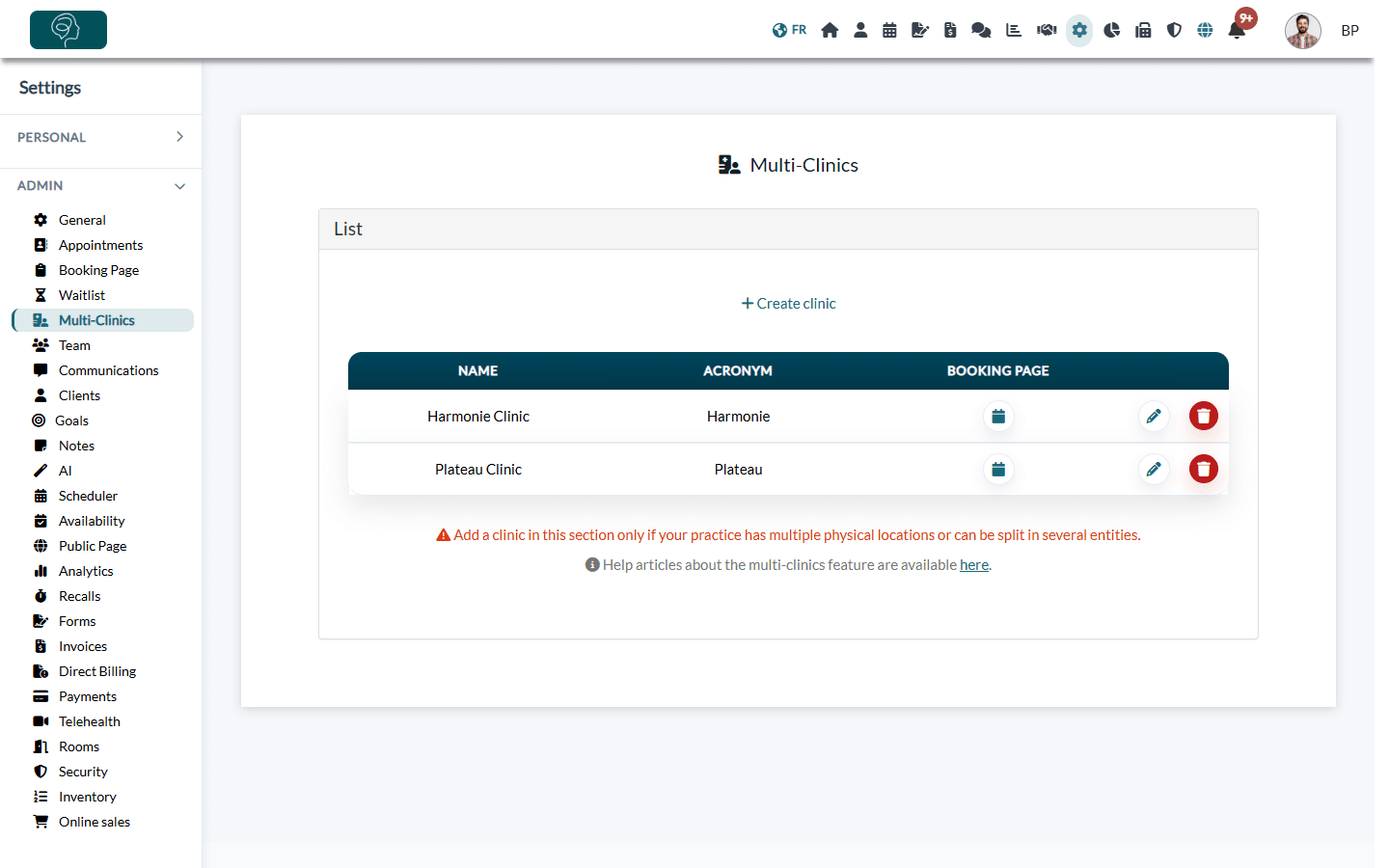
Before you start: clinics are managed in Settings > Multi-Clinics (www.colib.io/settings?show=clinics). This tab is only shown to administrators, and it requires the Practice Pro plan (it is also available during your free trial). On another plan, the tab shows This feature is not included in your current plan. with an Upgrade my plan button.
Should you use multi-clinic mode?
Colib shows it on the screen: Add a clinic in this section only if your practice has multiple physical locations or can be split in several entities. A single office with several practitioners does not need clinics: the team, rights and availability settings already cover that case.
Use clinics when you want, for each location:
- its own name, address, email and phone number on appointments and invoices;
- its own booking page, and only the services and practitioners offered there;
- team members who only see the clients, appointments and documents of their location.
What happens when you create your first clinic
Creating the first clinic switches your account to multi-clinic mode. To avoid losing anything, Colib attaches everything that already exists to this first clinic. The creation window reminds you of it: You are creating the first clinic of your account: everything already set up (practitioners, clients, appointment types, rooms, schedules...) will automatically be attached to this first clinic.
| Attached to the first clinic |
|---|
| All your clients, all your team members, all your appointment types, your active forms, all your note templates, the forms already sent or completed, the booking requests, the invoices, the waitlist, the rooms and all the appointments. |
All your team members are attached to the first clinic, even those you do not select in its Practitioners: field. You can then adjust the clinics of each member (see the article titled "Team members and clinics: who sees what in multi-clinic mode").
Important: the clinics you create after the first one receive nothing automatically: no team member, no client, no appointment type, no form, no note template, no room. Follow the checklist below for each new clinic.
How to fill in the clinic window (name, acronym, address, practitioners, booking options...) is explained in How to configure a multi-clinic (multi-location) practice?
What becomes specific to each clinic
Once you have clinics, each of these parts of Colib takes the clinic into account. A team member attached to one or more clinics only sees and manages what belongs to their clinics.
| Area | What changes | Read |
|---|---|---|
| Team and rights | Each member is attached to one or more clinics, which limits what they see. A member with no clinic sees empty lists for clients and the scheduler. | Please see the article titled "Team members and clinics: who sees what in multi-clinic mode"; How does creating multiple clinics affect practitioners' rights? |
| Clients | Each client belongs to 1 to 3 clinics and is only visible to the members of those clinics. | Please see the article titled "Client records in multi-clinic mode" |
| Scheduler | Every appointment has a clinic. New selector Select clinics & practitioners and views Day by clinic / Week by clinic. | Please see the article titled "How does the scheduler work in multi-clinic mode?" |
| Rooms | Each room belongs to one clinic, or is available for all clinics. | Please see the article titled "How to manage rooms across several clinics" |
| Appointment types and categories | Each type is offered in the clinics you choose in Authorized clinics. | Please see the article titled "How to link appointment types and categories to clinics" |
| Forms and note templates | Each form and each note template has its Associated clinics. | How do Colib forms work for multiple locations?; the article titled "Form and note templates in multi-clinic mode" |
| Online booking | Each clinic can have its own booking page, with its own time between slots and email verification. | How to have a different booking page for each clinic? |
| Invoices and payments | Each invoice has a clinic, whose name and contact details appear on the invoice. Online payments can be turned off for one clinic. | Please see the article titled "Invoices, taxes and online payments with several clinics" |
| Analytics and reports | Figures and reports can be filtered by clinic. | Please see the article titled "Analytics and reports by clinic" |
| Waitlist | Each waitlist request has a clinic. | Please see the article titled "Waitlist with several clinics" |
| Messaging, emails and client portal | Messaging can be turned off for one clinic. Messages and the client portal show the clinic's name and contact details. | Please see the article titled "Private messaging per clinic"; the article titled "Emails, SMS and notifications with several clinics"; the article titled "What your clients see in the client portal when you have several clinics" |
To see where clinic filters appear across Colib, read How do filters change in Colib after creating several clinics?
What stays shared by all clinics
These settings are defined once for the whole practice. They cannot be set differently for each clinic:
- Schedule settings — opening hours, practitioners' availability, shifts, availability groups and statutory holidays (those of the province of your practice).
- Money — taxes, online payment accounts and invoice numbering.
- Brand — logo, color and Google tags.
- Tools — fax, artificial intelligence settings, chat templates, tasks, scheduler export and calendar synchronization with Google or Outlook.
Only a few options can be set per clinic, in the clinic window: name, acronym, address, email, phone, its team members, its booking page with Time between available appointment slots and Verify client's email during booking, Disable online payments for this clinic and Disable messaging for this clinic. More details in the article titled "What stays shared between clinics (fax, taxes, branding, sync…)".
Clinics in Quebec: as soon as your practice or one of your clinics has an address in Quebec, two-factor authentication becomes mandatory for every team member and every client of the account, whatever their clinic.
Checklist for each new clinic
Since a new clinic starts empty, go through this list after creating it:
- Team members — attach each member to their clinic(s): in the Practitioners: field of the clinic, or in the Clinics field of each member in Settings > Team (www.colib.io/settings?show=team). Avoid leaving a member without a clinic.
- Appointment types — add the new clinic to the Authorized clinics of each service offered there, in Settings > Appointments (www.colib.io/settings?show=appointments).
- Forms — add the clinic to the Associated clinics of the forms used there (www.colib.io/forms).
- Note templates — add the clinic to the Associated clinics of each template, in Settings > Notes (www.colib.io/settings?show=notes).
- Rooms — create the rooms of the clinic, or make a room available for all clinics, in Settings > Rooms (www.colib.io/settings?show=rooms).
- Clients — add the new clinic to the record of the clients who will be seen there (a client can belong to up to 3 clinics).
- Booking page — check the booking options of the clinic and share its booking address (see How to have a different booking page for each clinic?).
Good to know
- Administrators are filtered too — the administrator role gives access to the settings, but does not show the clients and appointments of the clinics an administrator is not attached to.
- Clients without a clinic — a client who has no clinic is visible to nobody, administrators included. Always give each client at least one clinic.
- Empty screens — if a team member sees no client and an empty scheduler, they are probably not attached to any clinic. See the article titled "A team member sees an empty account or an error page: what should I do?"
- Edit or delete a clinic — click the pencil or trash icon on its row in Settings > Multi-Clinics. Deleting your last clinic turns multi-clinic mode off. See the article titled "How to edit or delete a clinic, and what happens to its data".
Important: do not delete a clinic that still has clients without writing to support@colib.io first. Today, the clients of a deleted clinic lose all their clinics, including the other ones, and then no longer appear in anyone's client list.
Still have a question?
Write to us at support@colib.io, we will be happy to help.
Was this article helpful?
That’s Great!
Thank you for your feedback
Sorry! We couldn't be helpful
Thank you for your feedback
Feedback sent
We appreciate your effort and will try to fix the article