Who is this article for?
If your practice operates in several physical locations, you can manage them all from a single Colib account by creating one clinic per location.
This article explains how to create and configure a clinic, what happens to your existing data when you create your first clinic, and what to check afterwards.
Before you start: clinics are managed in Settings > Multi-Clinics (www.colib.io/settings?show=clinics), in the Admin part of the settings, so you need administrator access. The feature is included starting from the Practice Pro plan (and during the free trial). On another plan, the section shows that an upgrade is required and a clinic cannot be saved (This feature is not included in your current plan. It is available starting from the Practice Pro plan.).
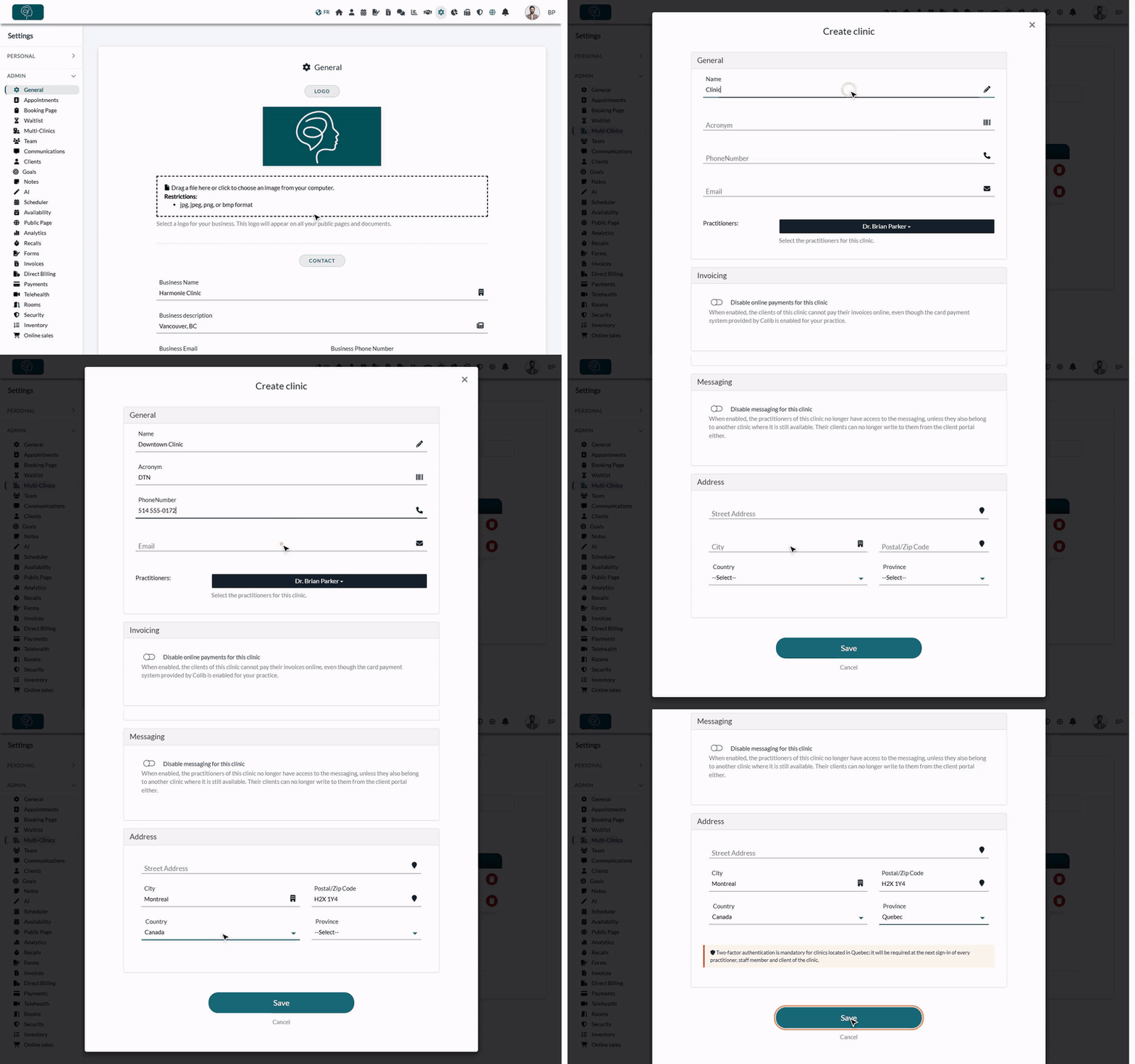
1Open the list of clinics
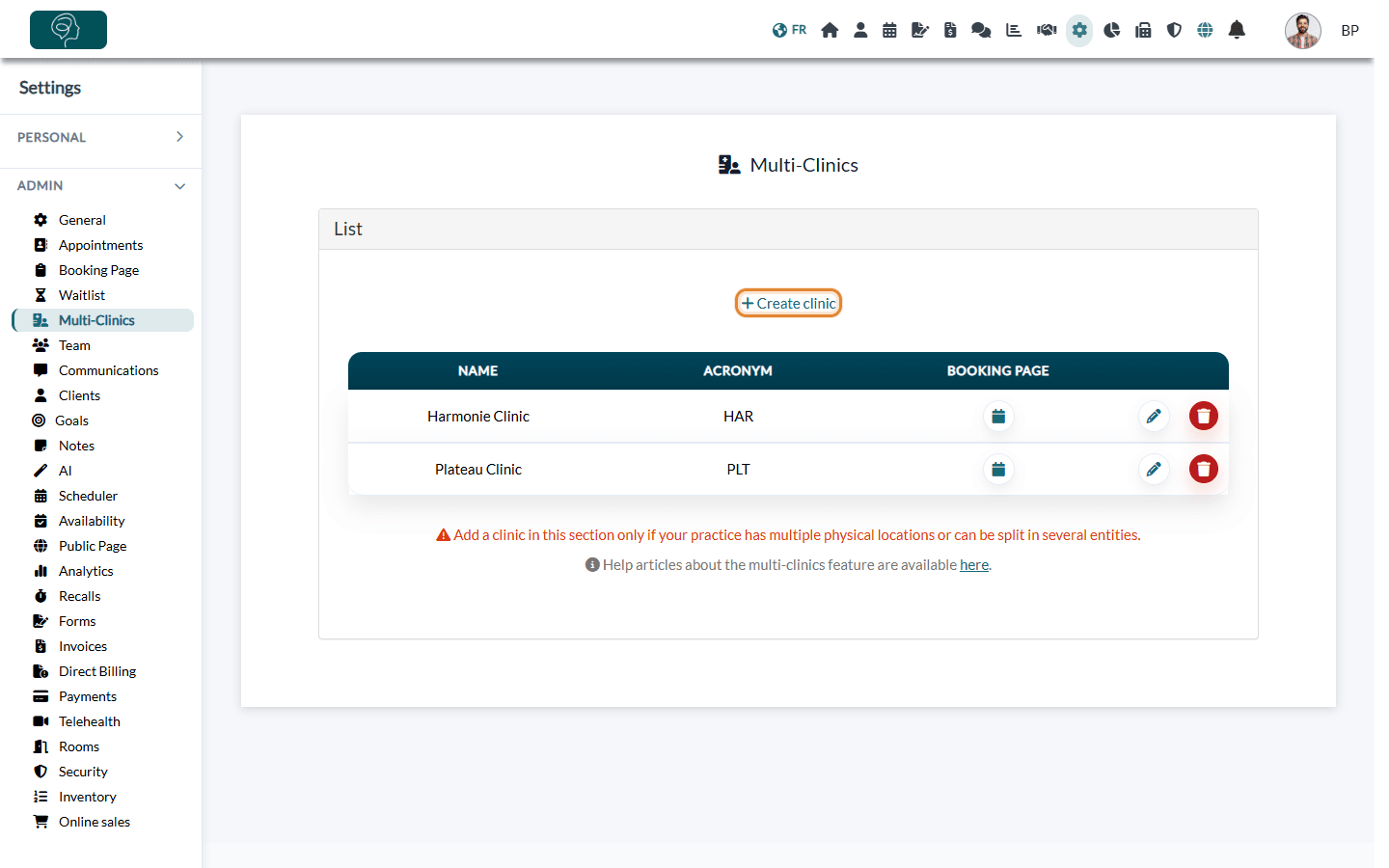
- Go to www.colib.io/settings?show=clinics. You can also click the Settings icon (gear) in the top bar, then Multi-Clinics in the Admin menu on the left.
- Open the List section. It shows each clinic with its Name, its Acronym and, when online booking is open for it, a calendar icon that opens its Booking page.
2Create the clinic
- Click Create clinic.
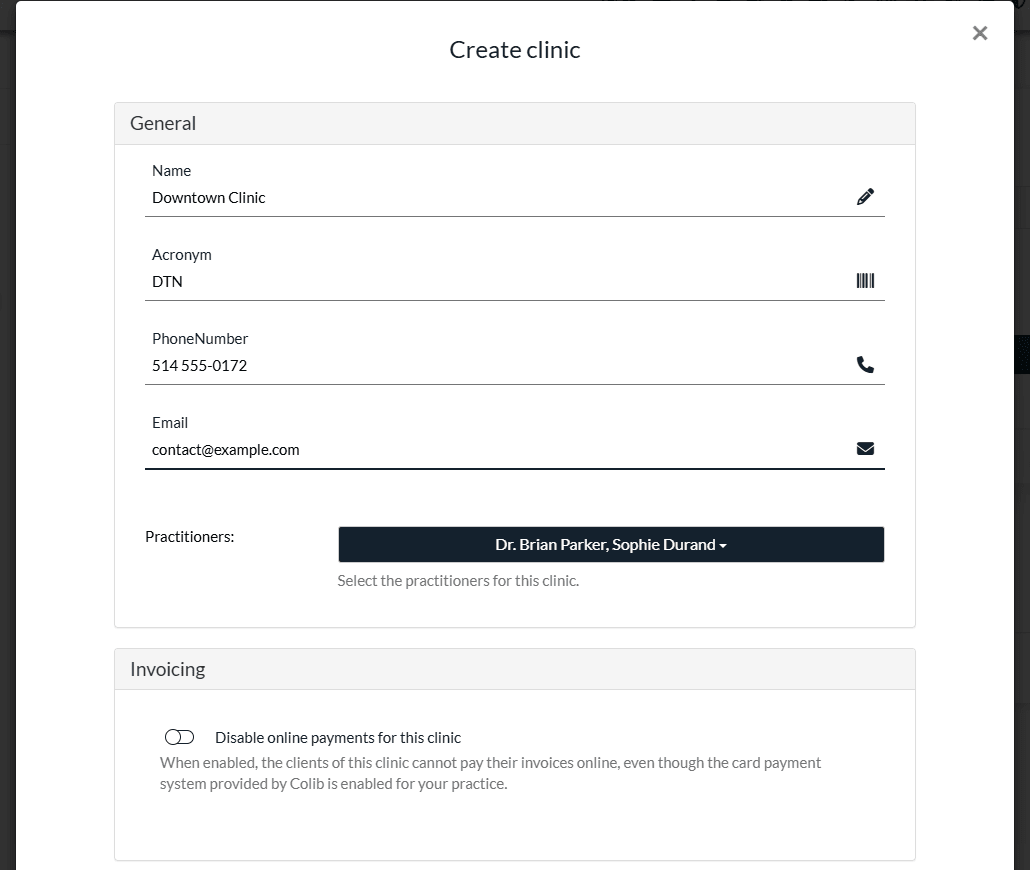
- In the General section, fill in:
- Name: the full name of the location (mandatory). Two clinics of your account cannot have the same name.
- Acronym (up to 4 characters, mandatory): a short code displayed in lists and in the scheduler to identify the clinic at a glance. It must also be unique.
- Phone number and Email of the location. A valid email is mandatory.
- Practitioners: select the team members who work at this location. At least one is required.
- If the section is shown, choose the Invoicing and Messaging options of the clinic (see step 3).
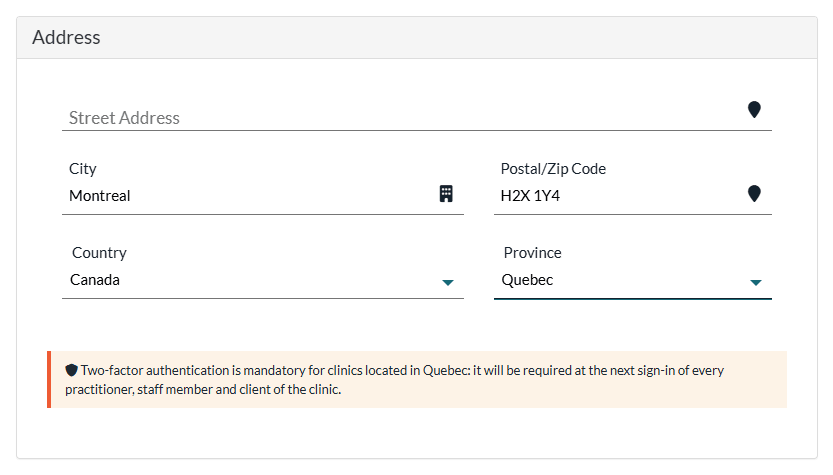
- In the Address section, start typing the street address and let the suggestions complete the city, postal code, country and province.
- Click Save. The clinic appears in the list.
If something is missing, Colib tells you what to fix:
| Message | What to do |
|---|---|
| Please enter a name. / Please enter an acronym. | Fill in the missing field. |
| Please enter a valid email. | Enter the email address of the location. |
| A clinic with the same name or acronym already exists. | Choose another name or acronym. |
| You need to assign at least one practitioner to the clinic. | Select at least one team member in Practitioners. |
Clinic in Quebec: when you choose Quebec as the province, the window reminds you that two-factor authentication is mandatory for clinics located in Quebec. It is then required at the next sign-in, and it cannot be turned off. Today, a single clinic located in Quebec makes two-factor authentication mandatory for all the team members and clients of your account, not only for those of that clinic.
3Configure the options of the clinic
Once the clinic is created, reopen it with the pencil icon (Edit clinic) to finish its configuration:
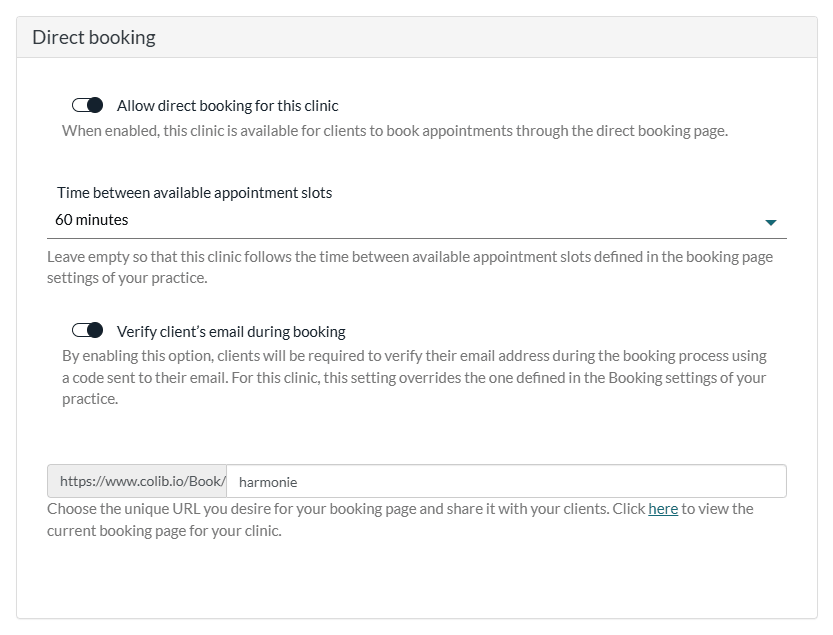
- Direct booking — this section only appears after the clinic is created, and only if your booking page lets clients book directly (Settings > Booking Page, www.colib.io/settings?show=bookingpage). It contains:
- Allow direct booking for this clinic: when enabled, clients can book this location online. It is enabled by default for a new clinic.
- Time between available appointment slots: leave Use the practice setting to keep the value of your booking page settings, or choose another interval (5 to 240 minutes) for this clinic.
- Verify client’s email during booking: clients confirm their email with a code during the booking. For this clinic, this setting replaces the one of your booking page settings.
- The unique URL of the clinic’s booking page (https://www.colib.io/Book/...), proposed from the clinic name, with a here link to preview the page.
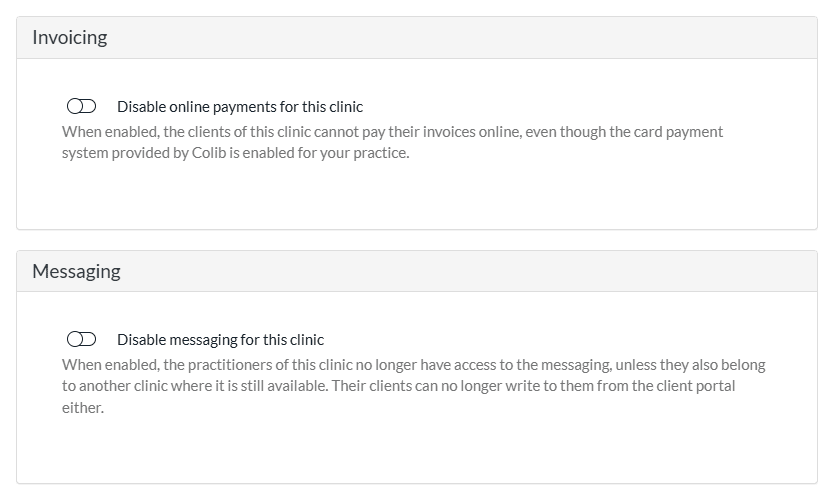
- Invoicing — shown when the card payment system provided by Colib is enabled for your practice. Disable online payments for this clinic: the clients of this clinic can no longer pay their invoices online.
- Messaging — shown when private messaging is enabled for your practice. Disable messaging for this clinic: the practitioners of this clinic no longer have access to the messaging, unless they also belong to another clinic where it is still available, and their clients can no longer write to them from the client portal.
Click Save to apply your changes.
What happens when you create your first clinic
Your account switches to multi-clinic mode as soon as the first clinic is created: you don’t need a second one. The creation window reminds you of it. To ensure a smooth transition, Colib automatically attaches your existing data to this first clinic:
- all your clients and all your team members (practitioners and staff);
- all your appointment types;
- your active forms and all your note templates;
- the forms already completed, the online booking requests, the invoices and the waitlist requests;
- your rooms and all your appointments.
When you create the first clinic, all the members of the account are already selected in Practitioners.
Your first clinic should therefore represent your current (main) location. You can then create your other locations and adjust the assignments. From then on, appointments, rooms, appointment types and clients are associated with clinics, and clinic filters appear throughout Colib (scheduler, client list, invoices...). See How do filters change in Colib after creating several clinics?
Important: the clinics you create after the first one start empty. Nothing is attached to them automatically. For each new clinic, think of:
- its team members (Practitioners of the clinic);
- its appointment types (Authorized clinics of each type, in Settings > Appointments, www.colib.io/settings?show=appointments);
- its forms (Associated clinics of each form) and its note templates (Settings > Notes, www.colib.io/settings?show=notes);
- its rooms (Settings > Rooms, www.colib.io/settings?show=rooms);
- the clients who come to this location (the Clinic fields of their record).
Edit or delete a clinic
- You can edit (pencil icon) or delete (trash icon) a clinic at any time from the same list.
- A team member who is assigned to some clinics only sees, edits and deletes those clinics in the list.
- If you delete your last clinic, your account automatically returns to single-location mode.
Important, before deleting a clinic: its appointments, invoices, rooms, waitlist requests and completed forms lose their clinic, and the clinic is removed from the appointment types, team members, forms and note templates. Today, the clients of the deleted clinic also lose all their clinics, including their other ones: in multi-clinic mode, a client without a clinic is no longer visible to anyone until a clinic is assigned to them again. Write to support@colib.io before deleting a clinic that has clients.
Good to know
- Only if you have several locations — only create clinics if your practice really has several physical locations or can be split into several entities. If you have a single address, you don’t need this section.
- Plan your setup — we strongly recommend booking an onboarding session with our team before creating your first clinic, so your account is structured correctly from the start.
- Who sees what — see How does creating multiple clinics affect practitioners' rights?
- Forms — see How do Colib forms work for multiple locations?
Still have a question?
Write to us at support@colib.io, we will be happy to help.
Was this article helpful?
That’s Great!
Thank you for your feedback
Sorry! We couldn't be helpful
Thank you for your feedback
Feedback sent
We appreciate your effort and will try to fix the article