Who is this article for?
As soon as you create your first clinic, a clinic dimension appears throughout Colib to help you work location by location. This article lists, screen by screen, the clinic filters and columns you will find, and what each team member sees in them.
The rule everywhere: the clinic filters only offer the clinics you are assigned to. A team member assigned to some clinics only sees the data of those clinics, even an administrator. See How does creating multiple clinics affect practitioners' rights?
1In the scheduler
Go to www.colib.io/scheduler.
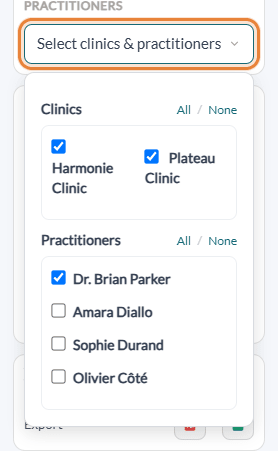
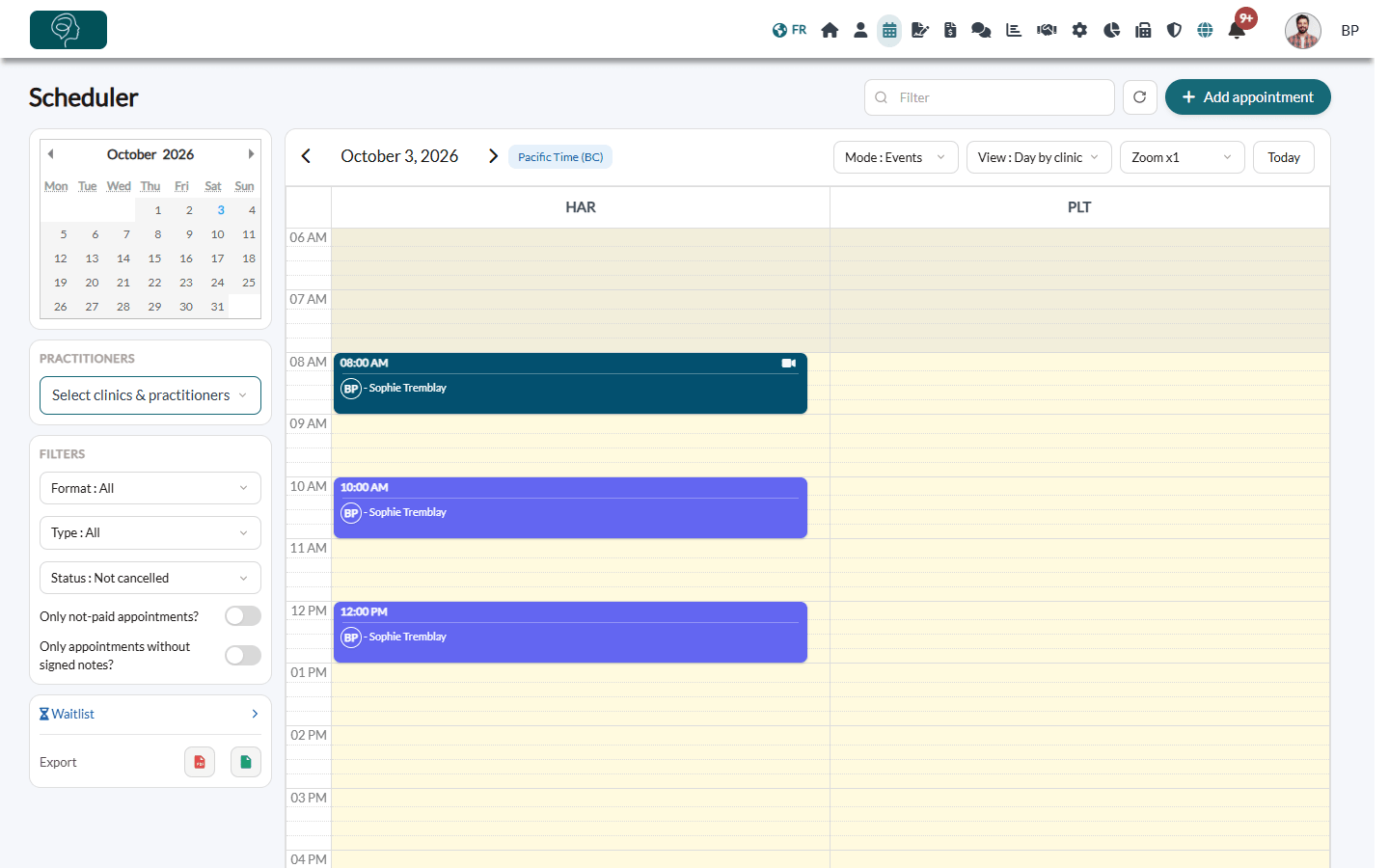
- Select clinics & practitioners — in the Practitioners box on the left, this selector replaces the list of practitioners. Check the Clinics you want to work with, then the Practitioners whose appointments you want to display (All / None links in each part). It is a selector, not a mask: it chooses whose schedule is displayed. Your choice of practitioners is remembered from one session to the next; the clinics are all checked again each time you open the scheduler.
- Day by clinic and Week by clinic — two additional views in the View menu show each location side by side, one column per clinic (with its acronym). Only your clinics are shown, and appointments that have no clinic do not appear in these views.
- Select clinics & rooms — in the Rooms mode (if you use rooms), the same kind of selector chooses the clinics and rooms to display.
When you create or edit an appointment:
- The Clinic field is mandatory for an appointment (A clinic is mandatory.). It is filled in and hidden when only one clinic is possible. It offers your clinics (and the clinic already set on the appointment).
- Selecting a clinic automatically filters the clients, appointment types, practitioners and rooms to those of that clinic. Rooms marked Available for all clinics stay available.
- All the clients of the appointment must belong to the chosen clinic, otherwise the message The clients you selected do not belong to the chosen clinic. appears.
- Entries that are not appointments (Busy, Other, tasks) are not restricted by clinic.
- The clinic of an appointment cannot be changed by drag and drop: open the appointment to change it.
2In the client list and the client record
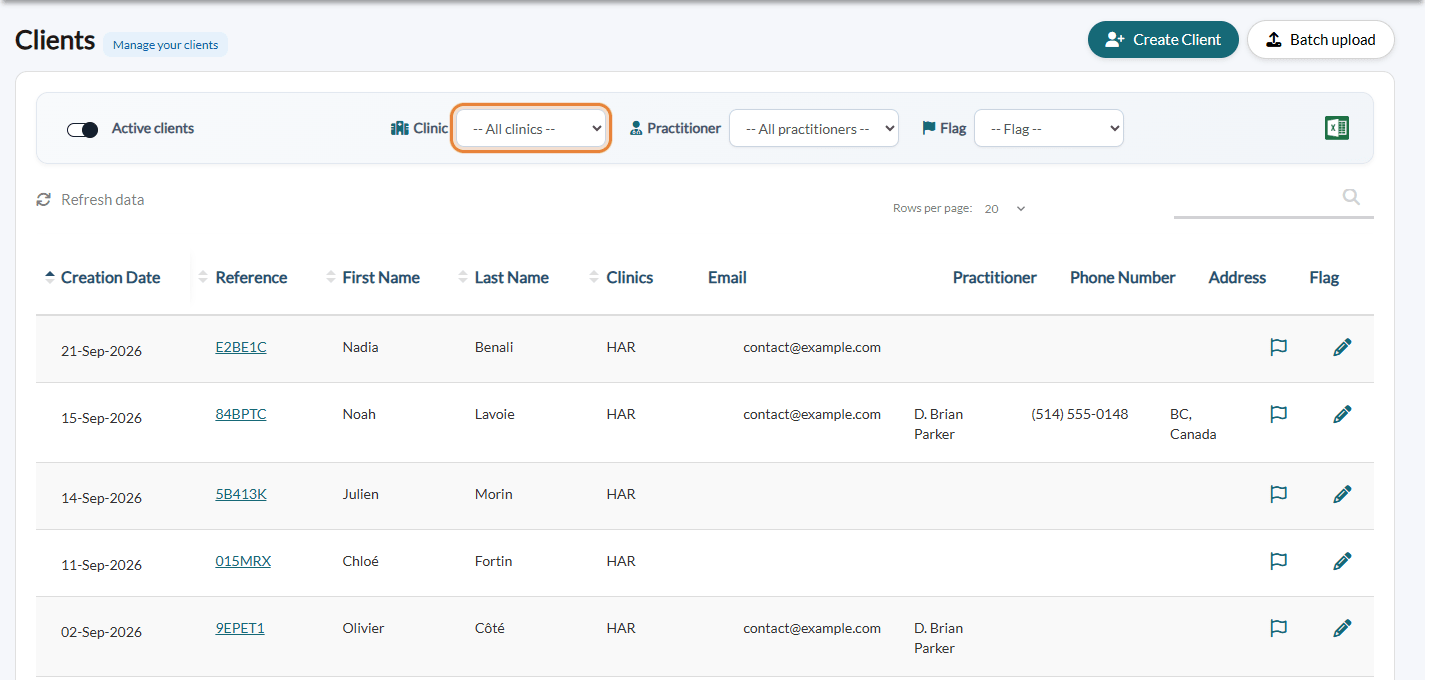
- Client list (www.colib.io/clients) — a Clinic filter (-- All clinics -- by default) and a Clinics column with the acronyms of each client’s clinics. The list only shows the clients who share at least one clinic with you.
- Excel export of the clients — it follows the Clinic filter, but the file has no column for the clinic.
- Client record — each appointment shows the acronym of its clinic as a small label (not a column). In the invoices of the client, a Clinic column shows the acronym, as soon as one of the invoices has a clinic.
3In invoicing and reports
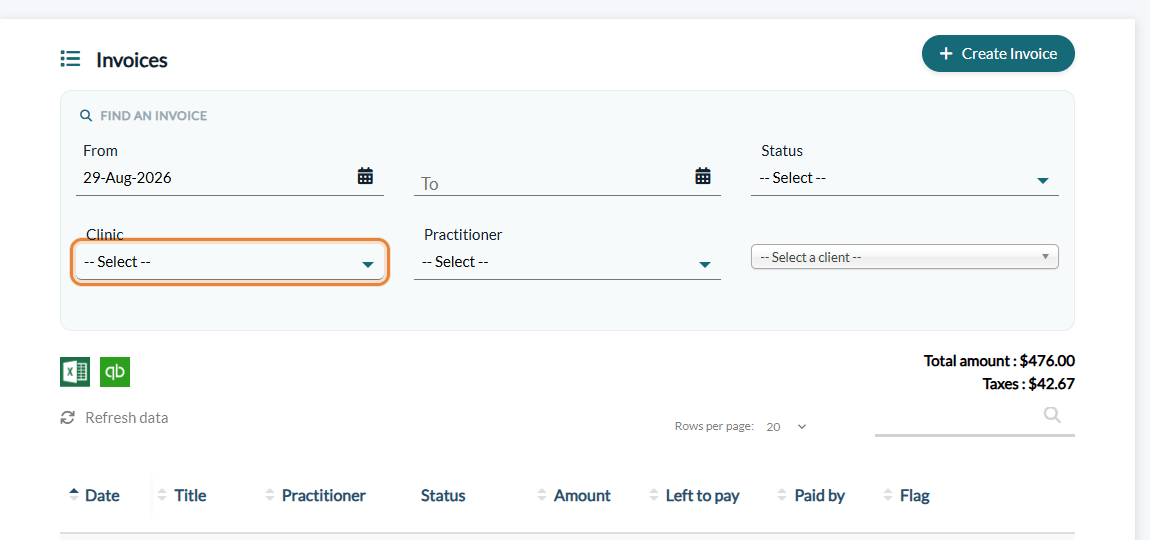
- Invoices (www.colib.io/invoices) — a Clinic filter in Find an invoice. The list itself has no clinic column, but the Excel export follows the filter and includes the clinic of each invoice.
- Reports (www.colib.io/reports) — a Clinic filter on every report except Deferred revenue. The PDF of the report mentions the chosen clinic.
4In analytics
On the Analytics page (www.colib.io/establishmentanalytics), your statistics can be viewed per clinic, to compare locations:
- A team member assigned to all the clinics, or to none, can see all the clinics together or choose one in the Clinic list, and has two additional charts: Per clinic (appointments per clinic) and Invoices per clinic (payment date).
- A team member assigned to some clinics only can only choose among them (their first clinic is selected by default).
5In the waitlist, forms and settings
- Waitlist (www.colib.io/waitlist) — no filter to choose: the list automatically shows the requests of your clinics, with a Clinic column (acronym). Manually reordering the priorities is disabled in multi-clinic mode.
- Form results — there is no clinic filter: you see, in one list, the forms completed for your clinics. See How do Colib forms work for multiple locations?
- Appointment types (Settings > Appointments, www.colib.io/settings?show=appointments) — each type now needs at least one clinic in Authorized clinics (You need to select at least one clinic.). A team member assigned to clinics sees the message You only see the appointment types of your clinic(s).
- Rooms (Settings > Rooms, www.colib.io/settings?show=rooms) — each room belongs to a clinic, or is Available for all clinics. The list shows the clinic of each room.
Behind the filters
These filters rely on the associations you configure: practitioners assigned to clinics, appointment types linked to clinics, rooms attached to a clinic (or available for all), and clients associated with their usual location(s). The more complete these associations are, the more useful the filters become. To set them up, see How to configure a multi-clinic (multi-location) practice?
Good to know
- A filter shows too much or too little? — check the associations above. A room marked Available for all clinics is offered in every clinic. An appointment type must be linked to at least one clinic: a type linked to none is not offered in the appointment window.
- A client is missing from the list — in multi-clinic mode, a client who has no clinic is not visible to anyone, administrators included. Write to us so we can help you find them.
- Booking pages — see How to have a different booking page for each clinic?
Still have a question?
Write to us at support@colib.io, we will be happy to help.
Was this article helpful?
That’s Great!
Thank you for your feedback
Sorry! We couldn't be helpful
Thank you for your feedback
Feedback sent
We appreciate your effort and will try to fix the article