Who is this article for?
Each clinic of your account can have its own online booking page, with its own address, so your clients book at the right location.
This article explains how to set up the booking page of a clinic, what your clients see, and what stays common to all your clinics.
Before you start: the clinic must already exist (see How to configure a multi-clinic (multi-location) practice?), and your booking page must let clients book by themselves: in Settings > Booking Page (www.colib.io/settings?show=bookingpage), choose Online booking by client. With another booking mode, the booking options of the clinics are not shown.
1Set up the booking page of a clinic
- Go to Settings > Multi-Clinics (www.colib.io/settings?show=clinics), open the List section and click the pencil icon (Edit clinic) of the clinic. The booking options only appear once the clinic has been created.
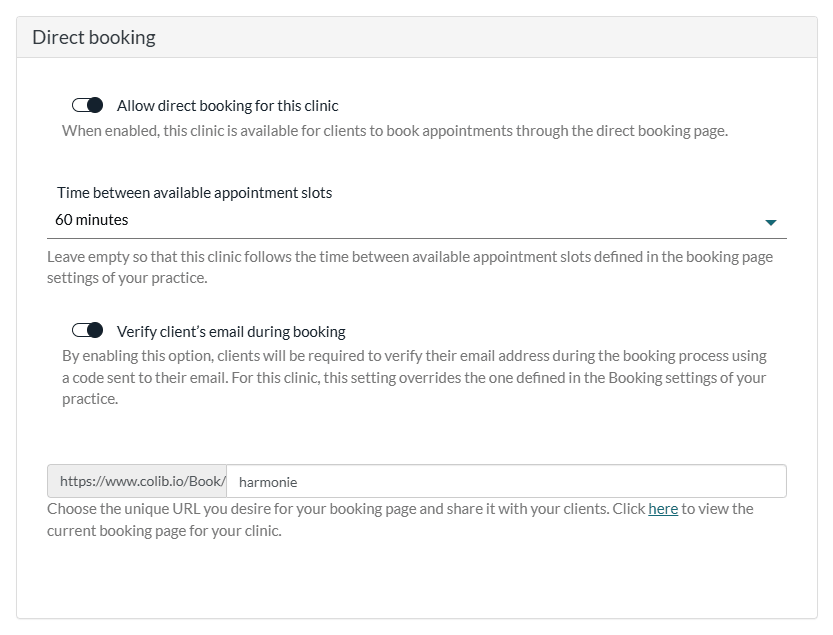
- In the Direct booking section, turn on Allow direct booking for this clinic if you want clients to book this location by themselves (it is on by default for a new clinic). If it is turned off, the clinic is not offered for direct online booking.
- Optionally, choose the Time between available appointment slots of this clinic. Leave Use the practice setting to keep the interval of your booking page settings.
- Optionally, turn Verify client’s email during booking on or off: clients then confirm their email with a code during the booking. For this clinic, this setting replaces the one of your booking page settings.
- Choose the clinic’s unique URL: your page will be available at https://www.colib.io/Book/ followed by the name you choose (Colib proposes one from the clinic name). The here link lets you preview the page at any time.
- Click Save.
The time, email verification and URL options are only shown when Allow direct booking for this clinic is turned on.
2Share the link of each clinic
In the list of clinics, the calendar icon of the Booking page column opens the page of the clinic. It only appears when direct booking is allowed for that clinic.
Share each clinic’s link in the right context: the location’s Google Business profile, its email signature, its section of your website.
Good to know: the booking pages of the clinics are not indexed by search engines. Your clients find them through the links you share, or through your main booking page (see below).
What clients see on your main booking page
Your main booking page (its link is in Settings > Booking Page; the Book Appointment button of your public page and of the client portal also leads there) adapts to your clinics:
| Clinics that allow direct booking | What your clients see |
|---|---|
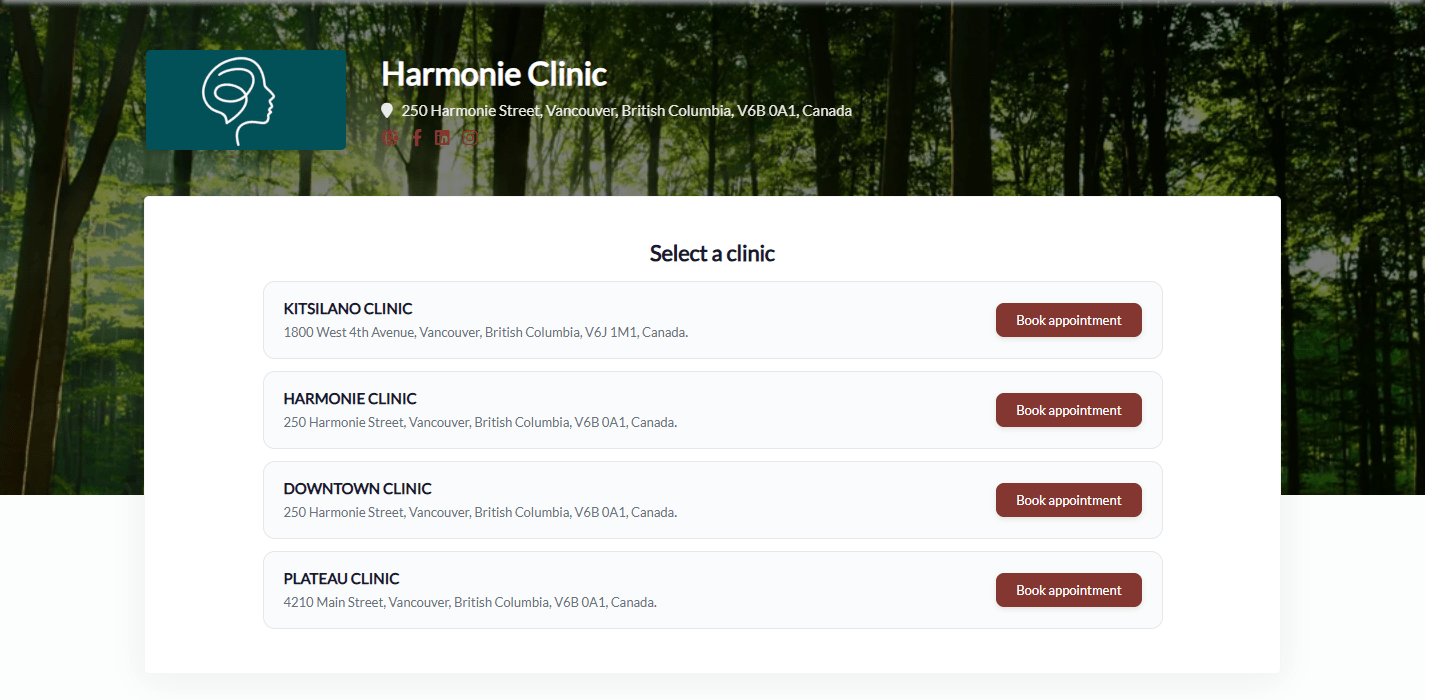
| Two or more | A Select a clinic page: each clinic with its name and address, and a Book appointment button that opens its booking page. |
| Only one | They go straight to the booking page of that clinic. |
| None | The booking page of your account, without any choice of clinic. |
If someone opens the link of a clinic whose direct booking is turned off, they are sent to your main booking page.
What clients see on a clinic page
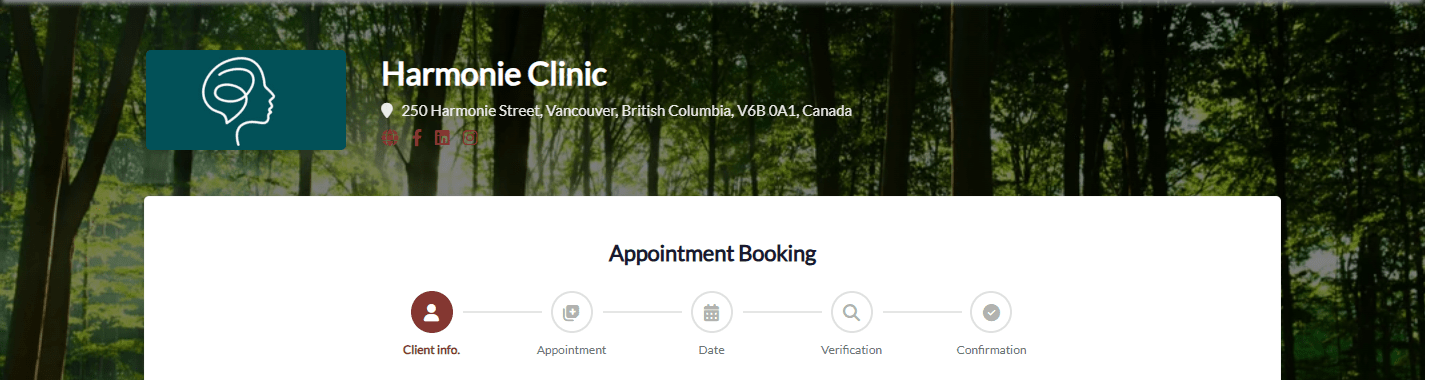
The page shows the name of the clinic and its address (when you display your address on your public page), and only offers what belongs to that location: the appointment types linked to the clinic (their Authorized clinics) and the practitioners assigned to it. This prevents a client from booking a service or a practitioner at the wrong address.
What can be different for each clinic, and what stays common to your account:
| Specific to each clinic | Common to all your clinics |
|---|---|
| Name, address and email of the clinic; URL of the page; direct booking on or off; time between available appointment slots; email verification during booking; appointment types and practitioners offered. | Phone number shown on the page, logo, background image and colour, social media links, Google tags (Google Tag Manager, Google Analytics, Google Ads), the other booking page settings. |
Good to know
- A service or practitioner is missing — check that the appointment type is linked to that clinic (Settings > Appointments, www.colib.io/settings?show=appointments) and that the practitioner is assigned to it (Practitioners of the clinic).
- Any practitioner — today, when a client chooses Any practitioner instead of a specific one, the times offered can include practitioners who offer the appointment type but are not assigned to the clinic. Check the practitioners of each appointment type if you use this option.
- Rooms — online bookings at a clinic only use the rooms of that clinic: rooms marked Available for all clinics are not offered on the booking pages of the clinics.
- Direct link of a practitioner — the link of a practitioner’s page points to your main booking page. When your clients go through the clinic choice, the practitioner is not preselected any more: share the clinic link instead.
- Appointment request form — if your booking page uses an appointment request form instead, your clients choose the clinic in the form: see How do Colib forms work for multiple locations?
- Other filters by clinic — see How do filters change in Colib after creating several clinics?
Still have a question?
Write to us at support@colib.io, we will be happy to help.
Was this article helpful?
That’s Great!
Thank you for your feedback
Sorry! We couldn't be helpful
Thank you for your feedback
Feedback sent
We appreciate your effort and will try to fix the article