Who is this article for?
This article is for practice owners and administrators whose account has several clinics (Settings > Multi-Clinics). It explains what your clients see in the client portal and on the pages they open from their emails: which clinic name and contact details are shown, how they book and join the waitlist, and what changes when you turn off online payments or messaging for one clinic.
The general rule: what belongs to one clinic (an appointment, an invoice) shows the name and contact details of that clinic. If a detail is missing in the clinic (for example, no phone number), the one of your practice is shown instead. Your logo and colours are the same everywhere: they belong to your practice, not to a clinic.
Booking an appointment from the portal
In the Appointments section of the portal, your clients see a Book appointment button when your booking page lets clients book directly. The button opens your main booking page, which then depends on your clinics:
| Clinics that allow direct booking | What the client sees |
|---|---|
| Two or more | A Select a clinic page with the name and address of each clinic, and a Book appointment button for each one. |
| Only one | The booking page of that clinic, directly. |
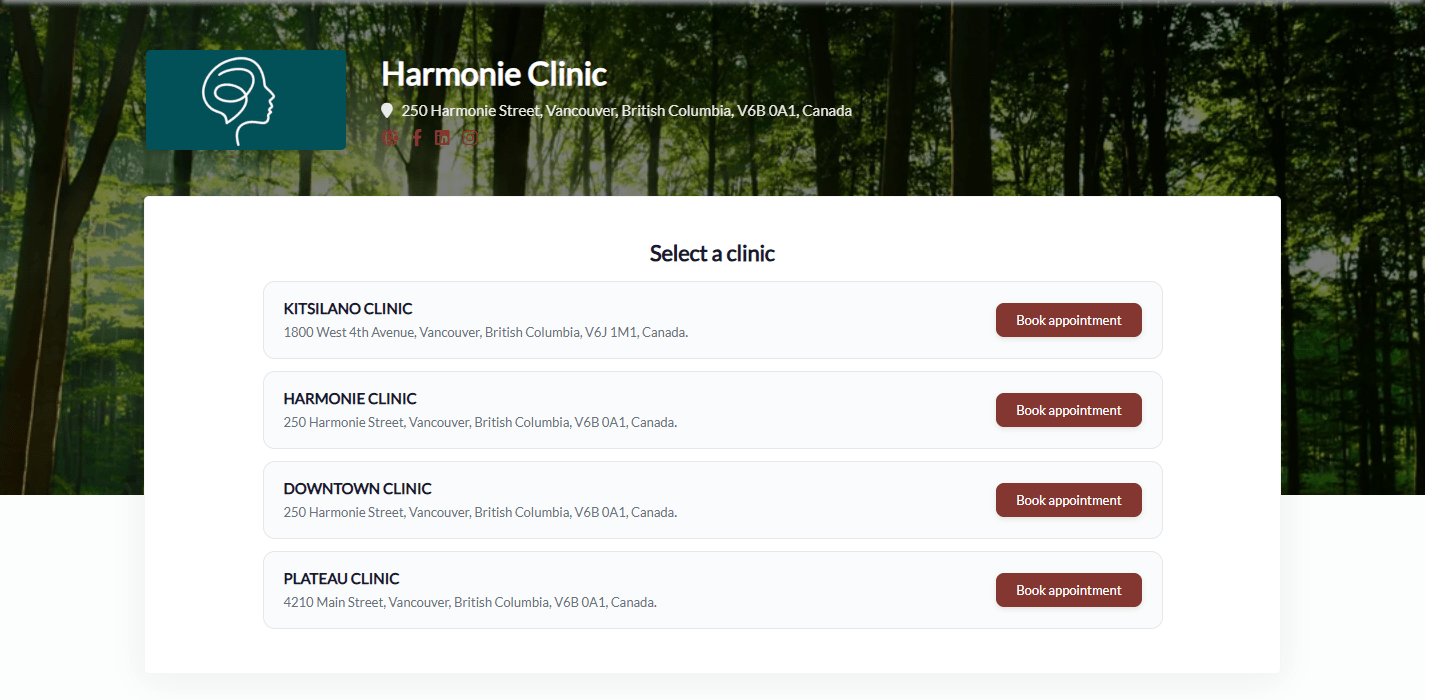
The booking page of a clinic shows the name and address of the clinic, and only offers the appointment types and practitioners of that clinic. The phone number, logo and colours shown on the page are those of your practice. A clinic whose Allow direct booking for this clinic option is turned off is not listed. All the details are in How to have a different booking page for each clinic?
Appointments: the clinic of each appointment
- Each appointment in the portal shows the name of its clinic, next to your logo.
- Under Show details & actions, the Practice contact details are the phone number and email address of the clinic of the appointment.
- The address shown is the location of the appointment when there is one (it comes from the appointment type). Otherwise, it is the address of the clinic, when you display your address on your public page.
- The pages your clients open from their emails also use the clinic name: confirming or cancelling an appointment, and the arrival confirmation page (see the article titled "How does the arrival confirmation sent before the appointment work?"). When it is too late to cancel online, the message gives the email and phone number of the clinic.
- For an online appointment, the waiting room is titled Online appointment followed by the name of the clinic of the appointment.
Invoices and online payment
- The Invoices section shows the name of the clinic of each invoice.
- The invoice (PDF) shows the name, address, email and phone number of the clinic of the invoice, with your logo.
- If the clinic of an invoice has Disable online payments for this clinic turned on, the Pay invoice button is not shown for that invoice, and the payment link of the invoice no longer opens the payment page. Invoices of your other clinics can still be paid online.
- The Payment cards section of the portal does not depend on the clinic: it stays available as long as online payments are enabled for your practice.
Joining the waitlist
On your waitlist page, a client of a multi-clinic practice must choose a Clinic:
- With two clinics or more, the Clinic list is mandatory. If the client does not choose one, the request is refused with Please select a clinic. The list shows all your clinics, including those whose direct booking is turned off.
- With a single clinic, it is selected automatically and the list is not shown.
- Once the clinic is chosen, the Desired practitioner list and the appointment types only show those of that clinic.
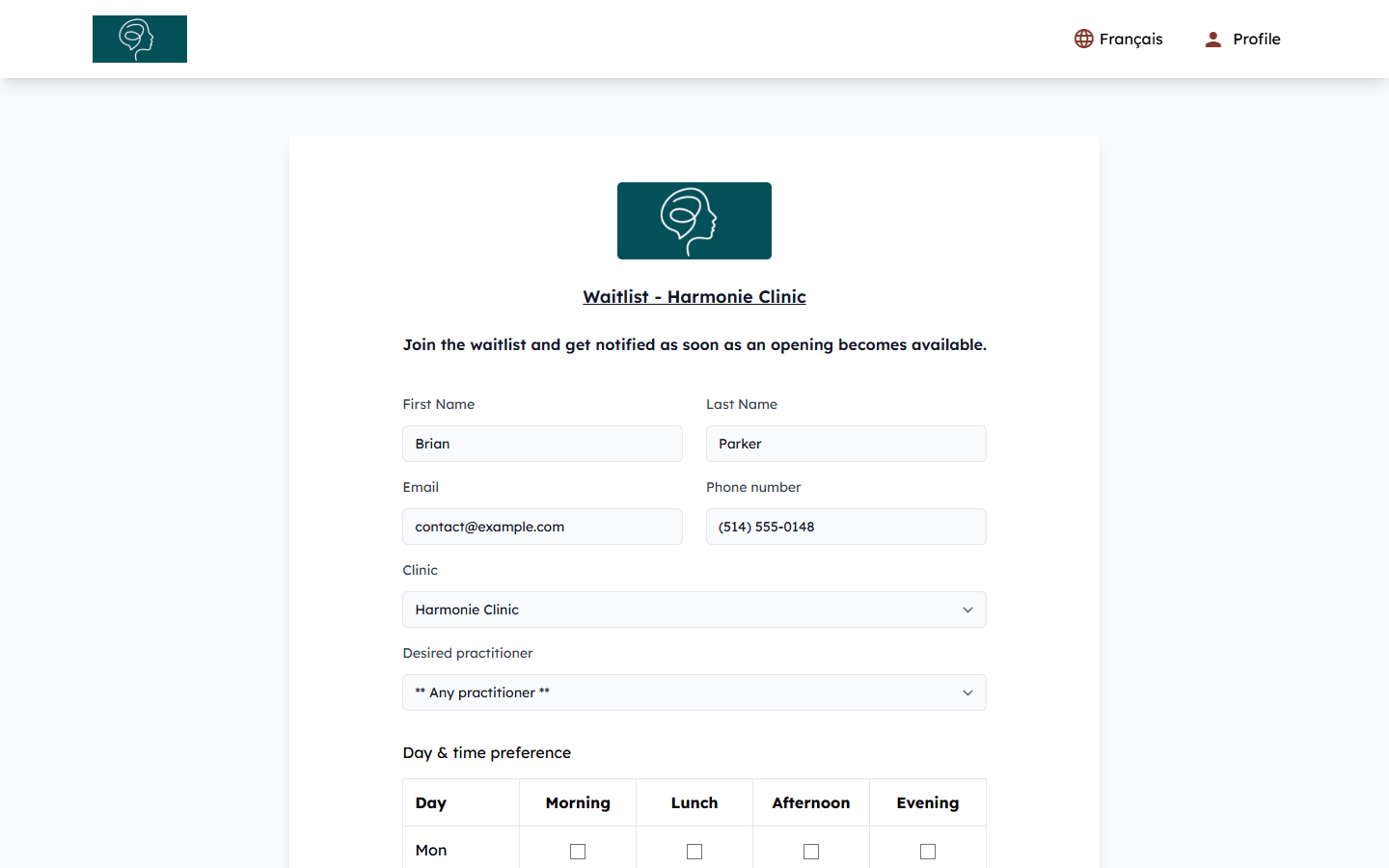
The title of the waitlist page uses the name of your practice. What happens to the request on your side is explained in the article titled "Waitlist with several clinics"; the client's steps are in the article titled "How do I join a clinic's waitlist?"
Messages
When you turn on Disable messaging for this clinic, it is the practitioners of that clinic who can no longer be reached, unless they also belong to another clinic where messaging is still available. The clinics of the client do not matter. In the portal:
- these practitioners are no longer offered in New conversation. If no practitioner can be reached any more, the portal shows No practice using private messaging found.
- in an existing conversation with one of them, the message box is replaced by This practitioner can no longer receive messages. You can still view your previous exchanges.
- the client can still read all the previous messages.
The list of conversations shows the name of the clinic under the name of each practitioner. More details in the article titled "Private messaging per clinic".
What stays the same for all your clinics
Some parts of the portal show your practice, whatever the clinic:
- your logo and colours, in the portal and on every page;
- the Documents, Forms, Notes, Gift Certificates and Payment cards sections;
- the client's own information and the download of all their data, grouped by practice.
Good to know
- Fill in each clinic — give each clinic its address, email and phone number in Settings > Multi-Clinics (www.colib.io/settings?show=clinics), so your clients see the right contact details. See How to configure a multi-clinic (multi-location) practice?
- Emails and SMS — the name used in the emails and SMS your clients receive is explained in the article titled "Emails, SMS and notifications with several clinics".
- Overview — for everything that changes with several clinics, see the article titled "Multi-clinic mode: what changes across Colib (overview)".
Still have a question?
Write to us at support@colib.io, we will be happy to help.
Was this article helpful?
That’s Great!
Thank you for your feedback
Sorry! We couldn't be helpful
Thank you for your feedback
Feedback sent
We appreciate your effort and will try to fix the article