Who is this article for?
You can create as many team members as you need in your practice: practitioners, receptionists, assistants, administrators. For each person, you decide what they can see and do in Colib: their role, their access level for each part of the client record, which practitioners' clients they see, and their security and online booking options.
This article explains every right and option of the team member window, so you can give each person exactly the access their job requires.
Before you start: team members are managed in Settings > Team (www.colib.io/settings?show=team). This page is only visible to administrators who have the option Ability to edit team members’ details and permissions. To add a new person, please see the article titled "How to invite a team member".
1Open the rights of a team member
- Go to www.colib.io/settings?show=team. You can also click the Settings icon (gear) in the top bar, then Team in the Admin menu on the left.
- Click the pencil icon on the row of the person to change their rights, or click Create team member to define the rights of a new person.
- In the window that opens, scroll down to the Rights section. The Security and Booking sections come right after it.
2Choose the role and the main switches
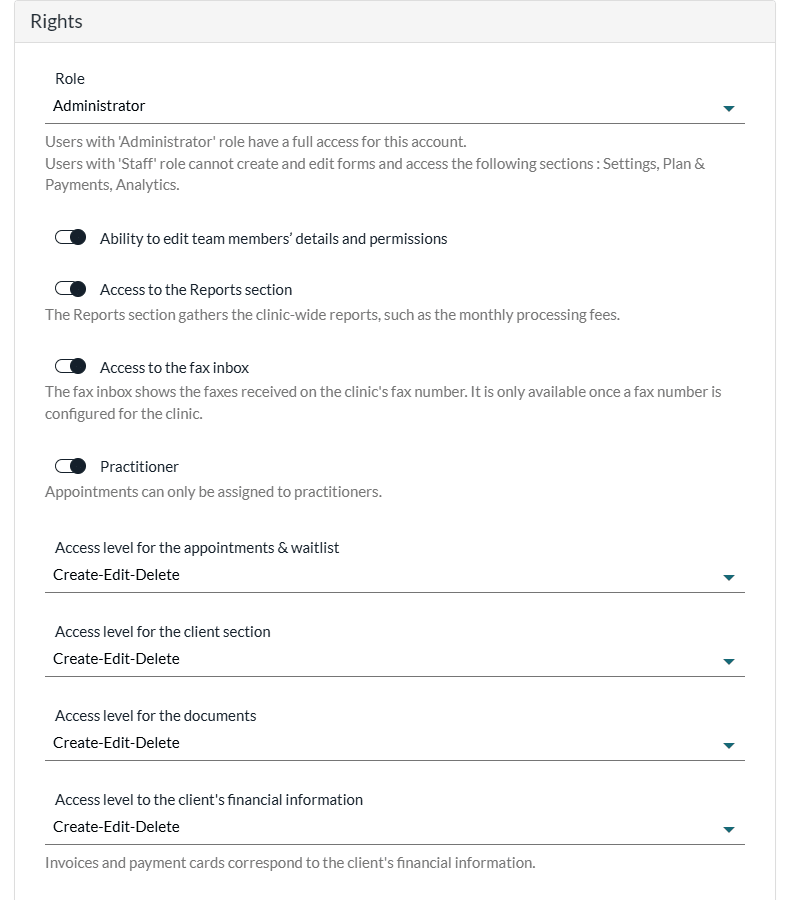
The Role decides which sections of Colib the person can open:
| Role | What the person can do |
|---|---|
| Administrator | Full access to the account, including the practice settings, Plan & Payments and Analytics, within the limits of the access levels below. |
| Staff | No access to the practice settings (only their personal settings), to Plan & Payments or to Analytics, and cannot create or edit forms. |
Then turn on or off the switches below the role:
- Ability to edit team members’ details and permissions — only shown for the Administrator role. The person can open Settings > Team, invite, edit and remove team members, and change their rights.
- Access to the Reports section — gives access to the Reports page (www.colib.io/reports), which gathers the clinic-wide reports, such as the monthly processing fees. This right is independent of the role: you can give it to a staff member who does the bookkeeping.
- Access to the fax inbox — shows the faxes received on the clinic's fax number. The fax inbox only appears once a fax number is configured for the clinic.
- Practitioner — turn it on for people who see clients: appointments can only be assigned to practitioners. Leave it off for a receptionist or an assistant. When it is on, the window also shows the practitioner's description, availability and online booking options.
Role and Practitioner are two separate settings. An administrator can be a practitioner, and so can a staff member. The Practitioner switch is the one that counts for your plan: on the Starter plan, you cannot add another practitioner to your practice (Colib shows Your current plan does not support adding practitioners to your clinic.). See How does payment for Colib plans work?
3Set the access levels
Each part of Colib has its own access level, with three choices:
- None — the person does not see this information at all (the matching menu or tab is hidden).
- View only — the person can read the information but cannot create, change or delete anything.
- Create-Edit-Delete — full access.
| Access level | What it covers |
|---|---|
| Access level for the appointments & waitlist | The scheduler and the appointments, and the waitlist. With View only, the person sees the schedule but cannot book, move or cancel appointments. |
| Access level for the client section | The client list and the client records (contact details, profile). |
| Access level for the documents | The documents stored in the client records. |
| Access level to the client's financial information | Invoices, receipts, payments and the clients' payment cards. |
| Access level for the forms & goals | The forms sent to clients and their answers, and the scores and goals. |
| Access level for the notes | The clinical notes of the client records. Choose None for people who do not need to read them. |
| Access level for the audit log | The clinic audit log and its Excel and CSV exports. The audit log is read-only, so the only choices are None and View only. Administrators need this right too. See How to access the activity log. |
4Choose which clients and notes the person sees
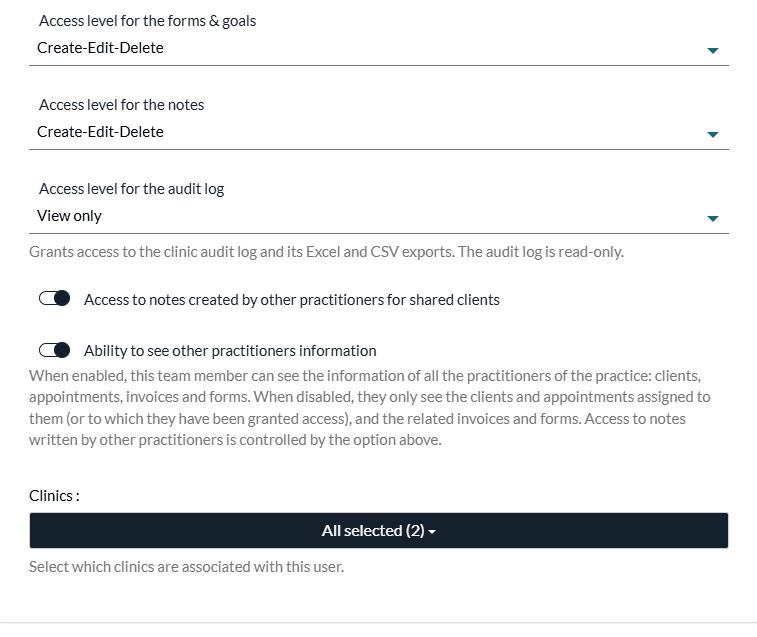
- Access to notes created by other practitioners for shared clients — when it is off, the person only sees the notes they wrote themselves, even in the record of a client they share with colleagues.
- Ability to see other practitioners information — when it is on, the person sees the information of all the practitioners of the practice: clients, appointments, invoices and forms. When it is off, they only see the clients and appointments assigned to them (or to which they have been granted access), and the related invoices and forms. For a team member who is not a practitioner (a receptionist, for example), Colib always keeps this option on. To assign clients to a practitioner, see Assigning practitioners and configuring client visibility.
- Clinics — only shown if your practice has several clinics. Select the clinics associated with the person: they only see the clients and appointments of these clinics. See How does creating multiple clinics affect practitioners' rights?
5Set the security options
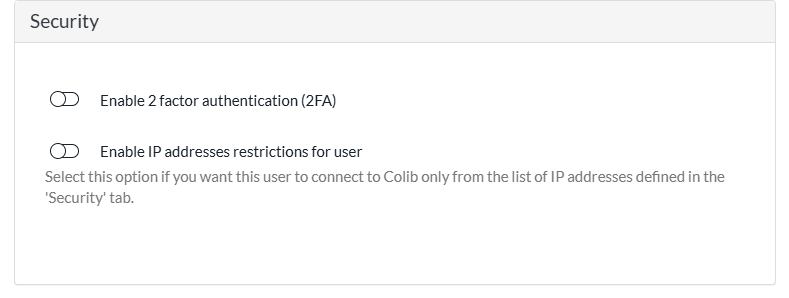
- Enable 2 factor authentication (2FA) — the person must enter a verification code in addition to their password when they sign in. See How to configure the 2-factor authentication (2FA).
- Enable IP addresses restrictions for user — the person can only connect to Colib from the IP addresses listed in Settings > Security (www.colib.io/settings?show=security), for example the network of your clinic.
6Set the online booking options (practitioners)
The Booking section is only shown when Practitioner is turned on.
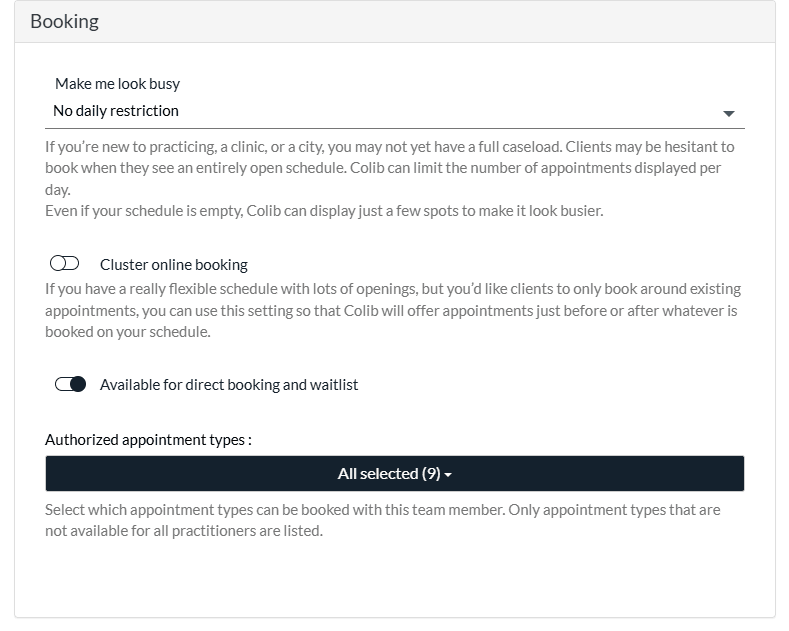
- Make me look busy — limits the number of time slots shown per day on your booking page (from 1 to 10 appointments), so a new practitioner's schedule does not look entirely open.
- Cluster online booking — your clients are only offered time slots just before or after the appointments already booked, to avoid gaps in the day.
- Available for direct booking and waitlist — when it is off, clients cannot choose this practitioner on your booking page or on the waitlist. The practice can still book appointments for them in the scheduler.
- Authorized appointment types — the appointment types that can be booked with this practitioner. Only the types that are not available for all practitioners are listed. Please see the article titled "How do I restrict which appointment types a practitioner offers?"
7Save
- Click Save at the bottom of the window.
- When you change the rights or the details of an existing member, Colib sends them an email to let them know that an administrator changed their account (no email is sent when you edit your own account). A new member receives their invitation email instead.
Examples of common settings
| Person | Suggested settings |
|---|---|
| Associate practitioner who only follows their own clients | Staff, Practitioner on, Ability to see other practitioners information off, Access to notes created by other practitioners for shared clients on or off according to your practice. |
| Receptionist | Staff, Practitioner off, Create-Edit-Delete for the appointments and the client section, None for the notes. Please see the article titled "How to set up a receptionist who manages other practitioners' appointments". |
| Bookkeeper | Staff, Practitioner off, View only for the financial information, Access to the Reports section on, None for the notes and the documents. |
| Clinic manager | Administrator with Ability to edit team members’ details and permissions, and the access levels their job requires. |
Good to know
- Default rights of a new member — every access level is set to Create-Edit-Delete (except the audit log, set to None), and both visibility options are on. Review them before you save.
- At least one administrator — the practice must always keep one administrator: Colib shows The practice needs to have at least one admin user. if you try to change the role of the last one.
- Account owner — the person who created the practice account must keep Ability to edit team members’ details and permissions.
- A member sees an empty account or an error page? — an access level set to None, a missing clinic or the visibility option is usually the cause. Please see the article titled "A team member sees an empty account or an error page: what should I do?"
- Remove a member — click the trash icon on their row. Please see the article titled "How do I remove a team member or resend their invitation?"
Still have a question?
Write to us at support@colib.io, we will be happy to help.
Was this article helpful?
That’s Great!
Thank you for your feedback
Sorry! We couldn't be helpful
Thank you for your feedback
Feedback sent
We appreciate your effort and will try to fix the article