Who is this article for?
A member of your team signs in to Colib and tells you that their account looks empty (no clients, an empty schedule), that a menu is missing, or that they get a page with a ghost and the message Whoops! The requested resource does not exist or is not available. In almost every case, the cause is in the settings of this team member. This article lists the possible causes and how to fix each one.
Before you start: the fixes are made in Settings > Team (www.colib.io/settings?show=team) by an administrator who has the option Ability to edit team members’ details and permissions. Click the pencil icon on the member's row to open their settings, then the Rights section.
The "Whoops!" page with a ghost
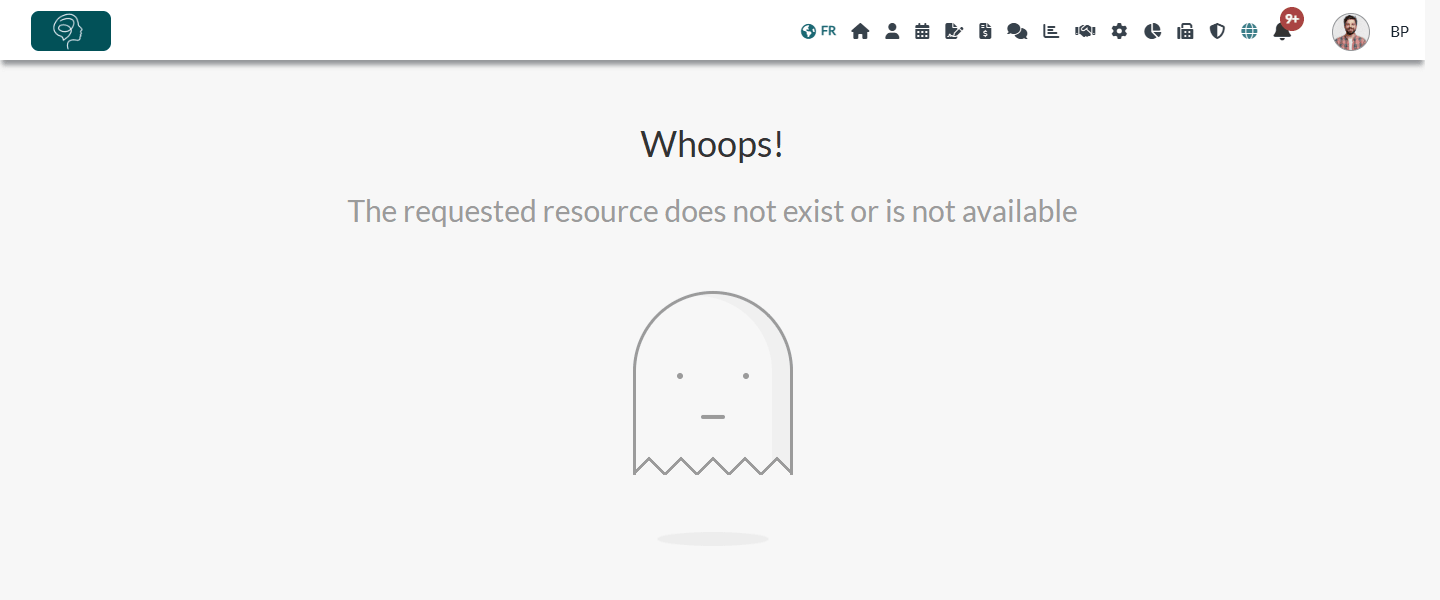
This page appears when a person opens a page that does not exist anymore or that they are not allowed to see. For a team member, the most frequent cause is an access level set to None. The matching icon is then hidden in the top bar, so the person usually lands on this page through a bookmark or a link that someone shared.
| Page opened | Right to check in the Rights section |
|---|---|
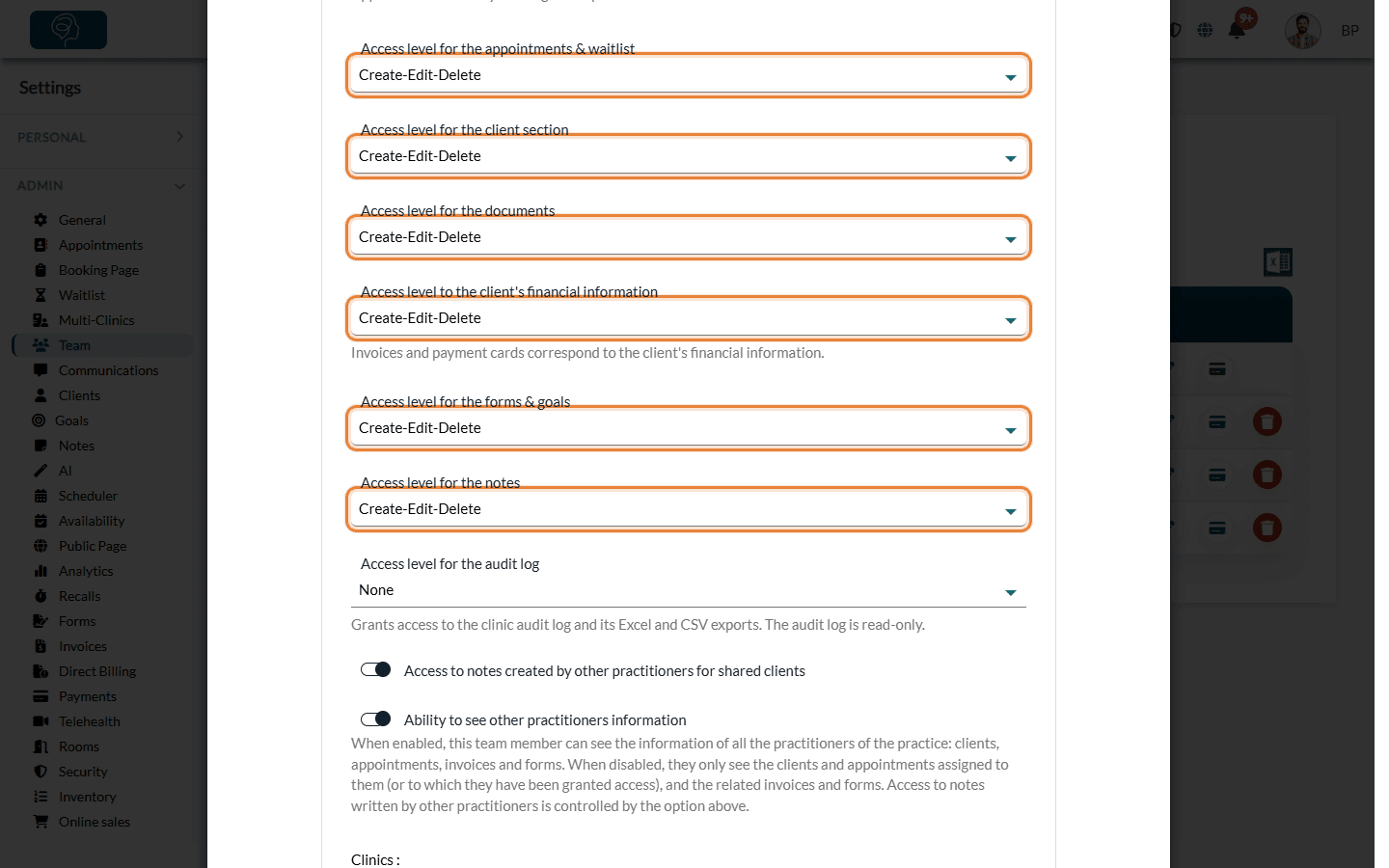
| Scheduler or waitlist | Access level for the appointments & waitlist (the waitlist page also requires the waitlist to be turned on for the practice) |
| Clients | Access level for the client section |
| Forms | Access level for the forms & goals |
| Invoices | Access level to the client's financial information |
To fix it: in the Rights section of the member, change the level from None to View only or Create-Edit-Delete, then click Save. With None for the appointments, the member still signs in, but lands on the home page without the scheduler and without the appointment blocks.
If the rights are correct, the page or the record behind the link may simply no longer exist (for example, a deleted appointment or client). Ask the person to go through the menu instead of the old link.
The member sees no clients and an empty schedule (several clinics)
If your practice has several clinics, each team member only sees the clients and appointments of the clinics they are assigned to. A member who is assigned to no clinic sees empty lists: no clients, no form results, no waitlist, an empty scheduler, and cannot create appointments. Colib shows no specific message in this case.
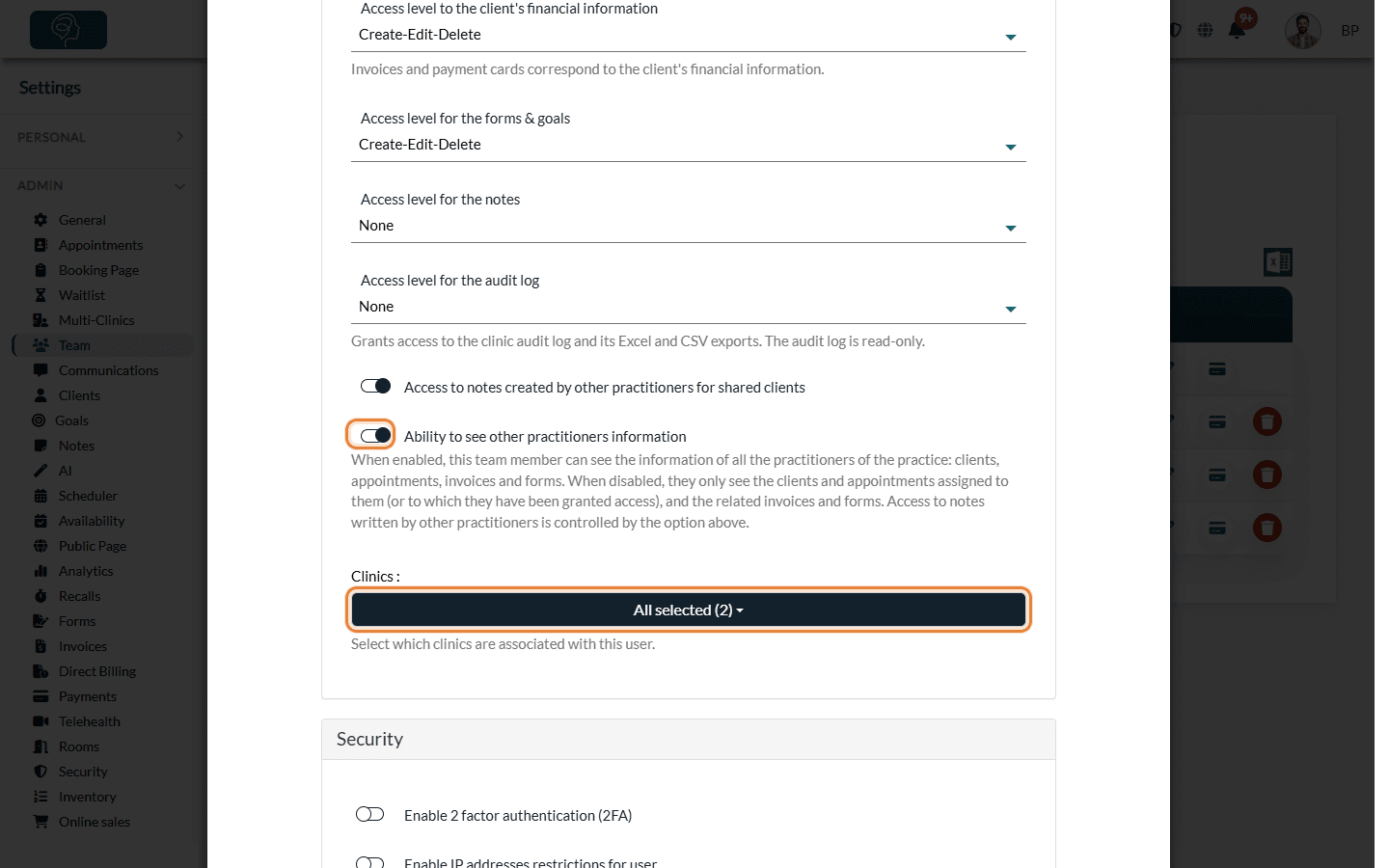
To fix it: in the Rights section of the member, select their clinics in the Clinics field, then save. Also check that the clients concerned belong to one of these clinics: a client is only visible to members who share at least one clinic with them.
More details: How does creating multiple clinics affect practitioners' rights?
A practitioner only sees their own clients and appointments
When Ability to see other practitioners information is turned off for a practitioner, they only see the clients and appointments assigned to them (or to which they were granted access), and the related invoices and forms. Clients who are not assigned to anyone (for example, the clients of a practitioner who left the practice) are not visible to them either.
To fix it: turn on this option in the Rights section of the practitioner, or assign the clients concerned to them. See Assigning practitioners and configuring client visibility.
The member lands on the client portal instead of the practice
A person who was removed from the team can still sign in with their account, but it is no longer linked to your practice: instead of your practice, they see the client portal, with nothing in it.
To fix it: if the person should have access again, create them again from Create team member with the same email address: their account is added back to your team directly. Then check their rights and their clinics, which were removed with them. See What are the different levels of rights options for the members of my practice?
The member cannot sign in at all
Check the Invitation Status column of the team list. Pending means the person has not accepted the invitation sent by email yet, so they have no password: signing in fails.
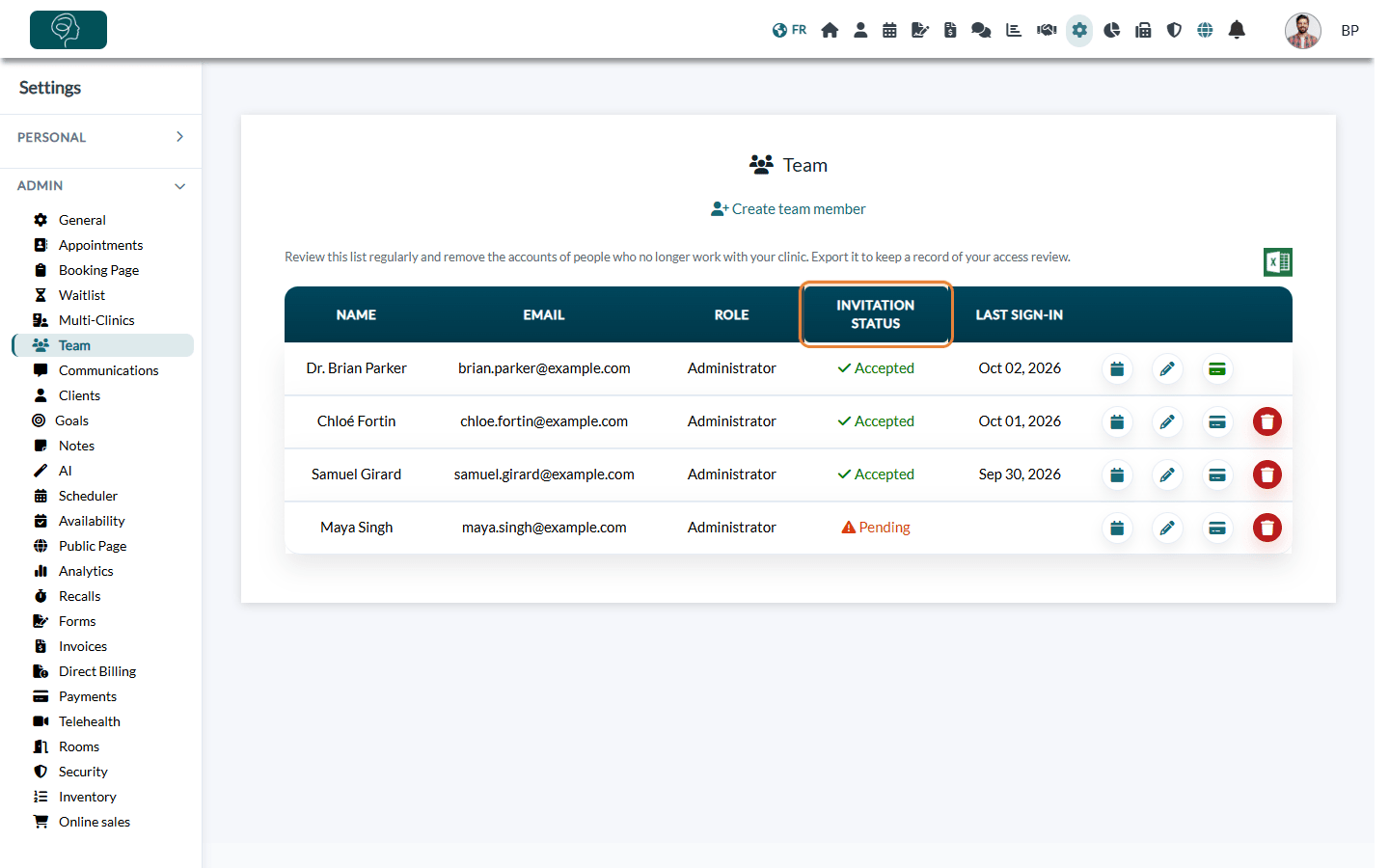
To fix it: ask the person to look for the invitation email (junk mail folder included), or to click Forgot your password? on the sign-in page and enter the email address you invited, to choose a password. There is no button to resend the invitation.
Good to know
- Missing Settings, Plan or Analytics — this is normal for a member with the Staff role: these sections are reserved for administrators. A Staff member only sees their personal settings.
- One account, one practice — a Colib account is linked to one practice only. If you invite an address that already belongs to another practice, Colib refuses it with Sorry, this user is already attached to a business.
If none of these causes matches what the member sees, note the exact address of the page and the time, and send them to us.
Still have a question?
Write to us at support@colib.io, we will be happy to help.
Was this article helpful?
That’s Great!
Thank you for your feedback
Sorry! We couldn't be helpful
Thank you for your feedback
Feedback sent
We appreciate your effort and will try to fix the article