Who is this article for?
Some forms must also be signed by your practice once the client has signed them: a consent form, a treatment agreement, an intake form reviewed by a professional. With countersignature, every form completed by a client waits for the signature of the person you choose, then that signature is added to the form.
This article explains how to turn on countersignature, how to recognize the forms waiting for your signature and how to countersign them.
Before you start: countersignature is set in Settings > Forms (www.colib.io/settings?show=signature). It applies to all the forms of your practice. You need access to the practice settings to change it.
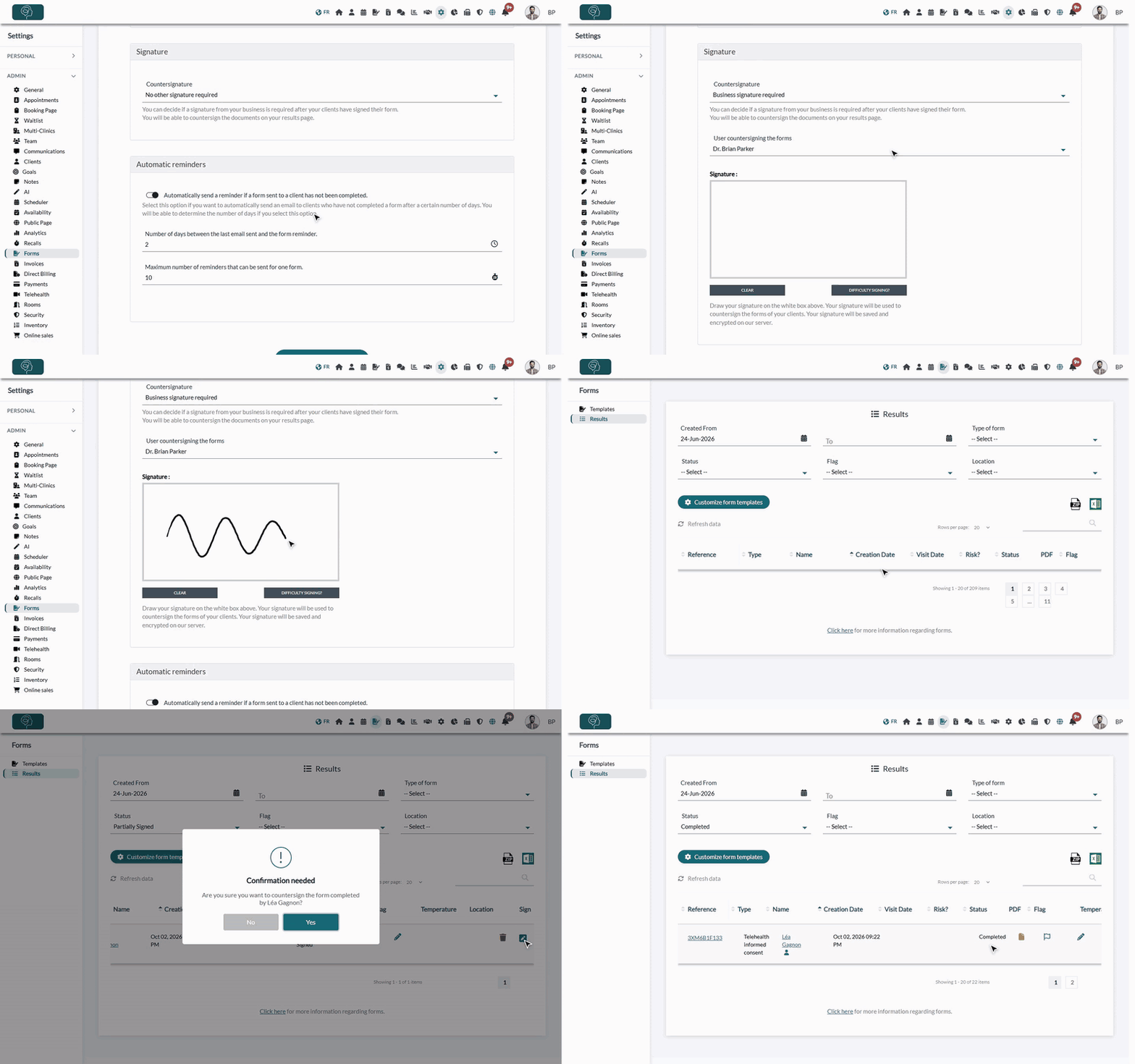
1Turn on countersignature
- Go to www.colib.io/settings?show=signature. You can also click the Settings icon (gear) in the top bar, then Forms in the Admin menu on the left.
- In the Signature section, set Countersignature to Business signature required.
- In User countersigning the forms, choose the person who will sign the forms. Only this person will be able to countersign.
- If you chose yourself, draw your signature in the white box with your mouse or your finger. Clear erases it; Difficulty Signing? creates a signature from your name.
- Click Save.
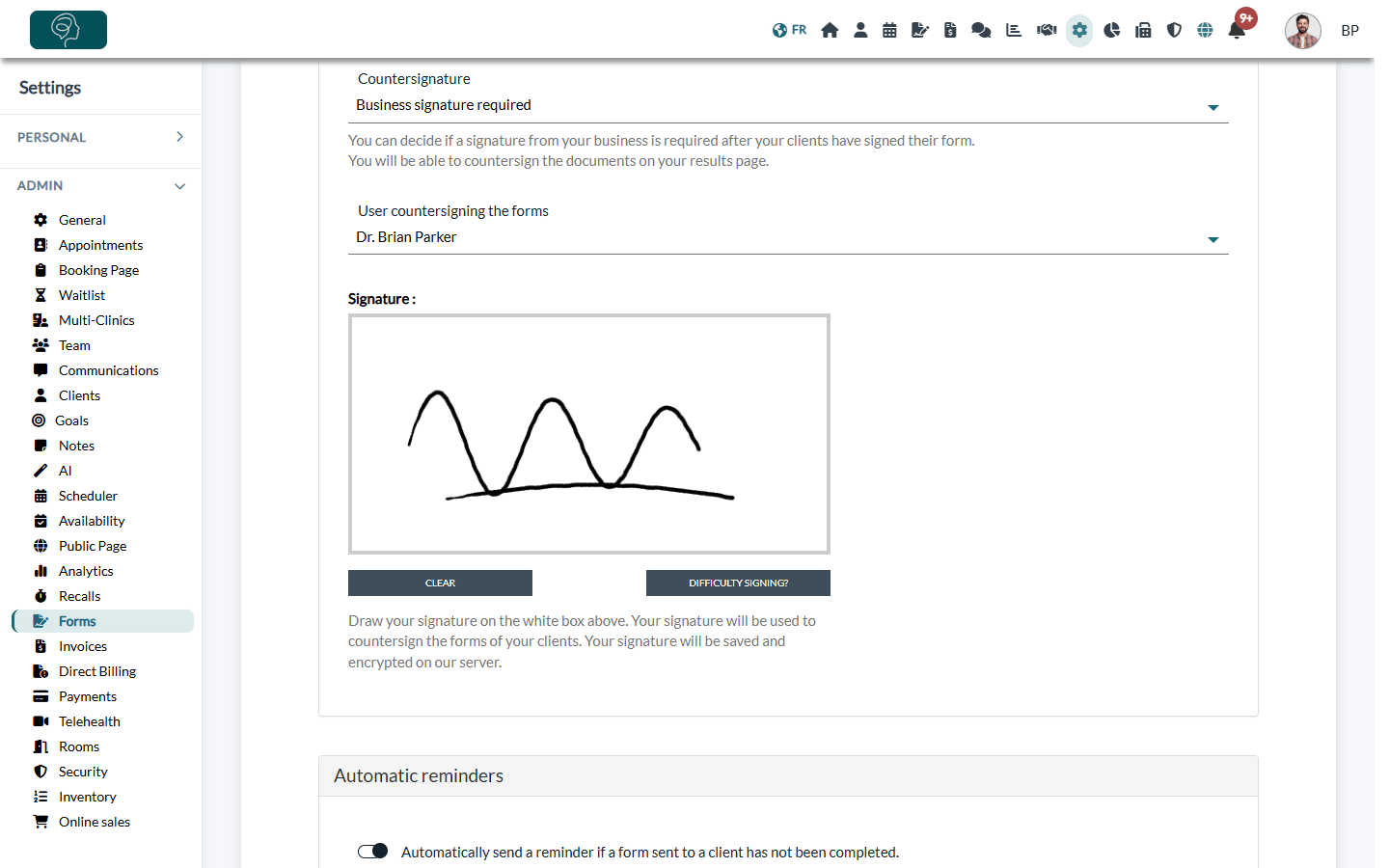
If you chose another member of your team, that person must open the same page with their own account, draw their signature and save. As long as no signature has been provided, the forms cannot be countersigned: Colib displays Please provide your signature in your settings before countersigning the forms.
2Find the forms waiting for your signature
From now on, each form completed by a client gets the status Partially Signed instead of Completed. Forms completed before you turned on countersignature are not affected.
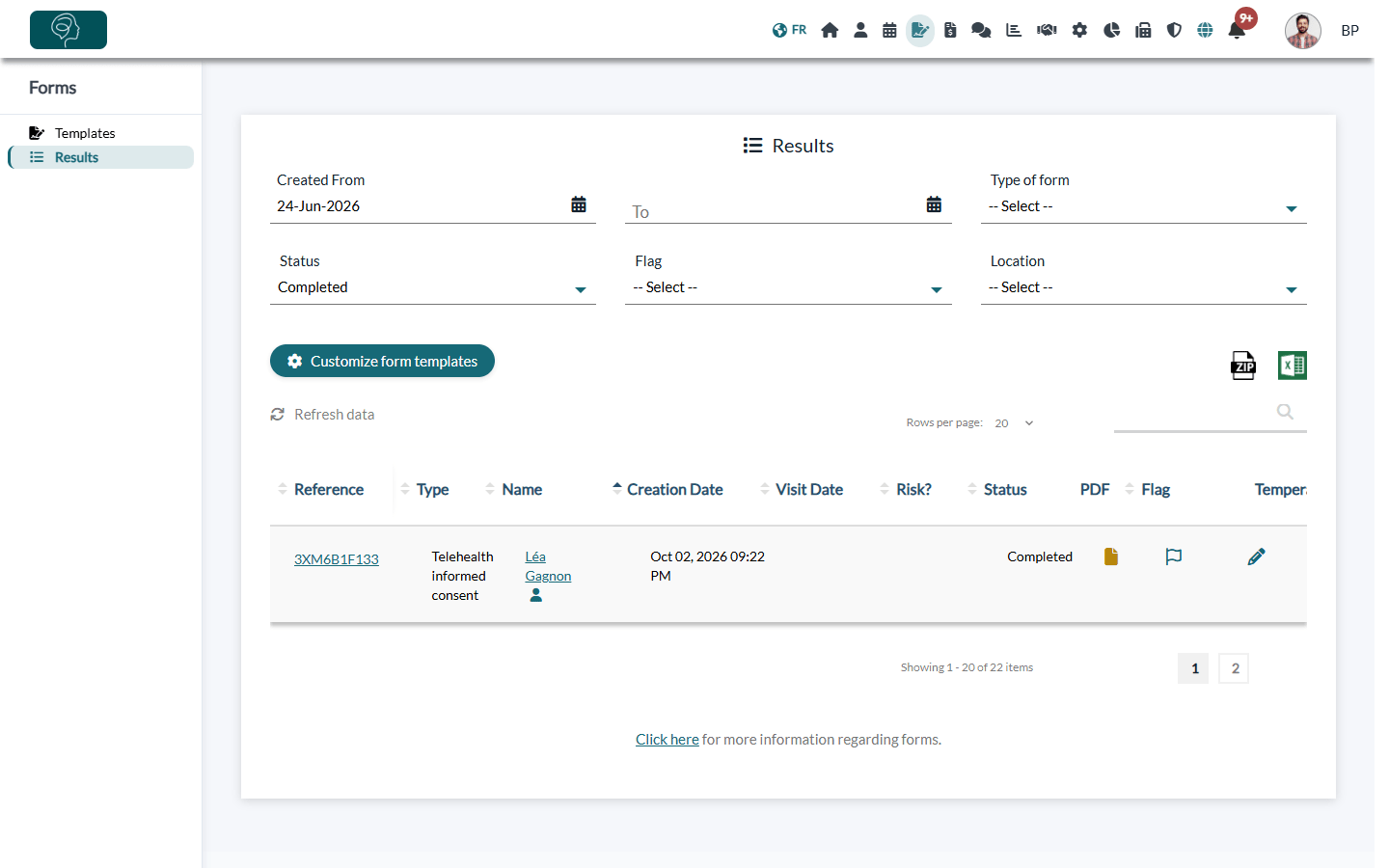
- Go to Forms > Results (www.colib.io/forms?show=results).
- In the Status filter, choose Partially Signed to see only the forms waiting for a signature.
- The table is wide: scroll it to the right to reach the Sign column.
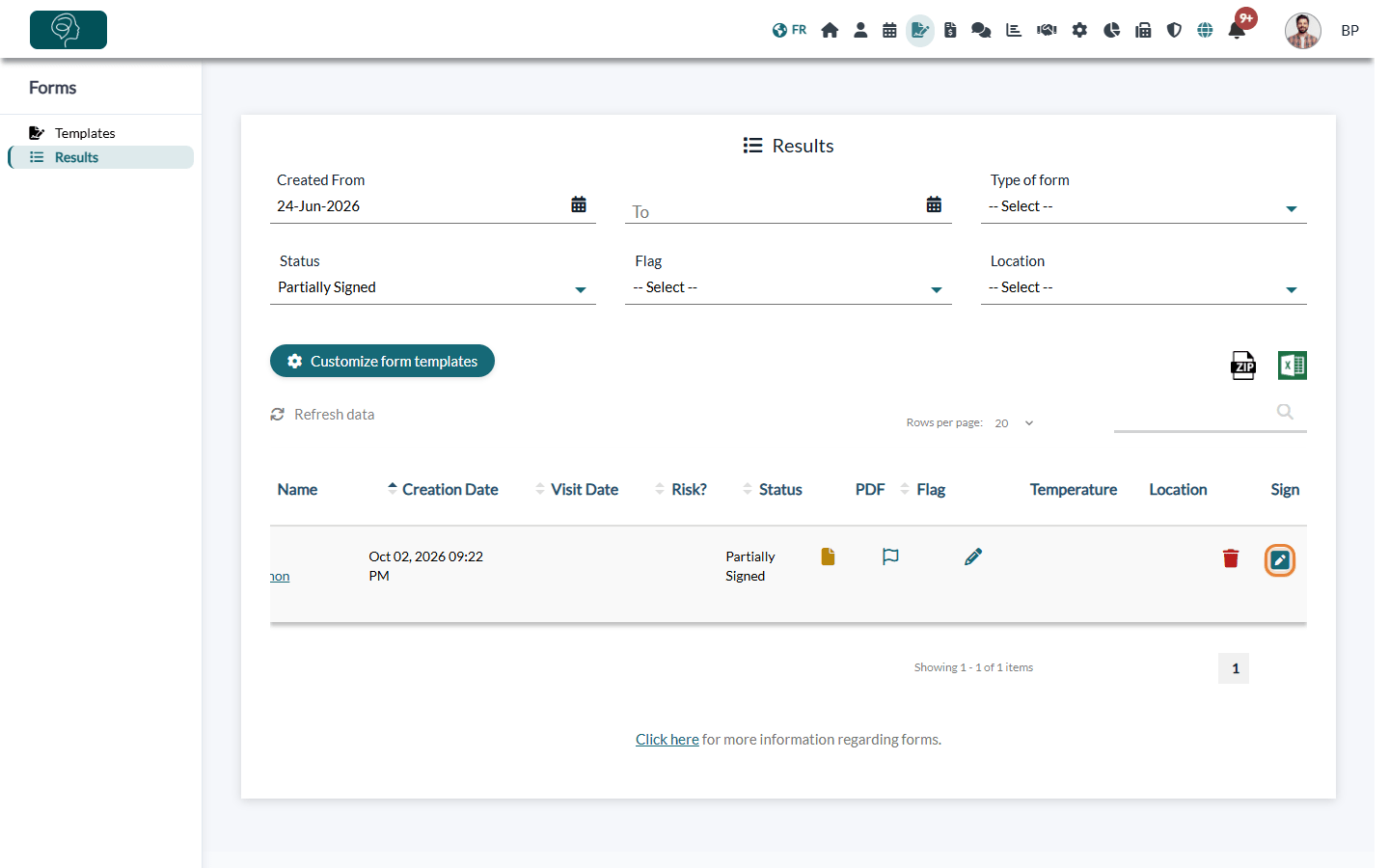
The status Partially Signed also appears in the Forms tab of the client's record.
3Countersign a form
- Click the icon in the Sign column of the form.
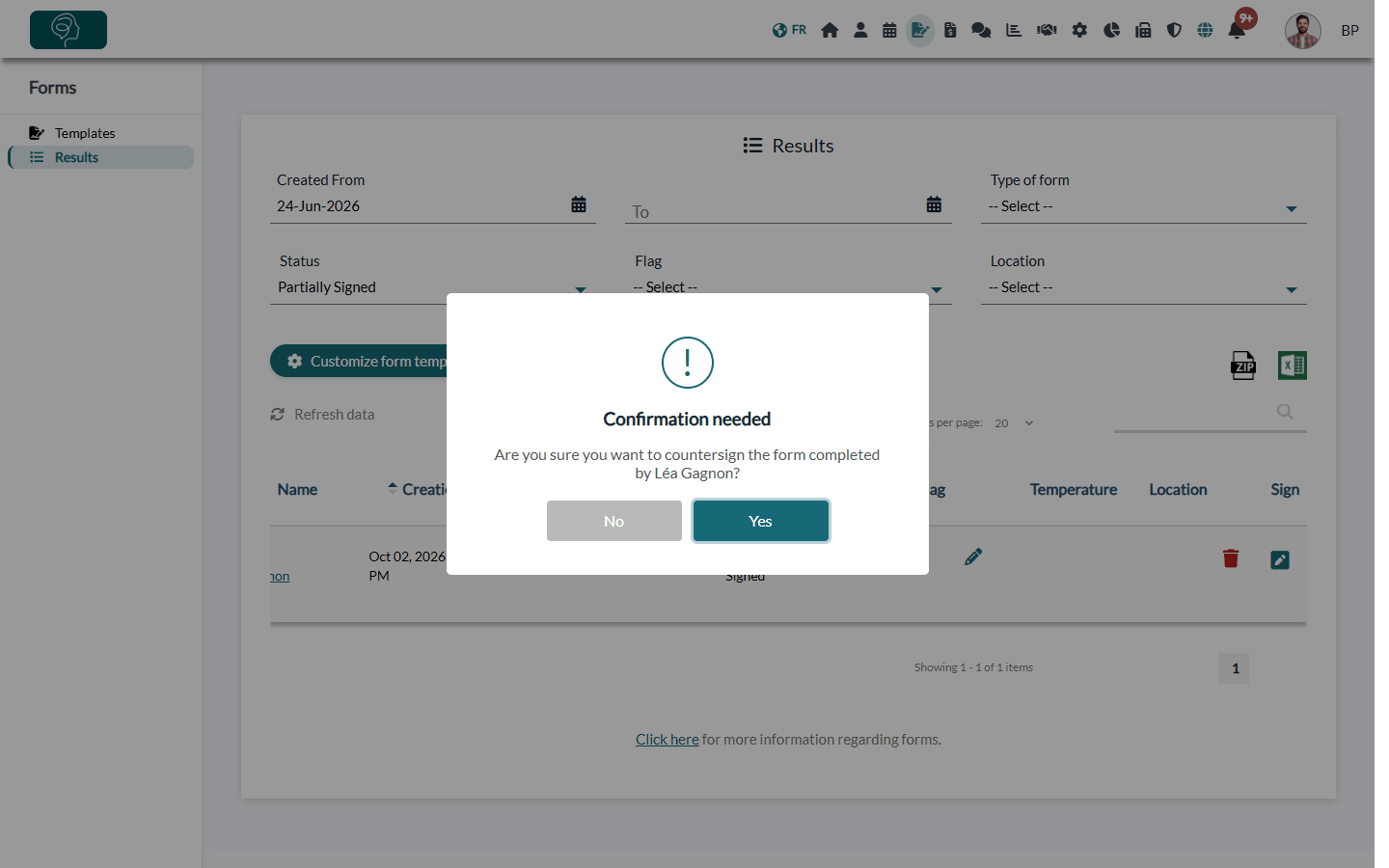
- Confirm by clicking Yes.
- Colib displays The form has been countersigned. The status of the form becomes Completed and your signature is added to its PDF.
Good to know
- Only the chosen person can countersign — the Sign column is only shown to the user selected in User countersigning the forms.
- Forms that do not need a countersignature — a form that already includes a second signature from the client's side, or in which the client answered score or goal questions, is completed directly.
- Editing a form — you cannot change the questions or sections of a form while some of its submissions are waiting for a countersignature. Countersign them first.
- Do not wait too long — a form still Partially Signed after about 6 months is automatically set to Completed, without your countersignature.
- Changing the signing person — the saved signature is removed: the new person must draw their own signature.
- Turning countersignature off — set Countersignature back to No other signature required and save. The saved signature and the signing person are removed.
Important: countersign the forms that are still Partially Signed before turning countersignature off: once it is off, they can no longer be countersigned.
Related articles: How do I see forms results?, How to edit an existing form, How can I build a new form from scratch?
Still have a question?
Write to us at support@colib.io, we will be happy to help.
Was this article helpful?
That’s Great!
Thank you for your feedback
Sorry! We couldn't be helpful
Thank you for your feedback
Feedback sent
We appreciate your effort and will try to fix the article