Who is this article for?
For practitioners and administrators who want to start from a ready-made form instead of building one. Does Colib provide form templates? Yes: Colib includes a library of ready-to-use forms: intake forms, consent forms, questionnaires such as the PHQ-9 or the GAD-7. You add one to your templates in a few clicks, then adapt it to your practice.
This article shows how to browse the library, add a form to your templates and customize it.
Before you start: forms are managed in the Forms section (www.colib.io/forms). You need the practice administrator access to add or edit templates.
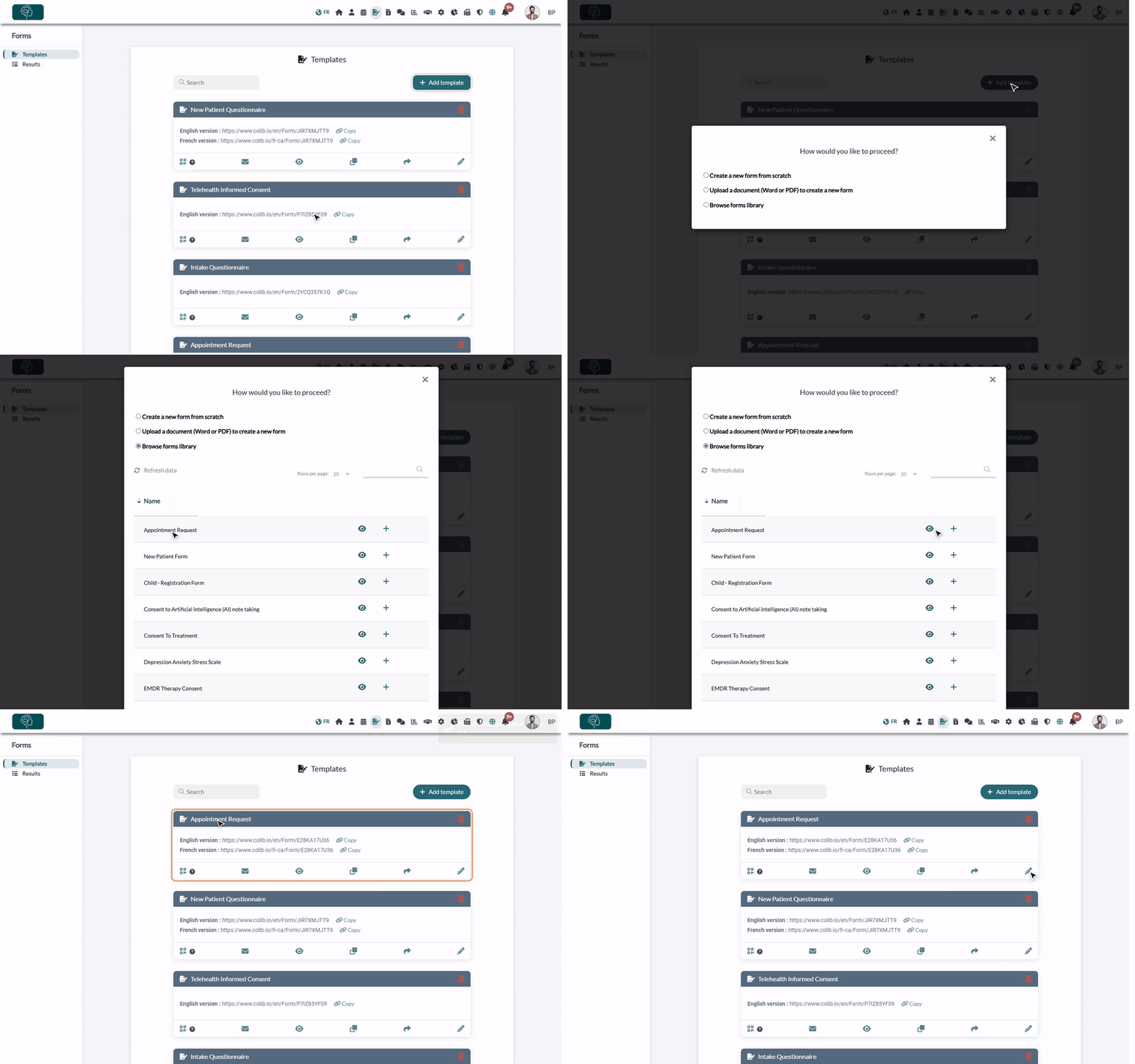
1Open your templates
- Go to www.colib.io/forms. You can also click the Forms icon in the top bar (it opens the Results page).
- Click Templates in the menu on the left: it lists the forms of your practice.
- Click Add template.
Shortcut: the link www.colib.io/forms?ShowFormCreationModal=true opens the Forms section with the form creation window already displayed.
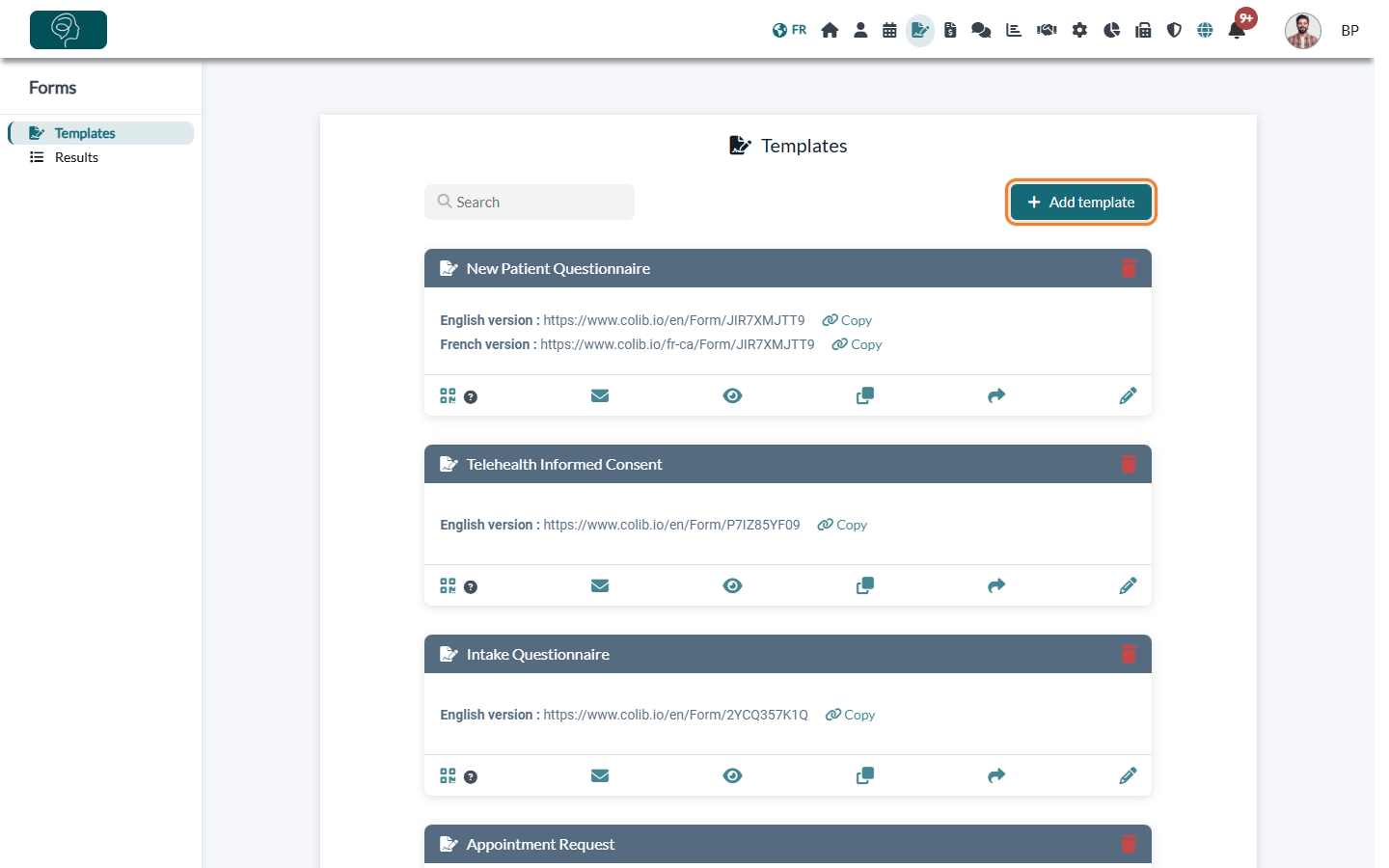
2Browse the forms library
- In the window How would you like to proceed?, select Browse forms library.
- The list of the library forms appears. Use the search box to find a form by its name.
- To look at a form before adding it, click the eye icon (Preview): the form opens in a new tab.
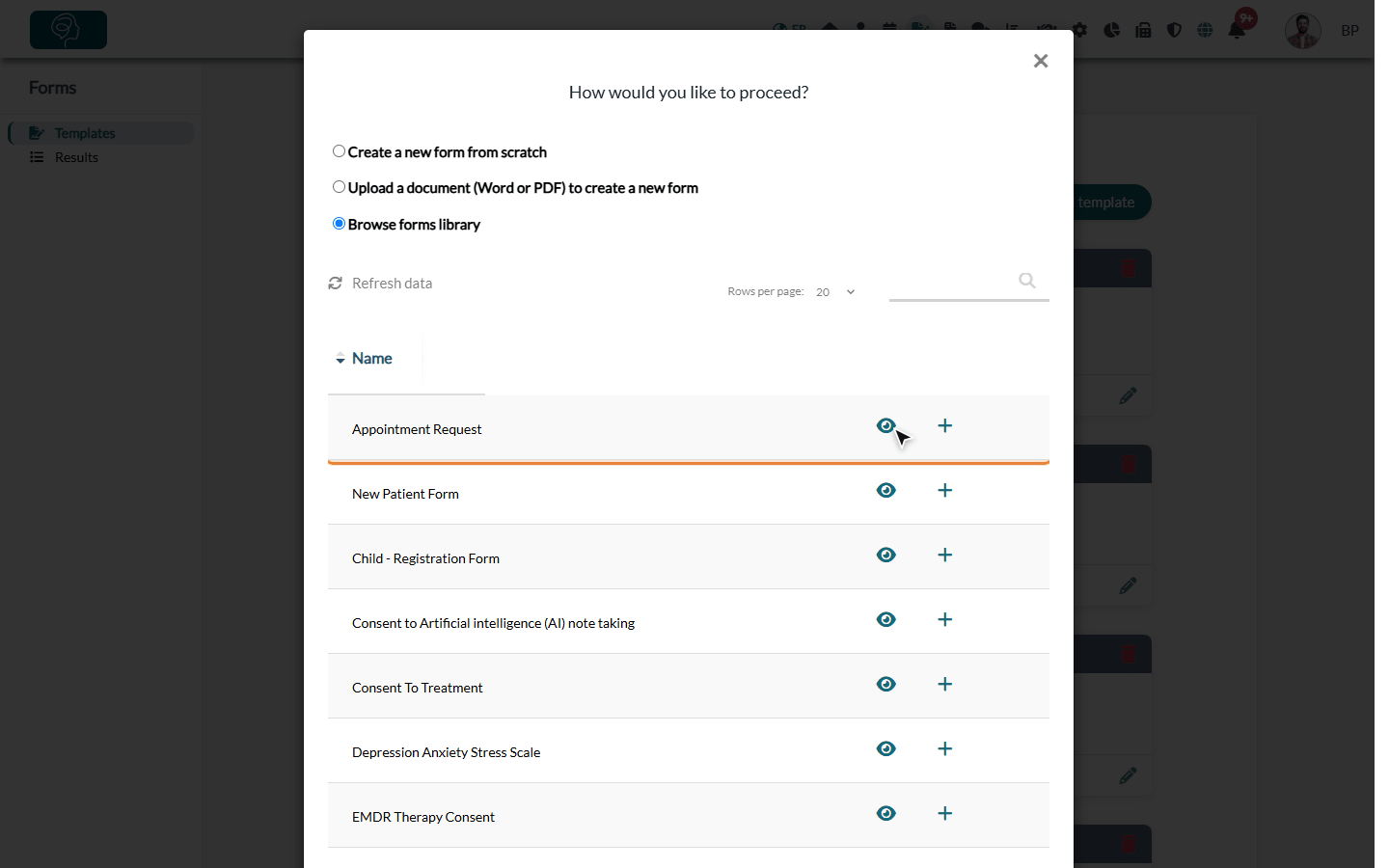
3Add the form to your templates
- Click the + icon on the row of the form.
- The message This form has been added to your list. confirms the addition.
- The form now appears in your Templates, with its own link (English and/or French version).
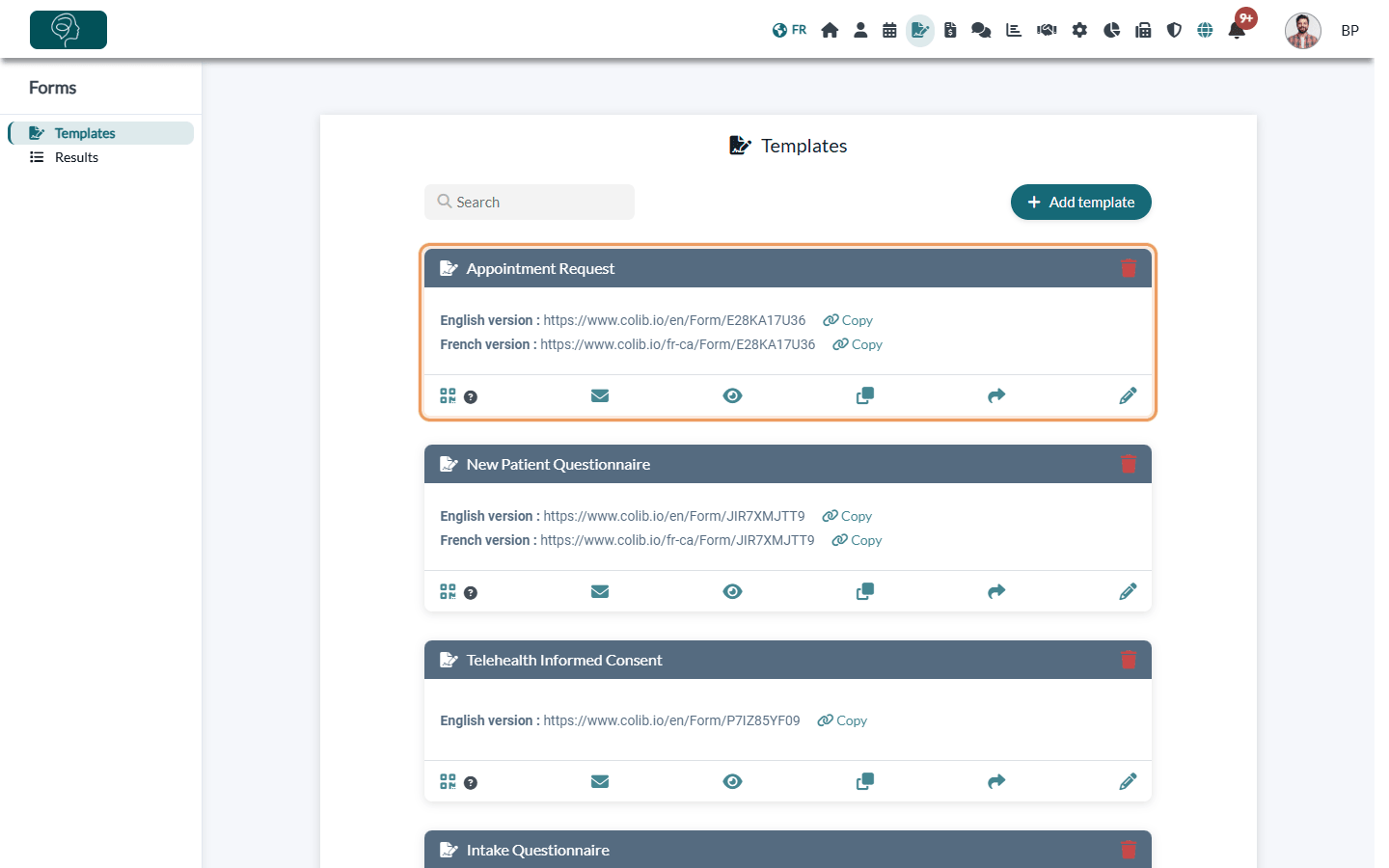
4Adapt the form to your practice
The form you added is your own copy: click the pencil icon (Edit) on its card to change the name, the questions, the signature or the message sent to your clients. Your changes do not affect the library. The editor is explained in How can I build a new form from scratch? and How to edit an existing form.
Forms available in the library
- Appointment Request
- Child - Registration Form
- Consent to Artificial intelligence (AI) note taking
- Consent To Treatment
- Depression Anxiety Stress Scale
- EMDR Therapy Consent
- GAD-7 & PHQ-9
- New Patient Form
- Parental Consent for Counselling
- Patient Health Questionnaire (PHQ-9)
- Privacy and Related Policies
- Privacy and Related Policies (2)
- Psychotherapy Intake Form
- Telehealth Consent form
Some forms of the library have an English title only. Open the preview to check the content and the languages before adding a form.
The linked names above open an example of the form online. Other examples of forms created from the library: Health Form and Intake form.
Share a form with another Colib account
There is no direct copy of a form from one Colib account to another (for example to a colleague who has their own account). The library is the way to share a form with other practices:
- In your Templates (www.colib.io/forms), click the share icon (Share form with other practitioners) on the card of the form.
- Confirm with Yes. The message A Colib admin has been notified. The form is going to be reviewed in the next few days. Thank you. appears.
- The Colib team reviews the form. If it is added to the library, the other account (and every Colib user) can add it from Browse forms library, as explained in steps 2 and 3.
- Colib shares a copy of the form as it is when you click: the changes you make afterwards are not sent.
- The links between questions and your custom client fields are not included in the shared copy.
- Only share a form that is meant for everyone: once in the library, any Colib user can add it.
Another clinic of your own account? You do not need the library: add the clinic to the Associated clinics of the form, or duplicate it. See How do Colib forms work for multiple locations?. The other account can also rebuild a form from a Word or PDF version: How can I transform my PDF or Word form into an online form with Colib?
Questionnaires, scores and where the answers go
The library contains the questionnaires listed above, such as the PHQ-9, the GAD-7 & PHQ-9 and the Depression Anxiety Stress Scale. Here is what happens with the answers, and how to go further.
| Question | Answer |
|---|---|
| Another questionnaire (PCL-5, C-SSRS, ASRS...)? | The questionnaires that are not in the library can be built in the form editor, from a blank form (How can I build a new form from scratch?) or from your PDF or Word version (How can I transform my PDF or Word form into an online form with Colib?). Make sure you are allowed to use the questionnaire in your practice. |
| Can I customize a questionnaire? | Yes. A form added from the library is your own copy: change its questions, its answers, its sections and its texts (step 4). |
| Is it scored automatically? | The answers to ordinary questions are recorded as given, without a score. To have a questionnaire tallied automatically, create its items as goals with a scale of options (each option has a numeric value) and add them to the form in a Score/Goal section. When the client submits the form, Colib saves the answers in the Scores/Goals tab of their record and calculates the Score (sum) and the Average of each category for that date. See How does the scores/goals feature work? |
| Are results compared with the previous ones? | Yes, for the answers given in a Score/Goal section: each submission adds a dated column next to the previous ones in the Scores/Goals tab, and the charts show the evolution of each goal, of the total and of the average over time. |
| Where do I find the completed questionnaire? | In the Forms tab of the client record and in the form results (www.colib.io/forms?show=results), with its PDF. See How do I see forms results? |
| Do the answers go into the client record? | Yes, for the questions linked to a client field: in each question, Client Mapping chooses the information of the record that the answer fills in (email, phone, address, your custom fields...), so an intake form updates the client record without retyping. See How to connect your client fields to your form questions. |
| Are the results copied into my notes? | No. The answers and the scores are not inserted automatically into an assessment or a progress note: they stay in the completed form and in the Scores/Goals tab, next to the notes of the same record. Write the results you want to keep in your note. Note templates can fill in client information such as the name or the date of birth: see How to use client data tags in note templates. |
Good to know
- Several copies — you can add the same library form several times, for example to create two versions for two services.
- Multi-clinic practices — a form added from the library is associated with your clinics. You can change the clinics in the General tab of the form (see How do Colib forms work for multiple locations?).
- Share your own form — the share icon (Share form with other practitioners) on a card proposes your form for the library. The Colib team reviews it before adding it.
- Other ways to create a form — start from a blank form (How can I build a new form from scratch?) or import your PDF or Word form (How can I transform my PDF or Word form into an online form with Colib?).
- Next step — send the form to your clients: How can I send the form to my clients?
Still have a question?
Write to us at support@colib.io, we will be happy to help.
Was this article helpful?
That’s Great!
Thank you for your feedback
Sorry! We couldn't be helpful
Thank you for your feedback
Feedback sent
We appreciate your effort and will try to fix the article