Who is this article for?
Your forms change over time: a new question to add, a wording to fix, an option to turn on. You can edit any of your forms at any time, without recreating it.
This article explains how to open a form, change its settings, its sections and questions, and what happens to the forms already sent or completed.
Before you start: only the administrators of your practice can edit forms. If you do not see the pencil icon on your forms, ask an administrator of your practice to give you the administrator role in Settings > Team (www.colib.io/settings?show=team).
1Open the form
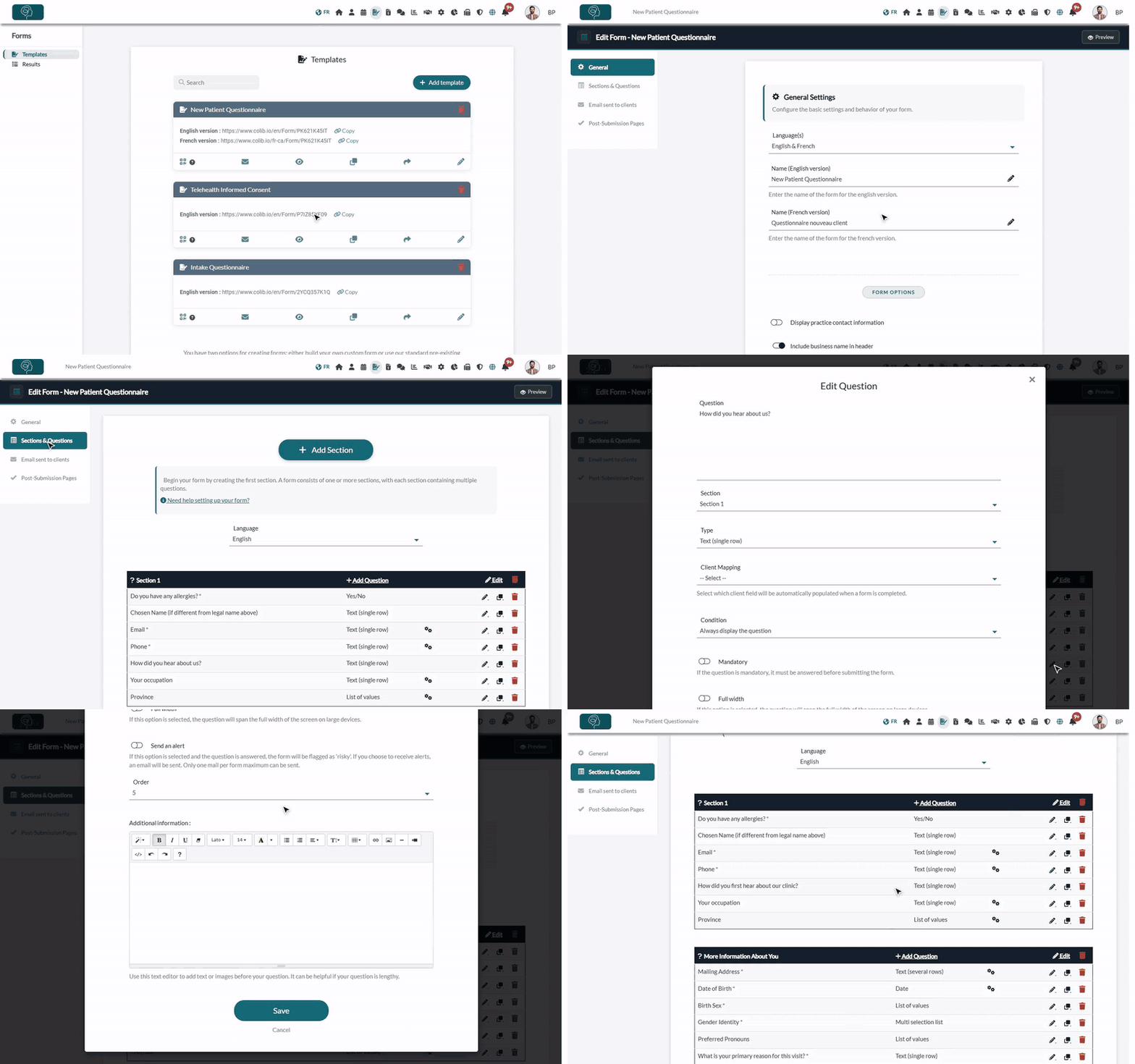
- Go to www.colib.io/forms. The Templates tab lists all your forms.
- Find the form, using the Search box if needed.
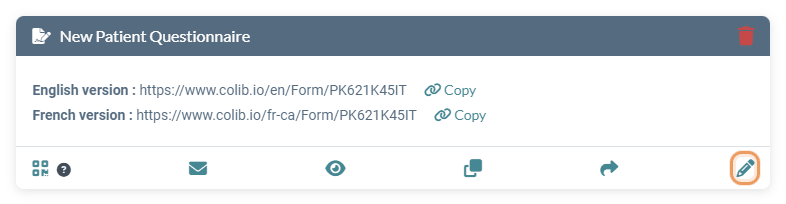
- Click the pencil icon (Edit) at the bottom right of the form. The form editor opens on the General tab.
2Change the general settings
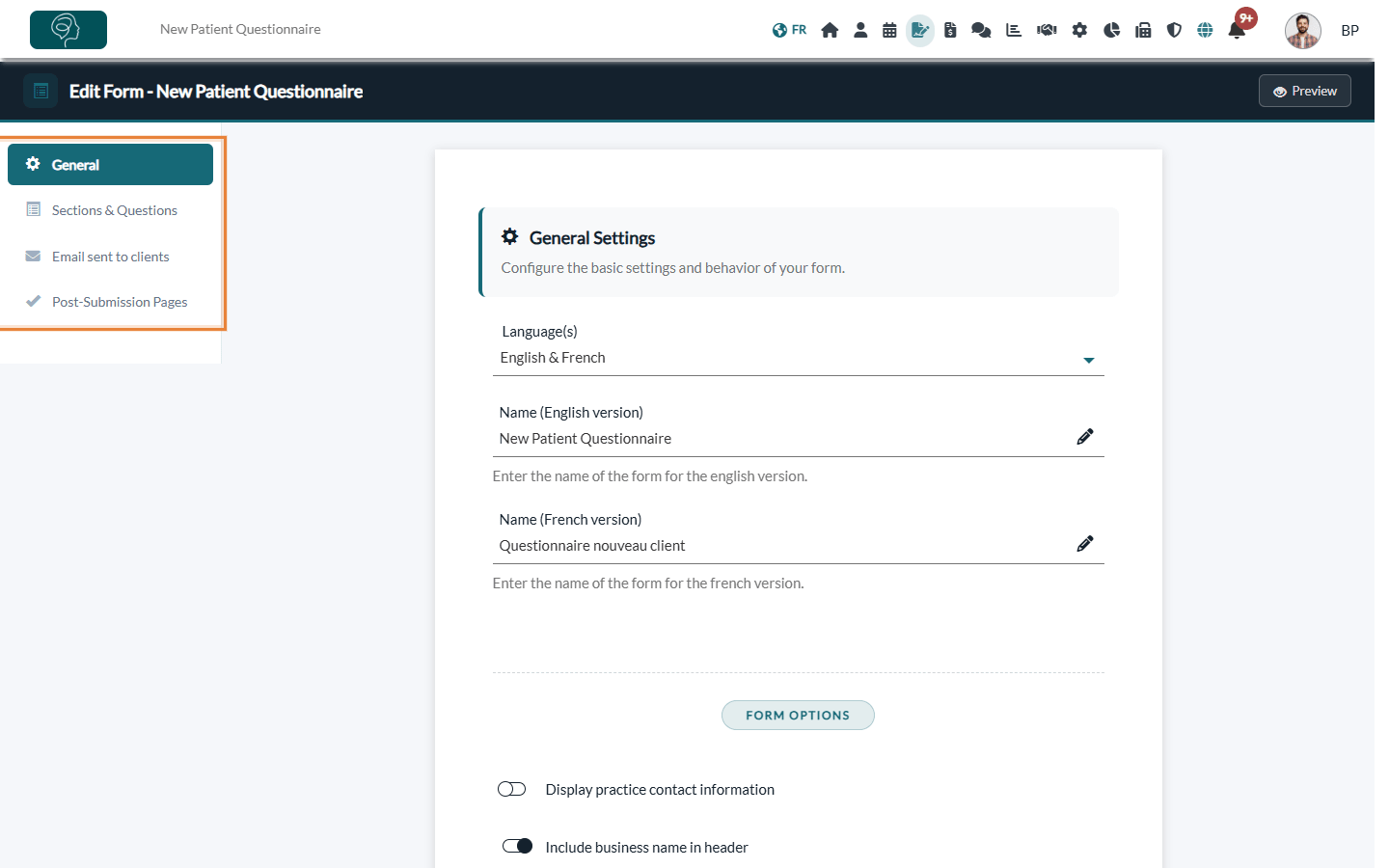
The menu on the left gives access to the four tabs of the form: General, Sections & Questions, Email sent to clients and Post-Submission Pages.
- In the General tab, change what you need: the language(s) of the form, its name, the form options (contact information, visit date, ephemeral form, payment section, client portal account...), the signature and the footer.
- Click Save at the bottom of the page.
Each option is described in How can I build a new form from scratch?.
3Edit the sections and questions
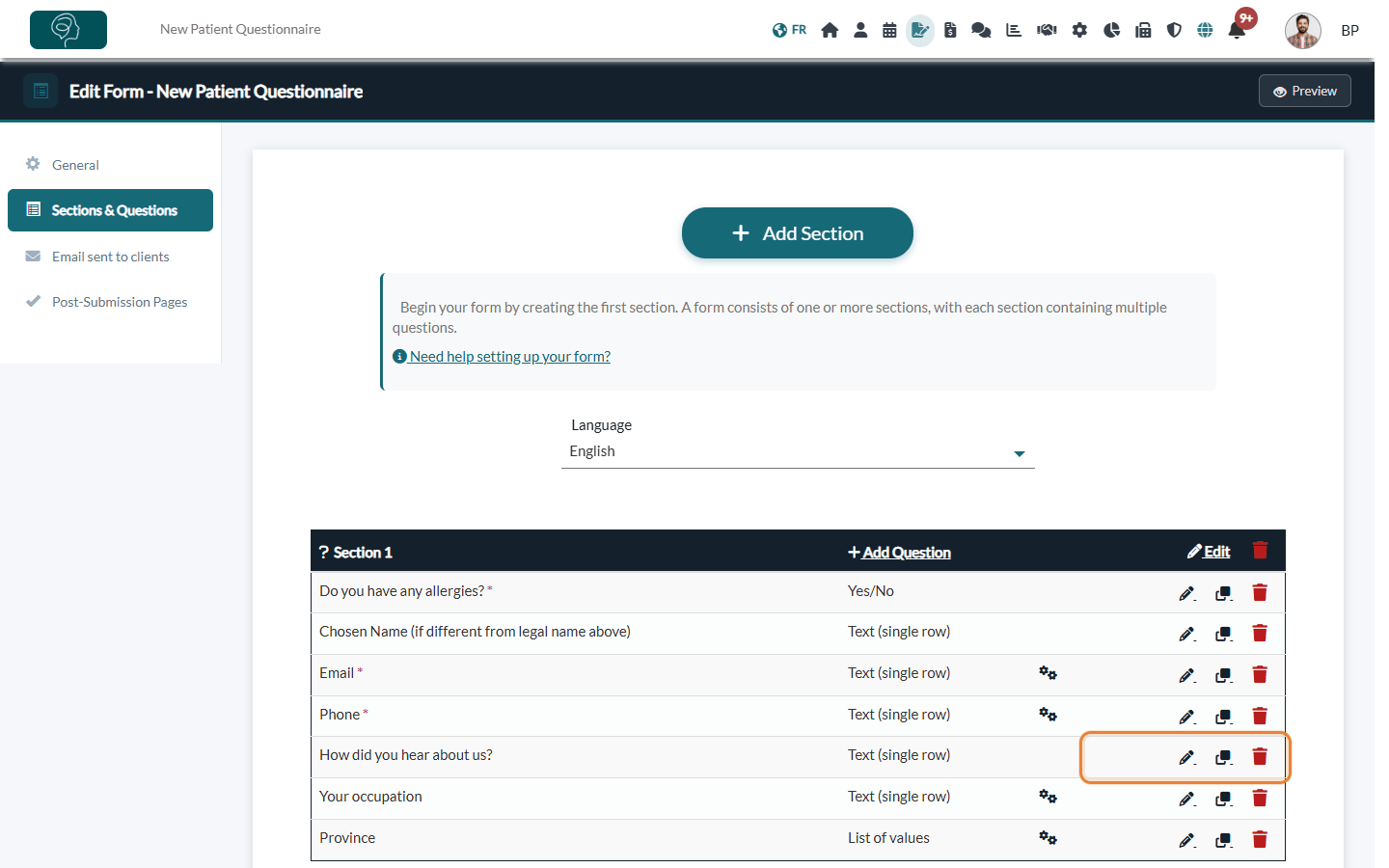
- Click Sections & Questions in the menu on the left.
- On the row of a question, use the icons on the right: the pencil to edit it, the copy icon to duplicate it, the trash icon to delete it.
- In the header of a section, Edit changes its title and its type, the trash icon deletes the section and its questions, and Add Question adds a question to it.
- Use Add Section at the top to add a new section.
- Drag and drop the questions and the sections to change their order.
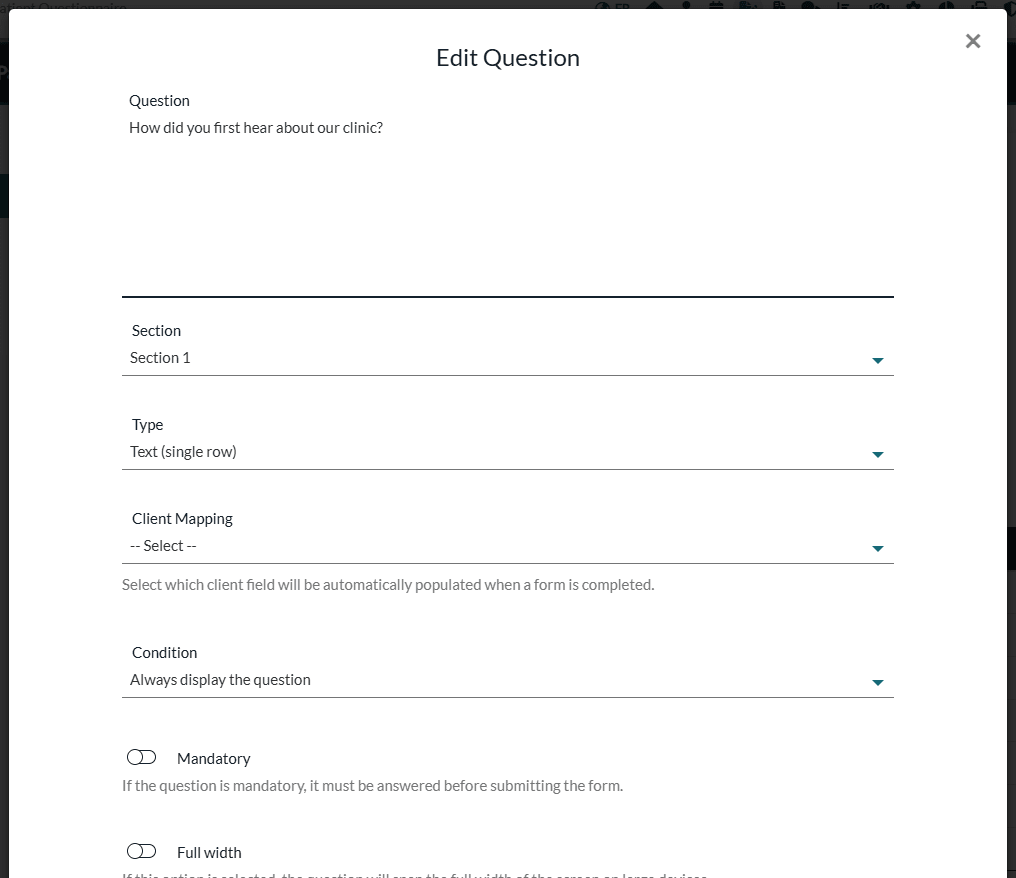
When you edit a question, change its text, its section (to move it to another section), its type, its options or its condition, then click Save. The change is saved right away.
For a form in English and French, choose the version to edit in the Language list above the sections: each version has its own questions.
4Update the email and the confirmation messages (optional)
- Email sent to clients — the default message used when you send this form by email. See How to set up a default email message for my forms?
- Post-Submission Pages — the message your clients see after submitting the form (one when no risk is detected, one when a risk is detected).
- Preview — the button at the top right opens the form as your clients will see it, to check your changes.
Good to know
- Changes apply right away — the next time a client opens the link of the form, including a form you already sent that is not completed yet, they see the new version.
- Completed forms do not change — the answers and the PDF of the forms already submitted stay exactly as they were.
- Deleting a question — the answers already received for this question are kept in the completed forms. If other questions were displayed depending on its answer, they are then always displayed.
- Work on a copy — to prepare a new version without touching the current one, click the duplicate icon of the form in the Templates tab, then edit the copy.
- Client record — to copy answers into the client record (phone, address, date of birth...), see How to connect your client fields to your form questions
Important: if your practice countersigns forms, you must first countersign all the forms submitted by your clients that are waiting for your signature before you can edit the sections and questions. Colib shows a message with a link to the results in that case. See How to countersign a form?
Still have a question?
Write to us at support@colib.io, we will be happy to help.
Was this article helpful?
That’s Great!
Thank you for your feedback
Sorry! We couldn't be helpful
Thank you for your feedback
Feedback sent
We appreciate your effort and will try to fix the article