Who is this article for?
An intake form often asks for information you also keep in the client record: phone number, address, date of birth, emergency contact... With the Client Mapping of a question, the answer is copied automatically into the client record when the form is submitted. No more retyping.
This article answers the question "How do I link a form question to a client field?": how to turn on this link, how to map a question to a client field, which types of questions can be linked to which fields (standard fields and your custom fields), whether the form is pre-filled, and what Colib does with the answers, including when they differ from what is already in the record.
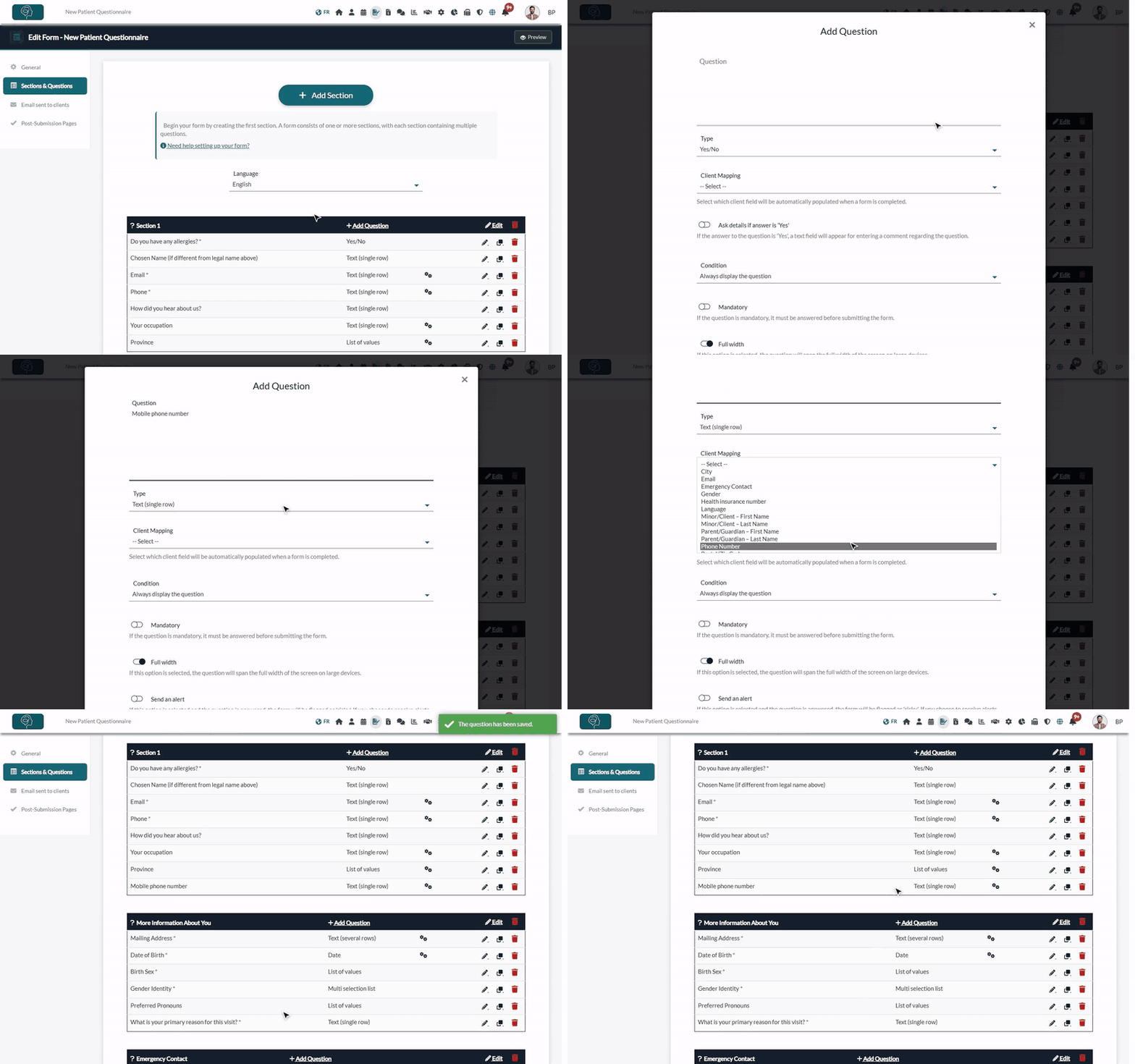
1Turn on the link between forms and client records
- Go to Settings > Forms (www.colib.io/settings?show=signature).
- In the Clients section, turn on Link every completed form to a client record.
- Click Save at the bottom of the page.
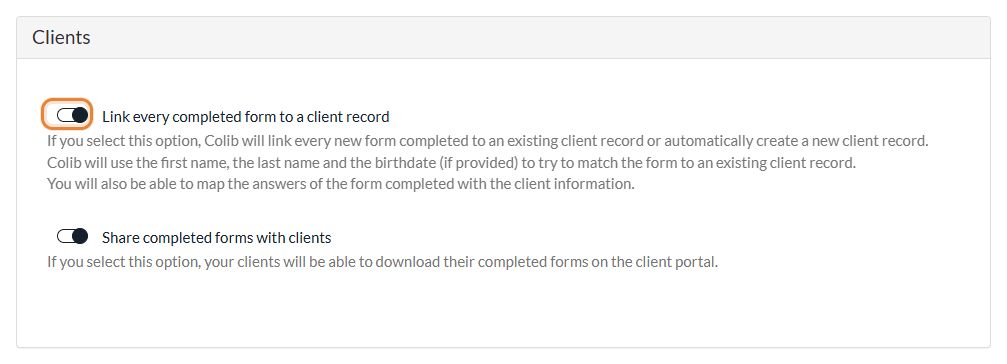
With this option, each completed form is attached to a client record: the record of the client you sent it to, or an existing record found with the first name, the last name and the date of birth (when the form asks for it), or a new record created automatically. The Client Mapping list only appears in your questions once this option is on.
When the form has a question mapped to the Email, the email address entered by the client is also used to find the right existing record.
2Map a question to a client field
- Go to www.colib.io/forms, click the pencil icon (Edit) of the form, then Sections & Questions.
- Click Add Question in a section, or the pencil icon of an existing question.
- Type the Question and choose its Type.
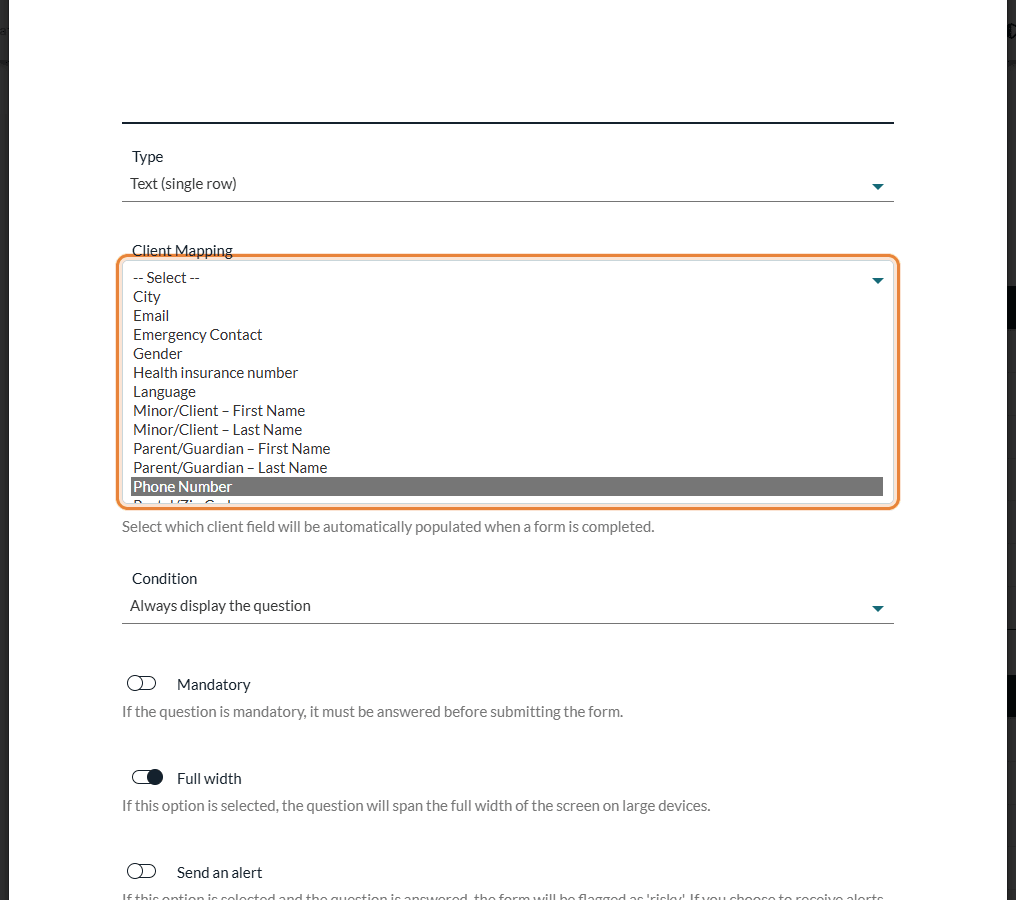
- In Client Mapping, choose the field of the client record that receives the answer. The list depends on the type of the question (see the table below).
- Click Save.
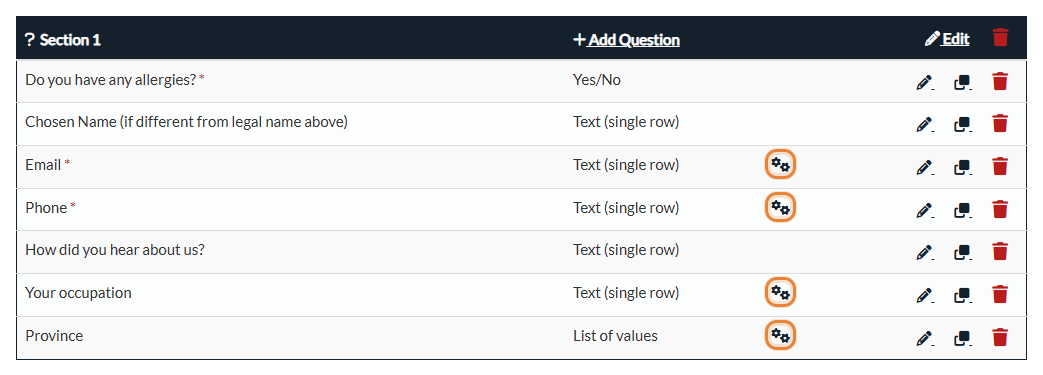
In the list of questions, a mapped question shows a gears icon.
3Which fields can be mapped?
| Type of question | Client fields available |
|---|---|
| Text (single row) | Email, Phone Number, Address, City, Postal/Zip Code, Emergency Contact, Professional Activity, Preferred Name, Health insurance number, Referral, and the names of a minor and of a parent or guardian. The list also shows Gender, Language, Provinces, Preferred communications and Practitioner: for these fields, prefer a List of values question, so that your clients choose from the right values. |
| Text (several rows) | The same fields, plus Additional Information. |
| Date | Birth Date. |
| Yes/No | Allow AI-generated notes: the answer Yes allows AI-generated notes for this client. |
| List of values | Preferred communications, Language, Gender, Provinces, Practitioner. For these fields, Colib fills in the choices of the list itself (for example the provinces or your practitioners). |
Your additional client fields also appear in the list, for the questions of the same type (a date field for a Date question, a list field for a List of values question...). See How to add custom fields to your client records
A Multi selection list question can only be mapped to an additional field of the same type. Document questions cannot be mapped.
Important: for an address to be saved in the client record, the form must also contain questions mapped to the City and to the Province of the client. Colib reminds you of it when you map a question to the address.
4What happens when the form is submitted
- New client — the record is created with the first name and the last name entered at the top of the form, and the answers of all the mapped questions.
- Existing client — the answers update the matching fields of the record. A question left empty does not erase anything.
- Exceptions — the email of an existing client is never replaced, the name of the record does not change, and the practitioner is only set if the client does not have one yet.
- The completed form — it is attached to the client record, with its PDF. See How do I see forms results?
5Pre-filling and differences with the client record
- What is pre-filled — when you send the form to a client from Colib, the first name and the last name at the top of the form are already filled in with those of the record, and a List of values question mapped to the Practitioner is preselected with the client's practitioner. The other mapped questions are not pre-filled with the values of the record: the client answers them.
- When an answer differs from the record — the answer of the form replaces the value of the record (for example a new phone number or a new address), except for the exceptions above: the email of an existing client, the name of the record and a practitioner already set are kept.
- The previous value — it is replaced in the record, but each completed form keeps the answers given at that time, in its PDF.
- Empty answers — a question left empty never erases the value of the record.
- Hidden questions — a conditional question that stayed hidden is not copied into the record. See the article titled "How to show a question based on the answer to another question".
Good to know
- Only new answers — a mapping applies to the forms submitted after it is saved. Forms already completed do not change the client record.
- Duplicated questions — when you duplicate a question, the copy has no mapping: choose it again if needed.
- Forms for children — the names of a minor and of a parent or guardian create two linked records. See How to collect child and guardian information in your intake forms
- Build your form — see How can I build a new form from scratch?
- Questions and their types — see the article titled "How to add a question to a form" and the article titled "How to add a section to a form".
Still have a question?
Write to us at support@colib.io, we will be happy to help.
Was this article helpful?
That’s Great!
Thank you for your feedback
Sorry! We couldn't be helpful
Thank you for your feedback
Feedback sent
We appreciate your effort and will try to fix the article