Who is this article for?
If you see children, the intake form is often filled out by a parent or a guardian. Colib can create two client records from a single form, one for the child and one for the parent or guardian, and link them in a client group.
This article explains how to set up such a form and what Colib creates when it is submitted.
Before you start: the option Link every completed form to a client record must be turned on in Settings > Forms (www.colib.io/settings?show=signature). It is what makes the Client Mapping list appear in your questions. See How to connect your client fields to your form questions
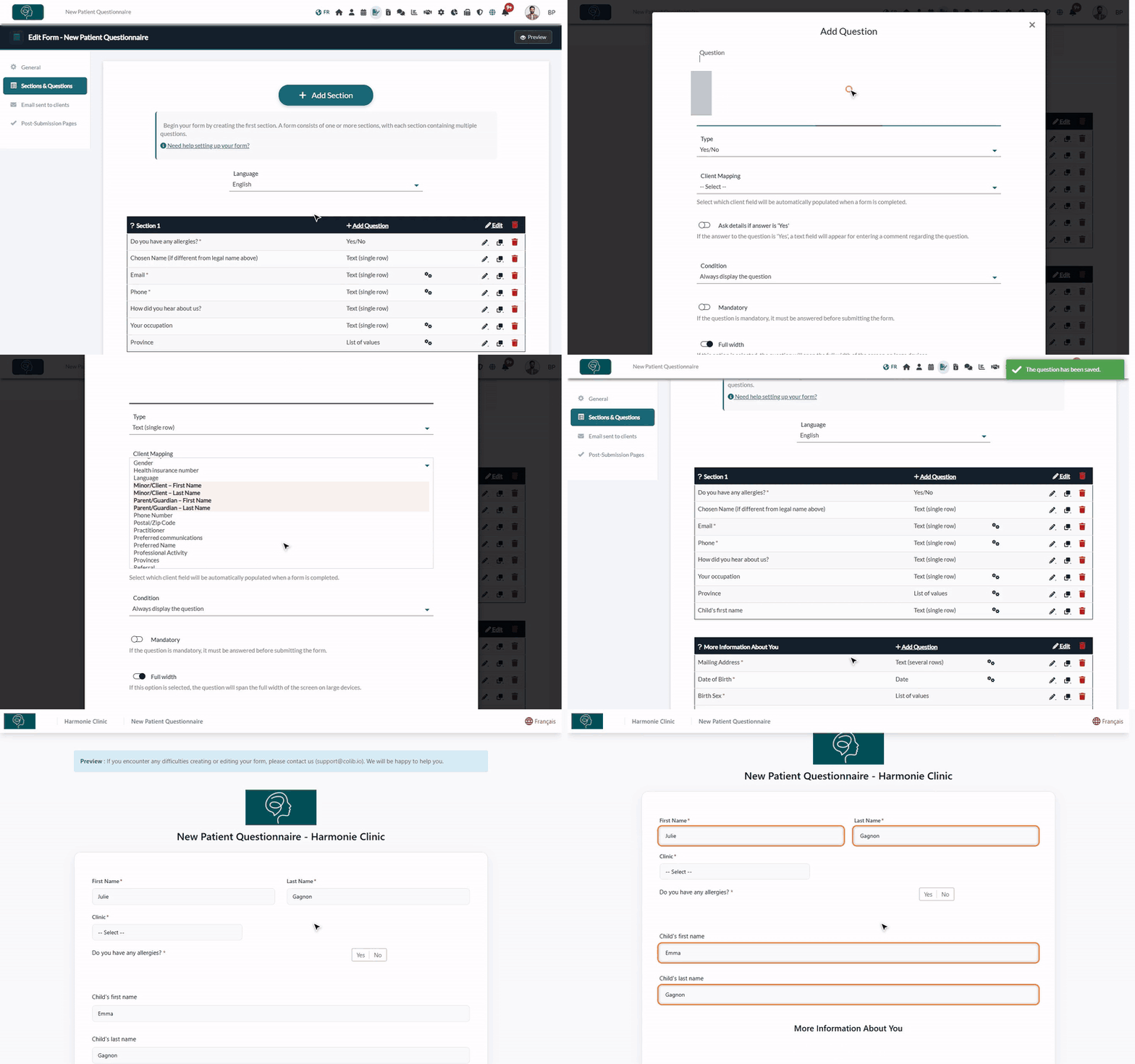
1Understand the four fields
Every form starts with the First Name and Last Name of the person who fills it out. To collect the name of the other person, add questions of type Text (single row) mapped to one of these four client fields:
- Minor/Client – First Name and Minor/Client – Last Name: use them when the parent or guardian fills out the form. They receive the name of the child.
- Parent/Guardian – First Name and Parent/Guardian – Last Name: use them when the child (for example a teenager) fills out the form. They receive the name of the parent or guardian.
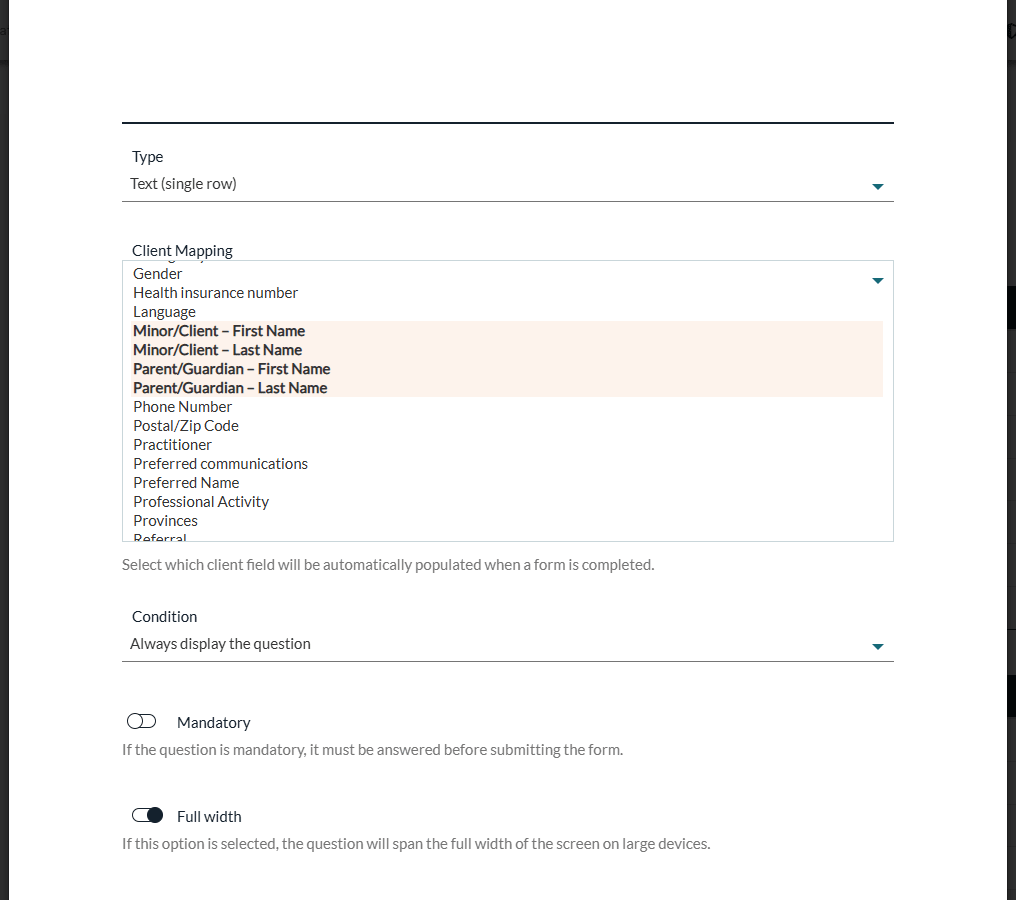
2Add the questions to your form
- Go to www.colib.io/forms, click the pencil icon (Edit) of your intake form, then Sections & Questions.
- Click Add Question in the section of your choice.
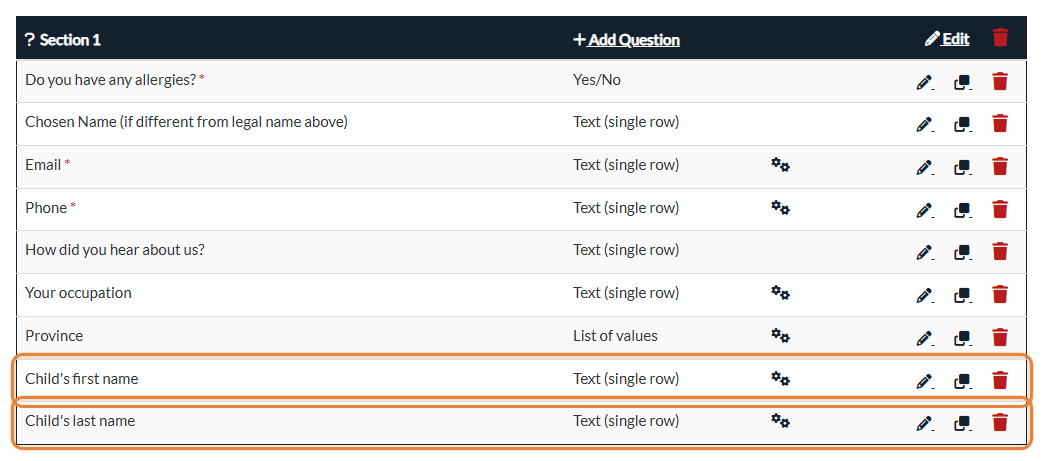
- Type the question, for example Child's first name, and choose the type Text (single row).
- In Client Mapping, choose Minor/Client – First Name, then click Save.
- Do the same for Child's last name with Minor/Client – Last Name.
- Turn on Mandatory on these questions if every form must name a child.
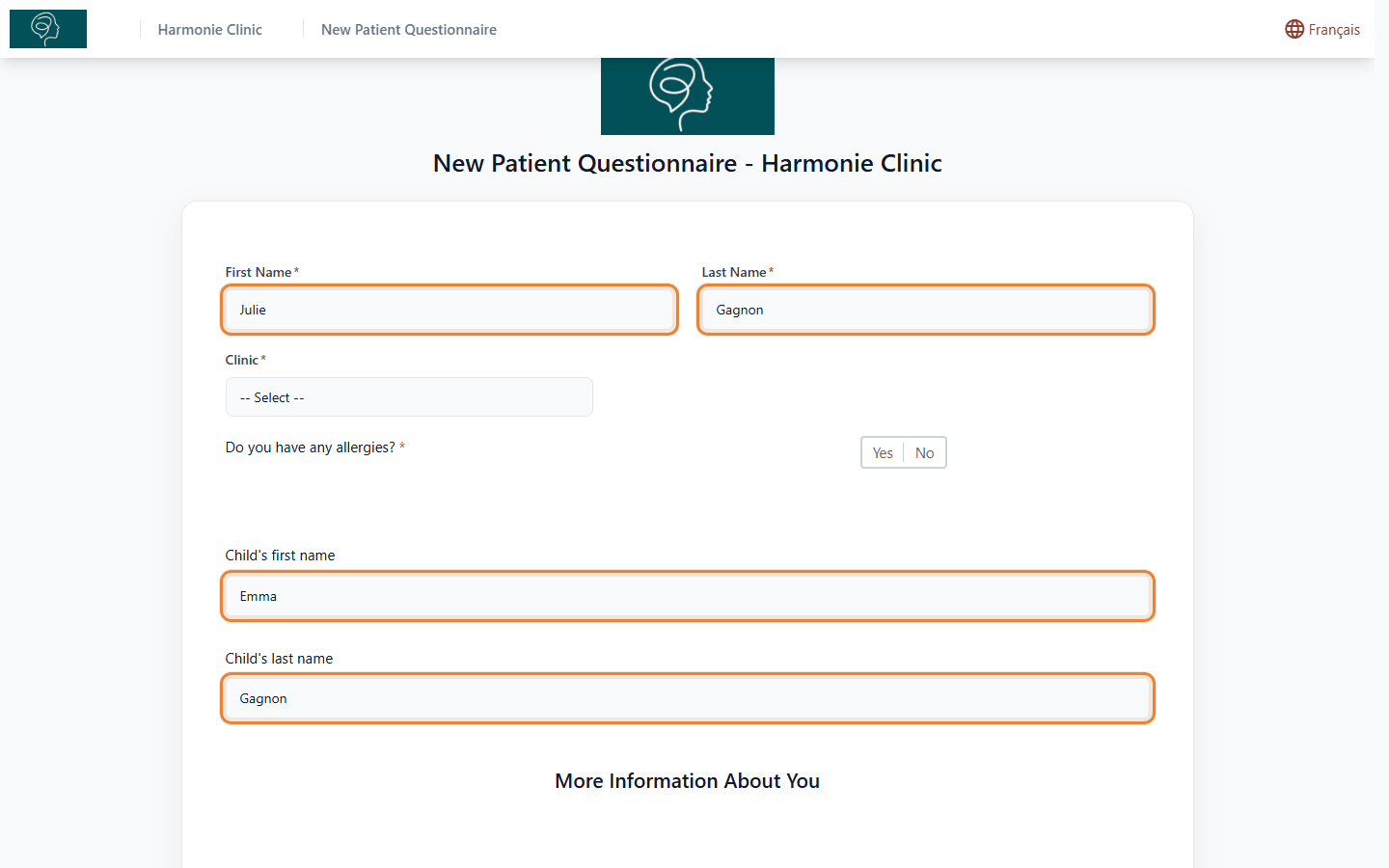
Your clients then see these questions in the form, below the first name and the last name of the person filling it out:
3What Colib creates when the form is submitted
| Your form contains... | Who fills it out | Result |
|---|---|---|
| Questions mapped to Minor/Client | The parent or guardian | The parent's record receives the other answers (email, phone, address...). The child's record receives the child's first and last name, as well as the answers mapped to the date of birth, the professional activity and the additional information. The completed form is attached to the child's record. |
| Questions mapped to Parent/Guardian | The child | The child's record receives all the answers. The parent's or guardian's record receives their first and last name. The completed form is attached to the child's record. |
| Both kinds of questions | The parent or guardian | Colib uses the Minor/Client questions and ignores the Parent/Guardian ones. |
In every case:
- the second record also receives the email and the phone number given in the form when it does not have them yet, as well as the address given in the form (or, failing that, the address and the emergency contact of the first record);
- they are linked in a client group whose owner (main responsible holder) is the parent or guardian;
- if a client with the same name already exists, Colib uses that record instead of creating a duplicate.
Good to know
- Client groups — the group owner can receive the communications sent to the child and see the child's information on the client portal. To see or change the group created by the form, see How to communicate with child clients using client groups
- Second signature — if both a parent and the child must sign, turn on Include a second electronic signature in the General tab of the form.
- Other client fields — phone, address, date of birth and more can also be copied to the record. See How to connect your client fields to your form questions
Still have a question?
Write to us at support@colib.io, we will be happy to help.
Was this article helpful?
That’s Great!
Thank you for your feedback
Sorry! We couldn't be helpful
Thank you for your feedback
Feedback sent
We appreciate your effort and will try to fix the article