Who is this article for?
No. You can create a client record by hand at any time, but most records are created for you: when you import your client list, when a client books online, fills in one of your forms, joins your waitlist or buys a gift certificate online. This article lists every way a client record is created and how Colib avoids duplicates.
Create a client by hand
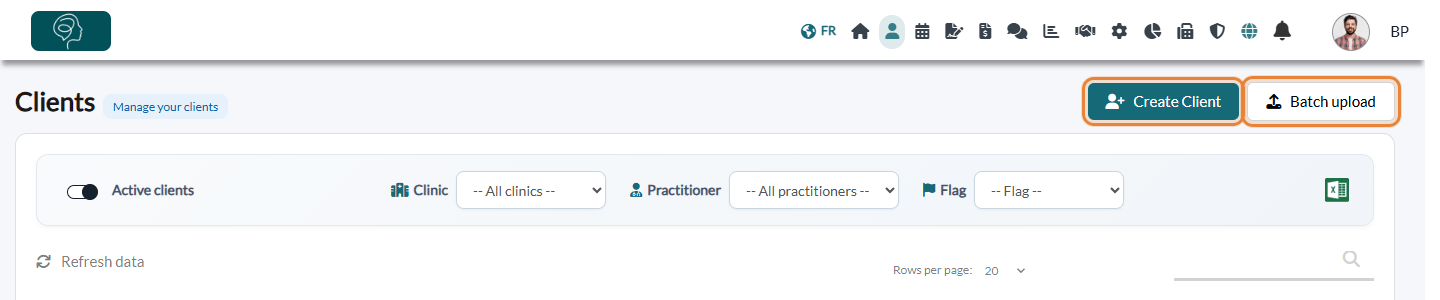
In your client list (www.colib.io/clients), click Create Client. Only the first and last name are required. You can also create a client while you book an appointment, from the appointment window of the scheduler.
Import your existing clients
Coming from another system? Click Batch upload in the client list (or go directly to www.colib.io/uploadclients) to import your clients, with their notes, appointments and documents, from an Excel file or from the export of Jane, Psylio, Noterro, Medexa or Owl Practice. See How can I migrate clients from my old system to Colib?. If you run into any difficulty, ask our team at support@colib.io: we will be happy to help you with this step.
Online booking
When a new client books on your booking page, Colib creates their record with the information they entered. When the email address already belongs to one of your clients, the appointment is added to that existing record instead (Colib uses the name to choose between several records that share the same email).
If you allow clients to book for a dependant (for example, a parent booking for a child), Colib also creates the child's record and a client group with the parent as group owner. See How to communicate with child clients using client groups.
Online forms
Forms filled in by people who are not clients yet (an intake form shared on your website, for example) can create the client record automatically:
- Go to Settings > Forms (www.colib.io/settings?show=signature).
- In the Clients section, turn on Link every completed form to a client record.
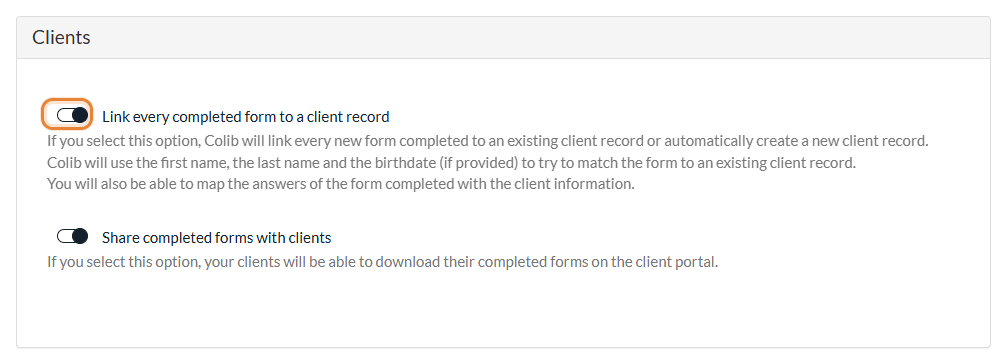
Colib then links each new completed form to an existing client, using the first name, the last name and the birth date (if provided), or creates a new record. In each question of your form, the Client Mapping field lets you choose which client information the answer fills in (email, phone, address, etc.): the record is updated with the answers, so you do not retype them.
When the option is off, you can still create a client from a completed form: in the form results, click the Create a new client via the form. icon (person with a +) on the row of the form.
Other automatic creations
- Waitlist — in your waitlist (www.colib.io/waitlist), the Create client icon on a request creates the record from the information the person entered.
- Online sales — a person who buys a gift certificate on your online store gets a client record.
Good to know
- Duplicates — if a client ends up with two records (for example, after booking with another email address), merge them: see Can I merge two client accounts?.
- Welcome email — if you set your welcome email to be sent automatically to all new clients, records created automatically receive it too. See How to configure and send the welcome email to clients.
- Your own fields — to collect more information in every record (or on the booking page), see How to add custom fields to your client records.
Still have a question?
Write to us at support@colib.io, we will be happy to help.
Was this article helpful?
That’s Great!
Thank you for your feedback
Sorry! We couldn't be helpful
Thank you for your feedback
Feedback sent
We appreciate your effort and will try to fix the article