Please follow the example in the following video :
https://www.youtube.com/watch?v=PK5lWFprWfc
Who is this article for?
With the Colib form builder, you create any form your practice needs: intake form, consent, questionnaire, satisfaction survey. A form is made of sections, and each section contains questions. Your clients fill it out online, on a computer or a phone, and sign it electronically.
This article walks you through creating a form from a blank page: general settings, sections, question types, conditional questions and the messages around the form.
Before you start: you need the practice administrator access. The settings shared by all your forms (notifications, link with client records, countersignature, reminders) are in Settings > Forms (www.colib.io/settings?show=signature).
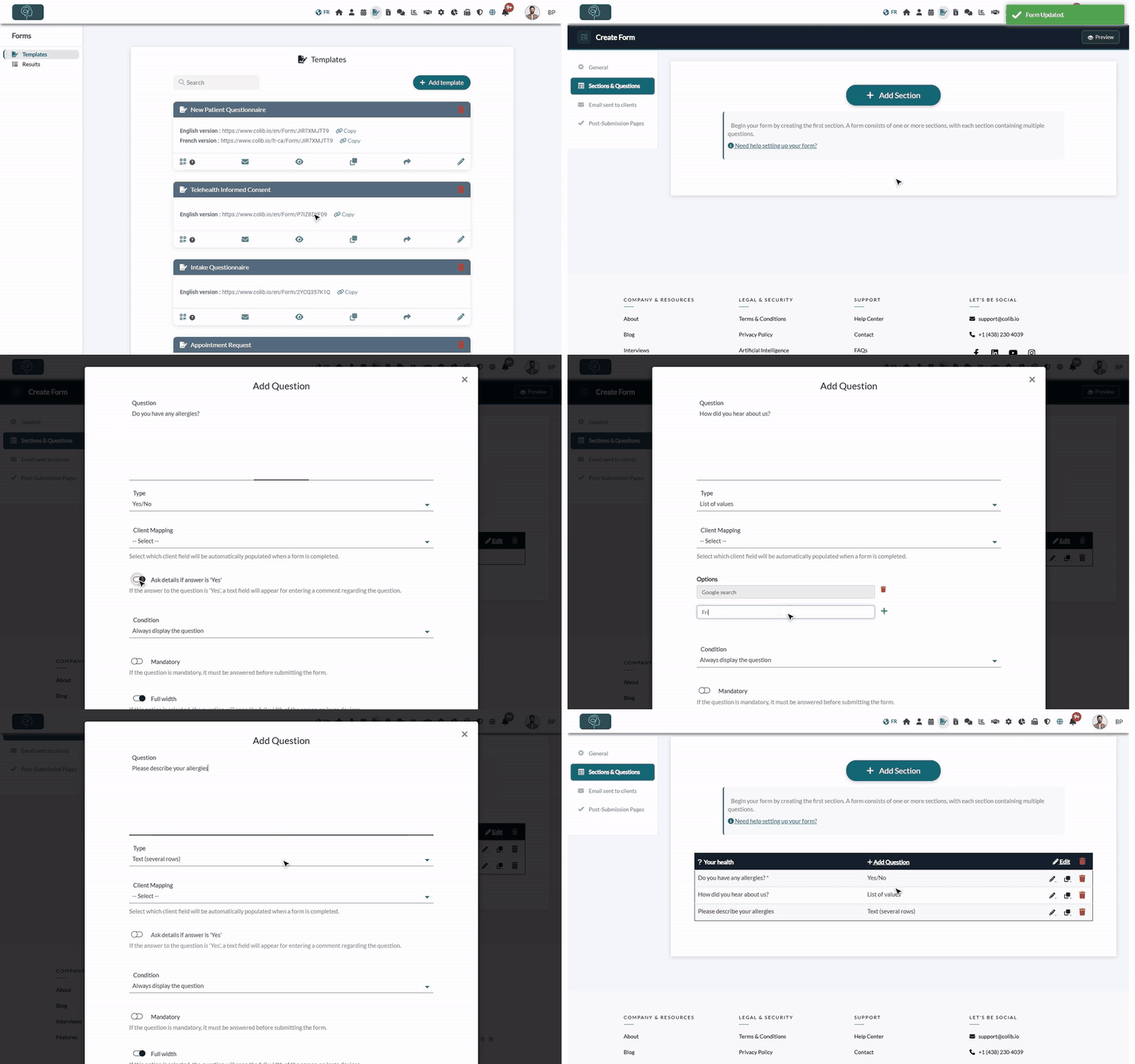
You can also follow the example in this video: www.youtube.com/watch?v=PK5lWFprWfc.
1Create a blank form
- Go to www.colib.io/forms and click Add template.
- Select Create a new form from scratch.
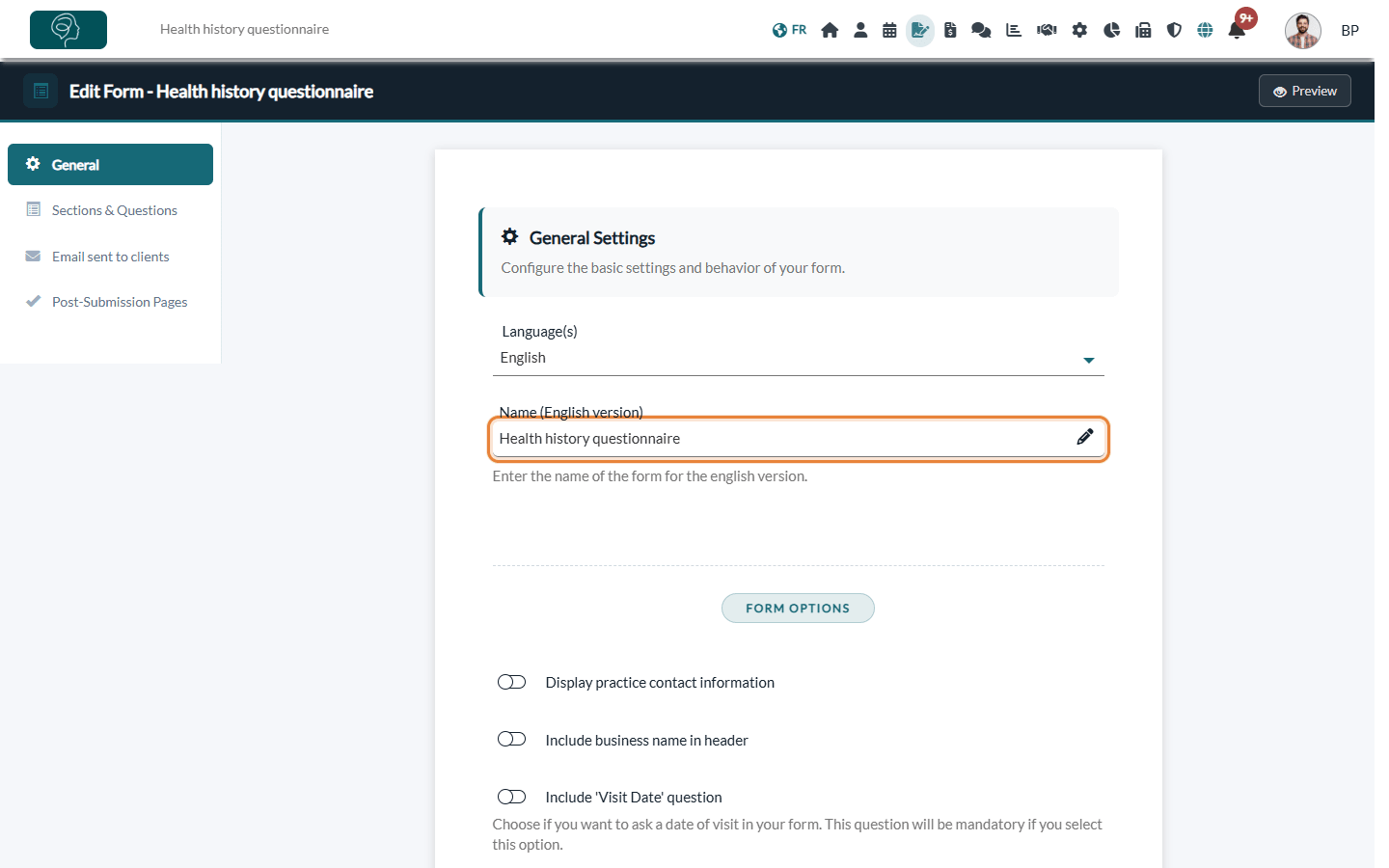
- The form editor opens on the General tab. The menu on the left gives access to the four tabs of the form: General, Sections & Questions, Email sent to clients and Post-Submission Pages.
2Fill in the general settings
- Choose the Language(s) of the form: English, French, or both. With both languages, you enter each text in English and in French, and each client sees the version of their language.
- Enter the Name of the form for each language. Your clients see it at the top of the form.
- Turn on the options you need (see the table below), then the Signature options.
- Click Save at the bottom of the page. Colib then opens the Sections & Questions tab.
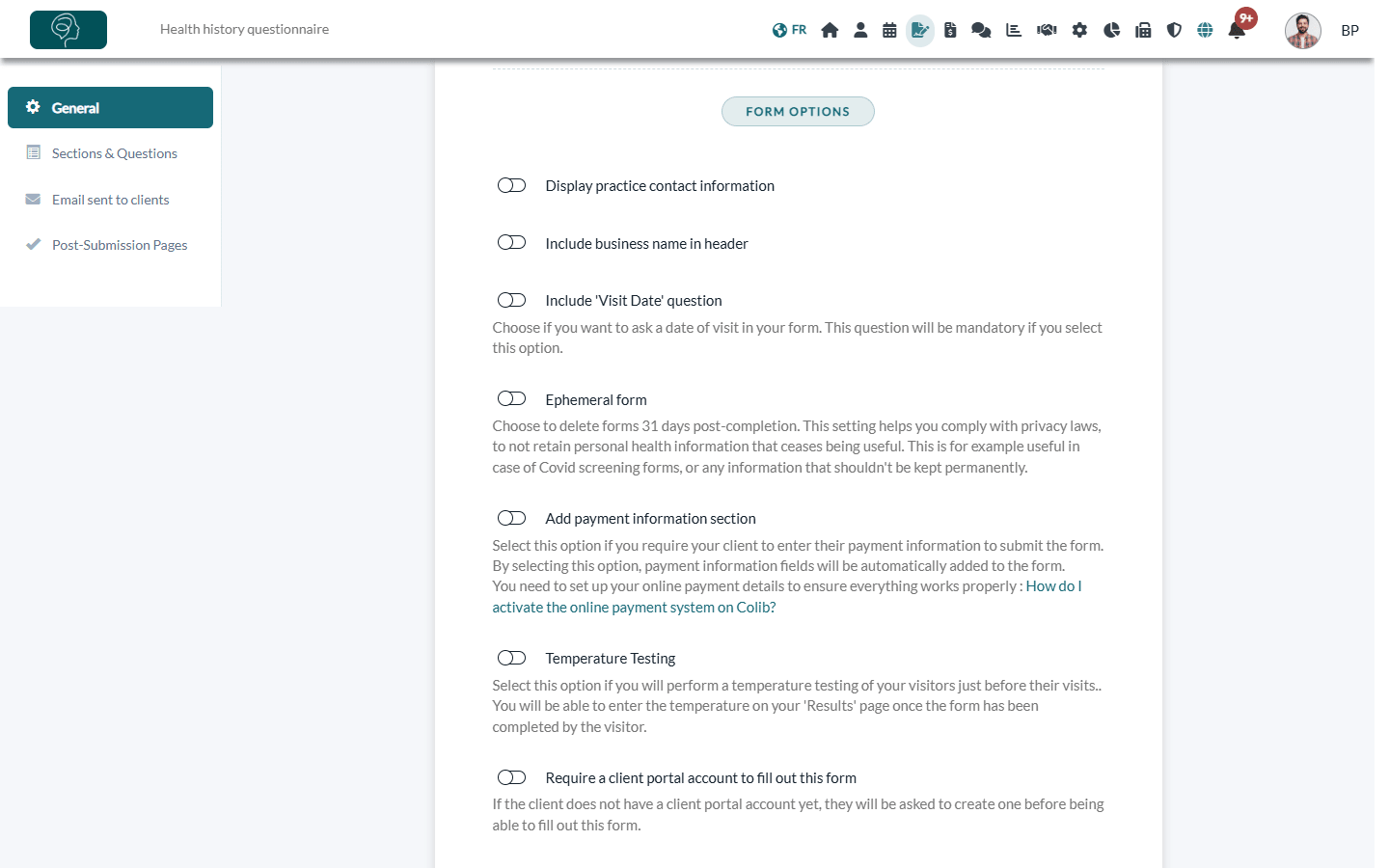
| Option | What it does |
|---|---|
| Display practice contact information | Shows the contact details of your practice on the form. |
| Include business name in header | Shows the name of your practice at the top of the form. |
| Include 'Visit Date' question | Adds a mandatory visit date question. The Include 'Visit Time' question option then appears to also ask for the time. |
| Ephemeral form | Deletes the forms filled out by your clients 31 days after they are created in Colib (the day you send the form, or the day the client submits it from the public link). Useful for information you should not keep permanently, such as a screening questionnaire. |
| Add payment information section | Asks the client for their payment information before submitting the form. Online payments must be set up first (How do I activate the online payment system on Colib?). |
| Temperature Testing | Adds a column to enter the temperature of the visitor in the Results page. |
| Require a client portal account to fill out this form | A client who does not have a client portal account yet is asked to create one before filling out the form. |
| Associated clinics | Multi-clinic practices only: the clinics that use this form. At least one clinic is required. |
| Multi-location | Asks the client which location they will visit. You enter the list of locations, each with an optional email for alerts, and you can filter the results by location (How do Colib forms work for multiple locations?). |
In the Signature section:
- Include electronic signature — adds a mandatory signature box at the end of the form.
- Include a second electronic signature — adds a second mandatory signature, for example for a parent or a legal guardian. The name of the second signer is required.
- Ask the signee to enter their name — by default, the name shown above the signature is the first and last name entered at the top of the form. With this option, the person signing types their name.
- Signature acknowledgement — optional text shown above the signatures (one per language), for example a consent statement.
- Form footer — optional text shown at the bottom of the form (one per language).
3Add a section
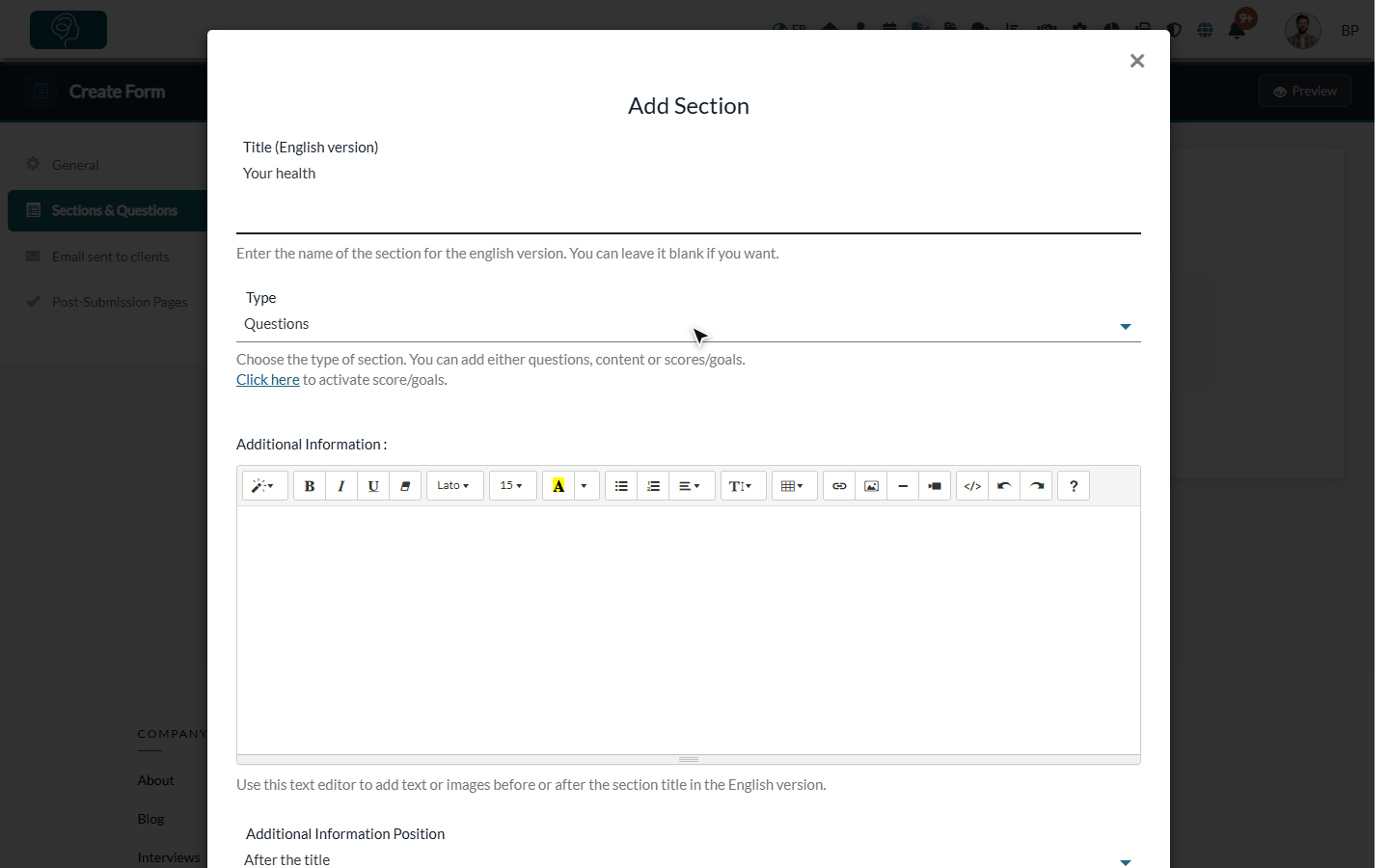
- In the Sections & Questions tab, click Add Section.
- Enter the Title of the section (optional, one per language).
- Choose the Type of section: Questions for questions, Content (Text/images) for a block of text or images without questions (instructions, consent text), or Score/Goal to let the client rate goals.
- Optionally, add text or images in Additional Information and choose whether it is shown before or after the title (Additional Information Position).
- Click Save.
The Score/Goal type uses the goals of your practice: activate and create them first in Settings > Goals (www.colib.io/settings?show=goals). Countersignature does not work with forms that display goals.
4Add questions
- Click Add Question in the header of the section.
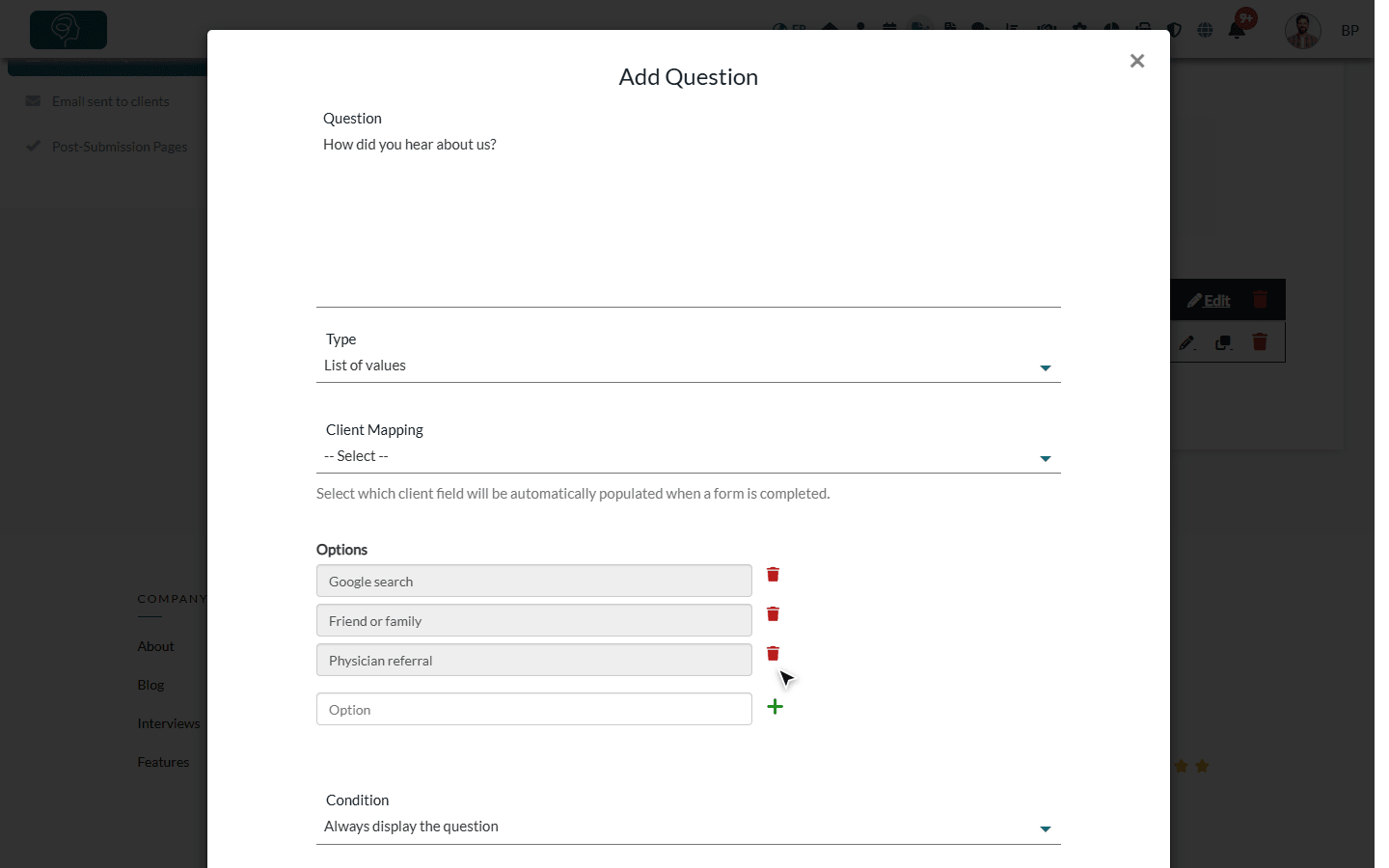
- Type the Question.
- Choose its Type (see the table below). For a list, type each choice in Option and click the + button; the trash icon removes a choice.
- Set the options of the question (see below), then click Save.
| Type | Use it for |
|---|---|
| Yes/No | A yes or no answer. With Ask details if answer is 'Yes', a text field appears when the client answers yes. |
| Text (single row) | A short answer: occupation, name of the family doctor. |
| Text (several rows) | A long answer: reason for consultation, medical history. |
| Date | A date chosen in a calendar: date of birth, date of an accident. |
| List of values | One choice among the options you define. |
| Multi selection list | Several choices among the options you define. |
| Document | The client attaches a file (PDF or image: JPG, PNG or GIF, up to 20 MB), for example a referral letter or a prescription. |
Options of a question:
- Mandatory — the client must answer before submitting the form. Mandatory questions are marked with a red asterisk in the list.
- Full width — the question uses the full width of the screen on a computer.
- Send an alert — the form is flagged as risky when the answer is Yes (Yes/No question) or when the question is answered (other types). You see it in the Risk? column of the results, and you can receive an email (at most one per form).
- Client Mapping — copies the answer into a field of the client record (date of birth, phone, address...). This field is shown when Link every completed form to a client record is turned on in Settings > Forms. See How to connect your client fields to your form questions
- Order — the position of the question in the section.
- Additional information — text or images shown before the question, useful for a long explanation.
5Show a question only in some cases (optional)
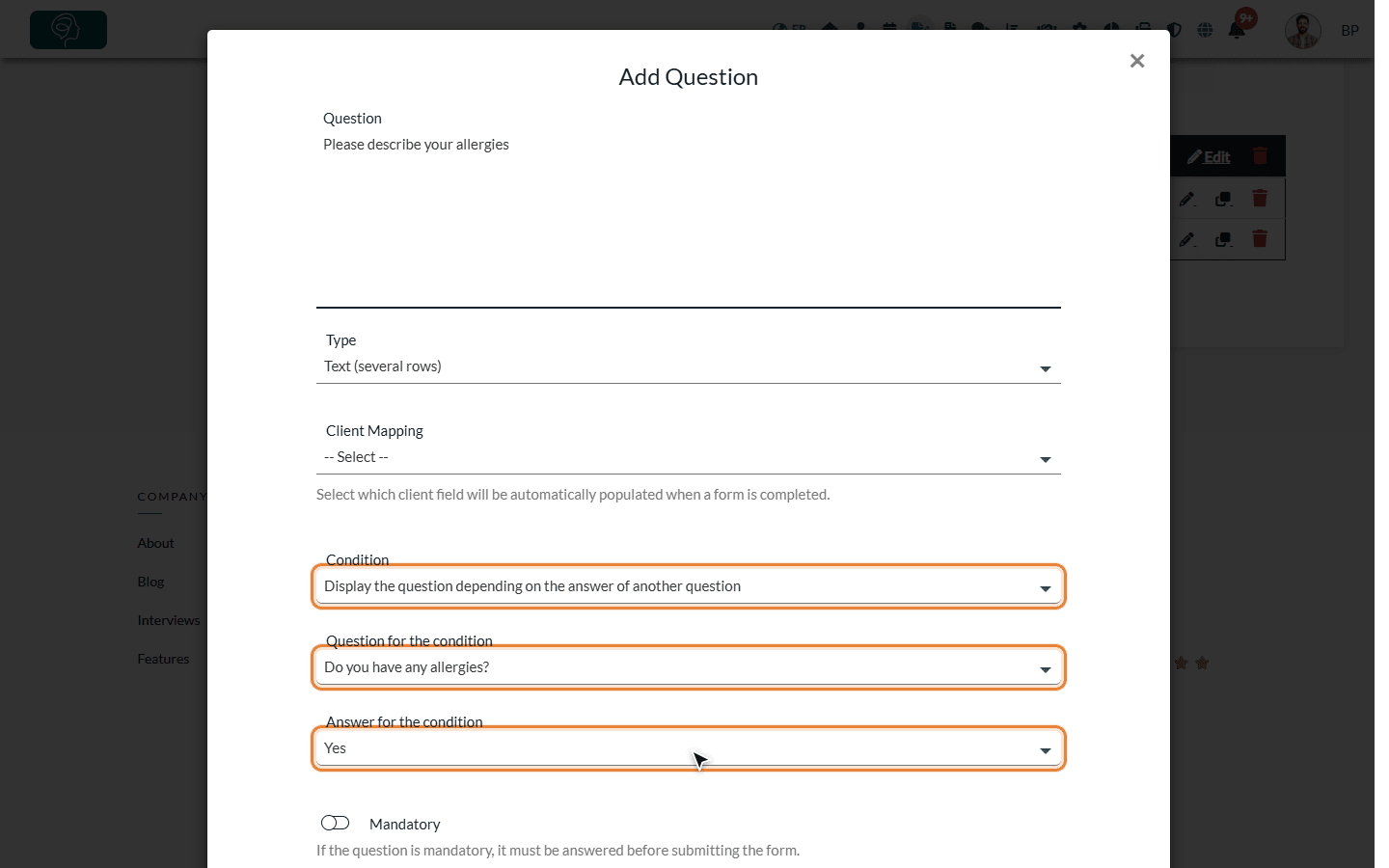
A question can depend on the answer to another question: for example, ask for details only to clients who have allergies.
- In the question, set Condition to Display the question depending on the answer of another question.
- In Question for the condition, choose the question it depends on.
- In Answer for the condition, choose the answer that shows the question.
- Click Save. In the list, conditional questions are shown in purple.
- Which questions can trigger a condition — only Yes/No, List of values and Multi selection list questions can be chosen in Question for the condition. The question can be in any section of the form.
- One answer per condition — each question depends on a single answer of a single question. To show the question for two different answers, create one question for each answer. For a multi selection list, the question appears as soon as the chosen answer is among the ones selected by the client.
- Chained questions — a conditional question can itself display other questions. If it is hidden again, the questions that depend on it are hidden too.
- Hidden questions are never required — a Mandatory conditional question is only required when it is displayed.
- Hidden answers are not kept — if the client answers a question and then changes the answer that displayed it, the hidden question is ignored: it does not appear in the results or in the PDF, it does not trigger an alert and it is not copied into the client record.
- No condition on a whole section — conditions apply to questions only. The title of a section stays visible even when all its questions are hidden.
- Deleting the source — if you delete the question used in a condition, or the list option it uses, the questions that depended on it are displayed all the time again. Check them after such a change.
- Test your conditions — click Preview at the top right of the editor and answer the form as a client would.
6Review and organize your form
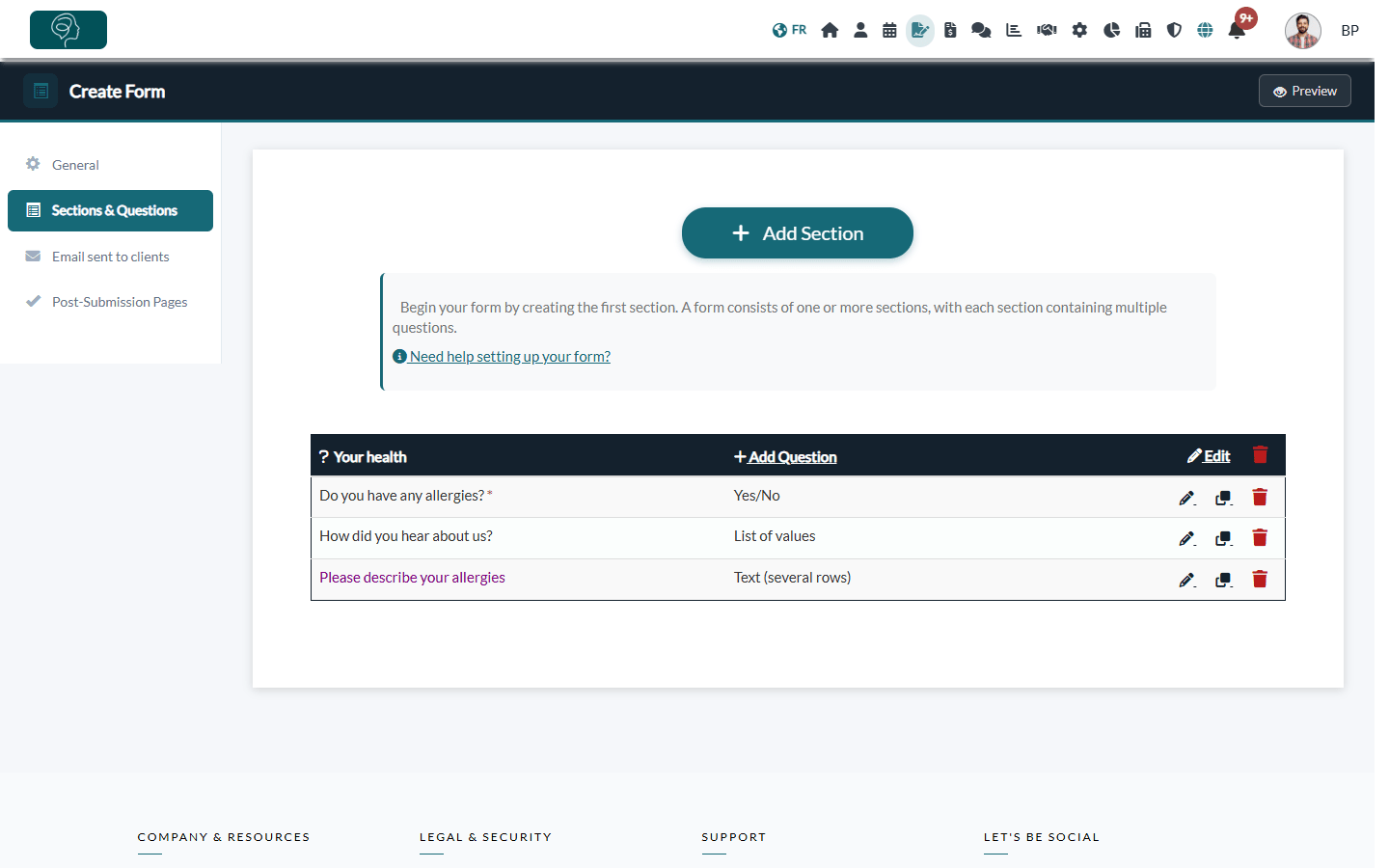
- The Sections & Questions tab lists each section with its questions and their type.
- On each question, the icons let you edit, duplicate or delete it. Edit and the trash icon in the header of a section edit or delete the whole section.
- Drag and drop questions and sections to change their order.
- For a form in English and French, use the Language list above the sections to review and edit each version.
7Customize the messages and preview the form
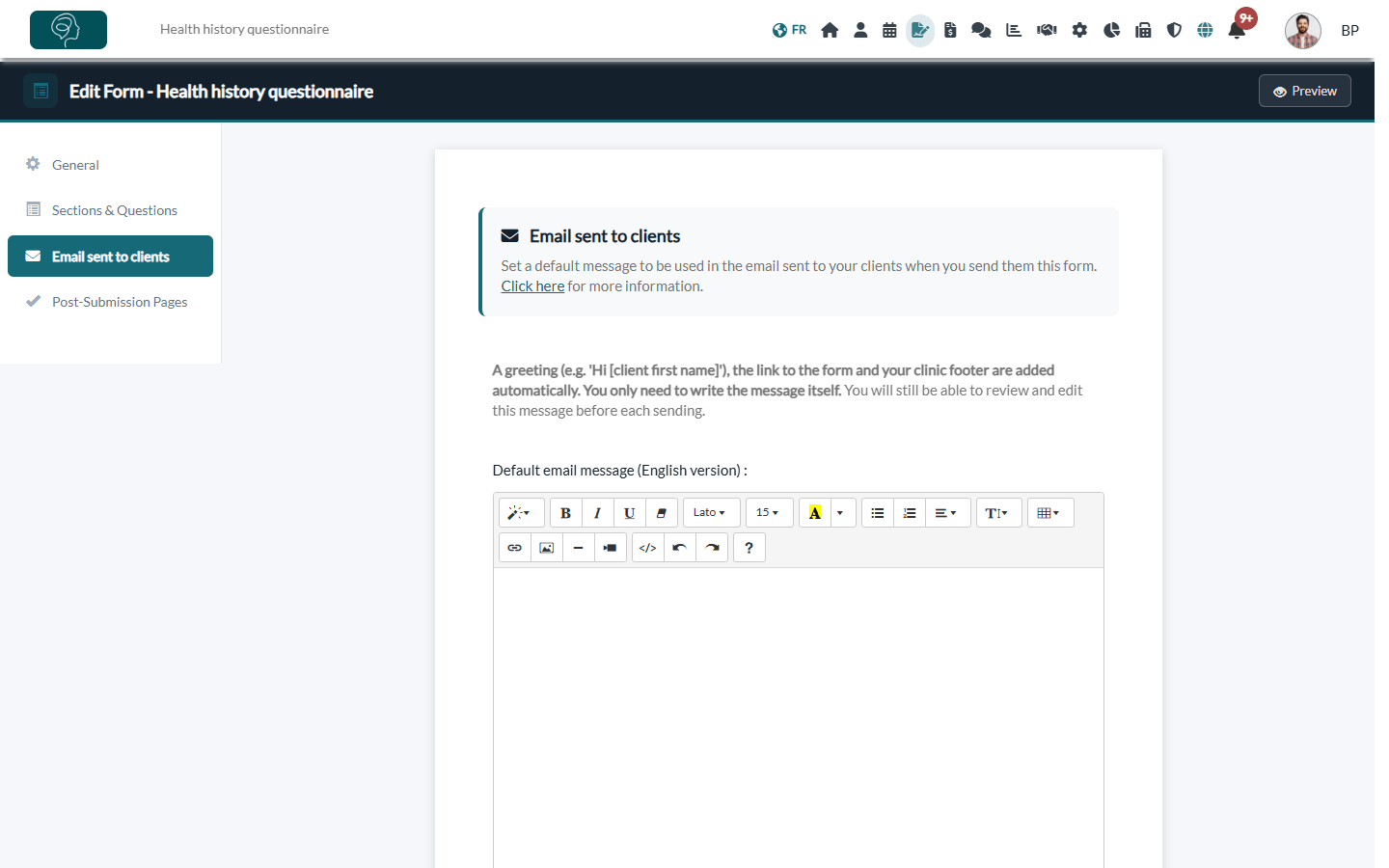
- Email sent to clients — the default message of the email used when you send this form (one per language). A greeting, the link to the form and your clinic footer are added automatically. See How to set up a default email message for my forms?
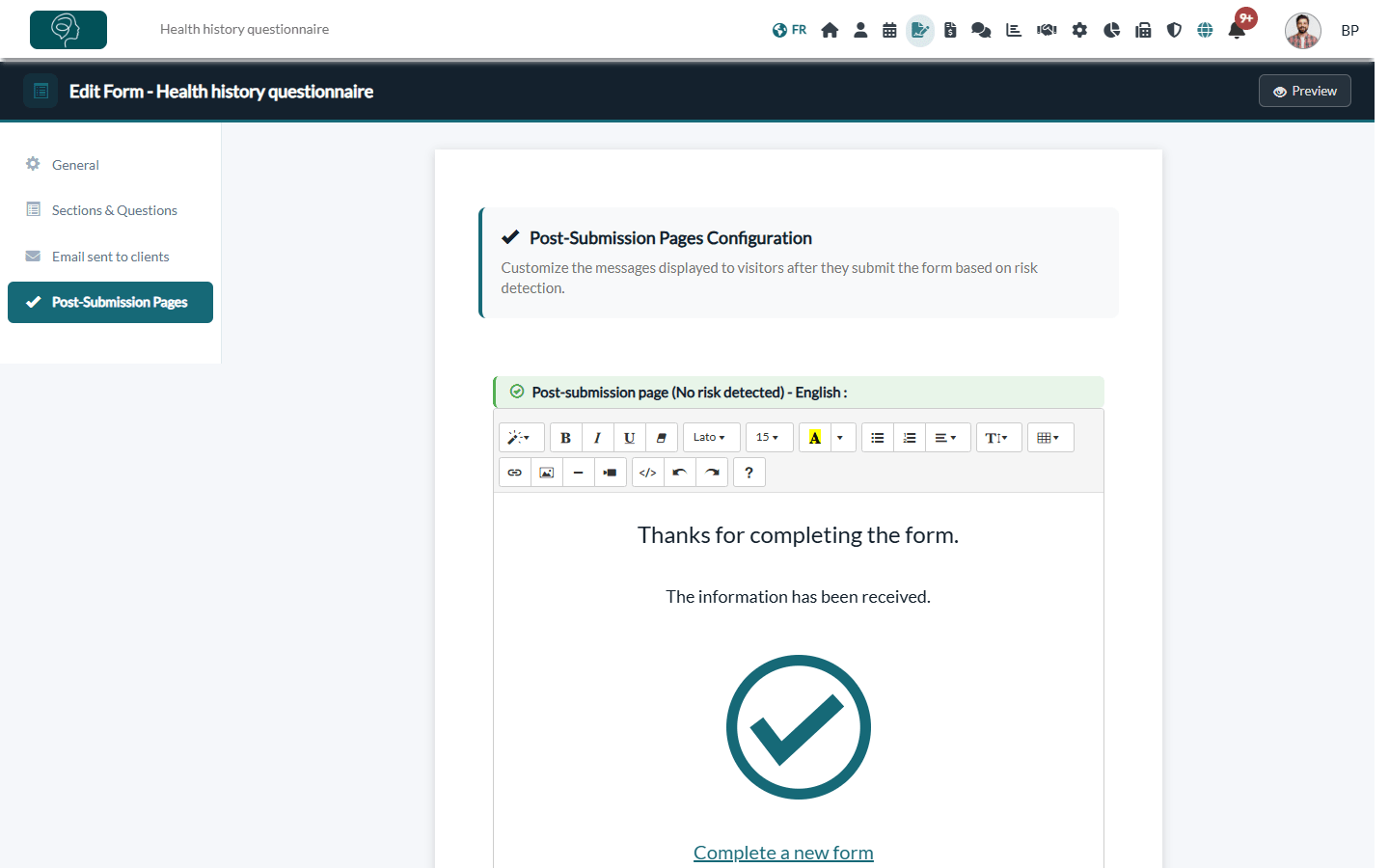
- Post-Submission Pages — the message the client sees after submitting the form: one when no risk is detected and one when a risk is detected, for each language.
- Preview — the button at the top right opens the form as your clients will see it.
Good to know
- Change a form later — see How to edit an existing form
- Countersigned forms — if your practice countersigns forms, the forms already submitted must be countersigned before you can change the sections and questions.
- Forms for children — see How to collect child and guardian information in your intake forms
- Save time — start from a library form (Does Colib provide forms templates?) or from your PDF or Word form (How can I transform my PDF or Word form into an online form with Colib?).
- Step-by-step guides — please see the article titled "How to add a section to a form", the article titled "How to add a question to a form", the article titled "How to show a question based on the answer to another question", the article titled "How to add a second signature to a form".
- Next step — How can I send the form to my clients?
Still have a question?
Write to us at support@colib.io, we will be happy to help.
Was this article helpful?
That’s Great!
Thank you for your feedback
Sorry! We couldn't be helpful
Thank you for your feedback
Feedback sent
We appreciate your effort and will try to fix the article