Who is this article for?
You already have your intake or consent form as a Word or PDF document? Colib turns it into an online form for you. Its artificial intelligence reads the document, creates the sections and the questions with the right types, and prepares the English and French versions. You then review the result and adjust it if needed.
Before you start: you need the practice administrator access. Prepare a .docx (Word) or .pdf file that contains text. A scanned document (a picture of a paper form) cannot be read: use the original Word or PDF file instead.
1Upload your document
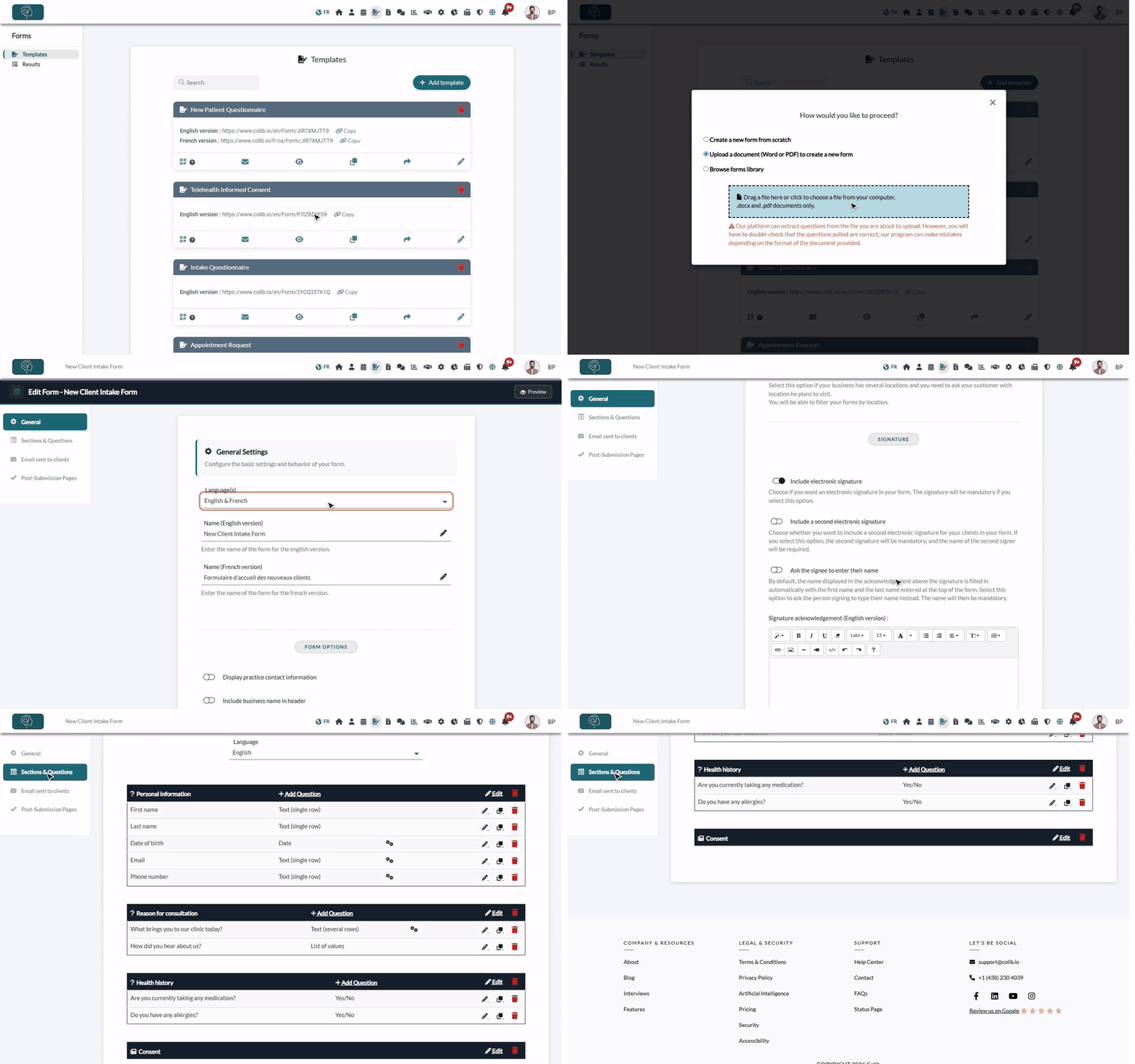
- Go to www.colib.io/forms and click Add template.
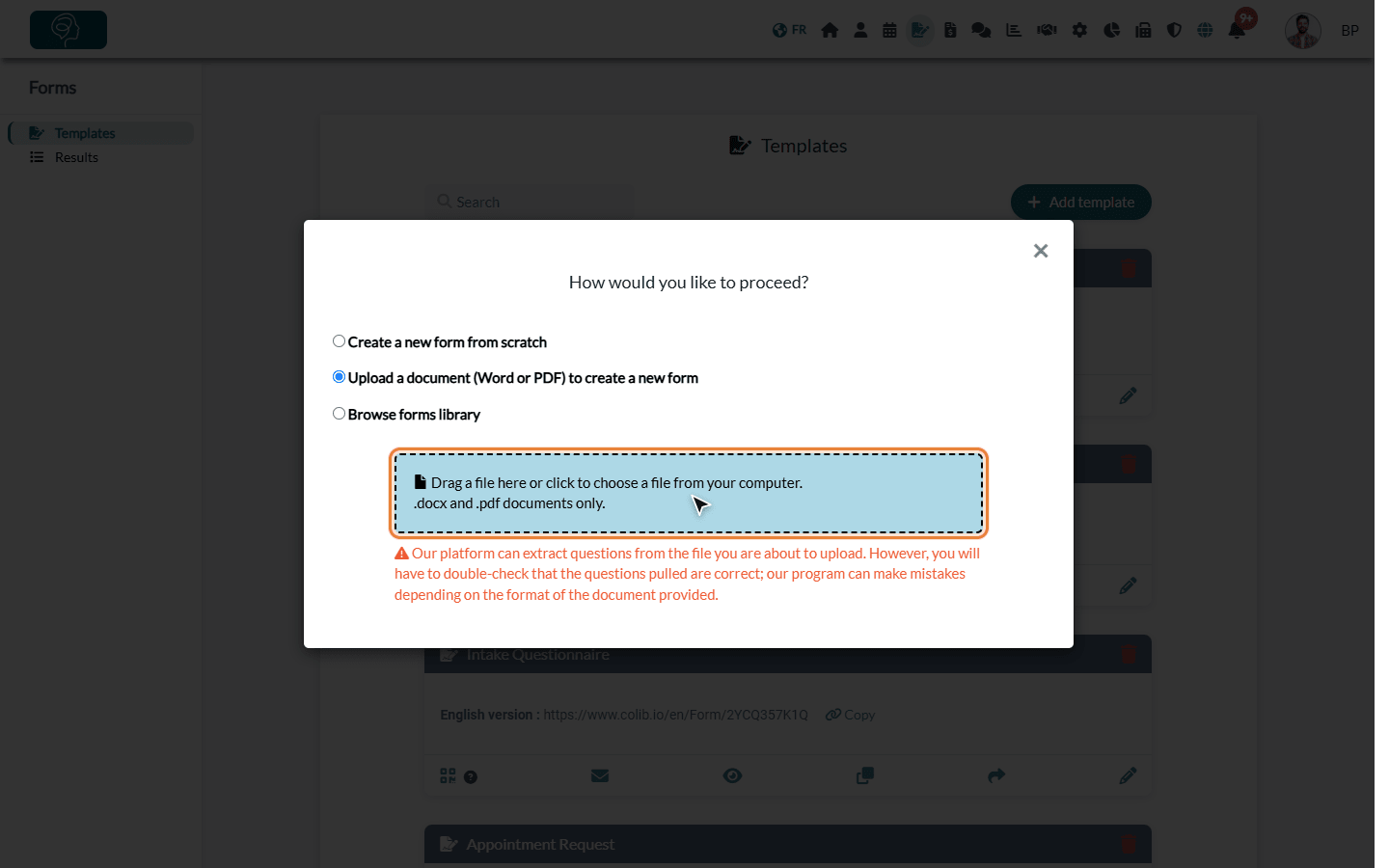
- Select Upload a document (Word or PDF) to create a new form.
- Drag your file into the dotted area, or click it to choose the file on your computer.
2Let Colib create the form
The message Your form is being created... appears. After a few seconds, the new form opens in the editor, on the General tab.
3Check the general settings
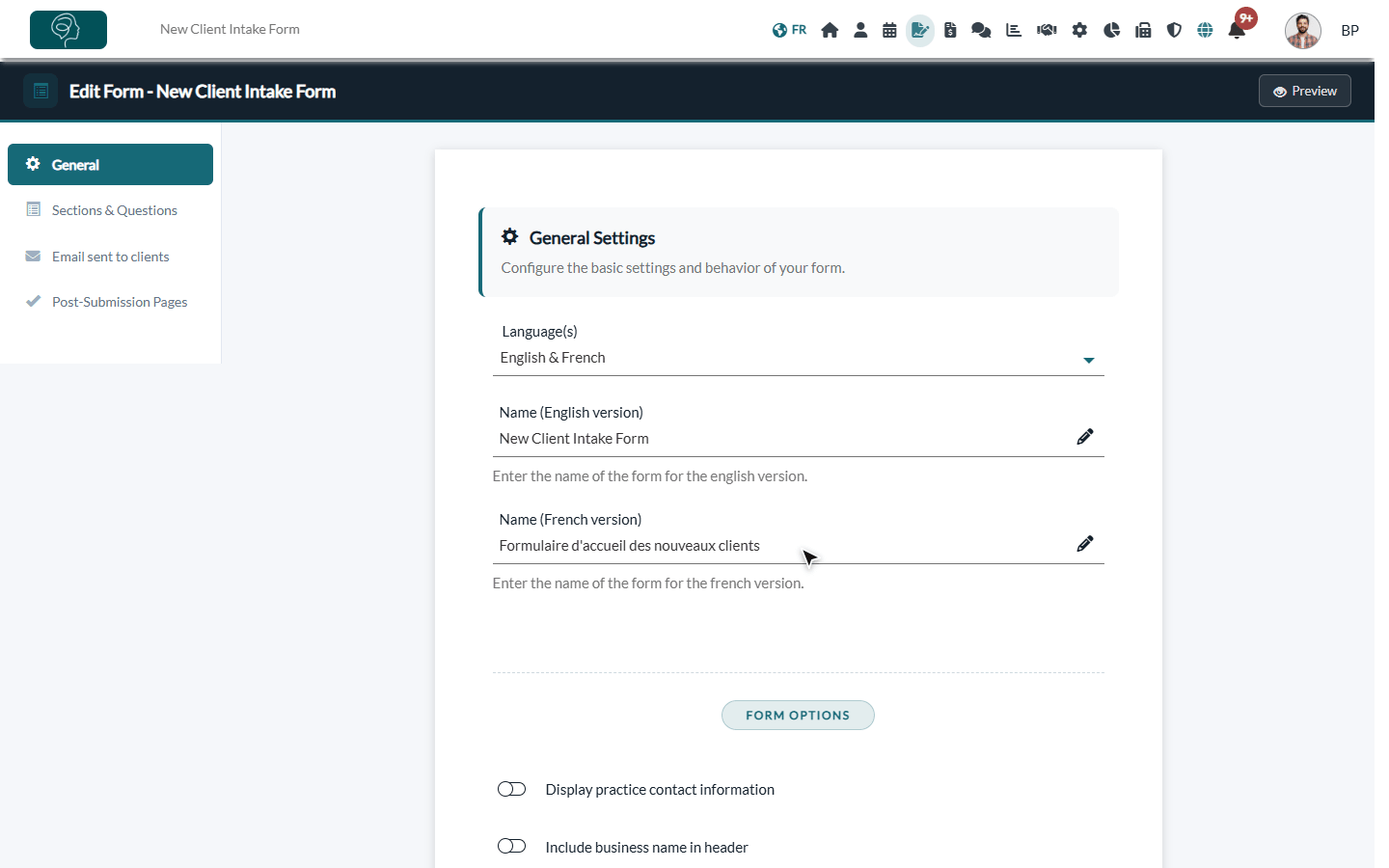
- Language(s) is set to English and French: Colib keeps the wording of your document and translates it into the other language.
- The Name of the form comes from the title of your document, in both languages (or from the file name if the document has no title).
- If your document has a signature line, Include electronic signature is turned on (and Include a second electronic signature when a second person signs, such as a parent or a guardian). The signature lines are not turned into questions.
- Change what you need, then click Save.
4Review the sections and the questions
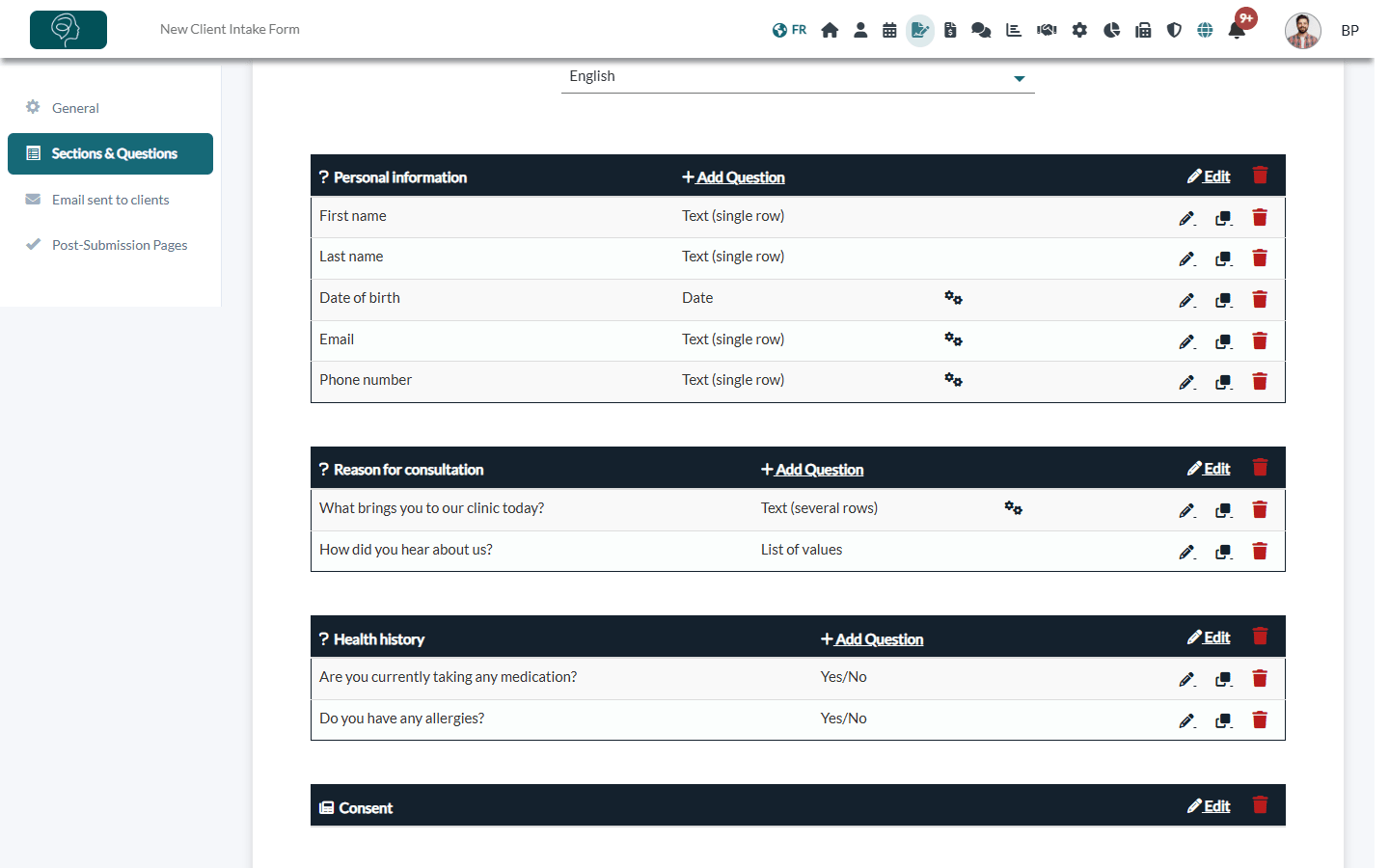
- Open the Sections & Questions tab.
- Check each question and its type: text, date, yes/no, list... Questions marked as required in your document are mandatory. Instructions and consent paragraphs become Content sections.
- Common fields such as the date of birth, the email or the phone number can be linked to the client record (a gear icon then appears next to the question in the list): see How to connect your client fields to your form questions
- Use the Language list above the sections to review the other language. The translation is automatic: read it before using the form.
- Click the pencil icon of a question to correct it.
The editor is explained in detail in How can I build a new form from scratch?. When the form is ready, send it to your clients: How can I send the form to my clients?
Important: the artificial intelligence can make mistakes, depending on the layout of your document (tables, columns, check boxes). Always review the questions, the options of the lists and the translation before sending the form.
Turn this feature on or off for your practice
- Go to Settings > AI (www.colib.io/settings?show=artificialintelligence).
- In Other artificial intelligence features, turn Allow AI form extraction from a document on or off.
- Click Save.
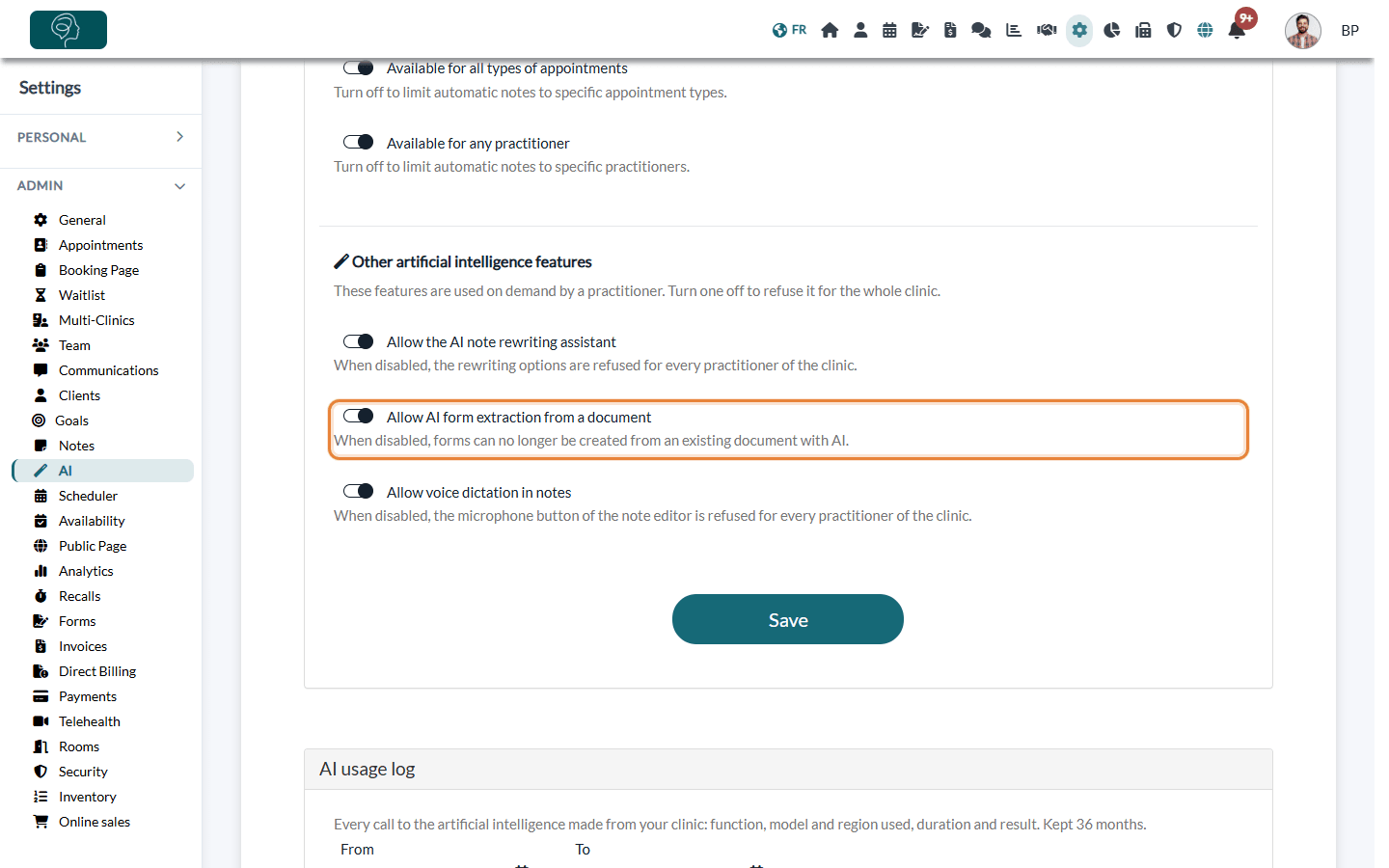
When this option is off, nobody in the practice can create a form from a document. Each use of the feature appears in the AI usage log of the same page.
Have an existing document signed electronically
You want a client to sign a document you already have (a consent, a policy, an agreement) rather than fill out a form? Colib does not send a Word or PDF file for signature as it is: the Document question of a form is used by your clients to upload a file to you, not to sign yours. Turn the document into a form instead:
- Upload the document as explained in steps 1 and 2: its paragraphs become Content sections that your client reads in the form.
- In the General tab, check that Include electronic signature is turned on. It is turned on automatically when the document has a signature line; otherwise, turn it on yourself (and Include a second electronic signature if a second person signs). Click Save.
- Read the text of the form and its translation, then send the form to your client (How can I send the form to my clients?).
Your client reads the text and signs at the bottom of the form. The completed form, with the signature, is saved in the Forms tab of the client record.
Good to know: if the Allow AI form extraction from a document option is turned off, create a blank form instead, paste the text of your document in a Content section and turn on Include electronic signature (How can I build a new form from scratch?).
Good to know
- Accepted files — .docx and .pdf only. Save an older .doc file as .docx before uploading it.
- Your document — Colib uses the text of the document to build the form; the form is then yours to edit like any other template.
- Other ways to create a form — Does Colib provide forms templates? / How can I build a new form from scratch?
Still have a question?
Write to us at support@colib.io, we will be happy to help.
Was this article helpful?
That’s Great!
Thank you for your feedback
Sorry! We couldn't be helpful
Thank you for your feedback
Feedback sent
We appreciate your effort and will try to fix the article