Who is this article for?
Each form can have its own default email message: a few lines explaining why you need the form and when to fill it out. Colib uses it every time this form is emailed to a client, whether you send it yourself or it leaves automatically with an appointment confirmation.
You write the message once, and you can still adjust it before each manual sending.
Good to know: three things are always added for you, so you never have to write them: the greeting (for example Hi [client first name],), the link to the form (Complete Form) and the email signature of your practice.
1Write the default message of a form
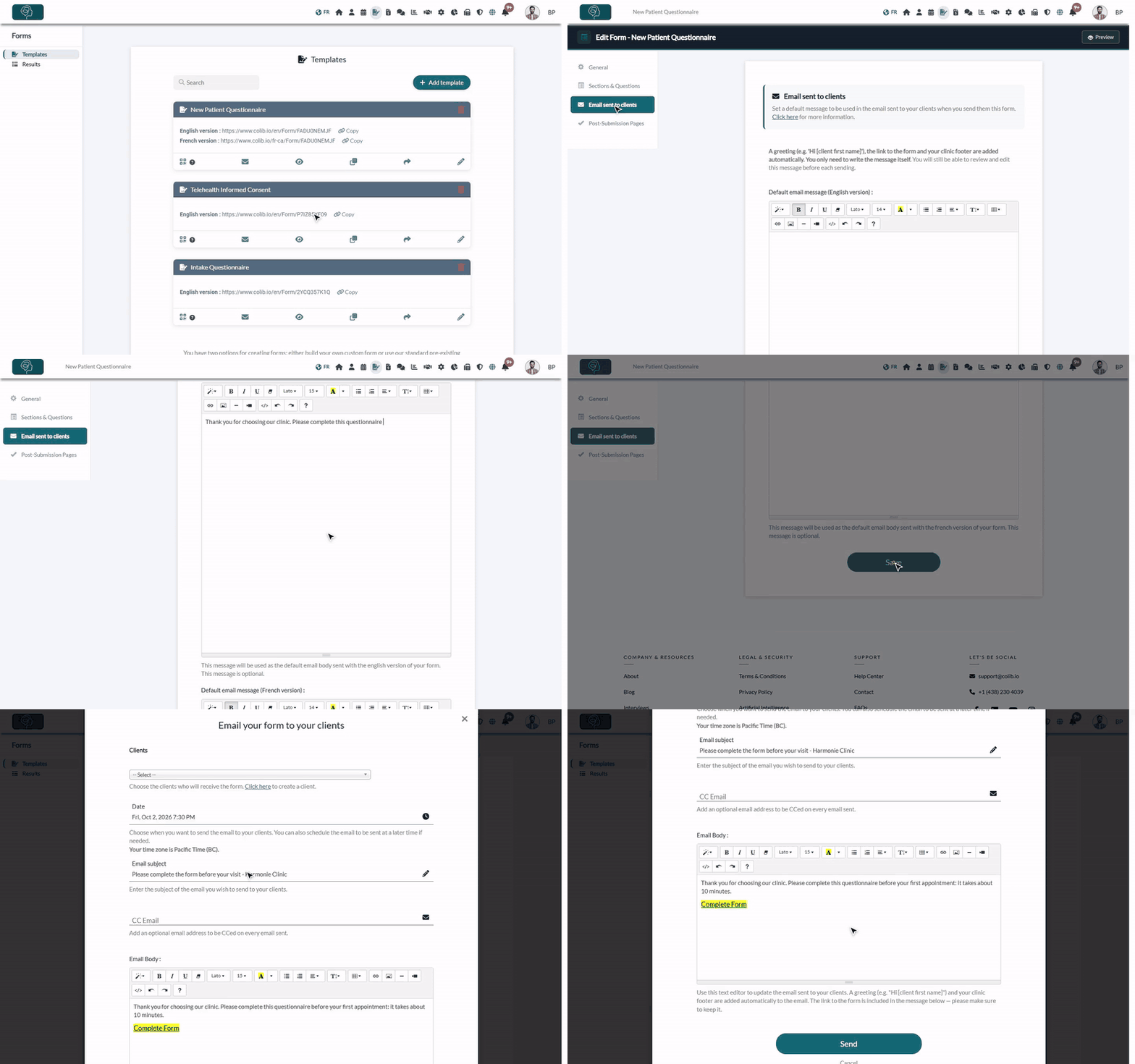
- Go to www.colib.io/forms and click the pencil icon (Edit) of the form.
- In the menu on the left, click Email sent to clients.
- Type your message in Default email message (English version). If the form is in English and French, also fill in Default email message (French version): each client receives the version of their language. A form in one language only shows one editor.
- Click Save.
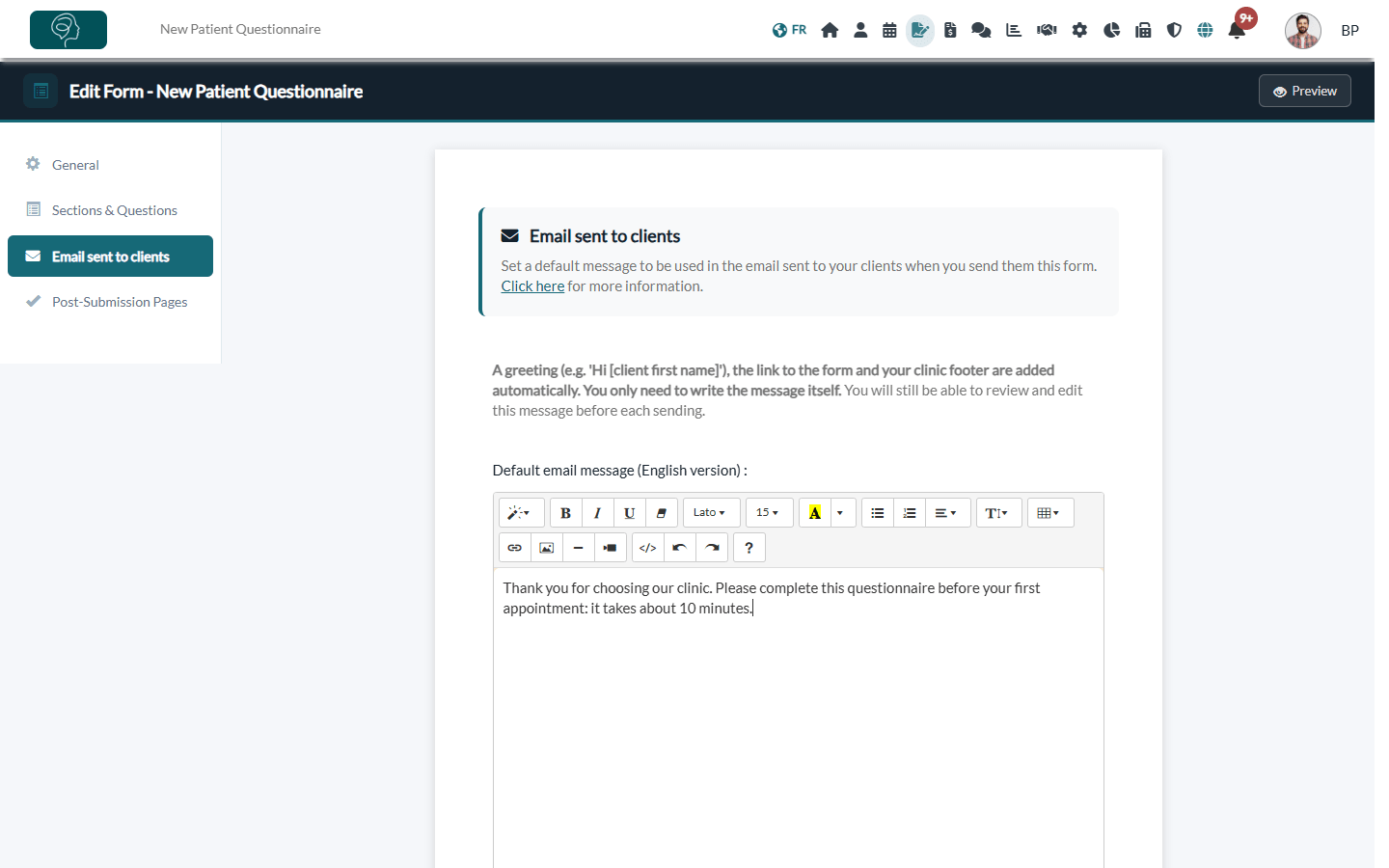
The message is optional. Without a message, Colib uses a standard text: Please click on the following link to complete the required form, followed by the link.
- Write only your own content: a short introduction, why you need the form, a friendly closing.
- You can use basic formatting: bold, lists, links.
- Keep it short: clients complete a form more readily when the message is clear.
- If the message is too long, Colib tells you when you save it: shorten the text or paste it without formatting, then save again.
2Send the form by email
- In www.colib.io/forms, click the envelope icon (Send via email) of the form. You can also send a form from the client record.
- The Email Body already contains the default message of the form and the Complete Form link.
- The greeting and the email signature of your practice are not shown in the editor: they are added automatically when the email is sent.
- If you select another form, the Email Body is reloaded with the default message of that form.
- Adjust the message for this sending if needed. Keep the link: it is the one your client clicks to open the form.
- Choose the client(s), the Date of sending (now or later), the Email subject and an optional CC Email, then click Send.
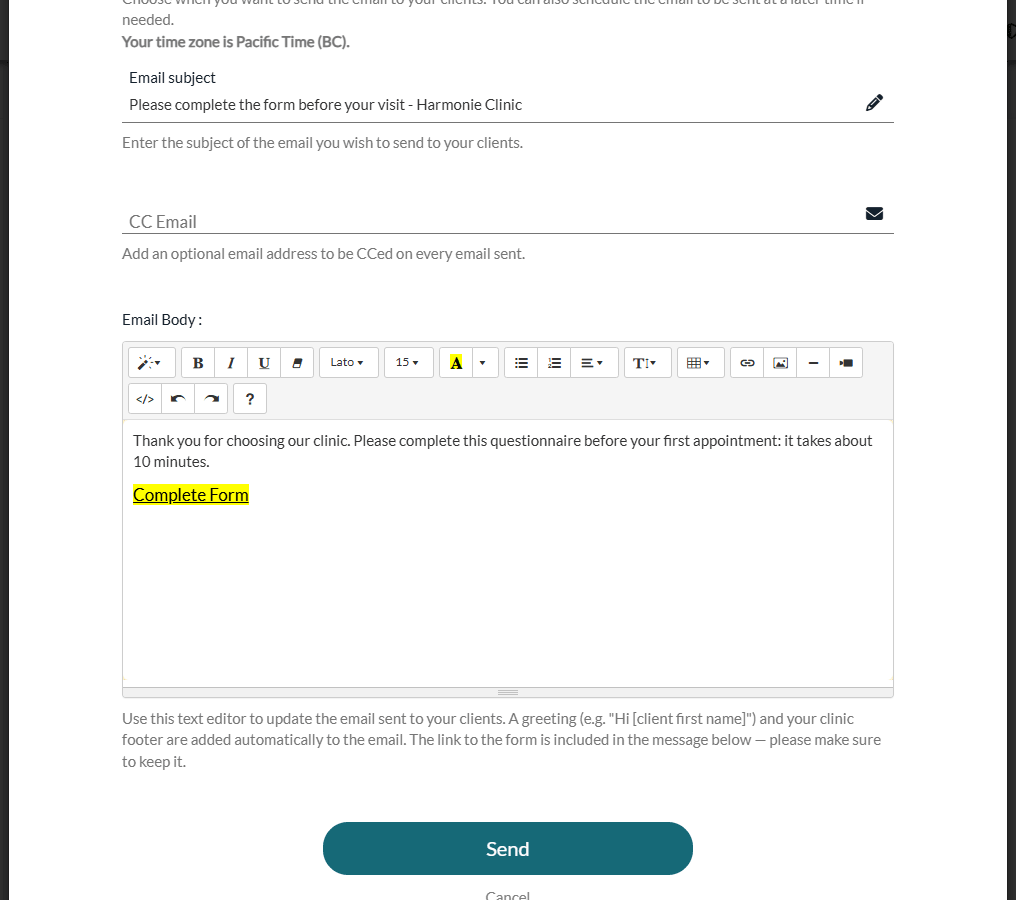
Changes made in this window only apply to this sending: the default message of the form does not change. More details in How can I send the form to my clients?
3Automatic sendings use the same message
- With an appointment confirmation — when an appointment type has the Send forms with initial notifications option, the form email uses the default message of each form. If several forms are sent for the same appointment, your client receives one email with one block per form: its message, then a link named after the form. See How can I automatically ask a client to fill out a form before an appointment?
- Recurrent sendings — a form sent every X days to a client also uses its default message. See How to create a recurrent form sending for a client?
- Reminders — an automatic reminder sends the same email again, with [REMINDER] in front of the subject. See How to automate form reminders?
4Which language is used?
| Sending | Language of the message |
|---|---|
| You send the form yourself | The language you are using Colib in (English interface: English version; French interface: French version). |
| Automatic sending (appointment confirmation, recurrent sending) | The language of the client. |
If the form has no message in that language, Colib uses the standard text in that language: write both versions for a bilingual form.
What your client receives
Every form email is built the same way:
- The greeting, for example Hi Camille, (the way clients are addressed is set in Settings > Communications).
- Your default message, or the message you edited before sending.
- The Complete Form link.
- The email signature of your practice, set in Settings > Communications (www.colib.io/settings?show=communications).
Good to know
- Do I have to add the link to the form? — No, it is added automatically. When you edit the message before a manual sending, just do not delete it.
- The default message is per form — each form has its own. A duplicated form keeps the message of the original form.
- Change it later — see How to edit an existing form
Still have a question?
Write to us at support@colib.io, we will be happy to help.
Was this article helpful?
That’s Great!
Thank you for your feedback
Sorry! We couldn't be helpful
Thank you for your feedback
Feedback sent
We appreciate your effort and will try to fix the article