Who is this article for?
Some forms must be signed by two people: both parents of a child, a client and their legal guardian, the two partners of a couple therapy. Colib lets you add a second electronic signature to any form.
This article explains how to turn it on, what the signers see, how both signatures appear on the PDF of the completed form, and what to do when the second person cannot sign at the same time.
How it works, in short: a form can have two signatures on the client's side, at most. Both are drawn on the same form, opened with the same link, before it is submitted — usually on the same computer or phone, one person after the other. The second signer does not receive their own link. The signature is not a question of the form: it is an option of the General tab.
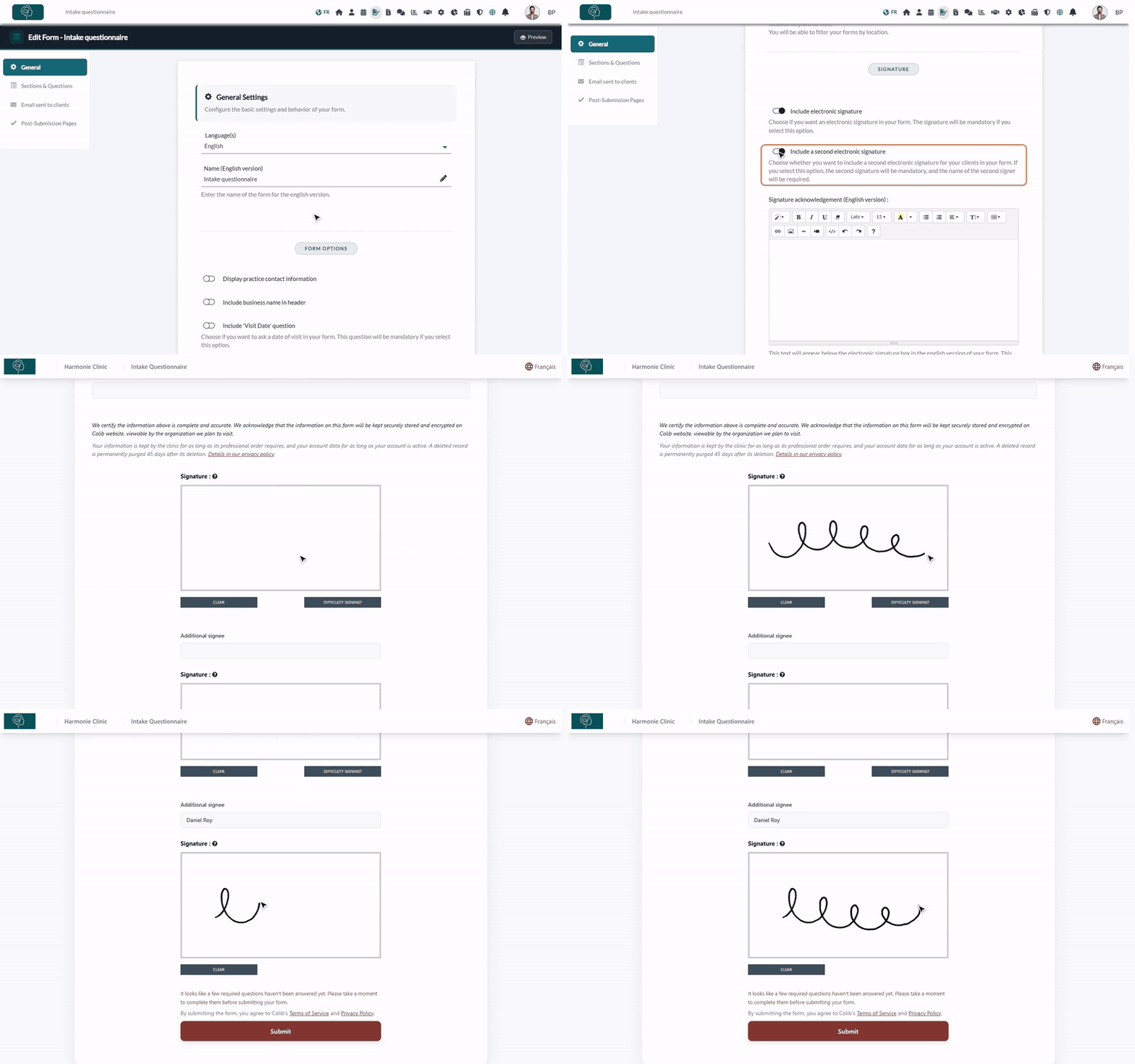
1Turn on the second signature
- Go to www.colib.io/forms and click the pencil icon (Edit) of the form. The editor opens on the General tab.
- Scroll down to the Signature section.
- Make sure Include electronic signature is turned on: the second signature option only appears when the form has a first signature.
- Turn on Include a second electronic signature.
- Click Save at the bottom of the tab.
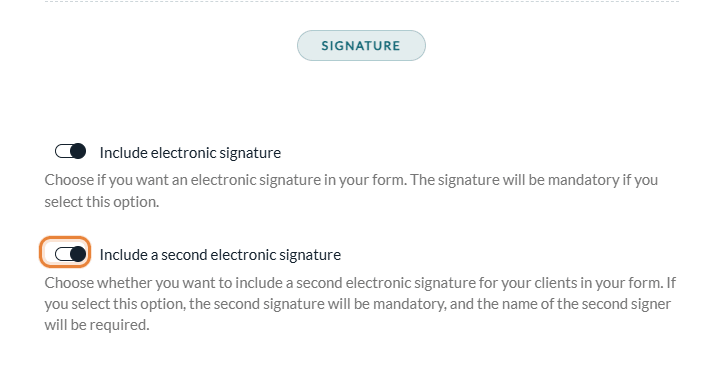
When the second signature is on, the option Ask the signee to enter their name disappears: with two signers, the name of the first signer is always the first name and last name entered at the top of the form, and the second signer types their name next to their signature.
2What the signers see
At the end of the form, after the questions:
- The acknowledgement is written in the plural: We certify the information above is complete and accurate...
- The first signature box, with the Clear and Difficulty Signing? buttons. It is meant for the person whose name is entered at the top of the form.
- An Additional signee field, where the second person types their full name.
- The second signature box, with a Clear button.
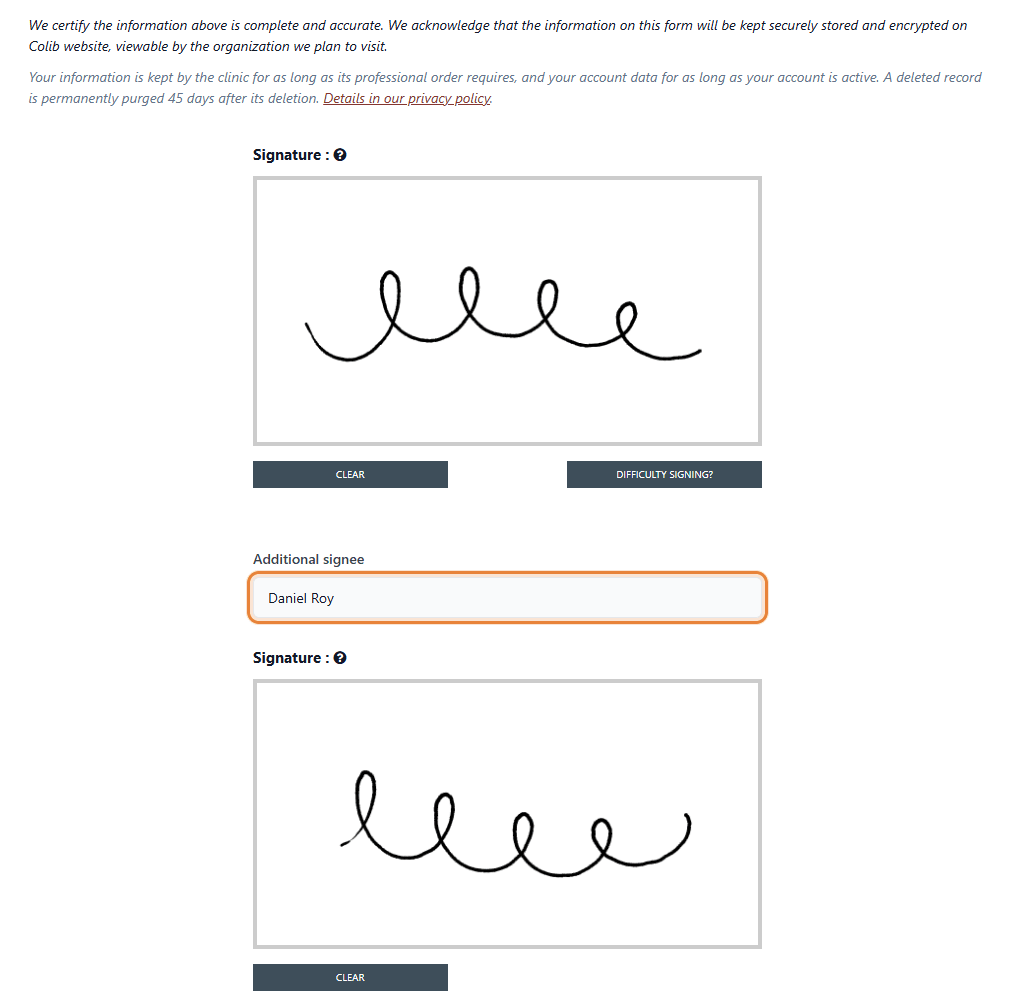
Both signatures and the name of the second signer are mandatory. If something is missing when the form is submitted, Colib shows Please sign the form. or Please enter the name of the second signee on the form. under the box concerned.
Each person draws their signature with the mouse, or with a finger on a phone or a tablet. To check the result, click Preview at the top right of the form editor.
3Find both signatures on the completed form
Once the form is submitted, open it from Forms > Results (www.colib.io/forms?show=results) or from the Forms tab of the client record, and download its PDF. At the bottom of the PDF, after the acknowledgement:
- the first signature, with the name entered at the top of the form and the date of signature;
- the second signature, with the name typed in Additional signee and the date.
See the article titled "How to download the PDF of a completed form" and How do I see forms results?
Second signature and countersignature
The countersignature is the signature of your practice, added after the client has signed (How to countersign a form). It is a different feature:
- A form with a second signature is completed directly: it does not wait for the countersignature of your practice, even when countersignature is turned on in Settings > Forms.
- If you need the client's signature and your practice's signature, keep a single client signature and use the countersignature.
When the second person cannot sign at the same time
The second signature is made on the same form as the first one, before it is submitted. If the two people are not together (for example separated parents), here are the possible solutions:
- One form per signer — keep a single signature on the form and send it to each person separately (each one needs their own client record with their email). Each person fills out and signs their own copy, and you get two completed forms. See How can I send the form to my clients?
- Someone else than the client signs alone — for example a parent for a young child: keep a single signature and turn on Ask the signee to enter their name, so that the signer types their own name. See the article titled "How to require a portal account or the signer's name to fill out a form".
- Forms for children — see How to collect child and guardian information in your intake forms.
Good to know
- Two signatures at most — a form cannot have a third signature on the client's side.
- Removing the signatures — turn off Include a second electronic signature first and save, then turn off Include electronic signature if the form must not be signed at all.
- Signature acknowledgement — the optional text of the Signature section is shown above the signatures, for example a consent statement for both parents.
- Changes apply right away — a form already sent and not completed yet shows the second signature the next time it is opened. Forms already completed do not change.
- Related articles — How can I build a new form from scratch?, the article titled "How to add a section to a form", the article titled "How to add a question to a form", the article titled "How to show a question based on the answer to another question", How to connect your client fields to your form questions.
Still have a question?
Write to us at support@colib.io, we will be happy to help.
Was this article helpful?
That’s Great!
Thank you for your feedback
Sorry! We couldn't be helpful
Thank you for your feedback
Feedback sent
We appreciate your effort and will try to fix the article