Who is this article for?
Every form your clients submit, or that you sent them, appears in the Results page of the Forms section, in your secure Colib space. From there you find a form, open its PDF, spot the risks, flag the forms to follow up, add notes, create the client record and export the results.
Before you start: to see the submitted forms, your email address must be confirmed and your subscription active (Colib shows a message if something is missing). What each team member can do depends on their access rights.
1Open the results
- Go to www.colib.io/forms?show=results. You can also click the Forms icon in the top bar: it opens the Results page directly (also available in the menu on the left).
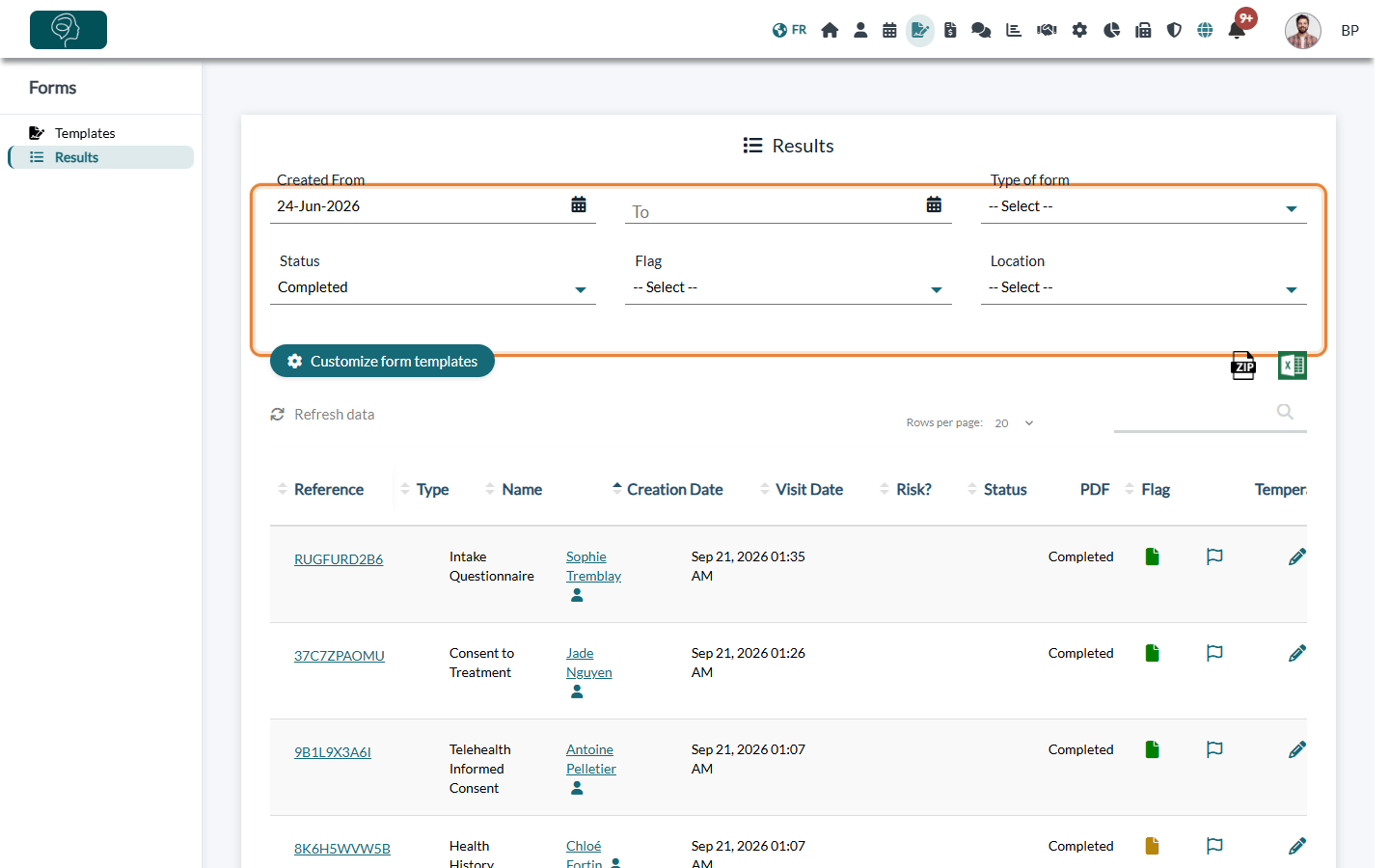
- Use the filters to narrow the list: Created From / To, Type of form, Status, Flag and, if your forms ask for a location, Location.
- To find a client or a reference, type it in the search box above the table. Refresh data reloads the list.
- To sort the results, click a column header, for example Visit Date to sort by visit date and time. Click it again to reverse the order.
2Read the table
| Column | What it shows |
|---|---|
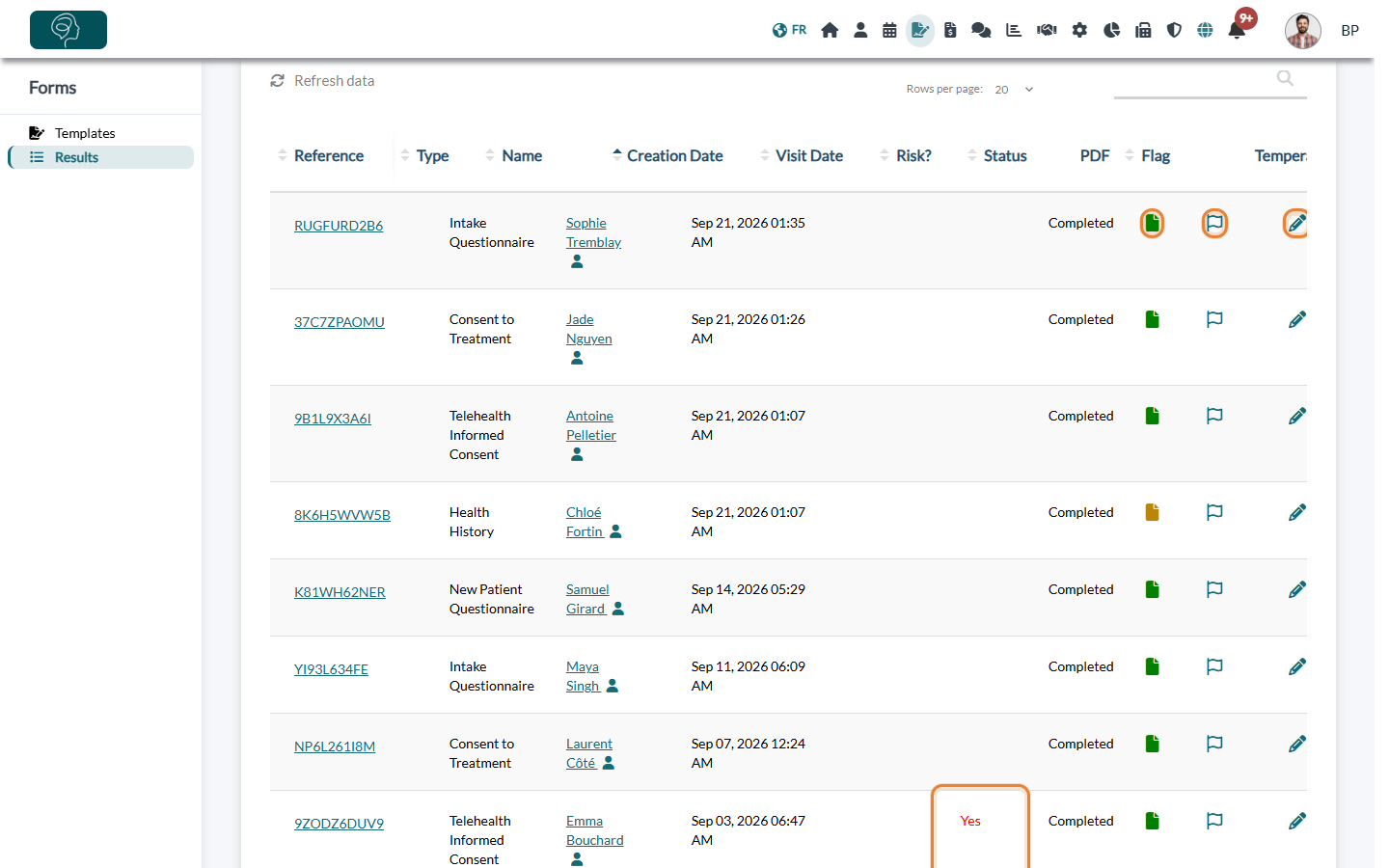
| Reference | The unique reference of the form. Click it to open the PDF. |
| Type | The name of the form. |
| Name | The person who filled out the form. When the form is linked to a client record, the name opens the record. Otherwise, an icon (Create a new client via the form.) creates the record from the answers. |
| Creation Date / Visit Date | When the form was created, and the visit date entered by the client if the form asks for it. |
| Risk? | Yes in red when an answer triggered an alert (questions with Send an alert). |
| Status | Where the form stands (see below). |
| Opens the completed form as a PDF. You can download it from the viewer, and print it if you need to. The icon is orange until someone in your practice has opened the form, then green. | |
| Flag | Marks the form, for example to follow up. Click again to remove the flag. |
| Pencil | Adds a note on the form for your team (Add a note.). |
| Temperature / Location | Only for forms that use the Temperature Testing or Multi-location options. |
| Trash | Deletes the form (administrators only). This cannot be undone. |
| Sign | Only when your practice countersigns forms: countersign the form (How to countersign a form?). |
| Status | Meaning |
|---|---|
| Scheduled | The email is scheduled for a later date. |
| Form Sent | The email with the form has been sent. |
| Email Opened | The client opened the email. |
| Form Opened | The client opened the form but has not submitted it yet. |
| Partially Signed | The client submitted the form; it is waiting for your countersignature. |
| Completed | The form is submitted and complete. |
3Export the results
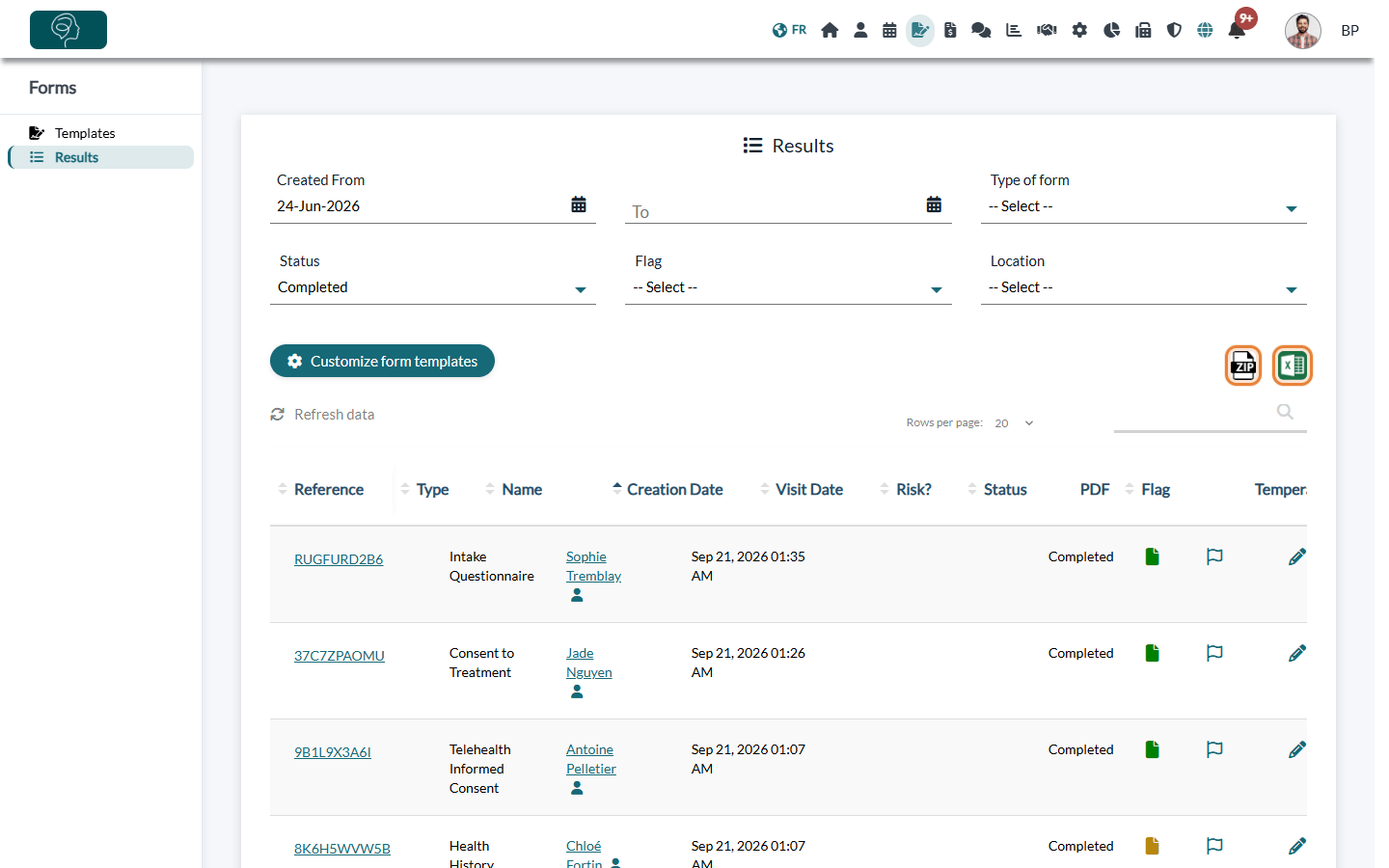
- The ZIP icon (Export PDFs) downloads the PDFs of the forms that match your filters, in a single file.
- The Excel icon (Export to Excel) exports the results that match your filters to a spreadsheet.
Important: exported files contain personal health information. Store them in a secure place and delete them from your computer once you no longer need them.
4Be notified when a form is completed
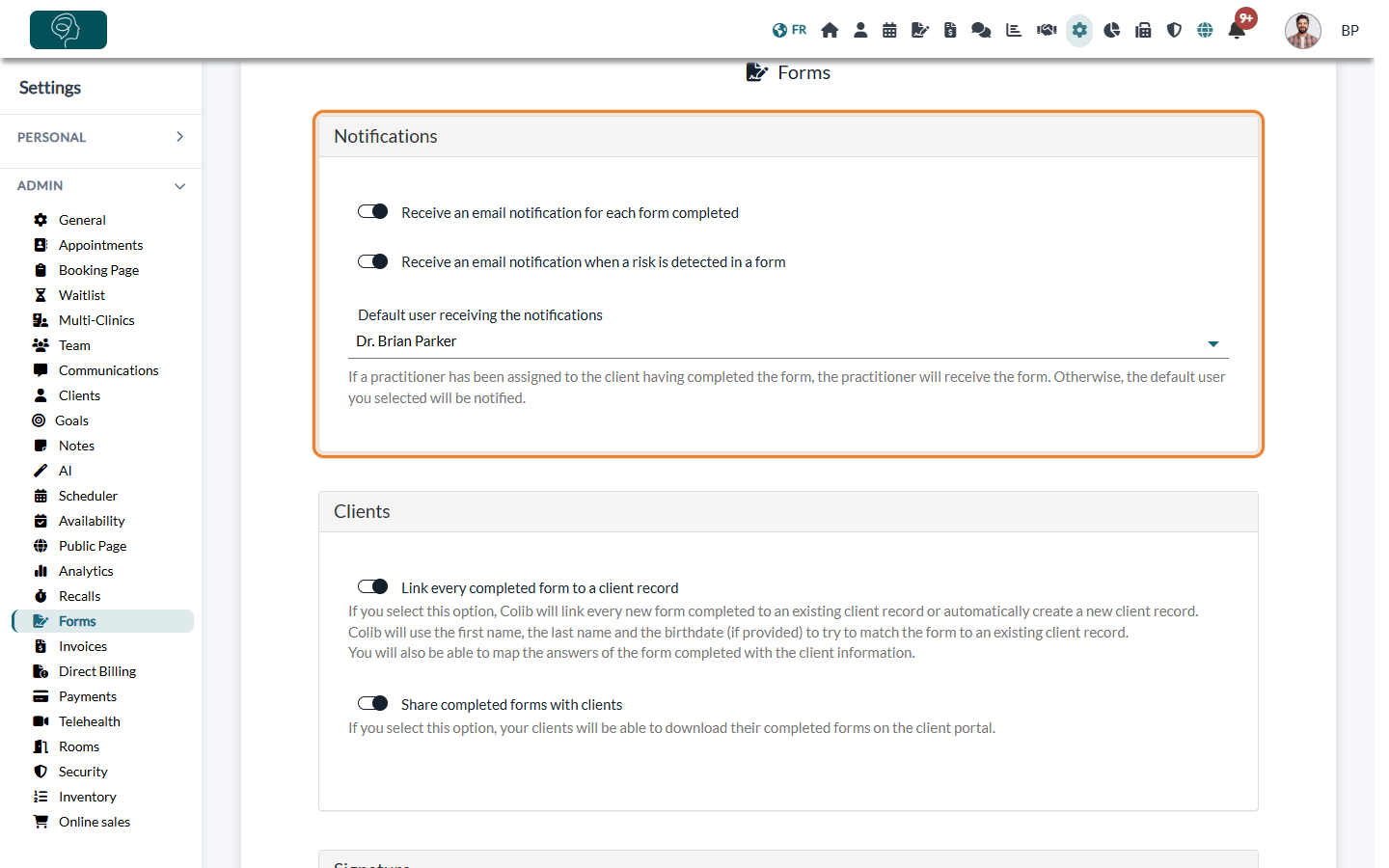
- Go to Settings > Forms (www.colib.io/settings?show=signature).
- In Notifications, turn on Receive an email notification for each form completed and/or Receive an email notification when a risk is detected in a form.
- Choose the Default user receiving the notifications. When the client has an assigned practitioner, that practitioner receives the notification instead.
- Click Save.
Good to know
- In the client record — the Forms tab of a client record lists all the forms of this client, with their status and PDF.
- Link forms to client records automatically — in Settings > Forms, Link every completed form to a client record links each completed form to the matching client record (first name, last name and date of birth if provided) or creates a new record.
- Share completed forms with clients — the option of the same name lets your clients download their completed forms from the client portal.
- Ephemeral forms — forms that use the Ephemeral form option are deleted 31 days after they are created in Colib (the day the form is sent, or the day the client submits it from the public link).
- Edit your templates — the Customize form templates button takes you back to your templates.
- Related articles — How can I send the form to my clients? / How to countersign a form?
Still have a question?
Write to us at support@colib.io, we will be happy to help.
Was this article helpful?
That’s Great!
Thank you for your feedback
Sorry! We couldn't be helpful
Thank you for your feedback
Feedback sent
We appreciate your effort and will try to fix the article