Who is this article for?
When a client submits a form, Colib keeps a PDF copy of it, with the answers and the signatures. You may need this PDF to print it, to file it elsewhere, or to send it to another professional.
This article shows the four places where you can get the PDF of a completed form: the Results page of the Forms section, the Export PDFs button (several forms at once), the Forms tab of the client record and, for your clients, the client portal.
Before you start: you need access to forms in your practice. A PDF is available once the client has submitted the form: forms that were only sent or opened have no PDF yet.
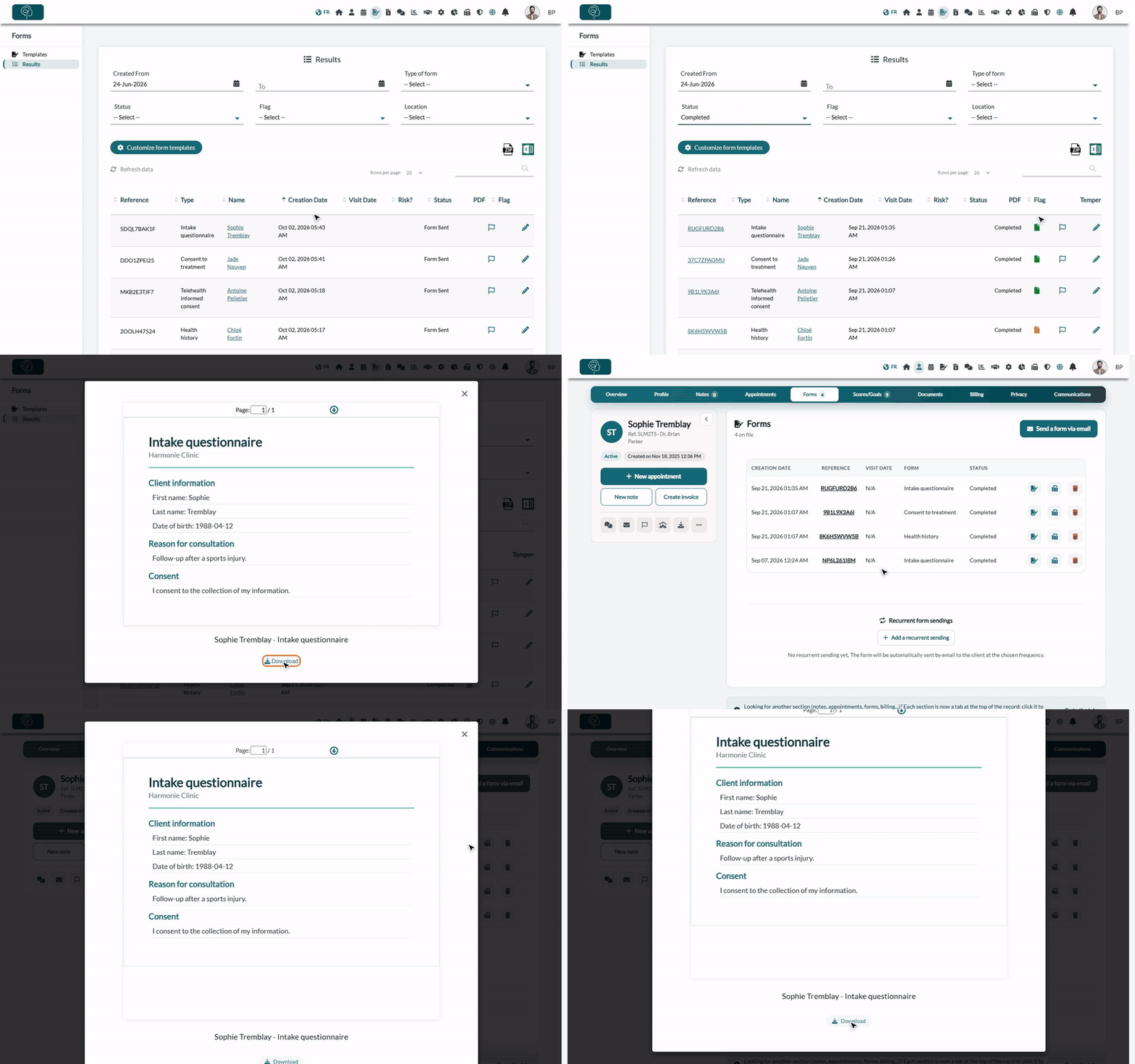
1Find the form in the Results page
- Go to www.colib.io/forms?show=results. You can also click the Forms icon in the top bar, then Results in the menu on the left.
- To find the form quickly, use the filters at the top: Created From / To, Type of form, Status (choose Completed) and Flag. You can also type a name or a reference in the search box above the table.
- In the PDF column, a file icon appears for each completed form. An orange icon means that nobody in your practice has opened the form yet; it turns green once it has been opened.
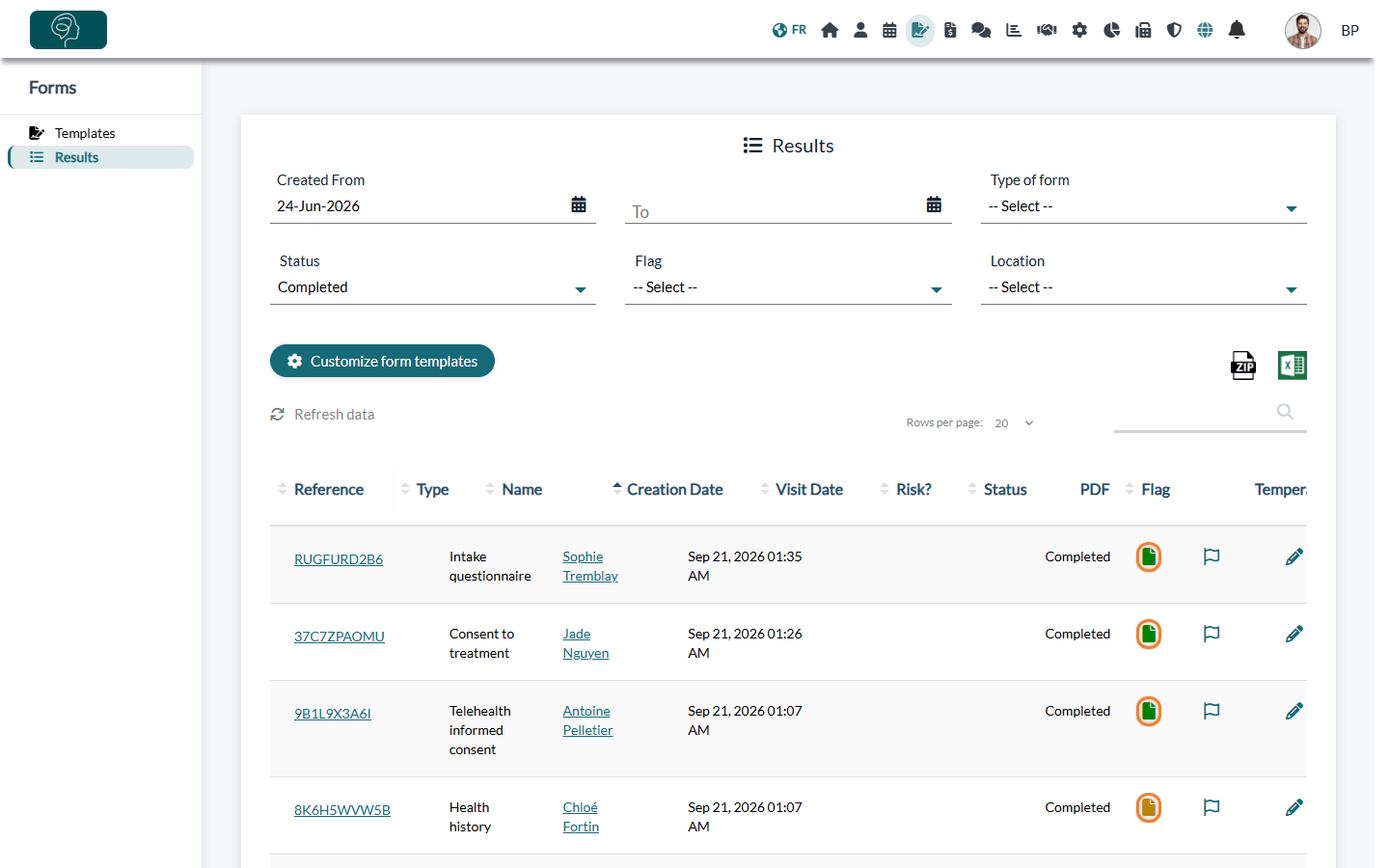
2Open and download the PDF
- Click the file icon in the PDF column. The form opens in a viewer; use Previous and Next to change pages when the form has several.
- Click Download under the document (or the download icon at the top of the viewer). The PDF is saved on your computer.
- To print it, open the downloaded file and use the print function of your PDF reader.
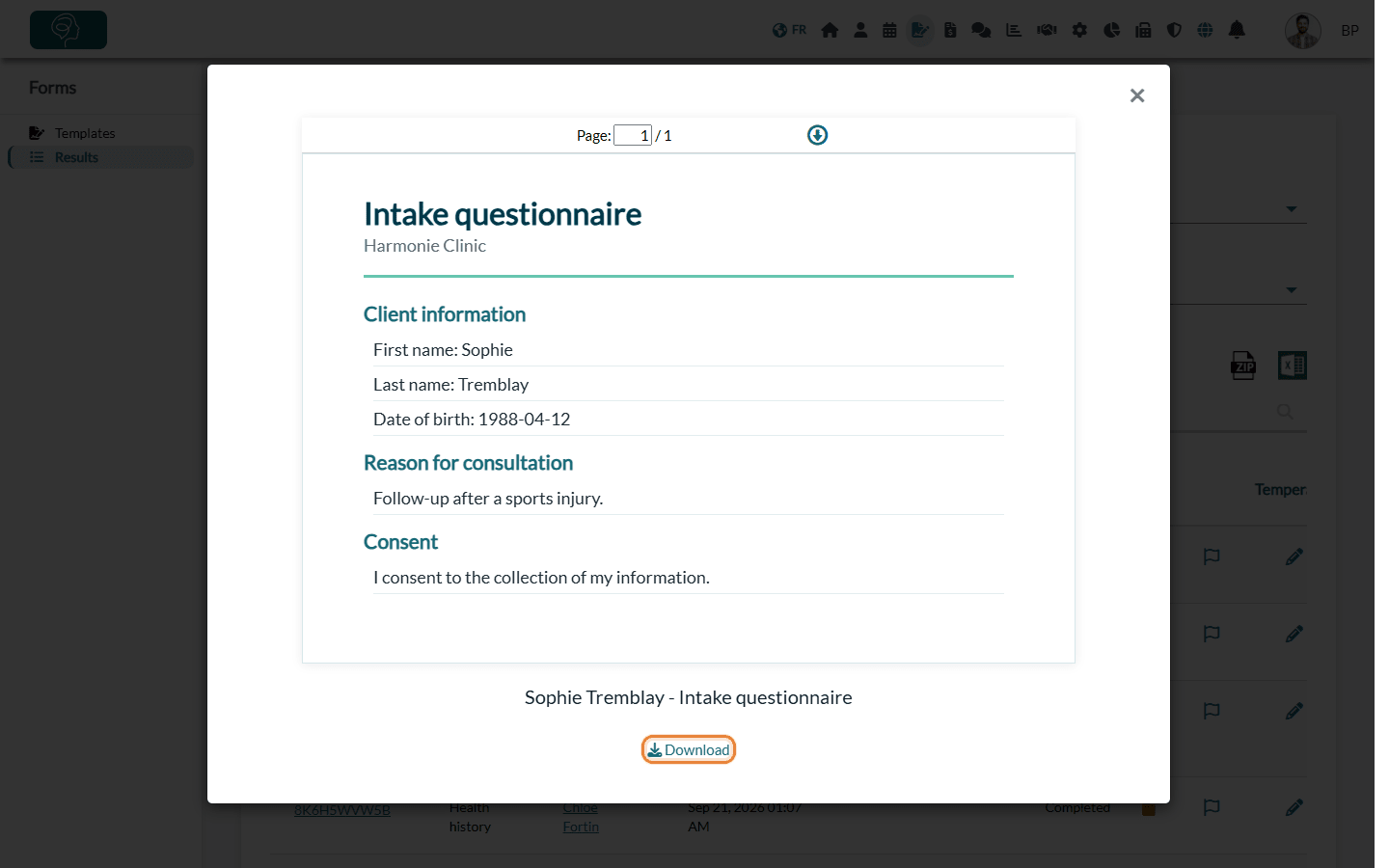
3Download several PDFs at once
The Export PDFs button (ZIP icon, above the table on the right) downloads in a single ZIP file the PDFs of all the forms that match your filters.
- In the Results page, set the filters to keep only the forms you want (for example, a type of form and a date range).
- Click the ZIP icon (Export PDFs).
- Open the ZIP file on your computer: it contains one PDF per completed or partially signed form, named with the date, the reference of the form, the client's name and the name of the form.
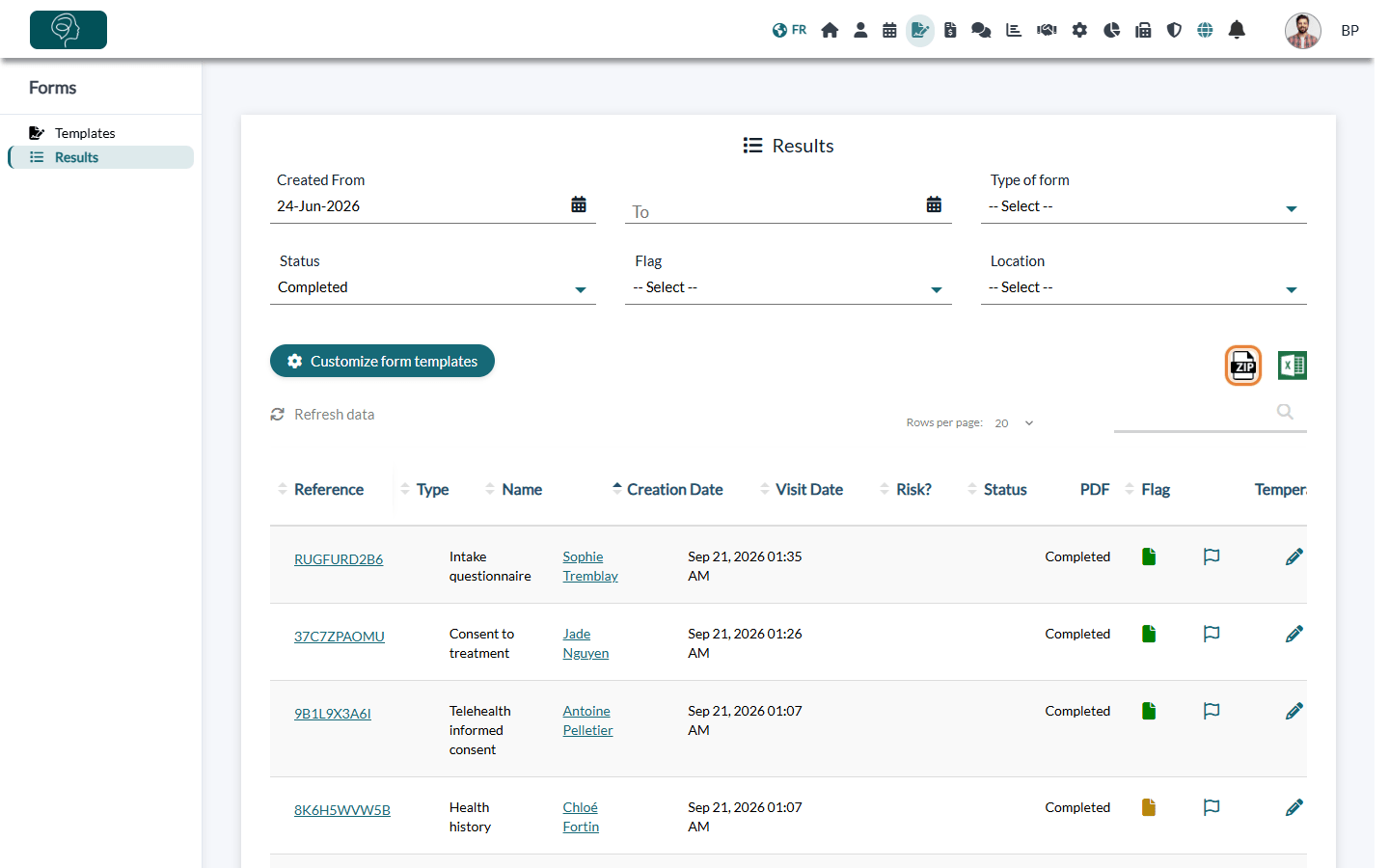
The Excel icon next to it (Export to Excel) exports the list of results, not the PDFs.
4From the client record
All the forms of a client are also gathered in their record.
- Open the client's record from your client list (www.colib.io/clients).
- Click the Forms tab. The table lists each form with its creation date, reference, visit date, name and status.
- Click the form icon on the row of a completed form: the same viewer opens, with the Download link.
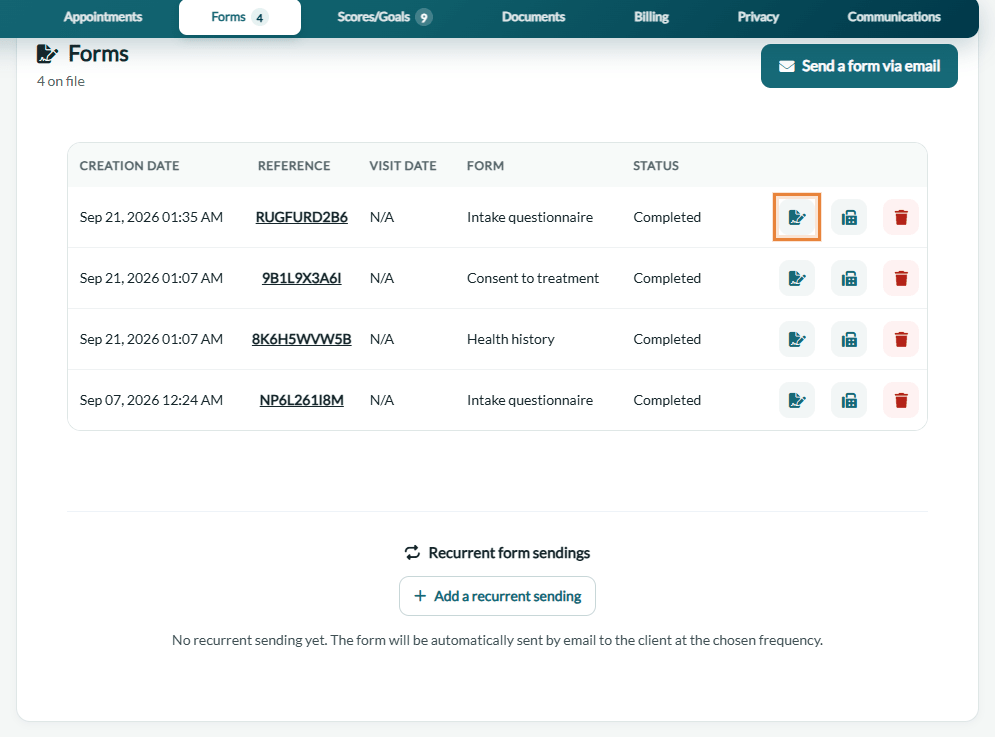
On the same row, the fax icon (Send by fax) sends the PDF by fax, and the reference opens the form in the Results page.
5Let your clients download their forms (optional)
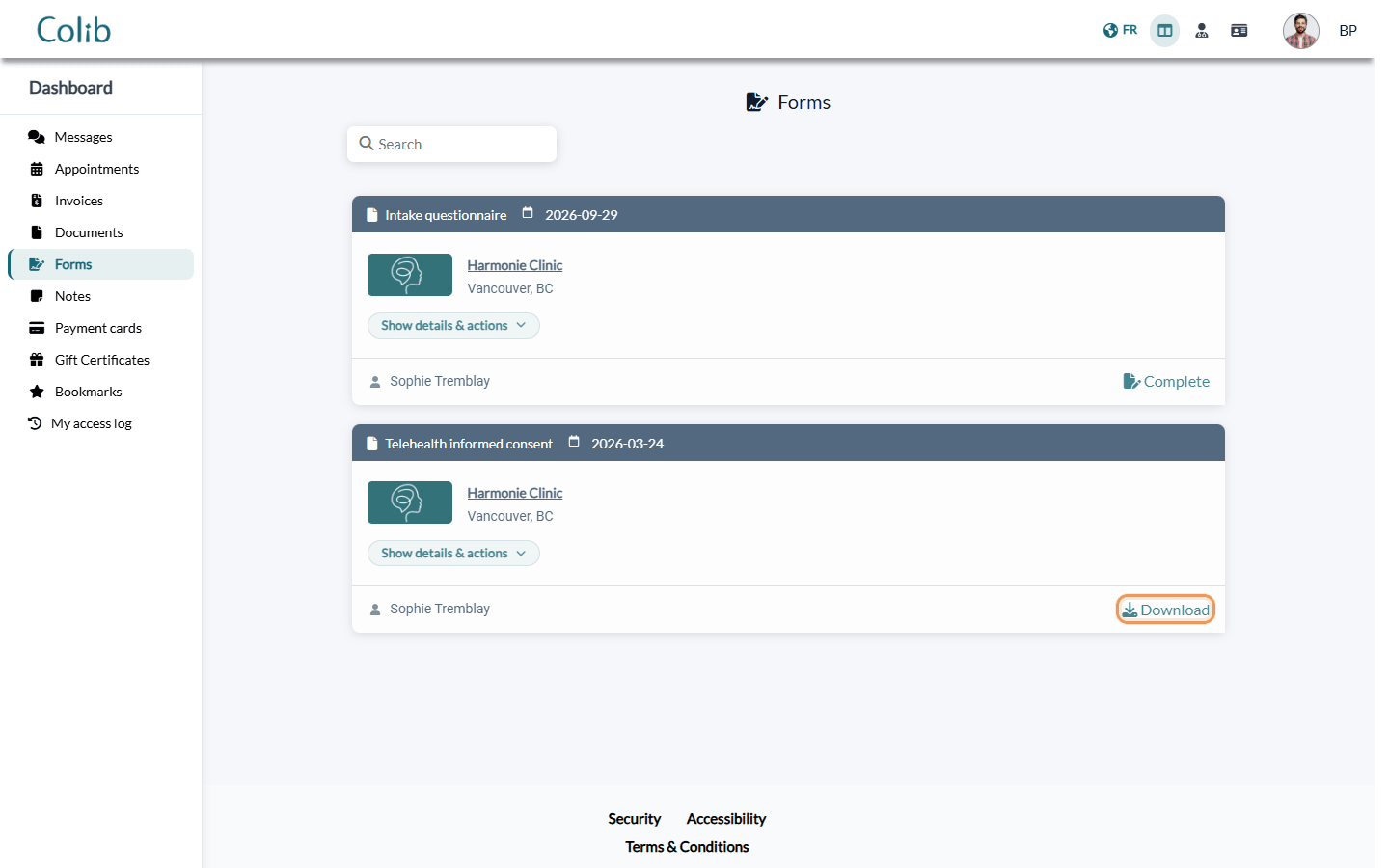
Your clients can download the PDF of the forms they completed from their client portal (portal.colib.io). You decide whether to offer it.
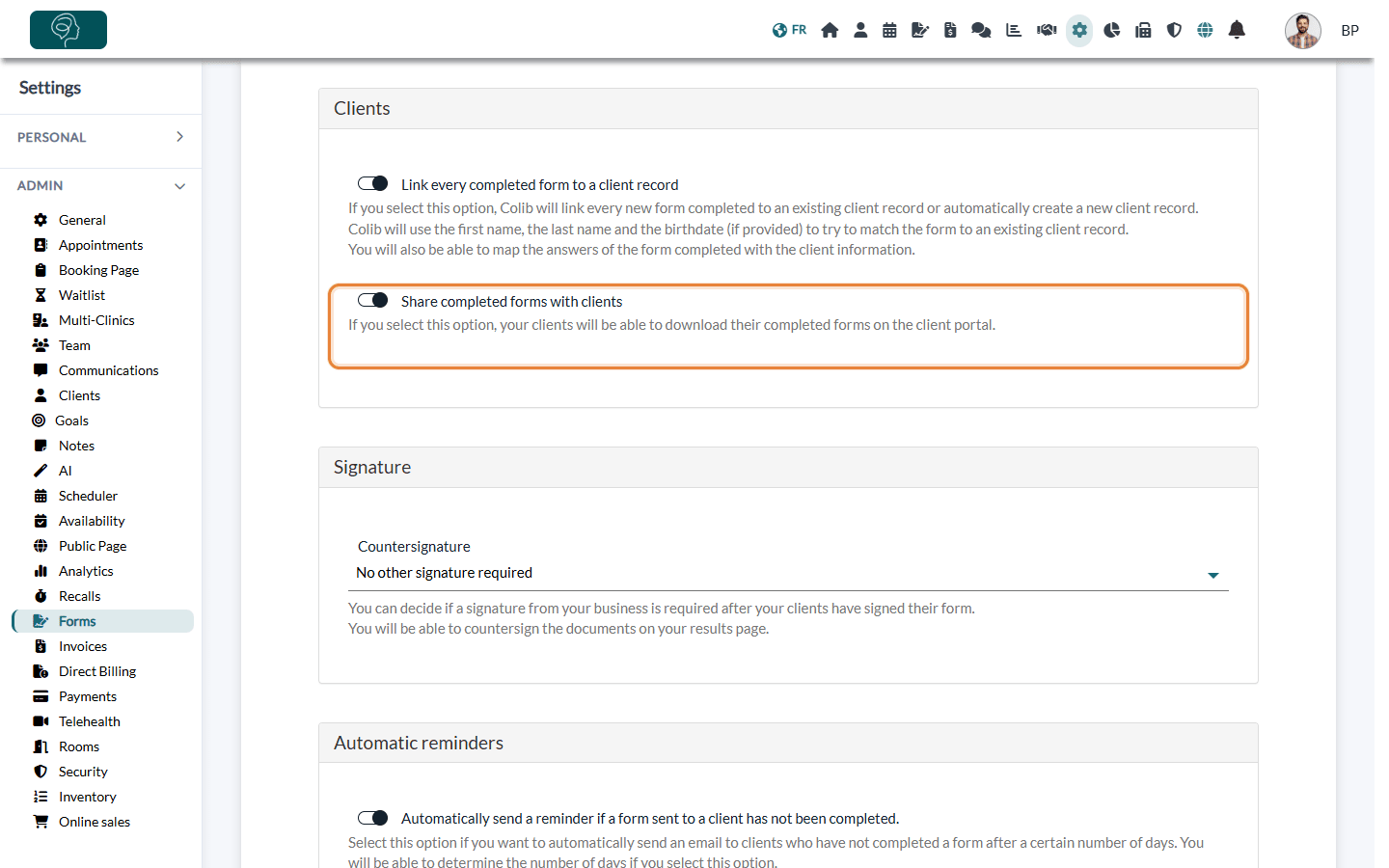
- Go to Settings > Forms (www.colib.io/settings?show=signature).
- In the Clients section, turn on Share completed forms with clients.
- Click Save at the bottom of the page.
In their portal, your clients open the Forms section: each completed form has a Download button, and the forms still to fill in have a Complete button.
Good to know
- Client portal — the client must have activated their portal account (confirmed their email address) to see their forms. If you have suspended a client's access to their record, their completed forms are no longer shown in the portal. A form waiting for your countersignature only appears for download once you have countersigned it.
- Countersigned forms — if your practice countersigns forms, see How to countersign a form.
- Everything about results — filters, flags, notes and risks are explained in How do I see forms results?
- Send a form — see How can I send the form to my clients?
Important: a downloaded PDF contains personal health information. Store it in a secure place and delete it from your computer once you no longer need it.
Still have a question?
Write to us at support@colib.io, we will be happy to help.
Was this article helpful?
That’s Great!
Thank you for your feedback
Sorry! We couldn't be helpful
Thank you for your feedback
Feedback sent
We appreciate your effort and will try to fix the article