Who is this article for?
Some answers in a form need your attention quickly: a client who reports suicidal thoughts, a severe allergy, a symptom that requires a call before the appointment. With the Send an alert option, Colib flags the completed form as risky as soon as one of these answers is given, and can send you an email.
This article explains how to choose the questions that trigger an alert, who receives the email, and where you see the forms flagged as risky.
Before you start: you need access to the forms (www.colib.io/forms) to edit a form, and to the practice settings to change the email notifications.
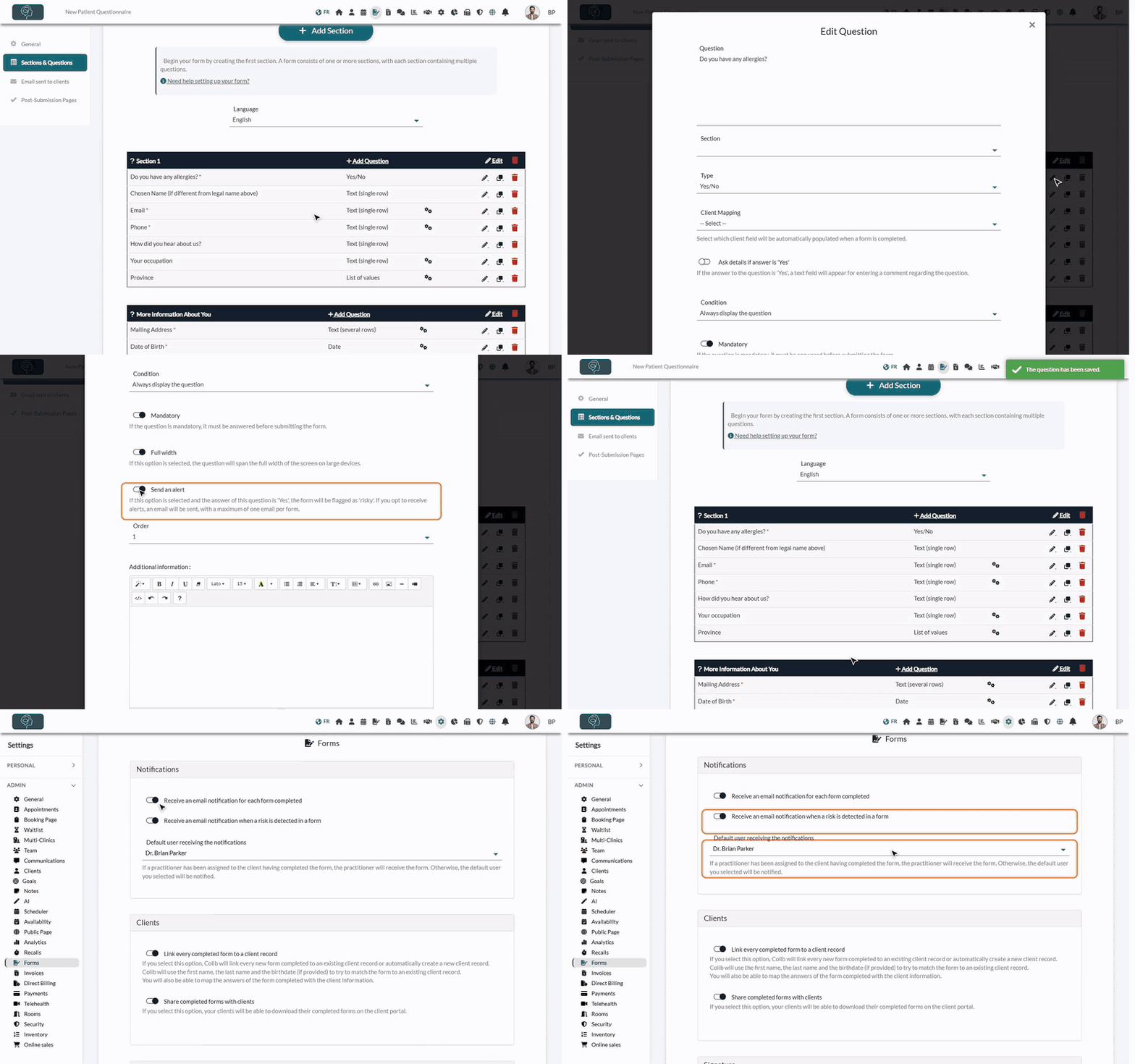
1Choose the questions that trigger an alert
- Go to www.colib.io/forms and open the form to edit.
- Click the Sections & Questions tab.
- Click the pencil icon of the question to watch (or create a new question with Add Question).
- Turn on Send an alert.
- Click Save. Repeat for each question that should trigger an alert.
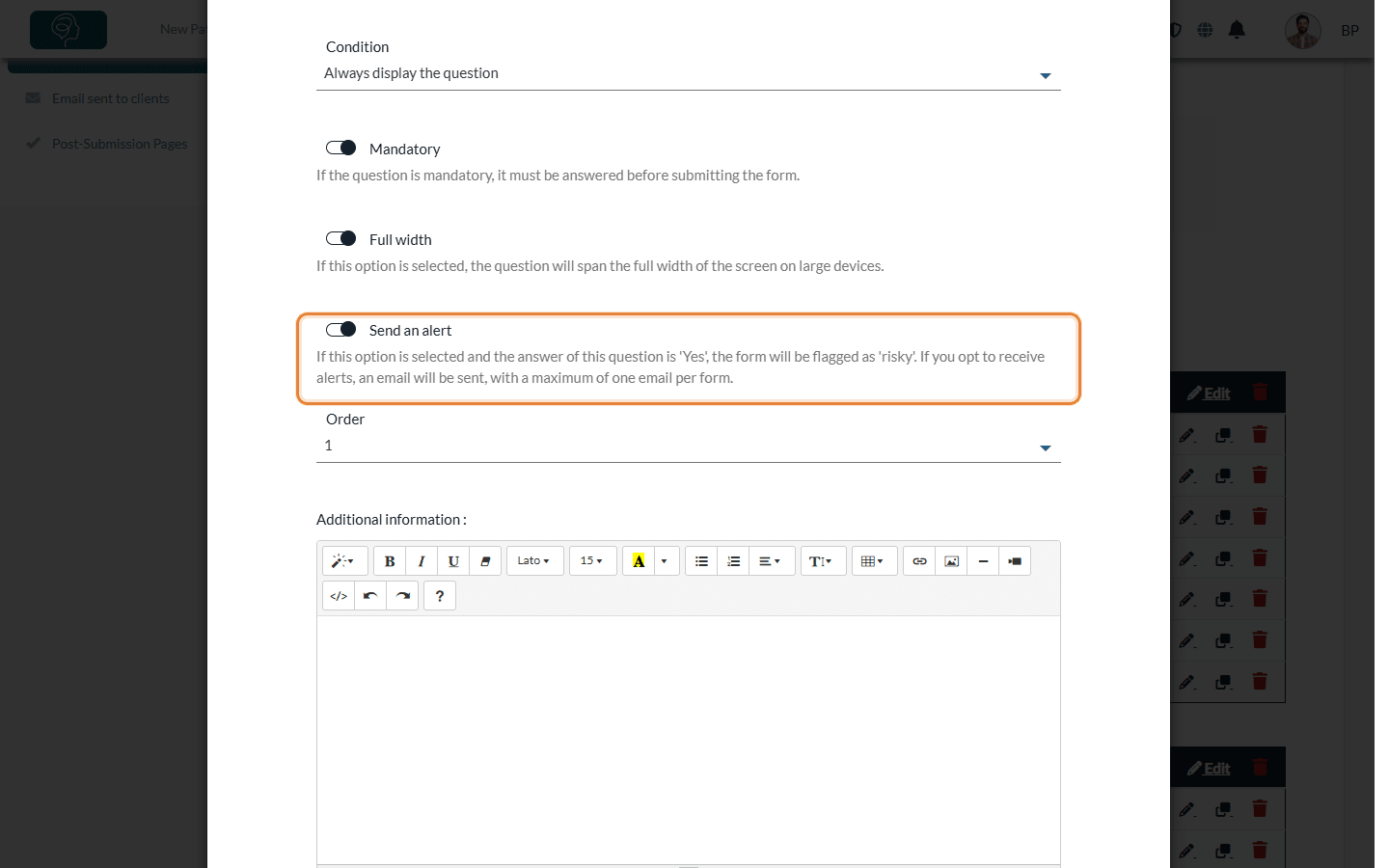
What counts as a risk depends on the type of question:
| Type of question | The form is flagged as risky when... |
|---|---|
| Yes/No | the client answers Yes. |
| All the other types (text, date, list of values, multi selection list) | the client answers the question (any answer). Use it for an optional question such as List any allergies: an empty answer triggers nothing. |
Tip: phrase your Yes/No questions so that Yes is the answer that needs your attention (for example, Do you have a severe allergy?). A question hidden by a display condition is not taken into account.
2Turn on the email alert
- Go to Settings > Forms (www.colib.io/settings?show=signature).
- Open the Notifications section.
- Turn on Receive an email notification when a risk is detected in a form.
- Choose the Default user receiving the notifications.
- Click Save at the bottom of the page.
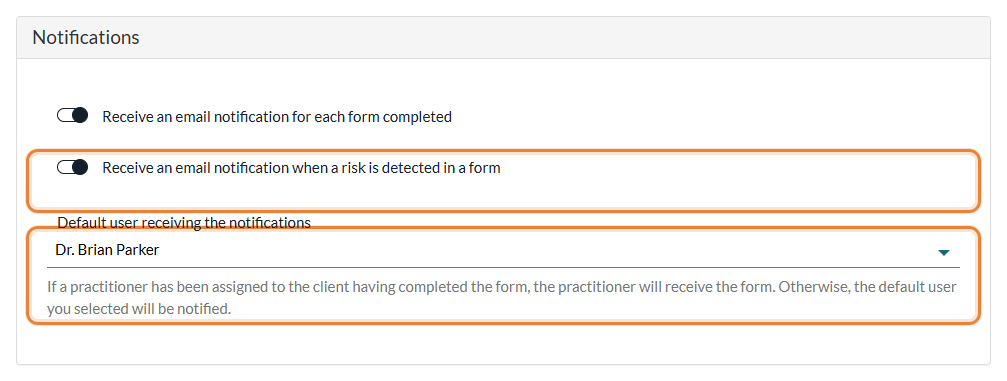
Who receives the email:
- the practitioner assigned to the client who completed the form, when there is one;
- otherwise, for a form that uses the Multi-location option, the alert email entered for the location chosen by the client (How do Colib forms work for multiple locations?);
- otherwise, the default user chosen above.
You receive at most one email per form, even when several answers are risky. The email says that a risk was detected and gives the reference of the form with a link to it: it contains no answer and no health information, so you sign in to Colib to read the form.
3Find the forms flagged as risky
- Go to Forms > Results (www.colib.io/forms?show=results), or click the link in the email.
- Look at the Risk? column: Yes (in red) means that at least one alert question was triggered, No that none was. The column stays empty for forms that have no alert question.
- Click the PDF icon to read the form: the risky answers are written in red.
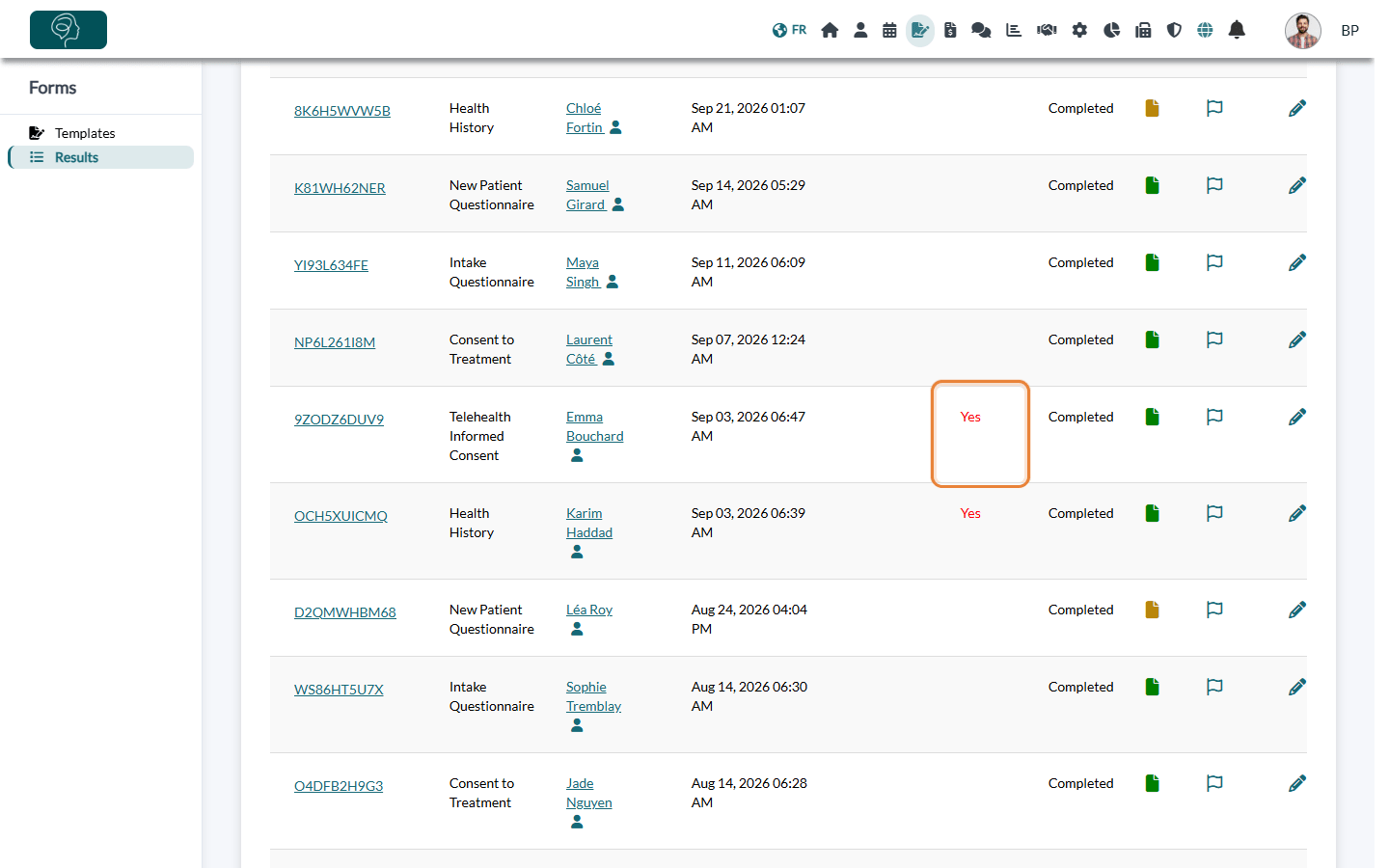
To follow up, you can flag the form and add a note on its row. Everything about the Results page is explained in How do I see forms results?
4Adapt the message the client sees (optional)
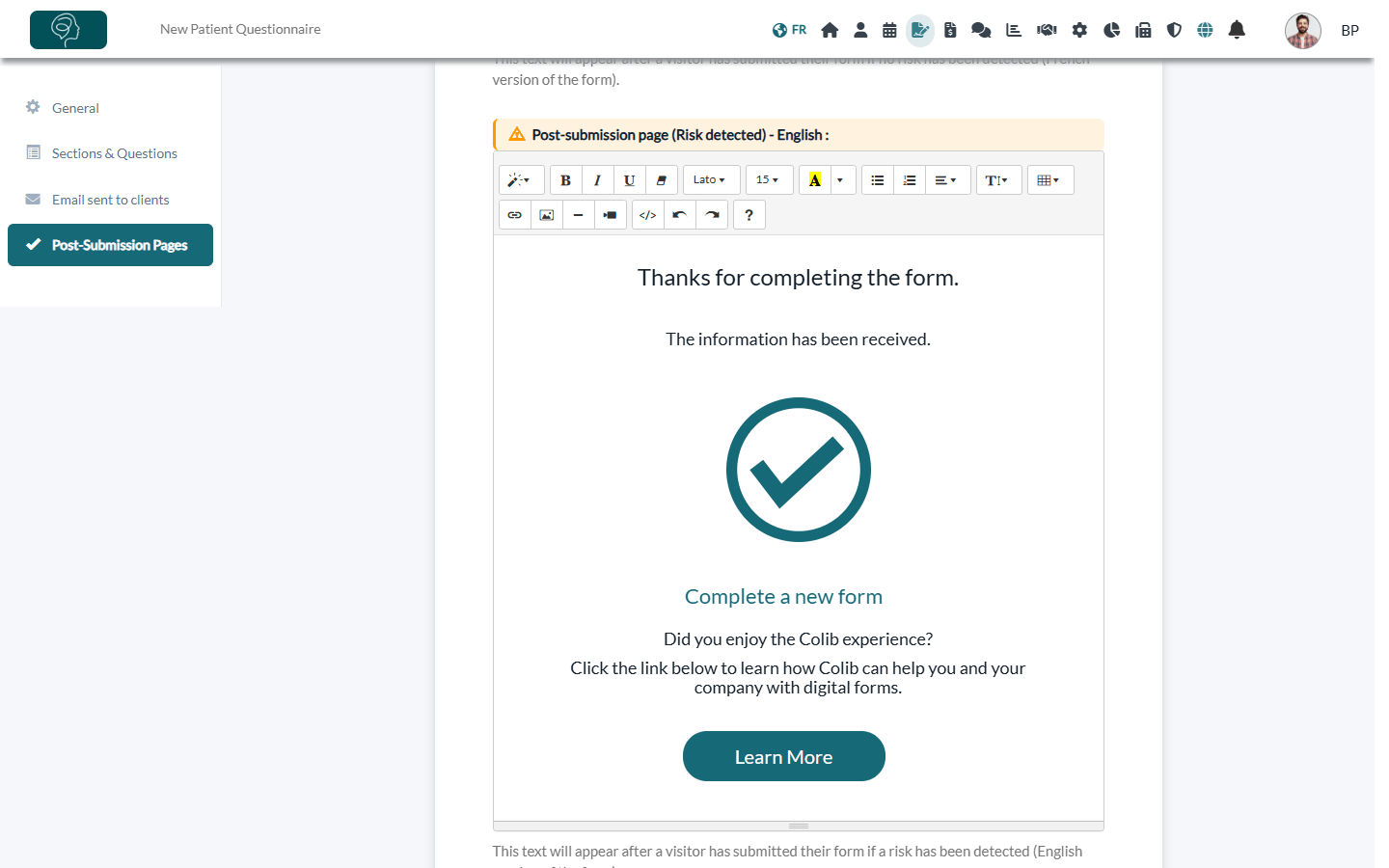
After submitting, the client sees a confirmation page. When a risk is detected, Colib shows a different page that you can write yourself, for example with an emergency phone number or a crisis line.
- Open the form and click the Post-Submission Pages tab.
- Edit the Post-submission page (Risk detected), in each language of the form.
- Click Save.
Good to know
- An email for every form — the option Receive an email notification for each form completed, in the same section, sends an email for every form, risky or not. Turn on only the risk alert if you want fewer emails.
- Without the email — even when the email alert is turned off, risky forms are still flagged in the Risk? column and the risky answers are in red in the PDF.
- Build or edit a form — see How can I build a new form from scratch? and How to edit an existing form
Important: an alert depends on the answers the client chooses to give and on your email being read. It does not replace your emergency procedures: make sure your clients know whom to contact in an emergency (you can say it on the Risk detected page).
Still have a question?
Write to us at support@colib.io, we will be happy to help.
Was this article helpful?
That’s Great!
Thank you for your feedback
Sorry! We couldn't be helpful
Thank you for your feedback
Feedback sent
We appreciate your effort and will try to fix the article