Who is this article for?
You want new clients to leave a credit card on file when they fill out your intake form, so that you can charge a session, a late cancellation or a no-show later. The Add payment information section option adds the card fields at the end of the form: the client cannot submit the form without entering a card.
This article explains how to turn the option on, what the client sees and where the card is saved.
Before you start: online payments must be activated for your practice, otherwise the card cannot be saved. See How do I activate the online payment system on Colib?
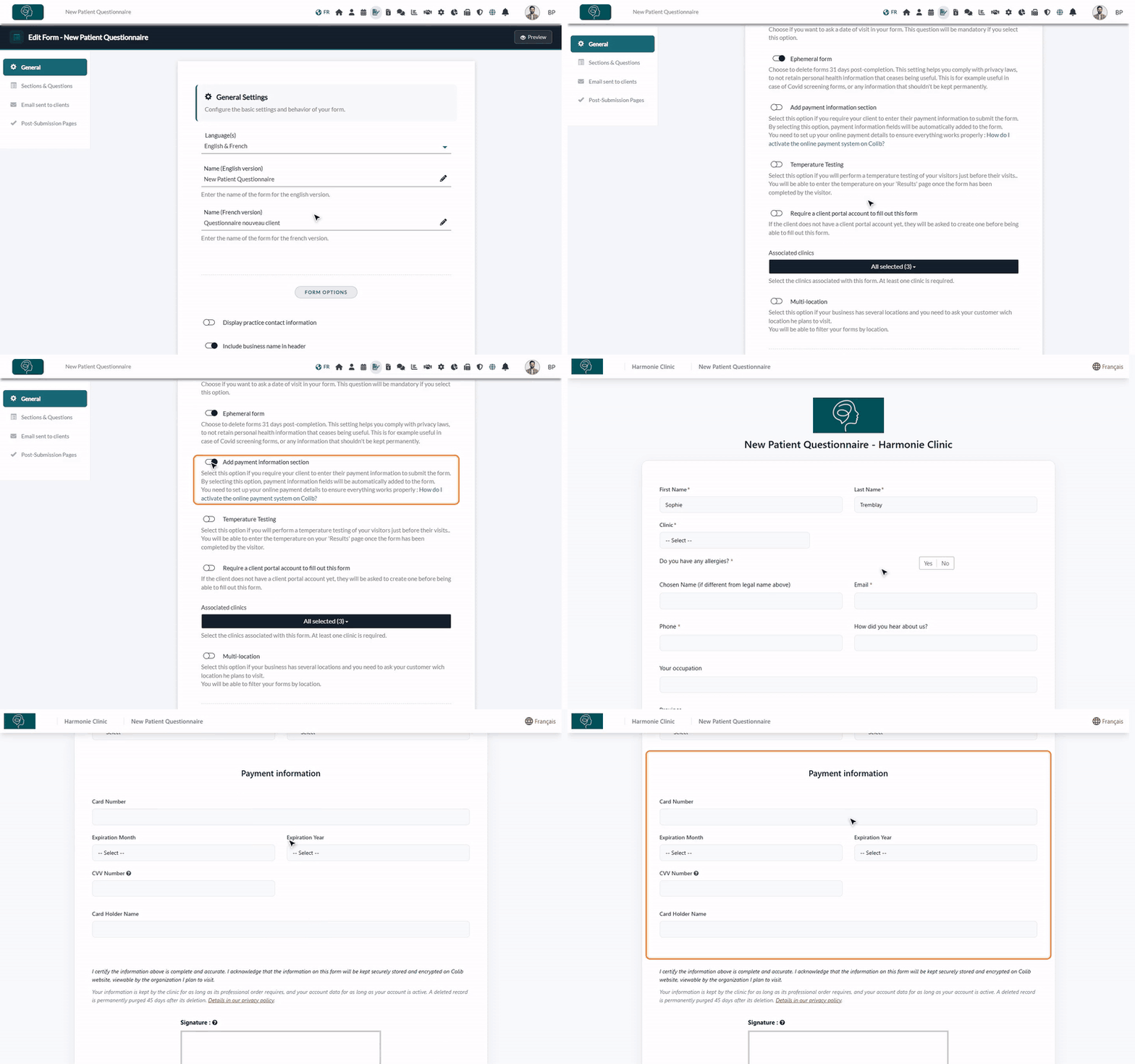
1Turn on the payment section
- Go to www.colib.io/forms and open the form to edit (or create a new one).
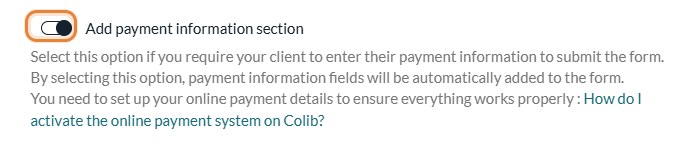
- In the General tab, under Form options, turn on Add payment information section.
- Click Save at the bottom of the tab.
2Check what your clients see
Click Preview at the top right of the form editor. A Payment information section now appears after the questions, before the signature, with these fields:
- Card Number
- Expiration Month and Expiration Year
- CVV Number (the 3 or 4 digits on the back of the card)
- Card Holder Name
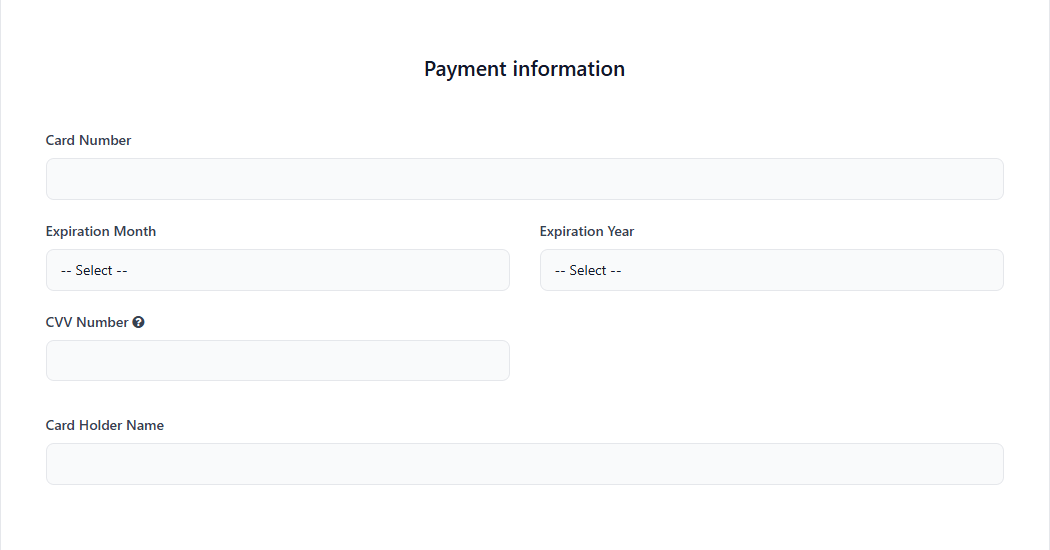
All these fields are mandatory. If the card is refused, the client sees an error message and the form is not submitted: they can correct the card and submit again.
3Find the card in the client record
When the form is submitted, Colib links it to the client record: it finds the existing client or creates a new one, even if the Link every completed form to a client record setting is turned off. The card is then saved in that record.
- Open the client's record from your client list (www.colib.io/clients).
- Click the Billing tab: the card is listed in Payment Cards.
The card is not charged when the form is submitted. You charge it later, when you need to: How to charge a client's saved credit card.
For a form that collects the information of a child and of a parent or guardian, the card is added to both records (How to collect child and guardian information in your intake forms).
Good to know
- Tell your clients why — add a sentence in a section of the form (for example, your cancellation policy) to explain why you ask for a card and when it may be charged.
- Other ways to collect a card — you can also send a request to an existing client: How to request a client to enter their payment information.
- Turn it off — turn the option off and save: the section disappears from the form. Cards already saved stay in the client records.
- Send the form — see How can I send the form to my clients?
Still have a question?
Write to us at support@colib.io, we will be happy to help.
Was this article helpful?
That’s Great!
Thank you for your feedback
Sorry! We couldn't be helpful
Thank you for your feedback
Feedback sent
We appreciate your effort and will try to fix the article