Who is this article for?
You want to have your clients' credit card on file, so that you can charge their appointments, no-shows or late cancellations without asking them each time. Colib offers several ways to collect a card: on your booking page, through your appointment types, in a form, by email from the client record, or directly in the client portal.
This article gives you an overview of each option, where to turn it on and what the client sees, so that you can choose the one that suits your practice.
In short: every option saves the card in the same place, the Payment Cards of the client record. Collecting a card does not charge the client, except with Charge upon booking, which charges the appointment as soon as the client books online.
The options at a glance
| Option | Where to turn it on | When the client gives the card | Charged right away? |
|---|---|---|---|
| 1. Booking page | Settings > Booking Page | When booking online | No |
| 2. Charge upon booking | Each appointment type | When booking online | Yes, the price of the appointment |
| 3. Link in the appointment emails | Each appointment type | From the confirmation or reminder email of an appointment | No |
| 4. Form | Each form | When submitting the form | No |
| 5. Request by email | Client record, one client at a time | From the email you send | No |
| 6. You enter the card | Client record | The client gives it to you | No |
| 7. Client portal | Nothing to turn on | At any time, in the client's portal | No |
Before you start: activate online payments
All these options need the card payment system provided by Colib (payments are processed by Stripe).
- Go to Settings > Payments (www.colib.io/settings?show=payment).
- In Online payments, turn on Use the card payment system provided by Colib and follow the steps.
- Wait until your information is validated: a green check mark appears next to Online payments.
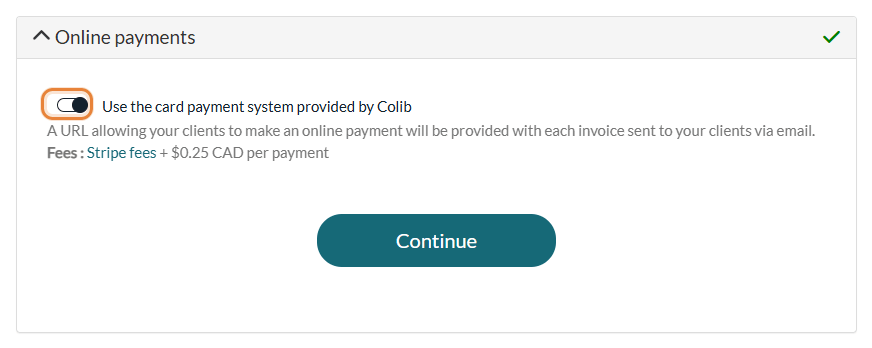
For details, see How do I activate the online payment system on Colib?
1. Collect the card on your booking page
Best when your clients book online: every new client leaves a card when booking.
- Go to Settings > Booking Page (www.colib.io/settings?show=bookingpage).
- Check that the Client booking type is Online booking by client: the option is only offered with this booking type.
- Under Payment, turn on Collect the client's payment information during the booking process.
- Optionally, write a Payment information text (for example, your cancellation policy). It is shown to clients on the screen where they enter their card.
- Save your settings.

During the booking, the client sees that your practice needs to collect their payment information before the appointment, and that they will not be charged at the time of booking. The card step is skipped when:
- the client already has an active card on file;
- the appointment is covered by a gift certificate;
- the appointment type has the No credit card required option (useful for a free discovery call, see option 2).
If online payments are not activated, the card step simply does not appear on your booking page. See How do I collect my client's credit card information during the booking process?
2. Charge when booking, or exempt a type: the appointment type options
Three options of each appointment type are about the card. They are in Settings > Appointments (www.colib.io/settings?show=appointments): click the pencil icon of the type, then open the Invoicing section.
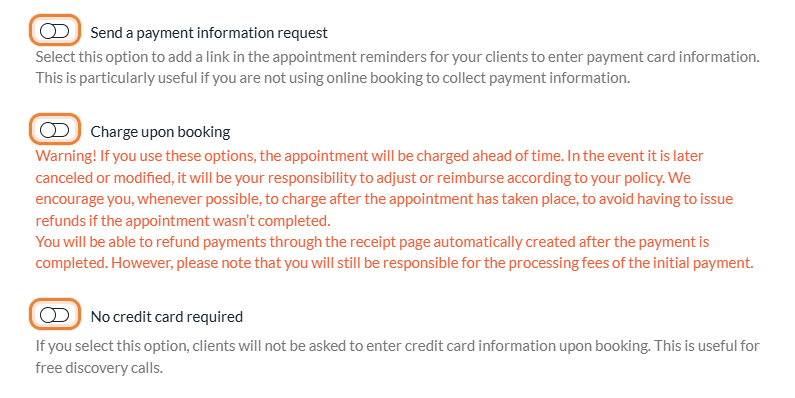
- Charge upon booking — the client enters a card when booking online and is charged the price of the appointment type (taxes included) as soon as the booking is confirmed. An invoice marked as paid is created and the receipt is emailed to the client. The client enters a card for each booking, even if one is already on file. Only types with a price are charged. See How to Charge Clients Automatically During Online Booking?
- No credit card required — clients booking this type online are not asked for a card, even if your booking page collects cards. If Charge upon booking is also on, the charge wins and the card is requested.
- Send a payment information request — see option 3 below.
Charge upon booking and No credit card required only appear when your booking page collects payment information (option 1) and the type is available for online booking (Available for client booking and waitlist). Send a payment information request only appears once online payments are turned on.
Important: with Charge upon booking, the appointment is paid in advance. If it is cancelled or changed later, nothing is refunded automatically: it is up to you to refund or adjust according to your policy.
3. Add a link to the appointment emails
Useful when you book the appointments yourself and do not use online booking to collect cards.
- In the appointment type (Settings > Appointments, pencil icon, Invoicing section), turn on Send a payment information request.
- Save the appointment type.
The confirmation email and the reminders of the appointments of this type then contain an Add my payment information link. It is not a separate email. The link only appears while the client has no active card on file: once a card is saved, it disappears from the next emails.
4. Ask for the card in a form
Useful for an intake form or an appointment request form that new clients fill out before their first visit.
- Open your form in the form editor from Forms (www.colib.io/forms).
- In the General tab, turn on Add payment information section.
- Save the form.
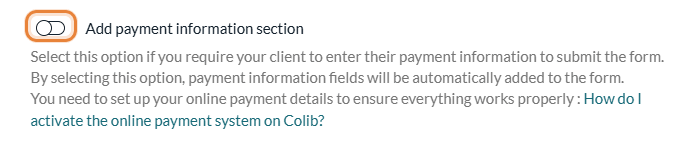
A Payment information section (card number, expiry date, CVV and cardholder name) is added to the form. These fields are mandatory: the client must enter a card to submit the form. The card is saved on the client's record. If online payments are not set up, the client gets an error message when submitting, so activate them first. For more on building forms, see How can I build a new form from scratch?
5. Send a request by email from the client record
For an existing client who has no card on file.
- Open the client's record from www.colib.io/clients.
- Click the Billing tab, then Payment Cards.
- Click Request payment info and confirm.
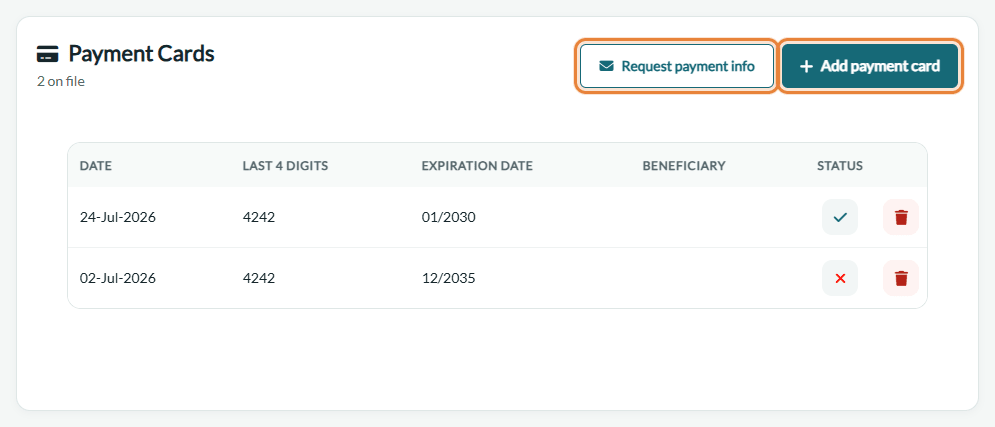
The client receives an email with a link to a secure page where they enter their card, without signing in. You receive a notification in Colib once the card is saved. The client needs an email address in their record. See How to Request a Client to Enter Their Payment Information?
6. Enter the card yourself
If the client gives you their card details (in person, for example), click Add payment card in the same Payment Cards section of the client record, then enter the card. You need the right to edit the financial information of clients.
7. The client adds the card in the client portal
Your clients can save a card themselves at any time: they sign in to the client portal (portal.colib.io), open Payment cards and click Add card. The button only appears once your online payments are activated and validated, and the client must have confirmed their email address. The card is then available in their record at your practice. To guide them, you can share the article titled "How do I manage my payment cards on the client portal?".
Where to find the card, and what to do with it
- In the client record — every saved card appears in Billing > Payment Cards, with its date, its last 4 digits, its expiration date and its status. The full card number is never shown in Colib.
- Charge an invoice — see How to charge a client after having collected their payment information?
- No-shows and late cancellations — see How to charge no shows and late cancellation appointments?
Good to know
- Which option should I choose? — online booking: option 1, plus option 2 for the types to be paid in advance. Appointments booked by your team: option 3, or option 5 for a given client. New clients who fill out a form first: option 4.
- Several clinics — a clinic can have Disable online payments for this clinic turned on (Settings > Multi-Clinics, clinic window, Invoicing section). For the clients whose main clinic is that clinic, the Payment Cards section of the client record and its buttons are hidden, the link of option 3 is not added to the emails, and the request page of option 5 cannot be opened. The card step of the booking page, Charge upon booking, the form section and the client portal follow the settings of the whole practice.
Still have a question?
Write to us at support@colib.io, we will be happy to help.
Was this article helpful?
That’s Great!
Thank you for your feedback
Sorry! We couldn't be helpful
Thank you for your feedback
Feedback sent
We appreciate your effort and will try to fix the article