Who is this article for?
You want clients who book online to pay for their appointment right away, instead of paying after the session? With Charge upon booking, Colib charges the client's card as soon as they confirm their booking, and emails them the receipt.
This article explains the three settings to check, what your clients see, what to do if an appointment is cancelled, and the other way to protect your time: keeping a card on file and charging late cancellations and no-shows.
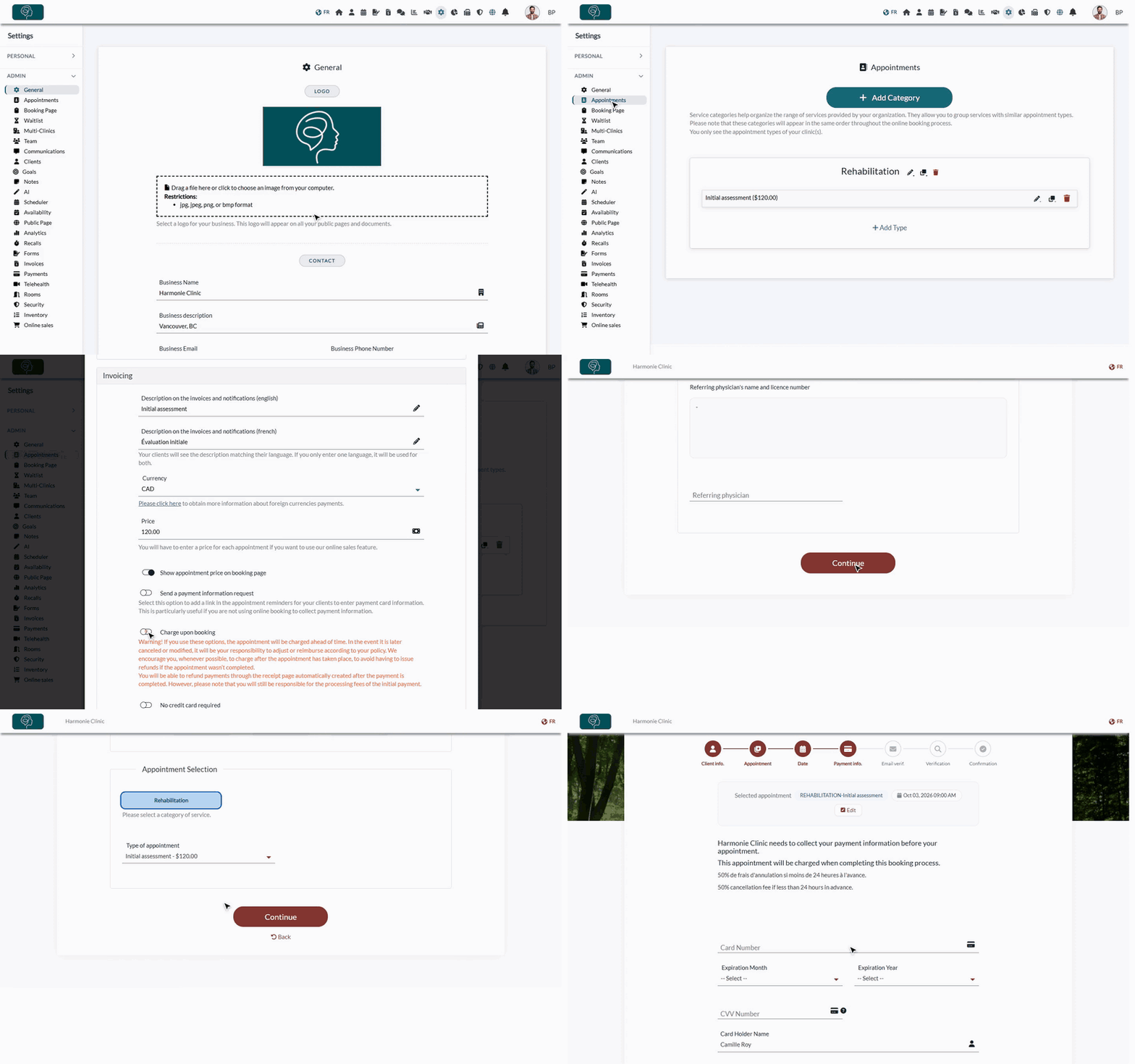
1Activate online payments
Charging a card requires the card payment system provided by Colib.
- Go to Settings > Payments (www.colib.io/settings?show=payment).
- In Online payments, turn on Use the card payment system provided by Colib and follow the steps.
- Wait until your information is validated: a green check mark appears next to Online payments.
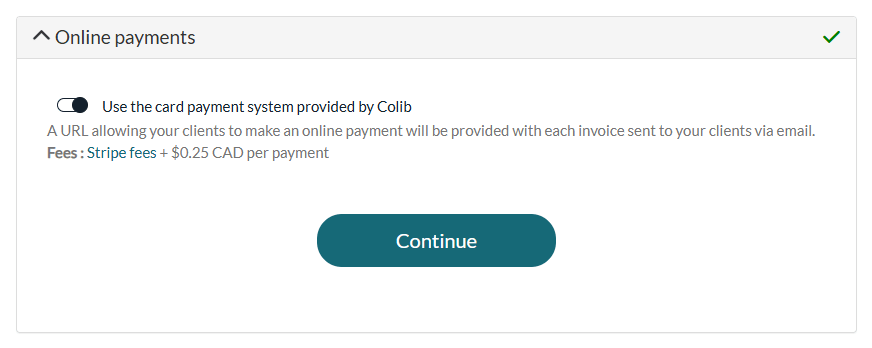
For details, see how to activate the online payment system and the accepted payment methods and fees.
2Collect payment information on your booking page
- Go to Settings > Booking Page (www.colib.io/settings?show=bookingpage).
- Check that the Client booking type is Online booking by client.
- Open the Direct Booking section and, under Payment, turn on Collect the client's payment information during the booking process.
- Optionally, write a Payment information text: it is shown to clients on the screen where they enter their card. It is a good place for your cancellation policy.
- Click Save at the bottom of the page.
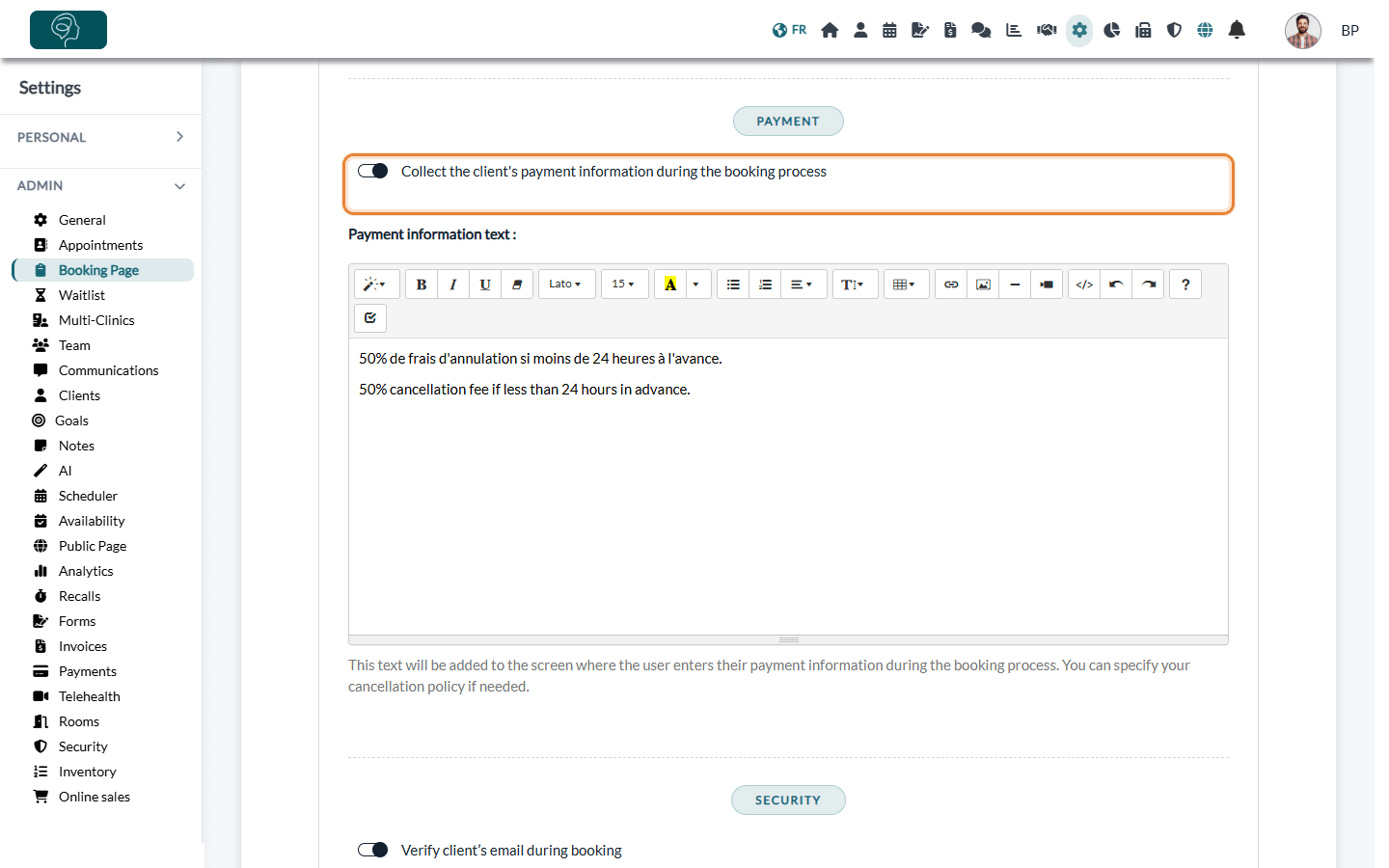
On its own, this option only saves the client's card so that you can charge it later. See how to collect credit card information during booking.
3Turn on Charge upon booking for your appointment types
- Go to Settings > Appointments (www.colib.io/settings?show=appointments).
- Click the pencil icon of the appointment type to charge.
- Make sure the type is available for online booking (Available for client booking and waitlist).
- Open the Invoicing section and check the Price.
- Turn on Charge upon booking.
- Click Save. Repeat for every type that must be paid when booking.
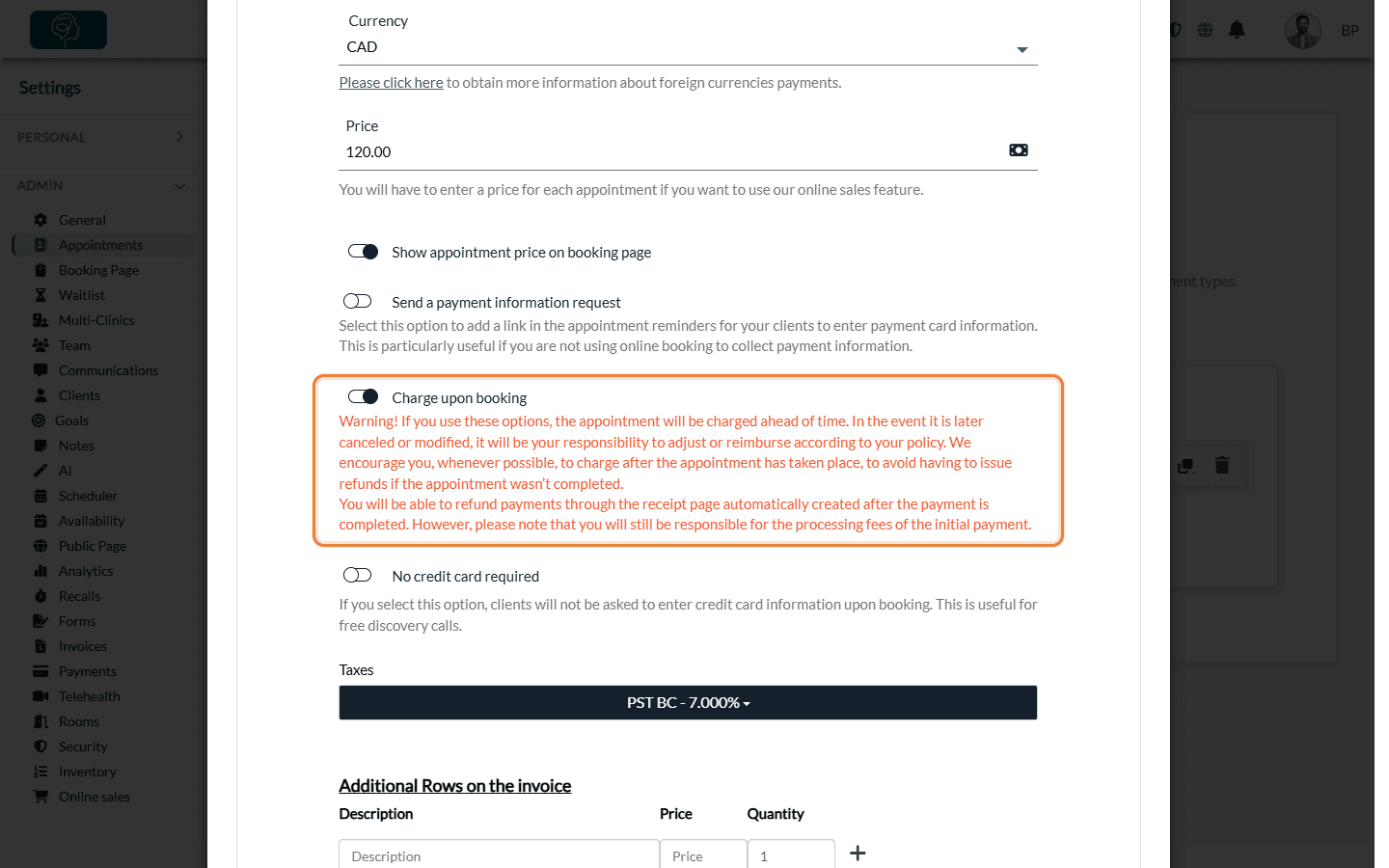
Charge upon booking only appears when the booking page collects payment information (step 2). Types without this option keep the usual behaviour: the card is saved and you charge it later.
What your clients see
- The client chooses the appointment type, then a date and time.
- On the payment step, a message tells them: This appointment will be charged when completing this booking process. Your payment information text is shown below it.
- The client enters their card. The payment is processed securely by Stripe; the card number is not stored by Colib.
- The client reviews the summary and confirms the booking.
- The card is charged at that moment. An invoice marked as paid is created in Colib and the receipt is emailed to the client.
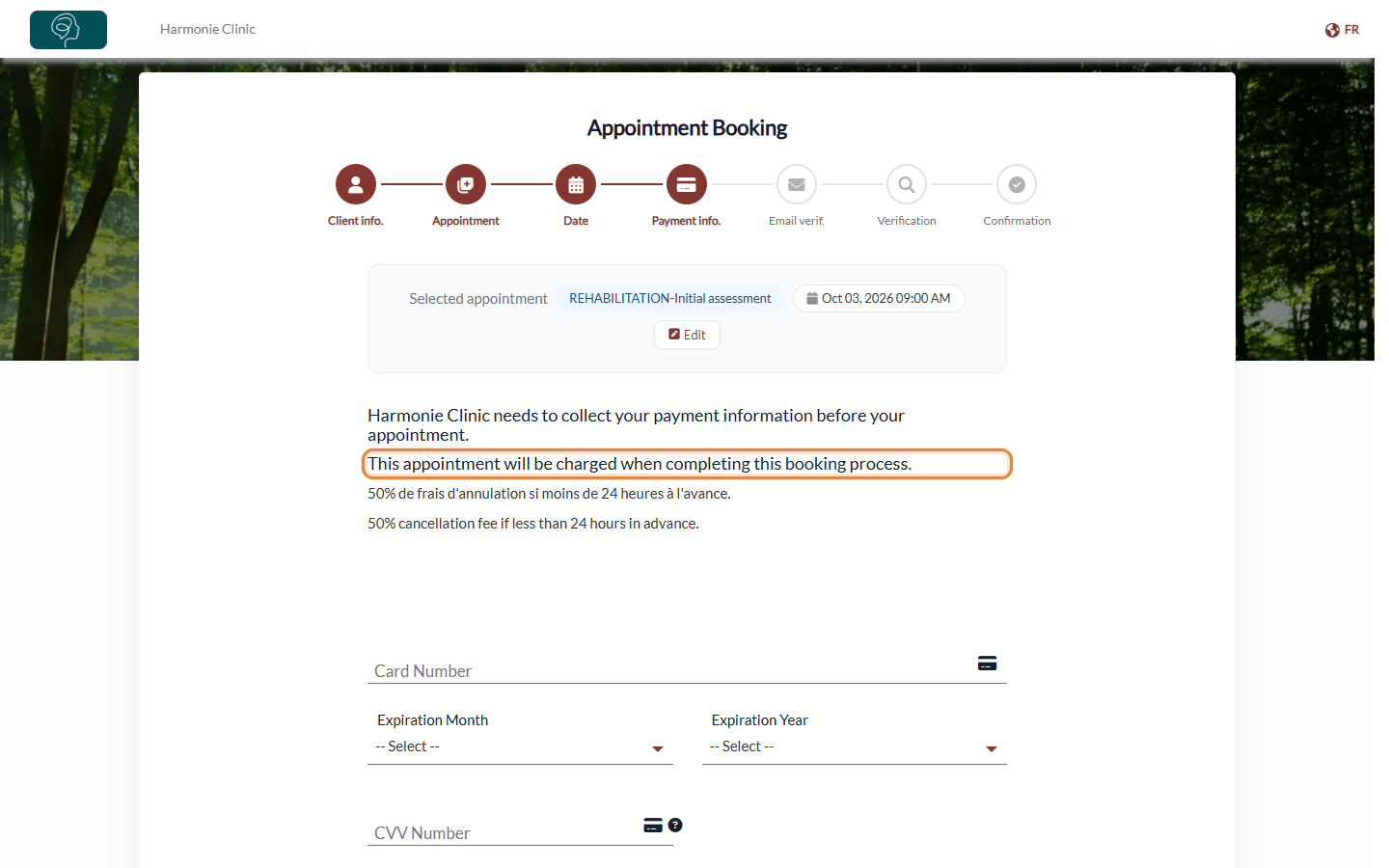
If the payment is declined, the client sees the error message on the payment step. Check your schedule and the client's invoices in this case, and contact the client if needed.
Cancellations and refunds
Important: the appointment is paid in advance. If it is cancelled or changed later, nothing is refunded automatically: it is up to you to refund or adjust according to your policy.
- To refund, open the receipt of the appointment and click the refund icon in the Payments section. The full amount is refunded and the client is notified. See how to refund a payment.
- The processing fees of the original payment are not refunded: they remain charged to your practice.
- Whenever possible, consider charging after the appointment instead, to avoid refunds for sessions that did not take place.
Online payment and deposits: protect your time against last-minute cancellations
Asking for a card when clients book online is the best way to protect your time against last-minute cancellations and no-shows. Colib offers two ways to do it, which you can combine. See also the Online Booking feature page.
| Option | What happens | How to set it up |
|---|---|---|
| 1. Payment at booking | The full price of the appointment (the price of the appointment type, with the taxes of your invoices) is charged to the client's card as soon as they confirm the booking. The client receives the receipt. | Steps 1 to 3 of this article, with Charge upon booking turned on for the appointment type. |
| 2. Card on file, fees for late cancellations and no-shows | The client enters their card when booking but is not charged. If they cancel too late or do not show up, you change the status of the appointment to Late-cancelled or No-Show, and Colib charges your fee to the card on file. You can still charge the session itself after the appointment. | Steps 1 and 2 of this article (leave Charge upon booking off), see how to collect credit card information during booking. Then turn on Automatically charge no-shows & late cancellations in Settings > Invoices (www.colib.io/settings?show=invoices): see how to charge no-shows and late cancellation appointments. |
Important: Colib does not charge a partial deposit at booking (a percentage or a fixed amount lower than the price). Charge upon booking always charges the full price of the appointment. To ask for a smaller amount, use option 2: the late cancellation and no-show fees can each be a Flat fee or a Percentage of the appointment price, charged only when the client cancels too late or does not show up.
- Tell your clients — explain your policy in the Payment information text (shown when the client enters their card) and in your cancellation policy, shown just above the booking button. Please see the article titled "How to display a cancellation policy on your booking page".
- Cancellation deadline — whether clients can cancel online, and until when, is set in Settings > Scheduler: see how to cancel an appointment.
Good to know
- Price required — only types with a price are charged. Leave Charge upon booking off for free appointment types (for example a free discovery call). For these types, you can also turn on No credit card required in the Invoicing section so that clients are not asked for a card.
- Gift certificates — when the client enters a gift certificate code that covers the appointment, the client does not pay by card.
- Card always requested — with Charge upon booking, the client enters a card for every booking, even if a card is already on file.
- Several practitioners — if each practitioner has their own bank account, the payment can be split between the practitioner and the practice. See how to split online payments.
- Related settings — you can also verify the client’s email address during booking.
Still have a question?
Write to us at support@colib.io, we will be happy to help.
Was this article helpful?
That’s Great!
Thank you for your feedback
Sorry! We couldn't be helpful
Thank you for your feedback
Feedback sent
We appreciate your effort and will try to fix the article