Who is this article for?
Occasionally, you may need to refund a payment to a client: an appointment charged in advance and then cancelled, a payment made twice, a goodwill gesture. Colib makes this process straightforward: a card payment collected online through Colib is refunded in a few clicks, directly from its invoice.
This article explains how to refund a payment, what happens next for your client and for your practice, and which payments can be refunded.
Before you start: your practice needs an active payment card in Plan (www.colib.io/planandpayments?show=details), because the fees of the refunded payment are charged to it. You also need the Create-Edit-Delete level for the Access level to the client's financial information right (set by an administrator in Settings > Team, www.colib.io/settings?show=team).
1Open the invoice of the payment
- Go to Invoices (www.colib.io/invoices) and click the invoice associated with the payment. You can also open it from the Billing tab of the client's record.
- Scroll down to the Payments card, at the bottom of the invoice. It lists every payment received for this invoice, with its Date, Amount, Type and Status.
2Click the refund icon
- On the row of the payment, click the refund icon (circular arrow) in the Refund column.
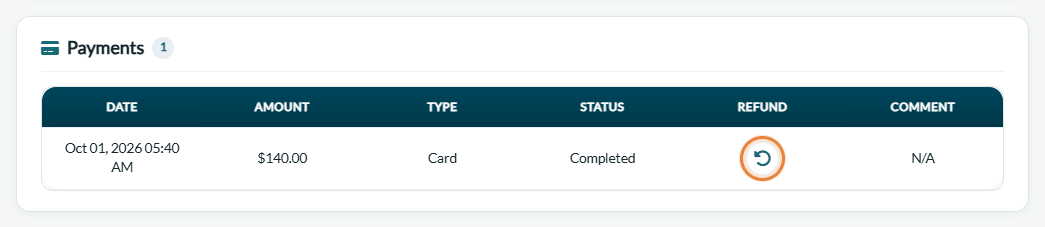
The icon is only shown for a card payment with the Completed status. N/A in the Refund column means that the payment cannot be refunded from Colib (see Which payments can be refunded? below).
3Confirm the refund
- Read the confirmation message: the client will be notified, the action cannot be undone, and the fees related to the payment will be charged to your clinic.
- Click Refund to refund the payment, or Cancel to keep it.
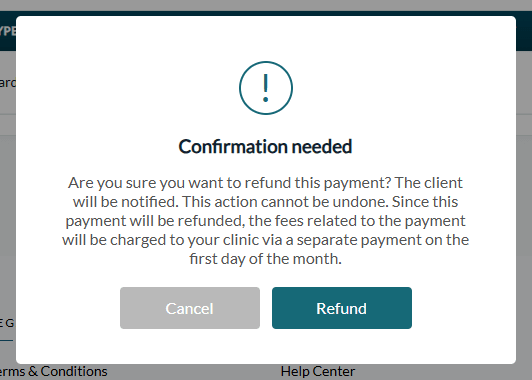
The message The payment has been refunded. confirms the refund and the invoice reloads.
Important: the whole amount of the payment is refunded to the client's card. A refund cannot be cancelled once confirmed.
What happens after the refund
- The invoice and the payment — the status of the invoice becomes Refunded, and the status of the payment in the Payments card becomes Refunded too.
- Your client — your client is notified by email that the payment was refunded. Refunds typically take a few days to process before the money appears on the client's card statement.
- The payment fees — the payment provider does not give back the fees of a refunded payment. The payment fees from the refunded transaction stay at your expense: they are charged to your clinic through a separate payment on the first day of the month, on the payment card of your plan. They are not taken from the refunded amount and they do not change the amount refunded to your client.
- Payments split with a practitioner — if the payment was shared between a practitioner and the practice, both shares are taken back automatically before the client is refunded. See How to split online payments between a practitioner and the practice?
Which payments can be refunded?
| Payment | Refund from Colib? |
|---|---|
| Card payment collected online through Colib (Card, status Completed) | Yes, with the refund icon, for the whole amount. |
| Card payment already refunded or not completed | No: the column shows N/A. |
| Interac e-Transfer (Interac e-Transfer) | No: the money did not go through Colib. Send the money back to the client from your bank. |
| Payment recorded by hand (cash, cheque, terminal, etc.) | No: refund the client the same way you were paid, outside Colib. |
Partial refunds are not available from Colib: the refund icon always refunds the full payment.
Good to know
- No payment card on your plan? — the refund is refused with a message asking you to add a card. Add one in Plan (www.colib.io/planandpayments?show=details), then try again.
- Appointments charged at booking — if an appointment type charges the client upon booking, a receipt is created automatically after the payment. If the appointment is later cancelled, refund it from that receipt; the processing fees of the initial payment stay at your expense.
- Disputes — when a client disputes a card payment with their bank, the information appears in the Comment column of the Payments card.
- Follow your refunds — the Refunds and disputes report of the Reports section (www.colib.io/reports?show=refunds) lists every refunded or disputed payment with the fees that stayed at your expense. For more details, please see the article titled "How to read the Refunds and disputes report".
- Payouts — to see the payouts to your practice and the fees of each payment, read Where can I view the payouts to my practice and the associated payment fees?
Still have a question?
If you have any questions or need assistance, write to us at support@colib.io, we will be happy to help.
Was this article helpful?
That’s Great!
Thank you for your feedback
Sorry! We couldn't be helpful
Thank you for your feedback
Feedback sent
We appreciate your effort and will try to fix the article