Who is this article for?
This article is for practices that collect card payments with Colib and want the client to pay the fees of these payments. It explains how to turn on the setting, how the fees are calculated, and what changes for you and your clients.
In short: when the setting is on, every card payment made through Colib adds a non-taxable Online payment fees line to the invoice. The client pays the invoice amount plus these fees, and you receive the full invoice amount. The price does not change when the client pays another way (cash, Interac e-Transfer, cheque, etc.).
Before you start: online payments must be activated for your practice. See How do I activate the online payment system on Colib?
Important: passing card payment fees on to your clients is regulated by the laws of some provinces and by the card networks' rules. Before turning on this setting, make sure you are allowed to do so for your practice, and let your clients know that fees are added to card payments.
1Turn on the setting
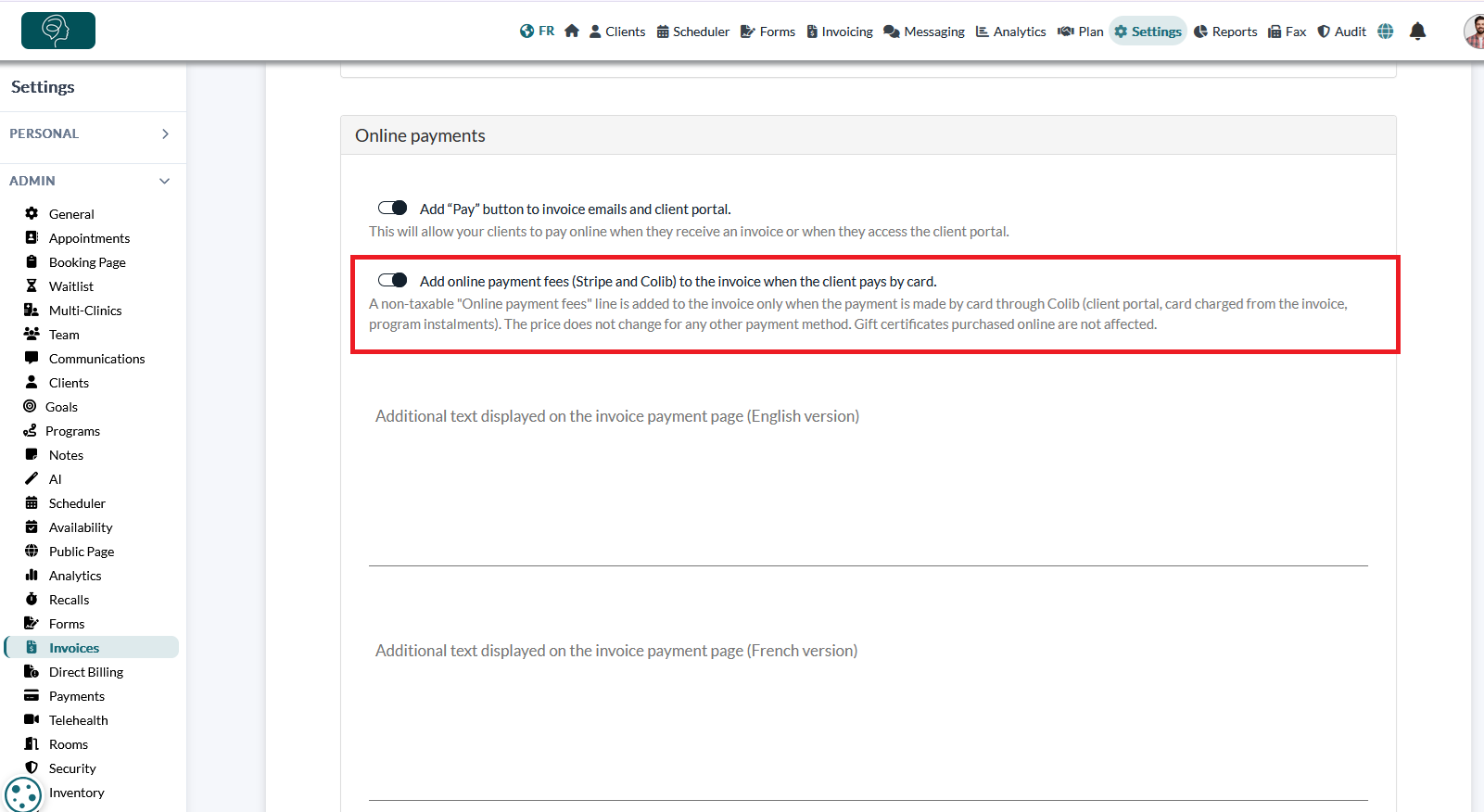
- Go to Settings > Invoices (www.colib.io/settings?show=invoices) and open the Online payments section. It appears once online payments are activated.
- Turn on Add online payment fees (Stripe and Colib) to the invoice when the client pays by card.
- Click Save.
The setting is off by default. It applies to payments made after you turn it on: invoices that are already paid do not change.
2What your client sees when paying online
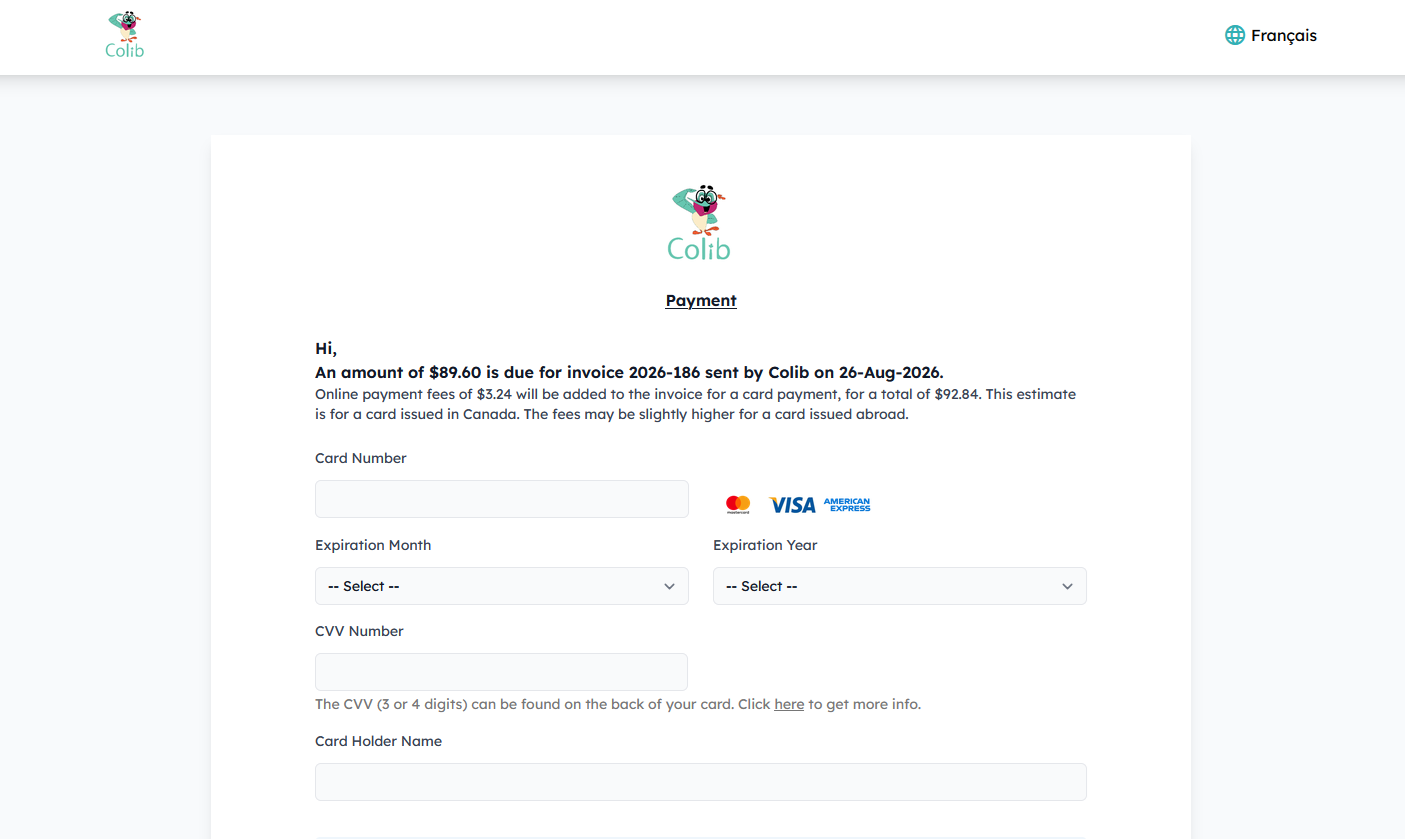
When your client clicks the Pay button in an invoice email or in the client portal, the payment page shows the fees before the card is entered. For example:
Online payment fees of $3.55 will be added to the invoice for a card payment, for a total of $103.55. This estimate is for a card issued in Canada. The fees may be slightly higher for a card issued abroad.
The fees actually added are calculated at the time of payment, based on the country of the card used. Once the payment is made, the invoice and the receipt include the Online payment fees line.
3What you see when you charge the card from an invoice
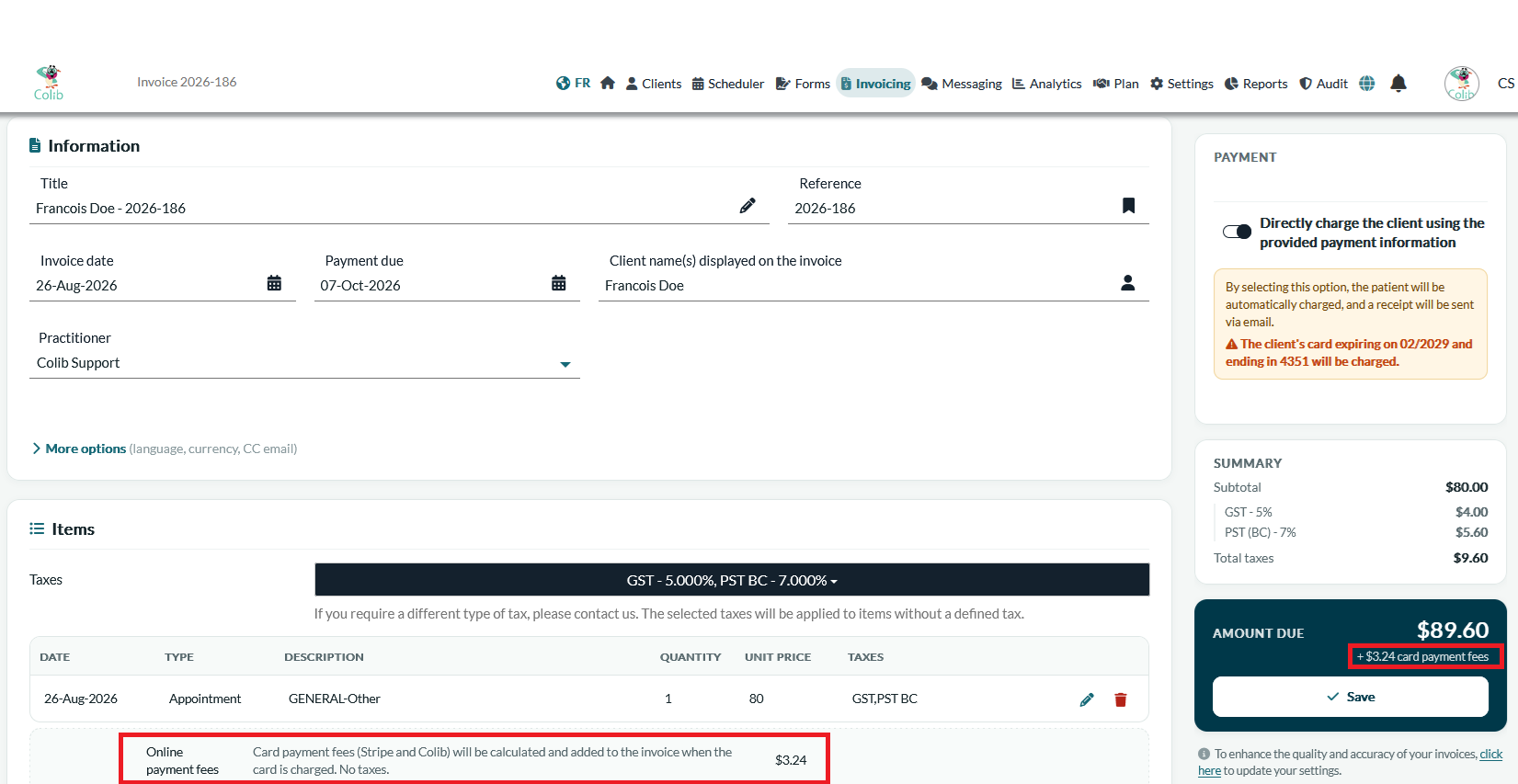
- Open the invoice and turn on Directly charge the client using the provided payment information.
- An Online payment fees line appears below the invoice items, with the amount of the fees. This amount is calculated for the card that will be charged and updates when you change the invoice.
- The fee amount is also shown next to the balance due, for example + $3.55 card payment fees.
- When you save, the confirmation message reminds you that Online payment fees will be added to this amount.
If you turn off the card charge, the fee line disappears: nothing is added to the invoice until the card is charged.
How the fees are calculated
The fees added are the fees of an online payment: the fees of Stripe, our payment partner, plus CA$0.25 for Colib. For rate details, see What payment methods are accepted on Colib? What are the fees?
Because Stripe's fees are calculated on the total amount charged, fees included, Colib adjusts the amount added so that you receive the full invoice amount.
| Example: $100.00 invoice, Canadian card | Amount |
|---|---|
| Online payment fees line added to the invoice | $3.55 |
| Amount charged to the client's card | $103.55 |
| Stripe fees (2.9% of $103.55 + $0.30) and Colib fee ($0.25) | $3.55 |
| Amount you receive | $100.00 |
- Foreign card or other currency — fees are higher when the card is issued outside the country of the payment currency, or when the payment is in a currency other than the Canadian or US dollar. The amount added takes this into account.
- No taxes — the Online payment fees line is never taxed, whatever the taxes of the invoice.
Which payments are affected?
| Payment | Fees added? |
|---|---|
| The client pays the invoice with the Pay button (email or client portal) | Yes |
| You charge the client's saved card from the invoice | Yes |
| The card is charged automatically after an appointment (Automatically charge the client. setting) | Yes |
| Automatic instalments of a Program paid by card | Yes |
| Gift certificates bought in your online shop | No: they can only be paid online, so their price stays the one you set. |
| Payments you record yourself (cash, cheque, Interac e-Transfer, etc.) | No: the invoice keeps its original amount. |
Good to know
- The invoice amount increases — after a card payment, the invoice and the receipt include the Online payment fees line, and their total includes these fees.
- Several card payments — each card payment adds its own fee line, calculated on the amount of that payment.
- Refunds — if you refund the payment in full, the client also gets back the fees they paid. As with any online payment, the Stripe and Colib fees of the original payment are not returned to you. See How to refund a payment.
- Turning off the setting — you can turn it off at any time. Later payments no longer include fees. Fee lines already added to paid invoices stay in place.
- Avoiding the fees — your clients can always pay you another way, for example by Interac e-Transfer, with no fees.
Still have a question?
Email us at support@colib.io, we'll be happy to help.
Was this article helpful?
That’s Great!
Thank you for your feedback
Sorry! We couldn't be helpful
Thank you for your feedback
Feedback sent
We appreciate your effort and will try to fix the article