Who is this article for?
Each service you offer (initial assessment, follow-up visit, video session...) is an appointment type in Colib. Its duration, price, taxes, booking rules and reminders are set once, then reused every time you book this service.
This article shows how to create a new appointment type, step by step, and explains the options that matter most: duration, price, taxes and the practitioners allowed to use it.
Before you start: appointment types are managed in Settings > Appointments (www.colib.io/settings?show=appointments). Only the administrators of the practice can see this page. Every type belongs to a category: create the category first if you need a new one (see How to organize appointment types with categories and sub-categories).
1Open the creation window
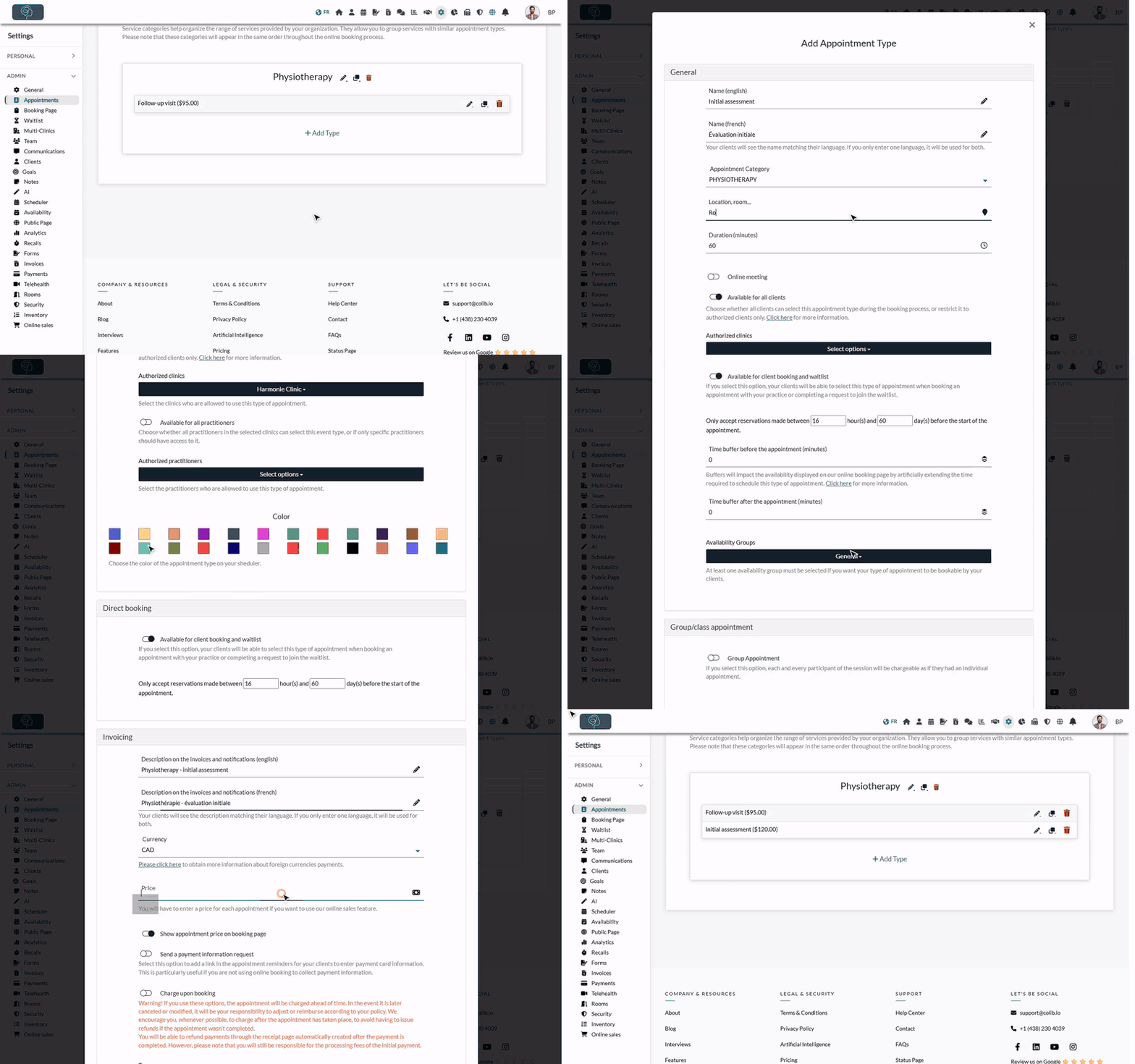
- Go to www.colib.io/settings?show=appointments. You can also click the Settings icon (gear) in the top bar, then Appointments in the Admin menu on the left.
- Find the category where the new service belongs.
- Click + Add Type under the list of that category. The Add Appointment Type window opens.
2Name, category and duration (General section)
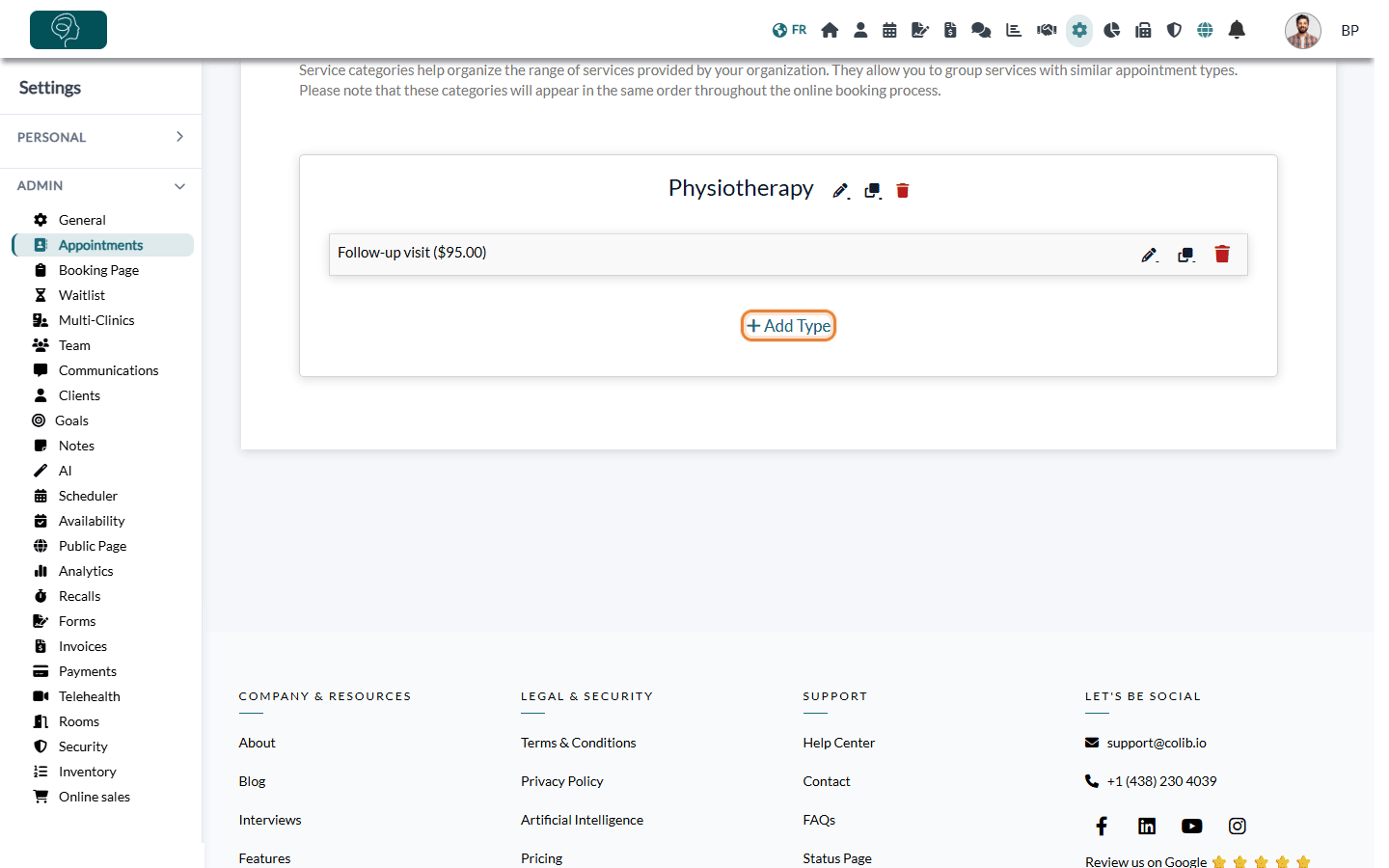
- Enter the name in Name (english) and Name (french). Each client sees the name in their language. If you only fill in one language, it is used for both.
- Check the Appointment Category. If the category has sub-categories, choose the right one in the list.
- Optionally, enter a Location, room... (for example, Room 2).
- Enter the Duration (minutes). It is 60 minutes by default. When you book this type in your scheduler, the end time is calculated from this duration.
- For a video session, turn on Online meeting. You can then turn on Add a Colib video conference link, or paste the link of your own video conference provider in External video conference link. The link is added to the notifications your client receives.
3Choose who can use it (clients, clinics, practitioners)
Still in the General section:
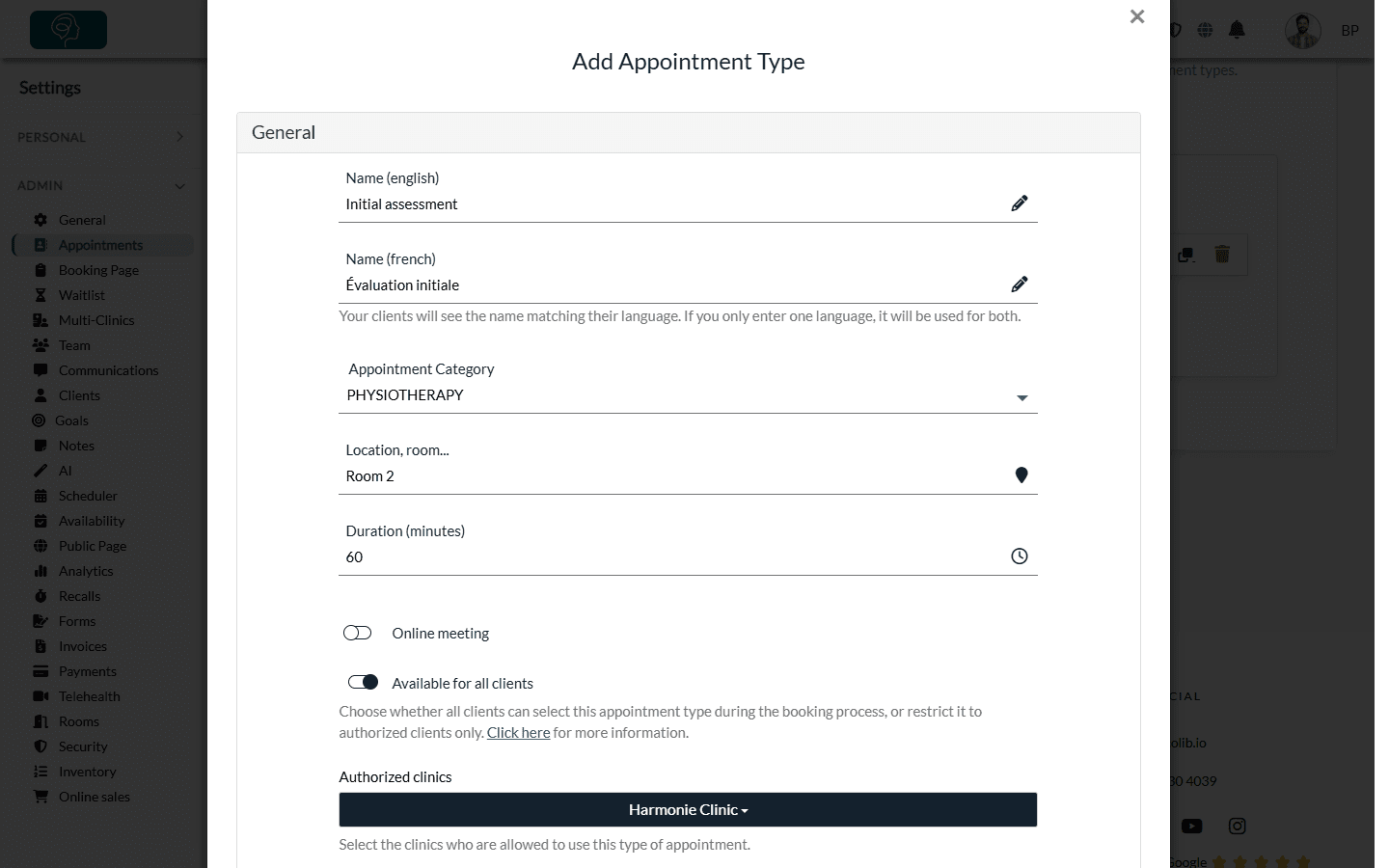
- Available for all clients — on by default. Turn it off to reserve this type for the clients you authorize: other clients will not see it on your booking page.
- Authorized clinics — only if your practice has several clinics. Select the clinics where this service is offered (at least one).
- Available for all practitioners — on by default: every practitioner (of the selected clinics) can use this type. Turn it off to limit it to some practitioners, then select them in Authorized practitioners.
- Color — the color of this type in your scheduler. This option only appears if Use color code by appointment type is turned on in Settings > Scheduler (www.colib.io/settings?show=scheduler). Otherwise, the scheduler uses one color per practitioner.
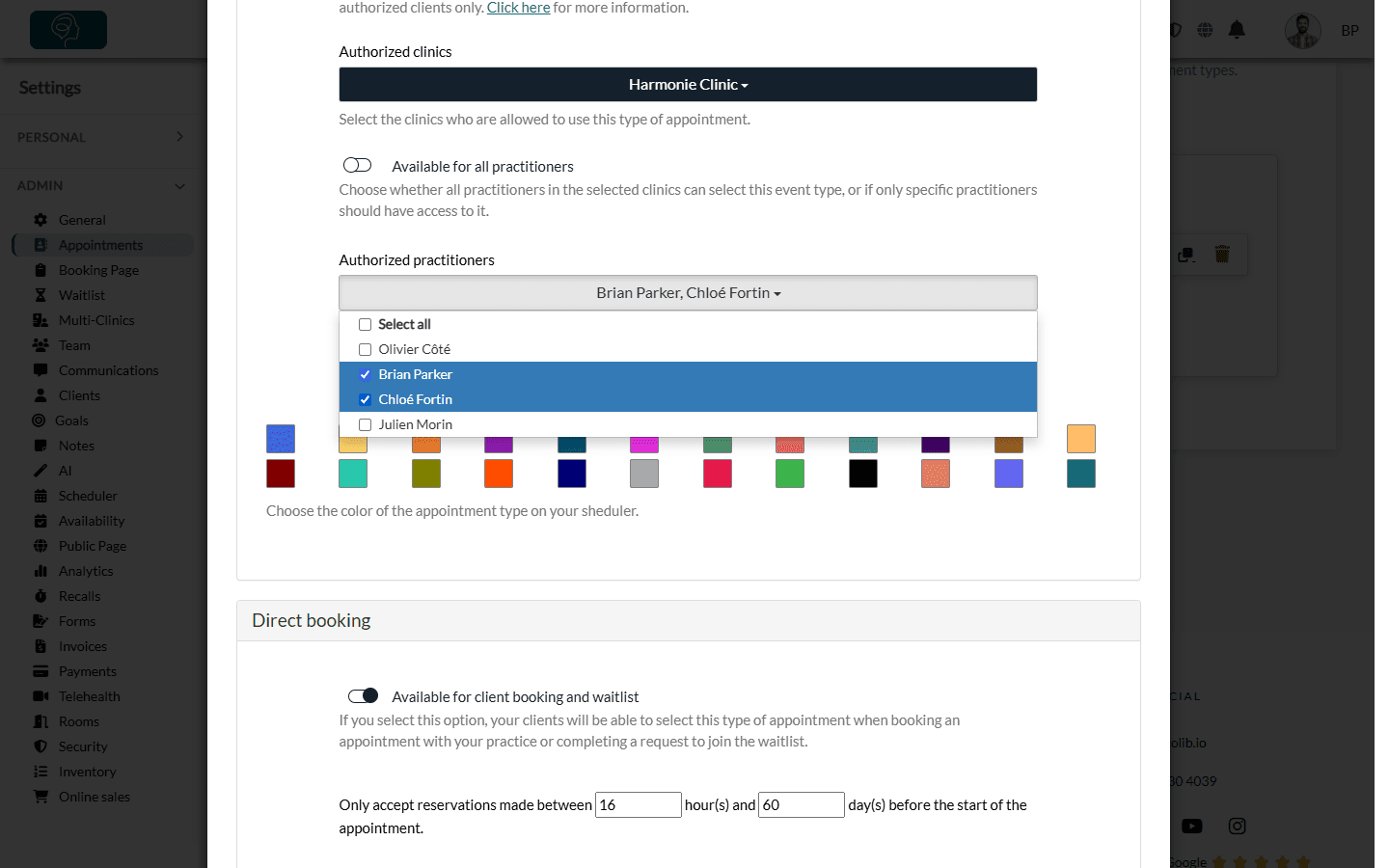
Important: if you turn off Available for all practitioners, select at least one practitioner. Colib lets you save without any, but then no practitioner is authorized to use the type.
4Set the online booking rules (Direct booking section)
- Available for client booking and waitlist — on by default. Turn it off if clients must not choose this type on your booking page or in a waitlist request (for example, a service you only book yourself).
- Only accept reservations made between ... hour(s) and ... day(s) before the start of the appointment — the booking window. By default, clients can book from 60 days to 16 hours before the appointment. See How to control how far in advance clients can book online.
- Time buffer before the appointment (minutes) and Time buffer after the appointment (minutes) — time kept free before and after the appointment (to prepare the room, write your notes...). Buffers reduce the time slots offered on your booking page.
- Availability Groups — only if you use availability groups. Select at least one group, otherwise clients cannot book this type. See How to customize your availability with availability groups.
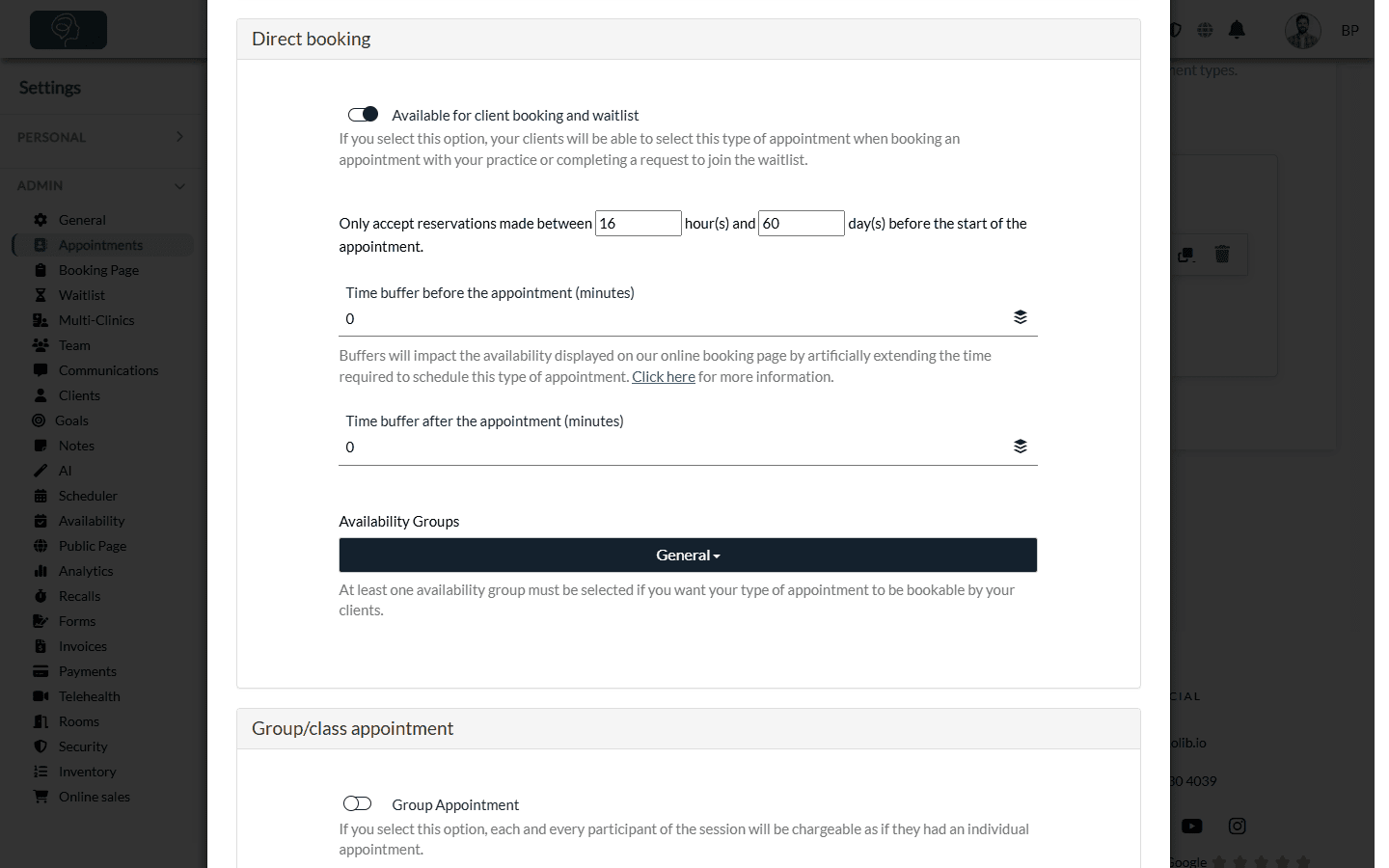
To offer a session to several participants (workshop, group therapy), turn on Group Appointment in the Group/class appointment section and enter the Maximum number of participants. Each participant is invoiced as if they had an individual appointment.
5Set the price and taxes (Invoicing section)
- Enter the Description on the invoices and notifications in English and in French: this is the wording printed on your invoices and shown in the notifications. If you only fill in one language, it is used for both.
- Check the Currency (CAD by default).
- Enter the Price of the appointment, before taxes. A price is required if your practice uses online sales.
- Choose whether to Show appointment price on booking page (on by default).
- Check the Taxes: the default taxes of your practice are already selected. Open the list to add or remove a tax for this service.
- Optionally, add Additional Rows on the invoice (description, price, quantity), for example a product always sold with this service.
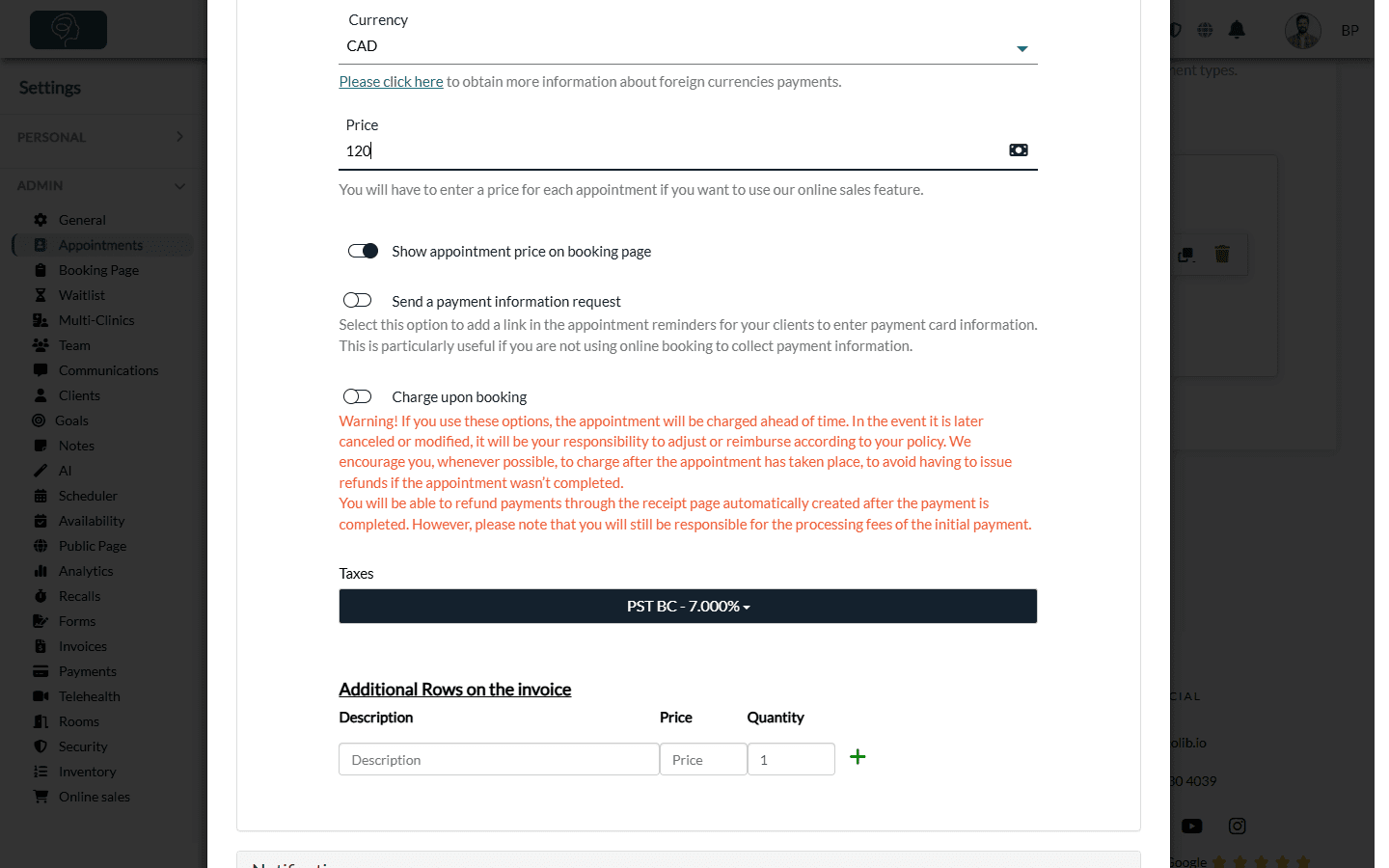
When you create an invoice for an appointment of this type, Colib fills in its description, price and taxes automatically. You can still change them on each invoice.
If you accept card payments, two extra options appear: Send a payment information request (adds a link to the reminders so the client enters a payment card) and, when you collect card information at booking, Charge upon booking.
Where do the default taxes come from? From Settings > Invoices (www.colib.io/settings?show=invoices). If, in that tab, How taxes are applied to your invoices is set to Taxes based on the client's province, the Taxes field is not shown in the appointment type: the taxes are chosen from each client's province. See How to update the default taxes for my invoices.
6Check the reminders (Notifications section)
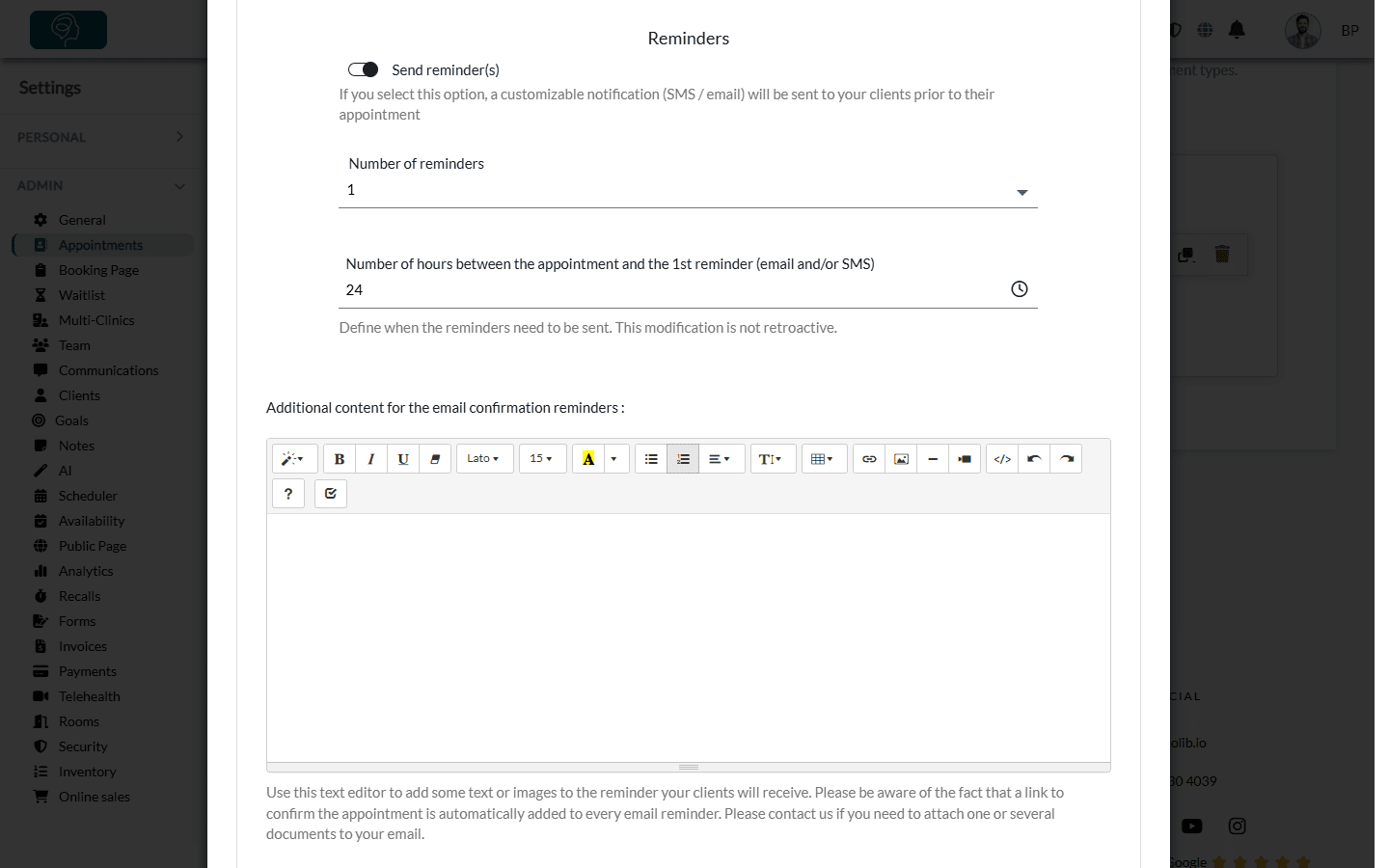
By default, Send reminder(s) is on, with one reminder sent 24 hours before the appointment. You can:
- choose 1 or 2 reminders in Number of reminders and the number of hours before the appointment for each one;
- add your own text to the first notification (Initial notification) and to the reminders;
- turn on Ask the client to confirm their arrival (Arrival confirmation);
- turn on Send a follow up email to send an email a few hours after the appointment.
The next sections are optional: Forms automation (forms sent with the confirmation of this type), Batch upload (name of this service in your previous software, to match it during a data import) and AI-powered note generation settings (note template used for this type).
7Save
- Click Save at the bottom of the window.
- The window closes and the new type appears at the bottom of its category, with its price in parentheses.
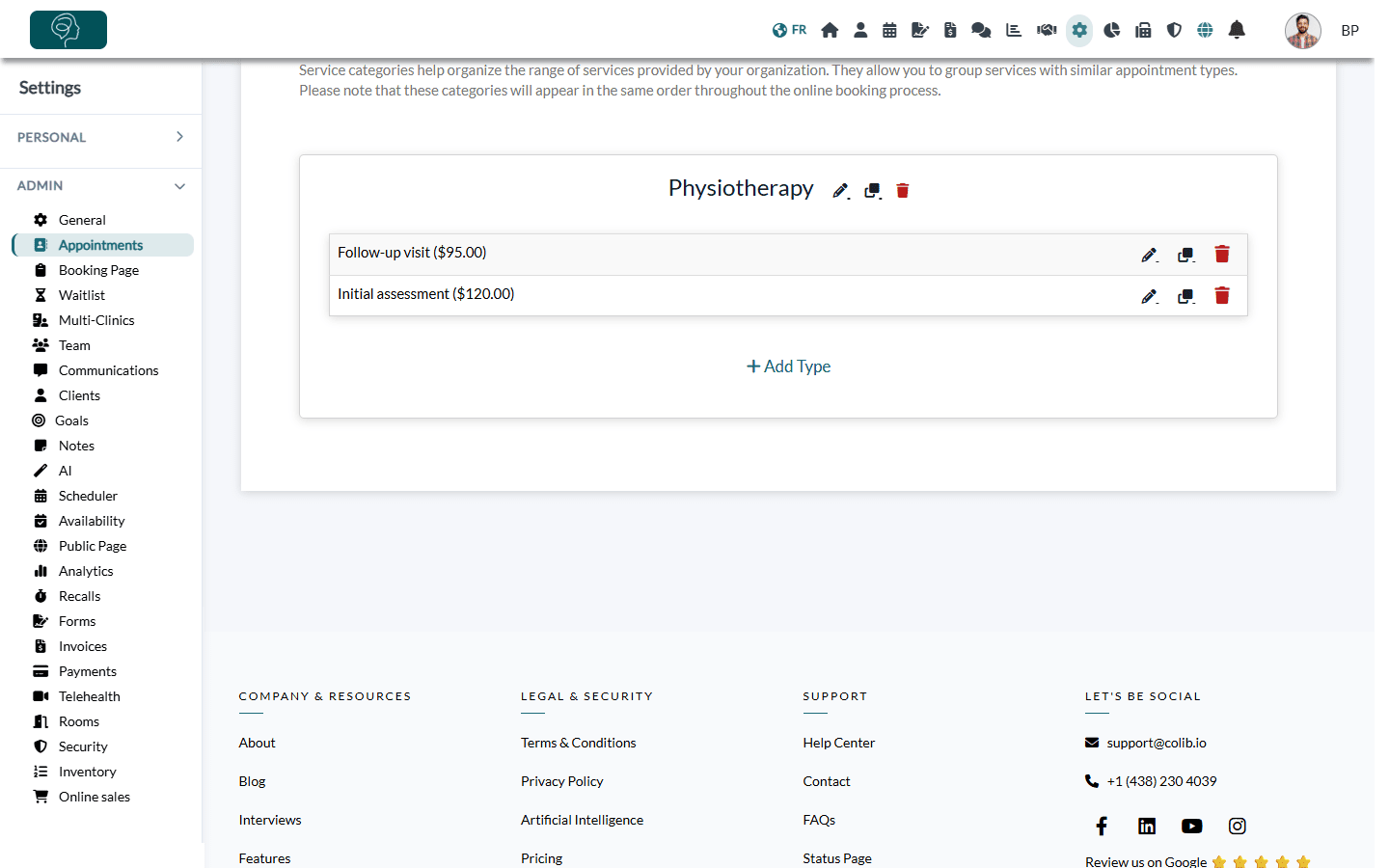
The new type can now be chosen when you book an appointment in your scheduler and, if you allowed it, on your booking page.
Good to know
- Required fields — a name (in at least one language), a category and a duration. With several clinics, at least one clinic. Colib shows a message if something is missing.
- Save time with duplication — to create a variant of an existing service (a longer session, for example), click the duplicate icon on its row instead: all its settings are copied. See How to view, edit, duplicate and delete appointment types
- Options shown when editing only — Room required for this appointment (if you manage rooms) and Refresh scheduled notifications appear when you edit a type that already exists (pencil icon on its row).
- Changes are not retroactive — a new reminder delay applies to the notifications scheduled after your change.
- What each section does — see What appointment types are and why they matter
Still have a question?
Write to us at support@colib.io, we will be happy to help.
Was this article helpful?
That’s Great!
Thank you for your feedback
Sorry! We couldn't be helpful
Thank you for your feedback
Feedback sent
We appreciate your effort and will try to fix the article