Who is this article for?
This article is for practices that charge sales taxes (GST, HST, PST or QST) on their invoices. Colib can apply your taxes in two ways:
- Default taxes and taxes set for each appointment type: you choose the taxes yourself, once for the practice and once for each appointment type.
- Taxes based on the client's province: Colib picks the taxes from the province of the address saved in each client's profile. Useful if you see clients from several provinces, for example online.
This article explains how to choose the mode, how to update your default taxes and the taxes of your appointment types, and what happens on your invoices afterwards.
Before you start: taxes are managed in Settings > Invoices (www.colib.io/settings?show=invoices). You need access to the practice settings to change them. Colib does not give tax advice: check with your accountant which taxes apply to your services.
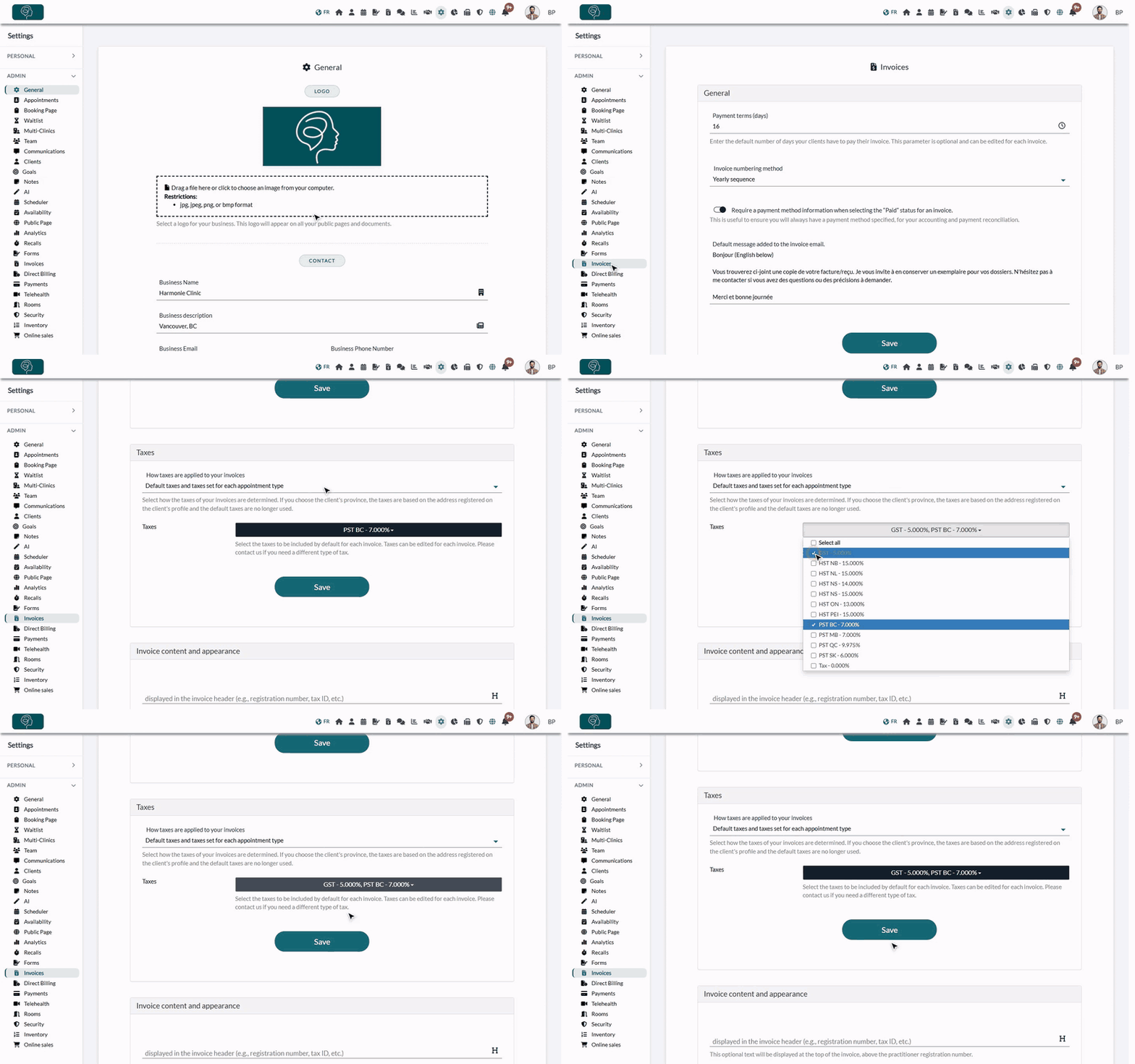
1Open the Taxes section of your invoice settings
- Go to www.colib.io/settings?show=invoices. You can also click the Settings icon (gear) in the top bar, then Invoices in the Admin menu on the left.
- Click the Taxes section to open it.
- In How taxes are applied to your invoices, choose Default taxes and taxes set for each appointment type or Taxes based on the client's province. The fields below change with your choice.
2Option A: update your default taxes
With Default taxes and taxes set for each appointment type:
- Click the Taxes list and tick the taxes to add by default to each invoice (for example GST and PST BC). Untick the ones you no longer charge. Select all ticks every tax.
- Click Save at the bottom of the section. A confirmation message appears.
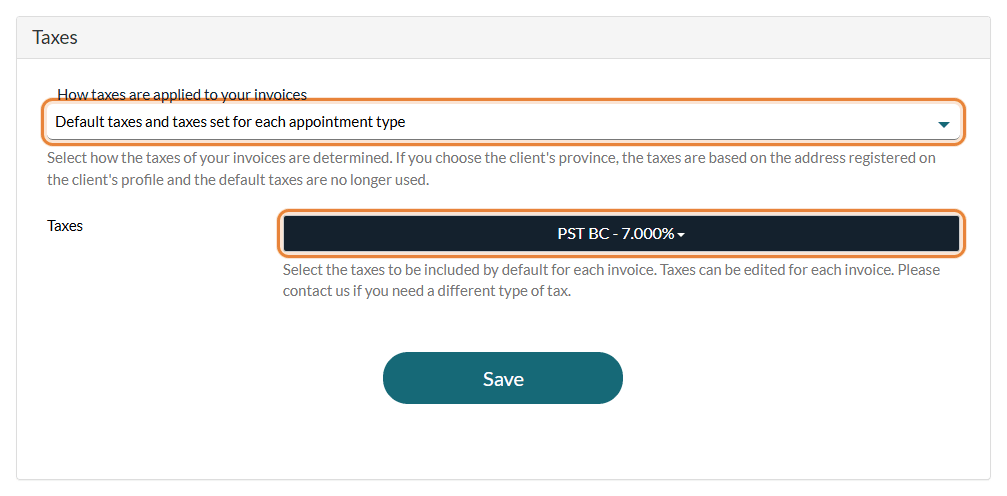
If the tax you need is not in the list, write to us at support@colib.io.
3Option A: update the taxes of each appointment type
In this mode, the line of an appointment on an invoice uses the taxes of its appointment type. Check them after changing your default taxes:
- Go to Settings > Appointments (www.colib.io/settings?show=appointments).
- Click the pencil icon of an appointment type.
- Open the Invoicing section and choose the Taxes of this type.
- Click Save, then repeat for each appointment type as needed.
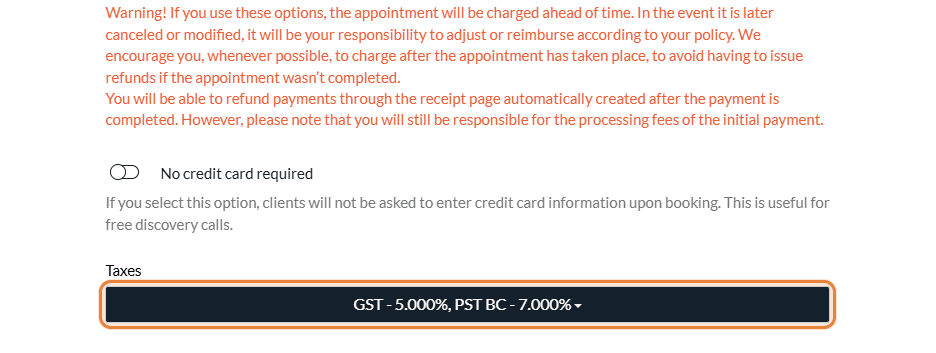
Products sold from your inventory and gift certificate types also have their own Taxes field, in their own settings.
4Option B: apply taxes based on the client's province
With Taxes based on the client's province, the default taxes are no longer used and the Taxes field disappears from your appointment types: Colib chooses the taxes for each client, for appointments and for the products of your inventory added to the invoice.
- Leave The GST applies to my services. turned on if you charge the GST. Turn it off if your services are exempt from the federal tax.
- In Tax exemptions by province, select the provinces where you do not charge the provincial tax, or the HST in the provinces that use it. Leave the field empty if those taxes always apply.
- Click Save.
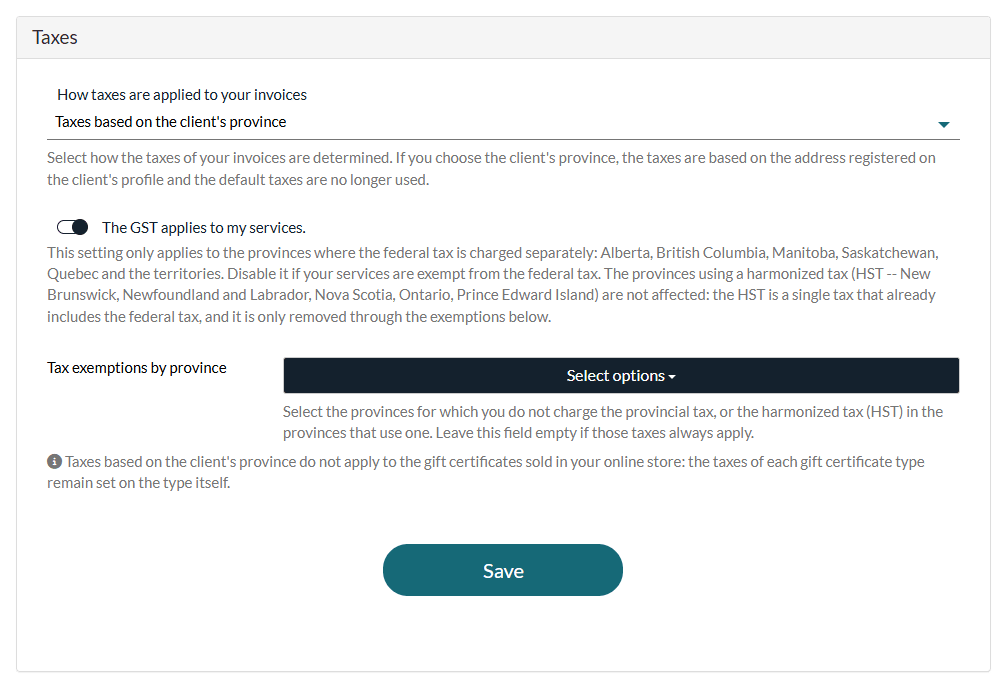
The taxes applied depend on the province of the client:
| Client's province | Taxes added to the invoice |
|---|---|
| New Brunswick, Newfoundland and Labrador, Nova Scotia, Ontario, Prince Edward Island | The HST of the province, which already includes the federal part. Nothing if the province is in your exemptions. The GST option has no effect here. |
| Quebec, British Columbia, Manitoba, Saskatchewan | The GST if The GST applies to my services. is on, plus the provincial tax (QST or PST) unless the province is in your exemptions. |
| Alberta and the territories | The GST if The GST applies to my services. is on (no provincial tax). |
The province comes from the Address section of the client's Profile tab. Open the client from your client list (www.colib.io/clients) to check or complete it.
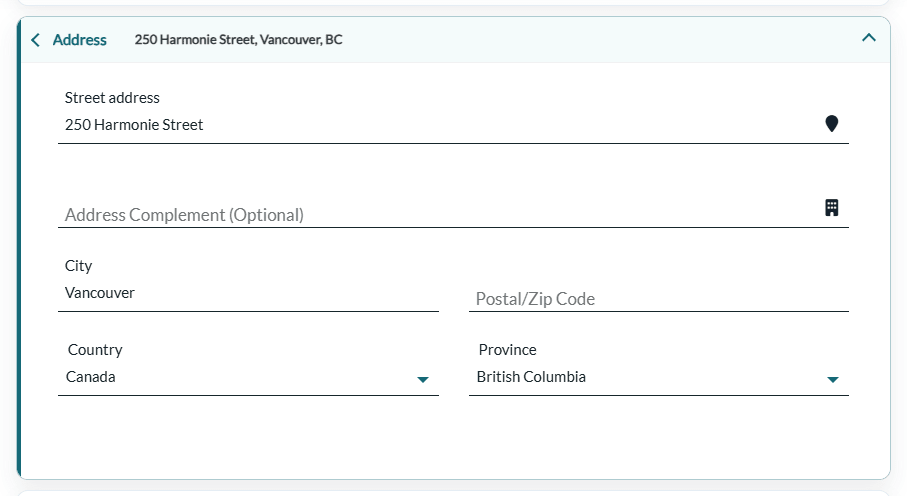
Important: in this mode, a client without an address gets no taxes. A red message at the top of the invoice asks you to add an address to the client's profile, and no invoice is created or charged automatically when you change the status of their appointment (a warning tells you so).
5Check your next invoice
Your next invoice automatically applies the updated tax settings. On each invoice, the taxes are only pre-filled: you can still change them on the invoice itself, globally or line by line, before saving it.
Good to know
- Existing invoices do not change — an invoice already saved keeps its taxes. To fix one, open it and change its taxes manually (for a paid invoice, see How to edit a receipt (invoice already paid)).
- Gift certificates — taxes based on the client's province do not apply to the gift certificates sold in your online store: their taxes stay set on each gift certificate type.
- Tips and payments — tip and payment lines of an invoice are never taxed.
- Create an invoice — see How to create and send an invoice or a receipt.
Still have a question?
Write to us at support@colib.io, we will be happy to help.
Was this article helpful?
That’s Great!
Thank you for your feedback
Sorry! We couldn't be helpful
Thank you for your feedback
Feedback sent
We appreciate your effort and will try to fix the article