Who is this article for?
If your invoices carry taxes (GST, HST, PST, QST...), you must know how much you collected for each tax when you file your tax remittance. The Taxes collected report of the Reports section gives you these amounts month by month and tax by tax, with the amounts before and including taxes, and exports them to Excel or PDF.
Before you start: you need the Access to the Reports section right and access to the clients' financial information. For more details, please see the article titled "Who can access the Reports section and how to export a report to Excel or PDF".
1Open the Taxes collected report
- Go to www.colib.io/reports?show=taxes, or click the Reports icon (pie chart) in the top bar, then Taxes collected in the menu on the left.
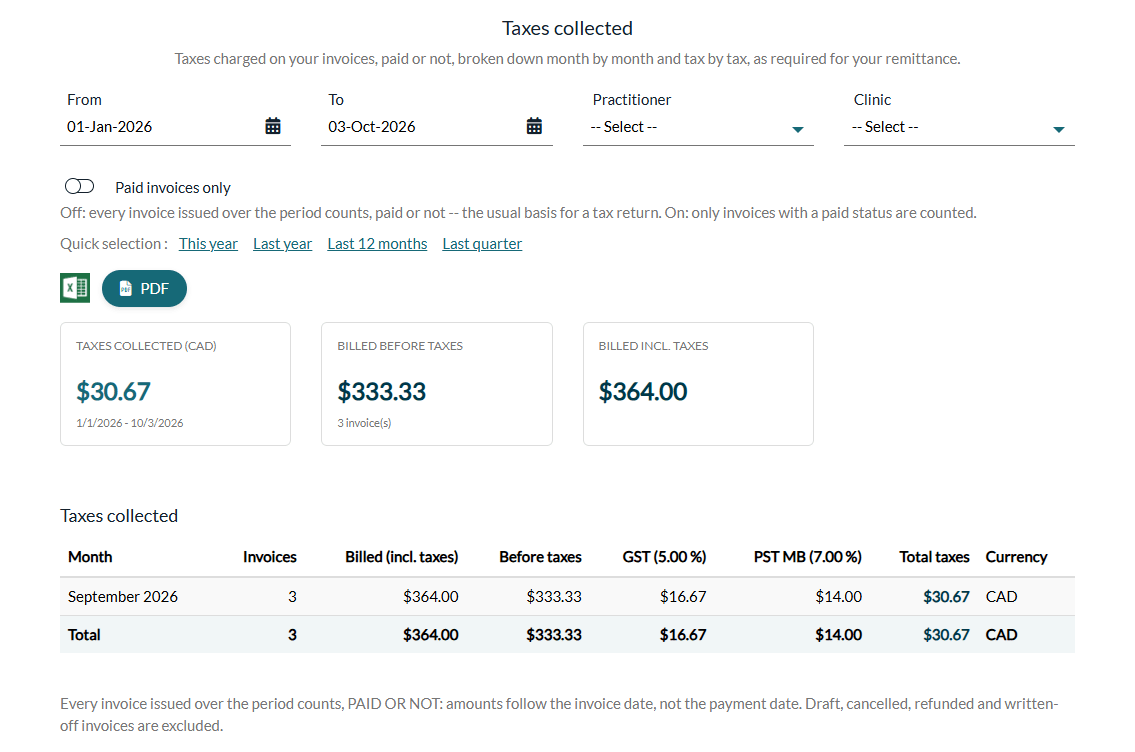
- The report is calculated right away, from January 1 of the current year to today.
2Choose the period of your remittance
- From and To — pick the first and last day of the period (both included).
- Quick selection — Last quarter selects the previous calendar quarter, the usual period of a quarterly remittance; Last year the previous calendar year; Last 12 months and This year are also available.
- Practitioner — only keeps the invoices of that practitioner.
- Clinic — shown only if your practice has several clinics; only keeps the invoices of that clinic.
3Choose which invoices count
The Paid invoices only switch decides which invoices are counted:
- Off (default) — every invoice issued over the period counts, paid or not. As the screen reminds you, this is the usual basis for a tax return.
- On — only invoices with a paid status are counted. Unpaid, partially paid, in progress and on hold invoices are left out completely: the tax of an invoice is never split.
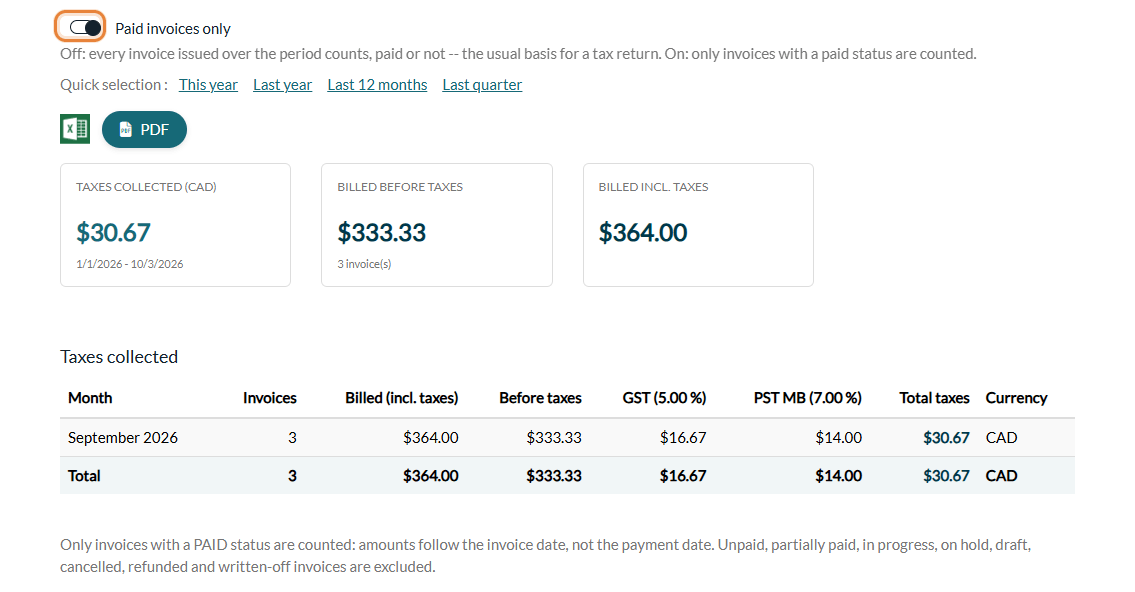
The grey note under the table always describes the rule in use, and the PDF shows Paid invoices only in its filters when the switch is on, so two exports of the same period can never be confused. Check with your accountant which basis applies to you.
4Read the summary cards and the table
Three cards sum up the period: Taxes collected (with the currency in brackets), Billed before taxes (with the number of invoices) and Billed incl. taxes.
The table has one line per month, most recent first, and a Total line:
| Column | Meaning |
|---|---|
| Invoices | Number of invoices counted in the month. |
| Billed (incl. taxes) | Total of those invoices, taxes included. |
| Before taxes | The same total without the taxes. |
| One column per tax | Named after the tax and its rate, for example GST (5.00 %) or PST MB (7.00 %). Provincial taxes each have their own column. Only the taxes actually found on your invoices over the period are shown. |
| Unallocated | Appears only when part of the tax of some invoices cannot be assigned to a known tax (a rounding difference, for example). The amount stays visible here so that the total remains exact. |
| Total taxes | All the taxes of the month: always equal to the sum of the taxes of the invoices counted. |
| Currency | If you bill in several currencies, each month has one line per currency, with its own total and its own cards. Amounts are never added across currencies. |
How the report relates to your invoices
- The invoice date decides the month — not the payment date. An invoice dated March 30 and paid in April counts in March, in both modes.
- The taxes are those of each invoice — the report adds up the taxes applied on each invoice, as they appear on it. Changing your default taxes later does not change the invoices already issued. See How to update the default taxes for my invoices?
- Invoices left out — draft, cancelled, refunded and written-off invoices never count: they carry no tax to remit.
- The detail invoice by invoice — go to Invoices (www.colib.io/invoices) and click the Excel icon: the taxes of each invoice are in the downloaded file.
5Export the report
Click the Excel icon (Export to Excel) for a workbook your accountant can work with, or PDF (Download the PDF report) for a document with your logo, the period, the filters, the date of issue and its author. Both show exactly the figures of the screen, for the period and the filters displayed.
Good to know
- Your own scope — the report only counts the invoices of the clients whose financial information you can see. A team member without the Ability to see other practitioners information only sees their own invoices.
- Fees are not taxes — the fees withheld on your online payments are in the Processing fees report. For more details, see How to export a report of payment provider fees and payment taxes.
- No data? — No data over this period. means that no invoice matches the period, the filters and the Paid invoices only switch.
- Related article — for an overview of the six reports, please see the article titled "How to use the Reports section".
Still have a question?
Write to us at support@colib.io, we will be happy to help.
Was this article helpful?
That’s Great!
Thank you for your feedback
Sorry! We couldn't be helpful
Thank you for your feedback
Feedback sent
We appreciate your effort and will try to fix the article